Snippets
Roles: Viewer, Packager, Releaser, Administrator
Overview
Snippets are text blocks for opsi-script that you insert in the script editor by double-click, autocompletion or the context menu. The Snippets view in the activity bar is where you manage them: create categories, write and test snippets, import and export files.
Viewers see all snippets but cannot change anything. From the Packager role on, you create your own snippets and maintain the shared categories.
Global and personal snippets
Every snippet has a Visibility:
| Visibility | Who sees it? | Who may change it? |
|---|---|---|
| Global (everyone) | all users | administrators only |
| Only me | only you | only you |
In the list, the badge global or mine shows the visibility. Categories, by contrast, are shared by everyone: every Packager can create, rename and delete categories, and everyone sees the same category structure.
Only administrators may create, change, move and delete global snippets. If you open a global snippet as a Packager, you see the notice “Global snippet – only admins can change it. Use “Duplicate” to create your own copy.” Click Duplicate to create your own copy that you can edit freely.
Layout of the view
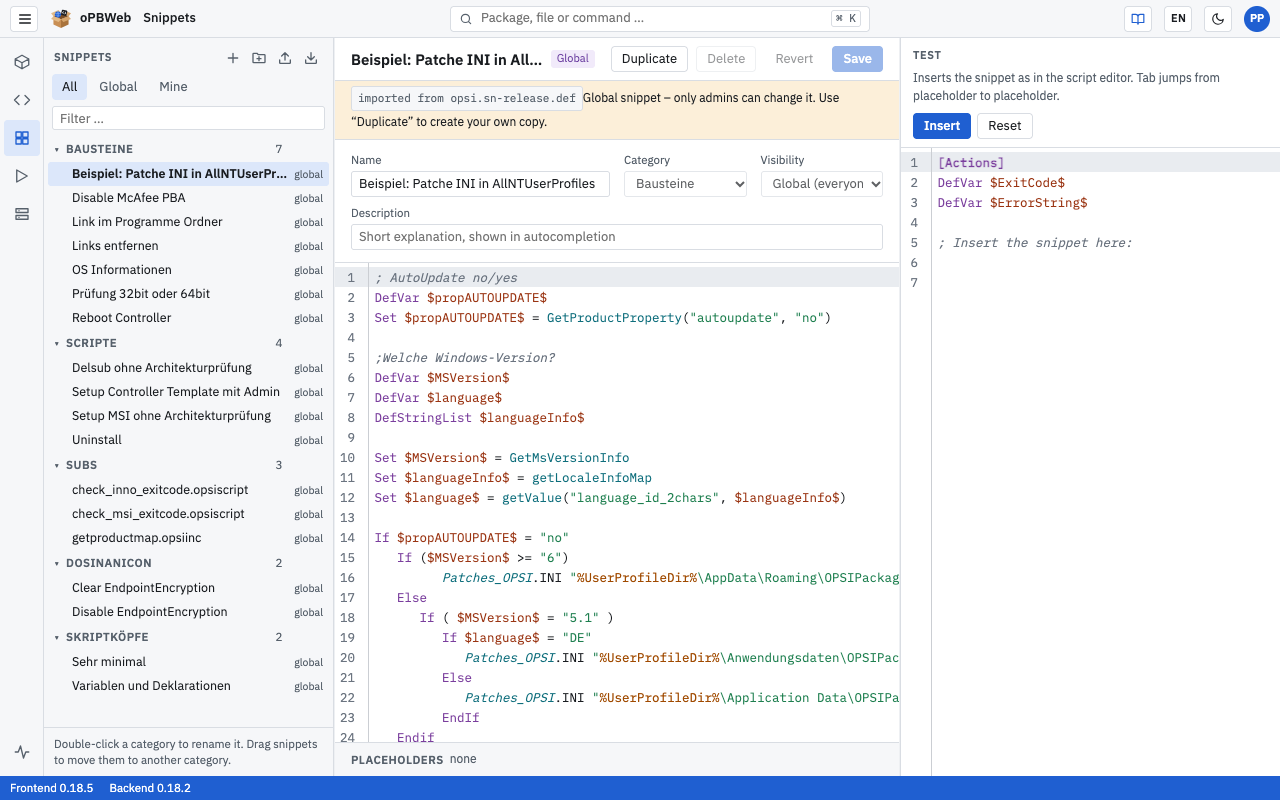
The view has three columns. Drag the edge of the left and right columns to change their width.
- Left – SNIPPETS: the buttons New snippet, New category, Import snippets and Export snippets, below them the filter All | Global | Mine and the search field “Filter …” (searches name and text). Below that, the category tree with the number of snippets per category.
- Center: the selected snippet with the fields Name, Category, Visibility and Description, the code editor and the PLACEHOLDERS bar. At the top right: Duplicate, Delete, Revert and Save.
- Right – TEST: a small script editor where you try out how the snippet behaves when inserted.
Managing categories
Every snippet belongs to exactly one category. Before you can create the first snippet, at least one category must exist.
- Create: Click New category. The category is initially called “New category”.
- Rename: Double-click the category name or click ✎ (Rename category). Enter the new name and confirm with Enter; Esc cancels. Category names must be unique.
- Delete: Click × next to the category. This only works for empty categories (“Only empty categories can be deleted”).
- Move a snippet: Drag a snippet onto another category. Only administrators can move global snippets.
Creating and editing a snippet
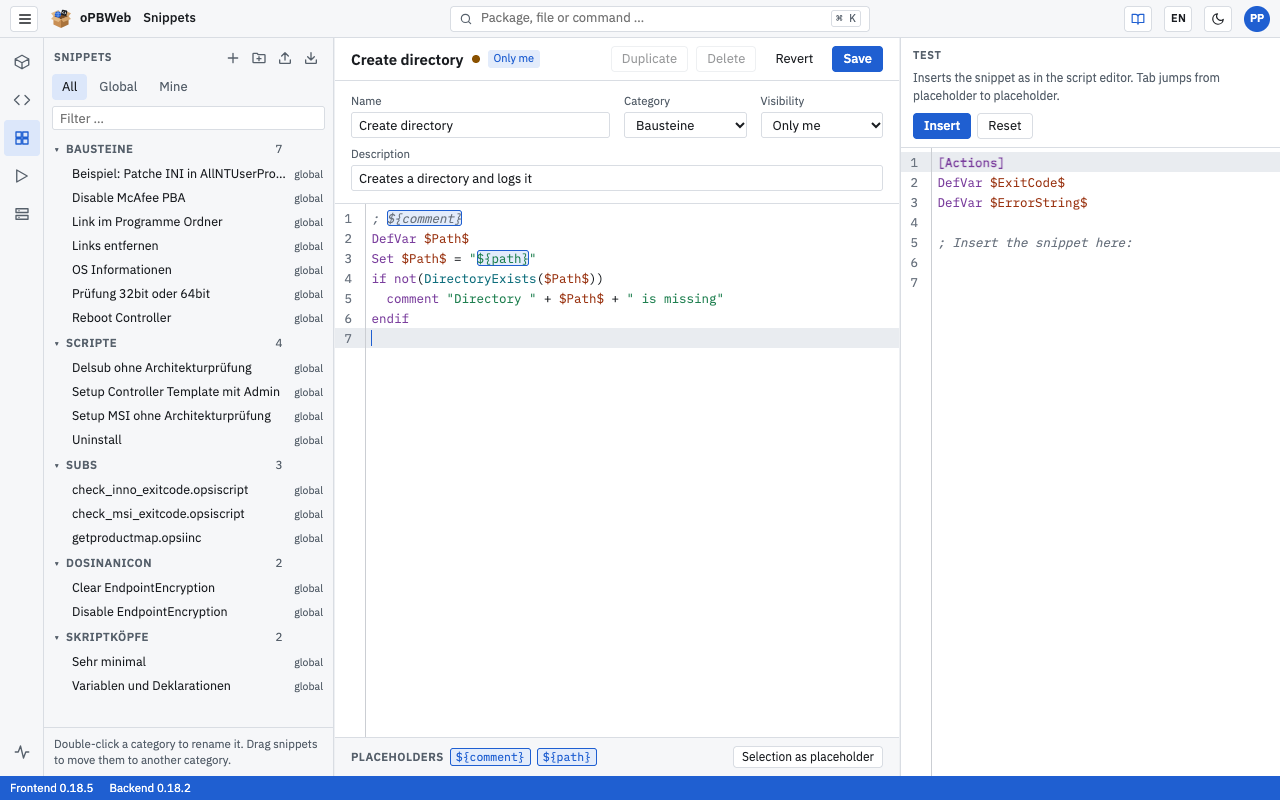
- Click New snippet. A draft named “New snippet” with the text
; ${Kommentar}is created. - Enter a meaningful Name and choose the Category.
- Choose the Visibility. As a Packager, only Only me is available; Global (everyone) is reserved for administrators.
- Optionally enter a Description. It appears later in the autocompletion of the script editor.
- Write the snippet text in the editor. It supports opsi-script highlighting; placeholders are highlighted in color.
- Click Save.
As long as there are unsaved changes, a dot next to the title indicates them. Revert restores the saved state. If you switch to another snippet with unsaved changes, oPBWeb asks “Discard unsaved changes?”.
Delete removes the snippet permanently after a confirmation.
Placeholders
Placeholders mark the spots you have to adjust after inserting. They have the form ${name}, for example:
; ${Kommentar}
Winbatch_${Sektionsname}
After inserting, press the Tab key to jump from placeholder to placeholder and type over each one.
- The PLACEHOLDERS bar below the editor lists all placeholders of the snippet (or “none”).
- Select some text in the editor and click Selection as placeholder to wrap it in
${…}.
Testing a snippet
In the TEST area, you try out the snippet before you use it in a real script:
- Place the cursor at the desired position in the test editor.
- Click Insert. The snippet is inserted exactly as in the script editor.
- Press Tab to step through the placeholders.
- Click Reset to restore the sample text in the test editor.
Creating a snippet from the script editor
You can also create a snippet directly from a script:
- Select the text in the script editor.
- Right-click to open the context menu and choose Create snippet from selection ….
- In the “Snippet from selection” dialog, check Name (prefilled with the first non-empty line), Category and Visibility. Use “New category” to create a new category right away if needed.
- Click Save.
How to insert snippets in the script editor is described in Script editor .
Importing snippets
oPBWeb reads two file formats:
- oPBWeb JSON exports (
.json, format “opbweb-snippets”), for example from another oPBWeb installation or a colleague. - Snippet files of the old ScriptEditor (
opsi.sn-*.def, for exampleopsi.sn.def).
To import:
- Click Import snippets.
- Choose the Visibility of the imported snippets. Packagers always import as Only me; only administrators can import globally.
- Click Choose file … and select the file.
oPBWeb then reports “42 snippets imported, 3 skipped”. Snippets that already exist with the same name in the same category and visibility are skipped. Missing categories are created automatically; snippets without a category end up in „Allgemein“ (General).
The old ScriptEditor wrote placeholders in angle brackets (<name>). On import, oPBWeb converts them to ${name}. The imported snippet then shows the notice “Legacy placeholders in angle brackets were converted to ${x} on import.” with a list of the conversions, and its origin “imported from …”.
Exporting snippets
Click Export snippets (the button is available from the Packager role on). Your browser downloads the file opbweb-snippets.json. It contains all snippets you are allowed to see, that is all global ones and your own, each with name, category, description and text. You can import the file again in another oPBWeb installation.