Script Editor
Role: Packager
Overview
To open a text file of the package, click it in the file tree (see Package files ). It opens as a separate tab next to the control tab in the script editor. For opsi scripts, the editor offers completion, error checking, command help and snippets. All other text formats get syntax highlighting. You set the highlighting colors per file type under My account .
You can only edit files in a version with the status Draft and with at least the Packager role. Otherwise the editor is read-only; reading, searching, help and copying text still work.
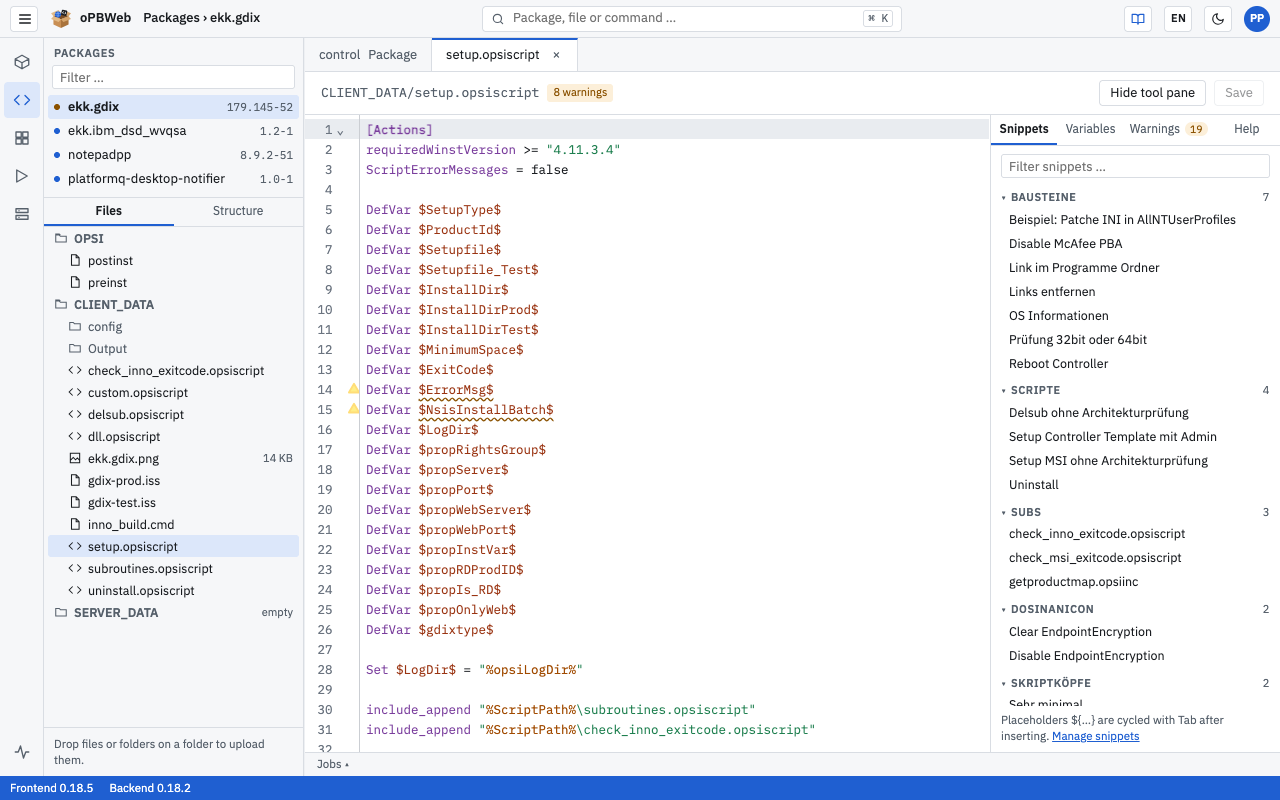
Layout
- Tab toolbar: the file path, for opsi scripts the counters “2 errors” and “5 warnings”, the Hide tool pane or Show tool pane button for the side pane, and Save.
- Editor area: line numbers, fold markers in the margin and, for opsi scripts, a gutter with diagnostic icons.
- Side pane (opsi scripts only) with the tabs Snippets, Variables, Warnings and Help. Drag its edge to make it wider or narrower.
- Bottom JOBS panel: shows the cursor position (“Ln 12, Col 8”) and the line ending of the file (CRLF or LF) on the right.
Line endings are preserved when you save: a file with Windows line endings (CRLF) stays a CRLF file.
Supported languages
The editor detects the language from the file name.
| Language | Files |
|---|---|
| opsi-script | .opsiscript, .opsiinc, .ins, .opsifunc |
| Shell / Batch | preinst, postinst, .sh, .cmd, .bat |
| Inno Setup | .iss, .isl |
| AutoIt | .au3 |
| PowerShell | .ps1, .psm1, .psd1 |
| INI and similar | .ini, .inf, .reg, .cfg, .conf, .properties, .toml, .desktop |
| XML | .xml, .xsd, .xsl, .manifest, .config, .plist, .svg |
| YAML | .yml, .yaml |
| JSON | .json |
| Python | .py |
For opsi-script, the editor knows the language scope from the opsi-script manual 4.3: statements, built-in functions, section types, secondary section commands and constants. It also knows the functions of the uib libraries that ship with opsi-script (for example uib_exitcode.opsiscript, uib_strlistutils.opsiscript, uib_backend.opsiscript, osd-lib.opsiscript).
All other features – completion, diagnostics, help, context menu, snippets and side pane – are available for opsi scripts only.
Completion
As you type, the editor suggests matching entries. Press Ctrl+Space to open the list manually at any time. Use the arrow keys to choose an entry and Enter to accept it.
The editor suggests:
- opsi-script statements and built-in functions,
- functions of the uib libraries, each with the required
importLib "<file>"as its origin, - functions defined in the package itself with
DefFunc(see Package functions ), - variables of the current file as soon as you type
$, - constants such as
%ScriptPath%as soon as you type%, - sections of the file,
- snippets, labeled with “Snippet ·” and their category, for example “Snippet · Allgemein”.
When you accept a function, the editor adds the parentheses and places the cursor inside them. Within the parentheses, a small tooltip shows the signature; the parameter you are currently typing is bold.
Command help
When you hover over a command, function, variable or constant, a tooltip appears:
- for commands and functions, the signature and a short description, if applicable with “since opsi-script 4.12”,
- for variables, the type of declaration and “declared in line 5”,
- for constants, their meaning.
The descriptions of commands, functions and constants are summaries from the German opsi-script manual and stay German in the English UI as well.
The detailed help is in the Help tab of the side pane: name, signature, description, category and origin (for example the library, or the file with line number). The tab always shows the help for the most recently requested command, even if you only hovered over it. Press F1 on the command or choose Command help in the context menu to switch the side pane straight to the Help tab.
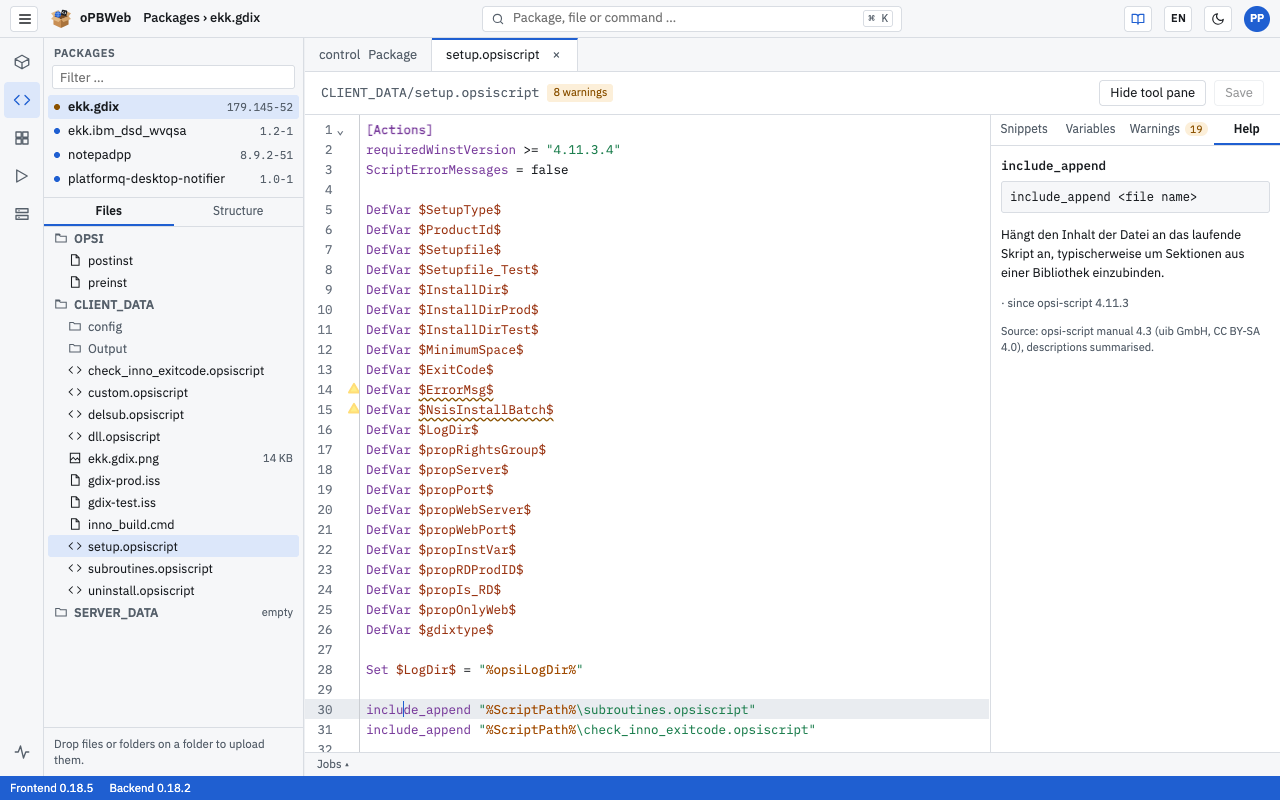
If the editor finds no entry, the tab shows “No help found for “Messagebox”.” The descriptions are summaries from the opsi-script manual 4.3 by uib GmbH (CC BY-SA 4.0).
Diagnostics
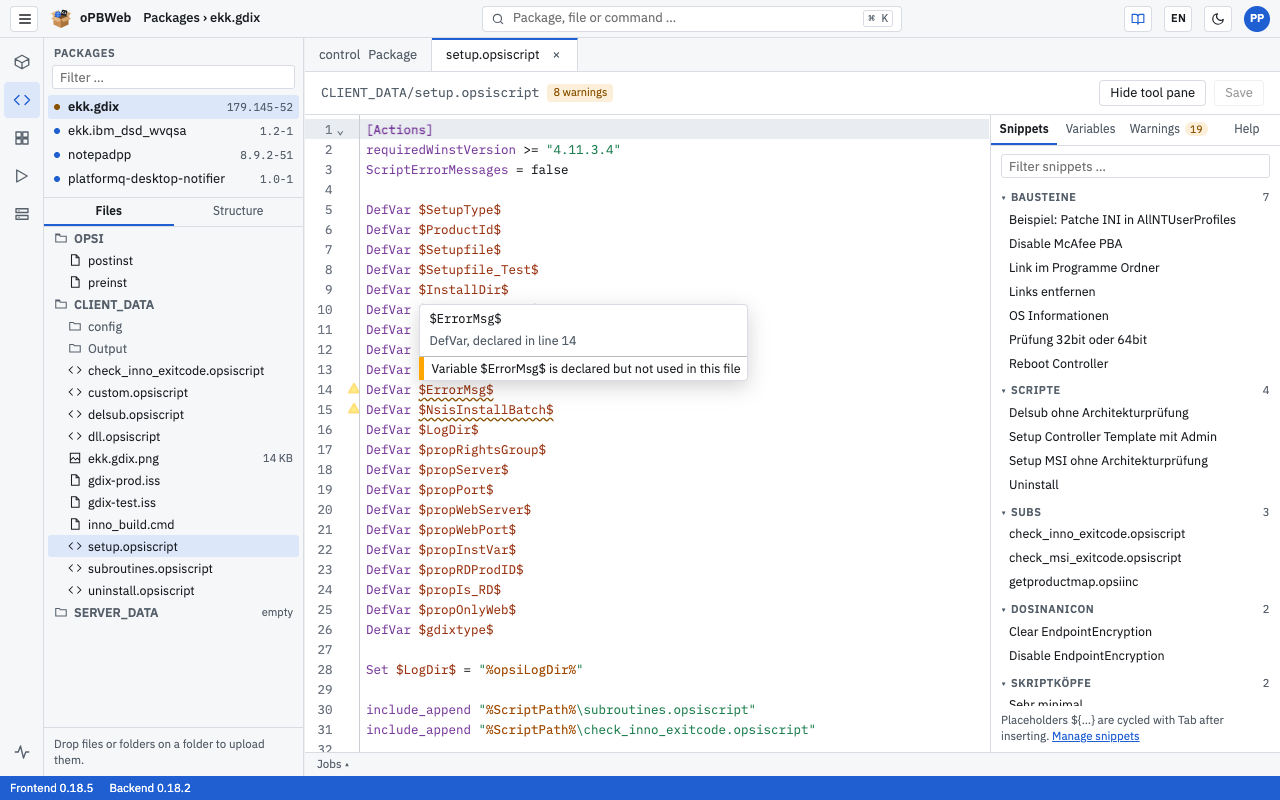
While you type, the editor checks the current file and marks issues in the text and in the left margin. Hover over a mark to see the message. The counters “2 errors” and “5 warnings” in the toolbar summarize the result.
| Kind | Message | Meaning |
|---|---|---|
| Error | “Section [x] is not defined” | The file calls a section that does not exist. |
| Hint | “Section [x] is not defined in this file (possibly in an included file)” | As above, but the section may come from an included file (for sub_ sections and files with includes). |
| Warning | “Variable $x$ is declared but not used in this file” | The variable is unnecessary. |
| Warning | “Variable $x$ is set but not read in this file” | The value of the variable is never used. |
The check only looks at the open file. Variables or sections used in an included file can therefore be reported as unused.
Navigating and folding
- Go to definition: F12 or Ctrl+click on a variable or section jumps to the line where it is defined. If a called section is not in this file (hint “Section … is not defined in this file”), oPBWeb searches the other scripts of the package and opens the file at the definition. If there is none, oPBWeb reports “Section … is not defined in any script of the package.”
- Select all occurrences: Ctrl+Shift+L selects all occurrences of the word under the cursor; you can then change them together.
- Folding: Every section (
[Actions],[Files_copy]…) can be collapsed and expanded with the marker in the margin. - Variables side pane: Click an entry to jump to its line (see below).
The context menu
Right-click in the text or press Shift+F10 to open the context menu. You can also use it with the keyboard: arrow keys, Enter or Space to run an entry, → to open the submenu, Esc to close.
| Entry | Shortcut |
|---|---|
| Go to definition | F12 |
| Select all occurrences | Ctrl+Shift+L |
| Command help | F1 |
| Show suggestions | Ctrl+Space |
| Insert snippet ▸ | submenu by category |
| Create snippet from selection … | – |
| Cut | Ctrl+X |
| Copy | Ctrl+C |
| Paste | Ctrl+V |
| Toggle comment | Ctrl+Shift+C |
| Fold section | Ctrl+Shift+[ |
| Fold all | Ctrl+Alt+[ |
| Unfold all | Ctrl+Alt+] |
| Find/Replace | Ctrl+F |
Entries that change the text are grayed out in read-only files. If your browser does not allow clipboard access, oPBWeb shows “No clipboard access – please use Ctrl+C/V.”
Keyboard shortcuts
On a Mac, use ⌘ instead of Ctrl and ⌥ instead of Alt.
| Shortcut | Effect | Files |
|---|---|---|
| Ctrl+S | Save file | all |
| Ctrl+Z / Ctrl+Y | Undo / Redo | all |
| Ctrl+F | Find/Replace (bar at the top of the editor) | all |
| F3 / Shift+F3 | next / previous match | all |
| Ctrl+/ or Ctrl+Shift+C | Toggle comment | all |
| Tab | indent | all |
| Alt+drag with the mouse | rectangular selection | all |
| Ctrl+Space | Show suggestions | opsi-script |
| F1 | Help for the command under the cursor | opsi-script |
| F12 or Ctrl+click | Go to definition | opsi-script |
| Ctrl+Shift+L | select all occurrences | opsi-script |
| Shift+F10 | open context menu | opsi-script |
| Tab / Shift+Tab | after inserting a snippet, go to the next / previous placeholder | opsi-script |
The side pane
For opsi scripts, the side pane with four tabs sits to the right of the text. Click Hide tool pane in the tab toolbar to hide it and Show tool pane to show it again.
Snippets
Here you find all snippets you may use: the global ones and your own (badge “mine”). They are grouped by category; the “Filter snippets …” field narrows down the list. When you hover over a snippet, a preview of its first ten lines with highlighted placeholders appears at the bottom. Click a category to collapse or expand it.
To insert a snippet:
- Place the cursor where the snippet should go in the script.
- Double-click the snippet in the side pane, or move to it with the Tab key and press Enter. Alternatively, drag the snippet to the desired position in the text, choose it in the context menu under Insert snippet or accept it from the completion list.
- If the snippet contains placeholders of the form
${Name}, the first one is selected. Type over it and press Tab to jump to the next placeholder.
The Manage snippets link takes you to snippet management, see Snippets .
Variables
- Defined variables: all variables of the file with their kind (
DefVar,DefStringList) and line. - Sections: all sections of the file with their line.
- Constants: the opsi-script constants with a description.
Click a variable or section to jump to its line.
Warnings
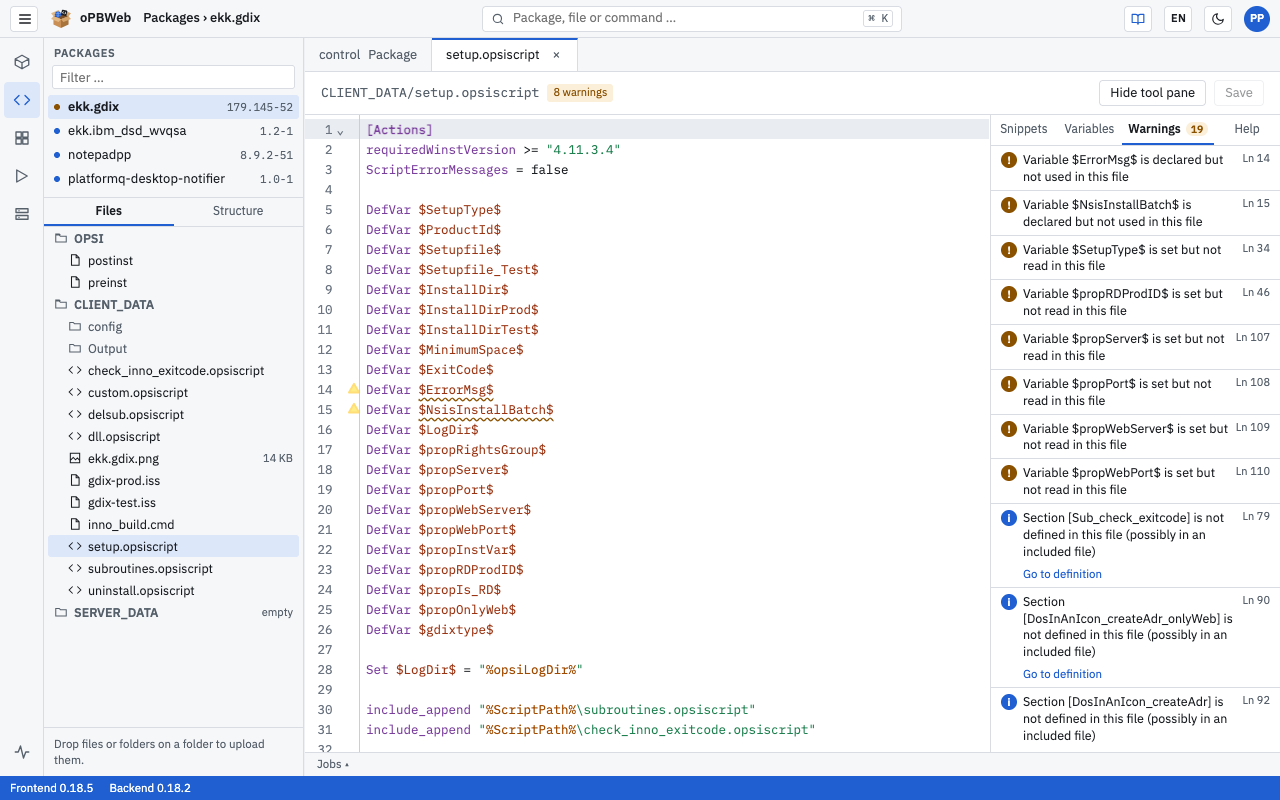
Lists all errors, warnings and hints of the file one below the other, errors first, with line number. The number on the tab gives their count. Clicking an entry jumps to the line. For sections that may be in another file, Go to definition below the message leads directly to the definition in another script of the package.
Help
Shows the detailed help for the most recently requested command, see Command help . If nothing has been requested yet, it shows “Press F1 on a command to show its help here.”
Creating a snippet from a selection
Turn code you need often into your own snippet directly in the editor.
- Select the text in the script.
- Right-click to open the context menu and choose Create snippet from selection ….
- In the “Snippet from selection” dialog, check the Name. It defaults to the first non-empty line of the selection (at most 60 characters).
- Choose a Category, or create one with New category and enter the Category name.
- Choose the Visibility: Only me or – as an administrator only – Global.
- Click Save. oPBWeb reports “Snippet saved”; the snippet is available in the side pane right away.
Write the parts that change with every use as placeholders ${name} in the snippet. After inserting, press Tab to jump from placeholder to placeholder. You can set placeholders conveniently in snippet management with Selection as placeholder.
Package functions
Functions that you define with DefFunc in a script of the package are known to the editor in all scripts of the same package. They appear in completion and in the help, each with the file and line of the definition as their origin.
oPBWeb uses the comment lines directly above the DefFunc as the description. Comments in the style of the uib libraries with @Description and @Returns are evaluated:
; @Description Returns the installation path of the product
; @Returns path as string
DefFunc GetInstallDir(val $Arch$ : string) : string
  ...
EndFunc
The list of functions is updated as soon as you have saved a file.
Saving
Press Ctrl+S or click Save in the tab toolbar to save the file. oPBWeb confirms with “Saved”.
Unsaved changes are not lost without warning:
- If you close a changed tab, oPBWeb asks “Discard unsaved changes to setup.opsiscript?”.
- If you switch the version or leave the editor, it asks “There are unsaved changes. Leave anyway?”.
- If you close or reload the browser window, the browser warns you.
As long as a file has unsaved changes, you can neither build nor install the package. Save all files first, see Build and deploy .