Packages
Roles: Viewer, Packager, Releaser, Administrator
Overview
The Packages area is the start page of oPBWeb. Here you see all packages with their latest version, check in the package details on which depots they are installed, and create new packages. As a viewer you can see the list and the details; creating, importing and all changing actions require at least the Packager role.
The package list
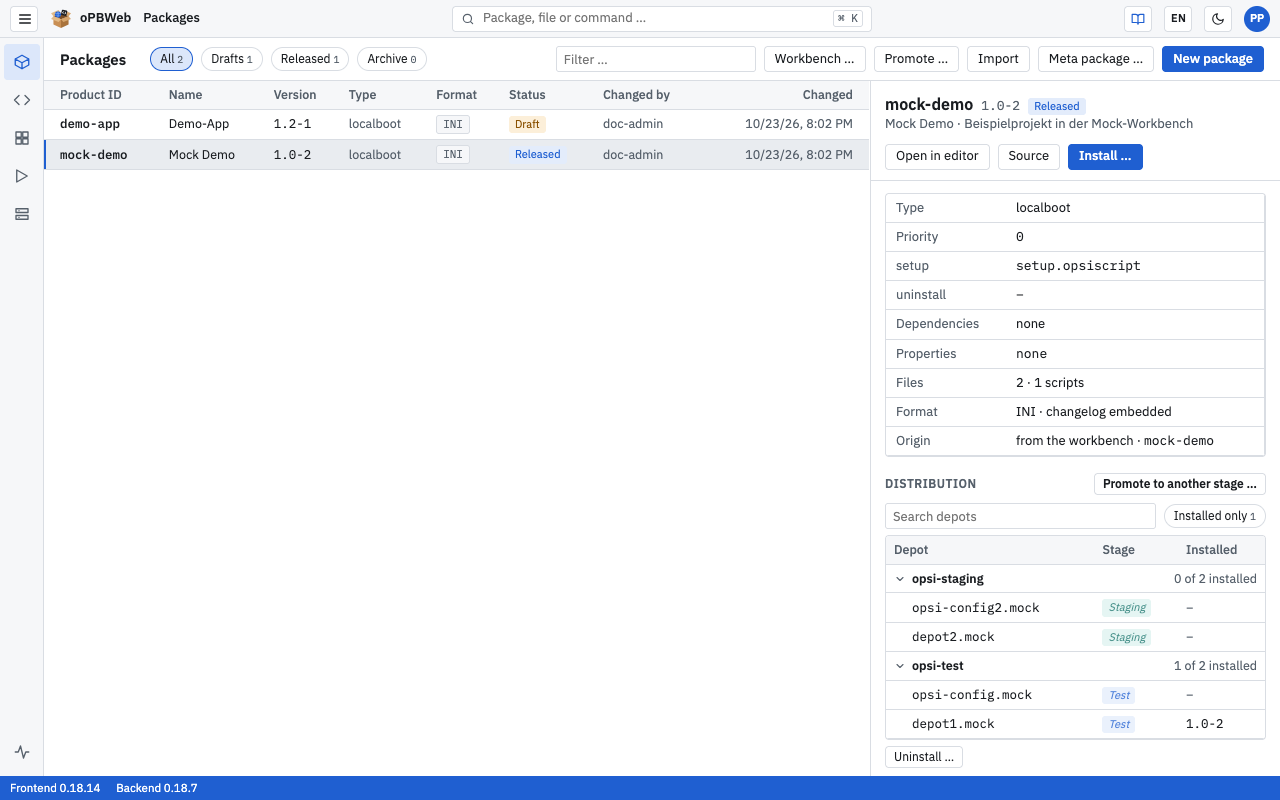
The table shows the latest version of each package:
| Column | Content |
|---|---|
| Product ID | Unique identifier of the product |
| Name | Display name |
| Version | Product version and package version, for example 1.0-3 |
| Type | localboot or netboot |
| Format | Format of the control file: INI or TOML |
| Status | Draft or Released |
| Changed by, Changed | Who last changed the version and when |
A click selects a package and shows its details on the right. A double-click opens it in the Package Editor .
Filtering
- The All, Drafts and Released buttons filter by the status of the latest version. The number next to each shows how many packages match.
- Archive shows the archived packages instead of the active ones (see Archiving a package ). If there are none, “No archived packages.” appears.
- In the “Filter …” field you search by product ID or name.
If no package matches, “No package matches the filter.” appears.
Package details
The right-hand pane shows for the selected package:
- Header: product logo (if any), product ID, version, status, name and the first line of the description.
- Buttons: Open in editor and Source (opens the editor directly in the source view). As a packager, also Build (drafts only) and Install … (only if the latest version has an up-to-date build). If the build is outdated, “changed since build” is shown.
- Key data: Type, Priority, setup and uninstall script, Dependencies, Properties, number of Files and scripts, Format (for example “INI · changelog embedded”) and Origin (“created”, “imported”, “copied from …” or “from the workbench”).
- Distribution: For each depot the Stage (Production, Staging or Test) and the version Installed there, grouped by config server (see Distribution ). As a packager, you take the package from one stage to the next with Promote to another stage … (see Promoting to another stage ). If the product is installed anywhere, you can remove it with Uninstall ….
- Workbench: Which workbench the package lies on, see Workbench .
- Versions: All versions of the package with status and date. A click opens that version in the editor.
- Package (packager and above): Archive, or Restore for archived packages, and Delete package …, see Archiving a package and Deleting a package .
Distribution
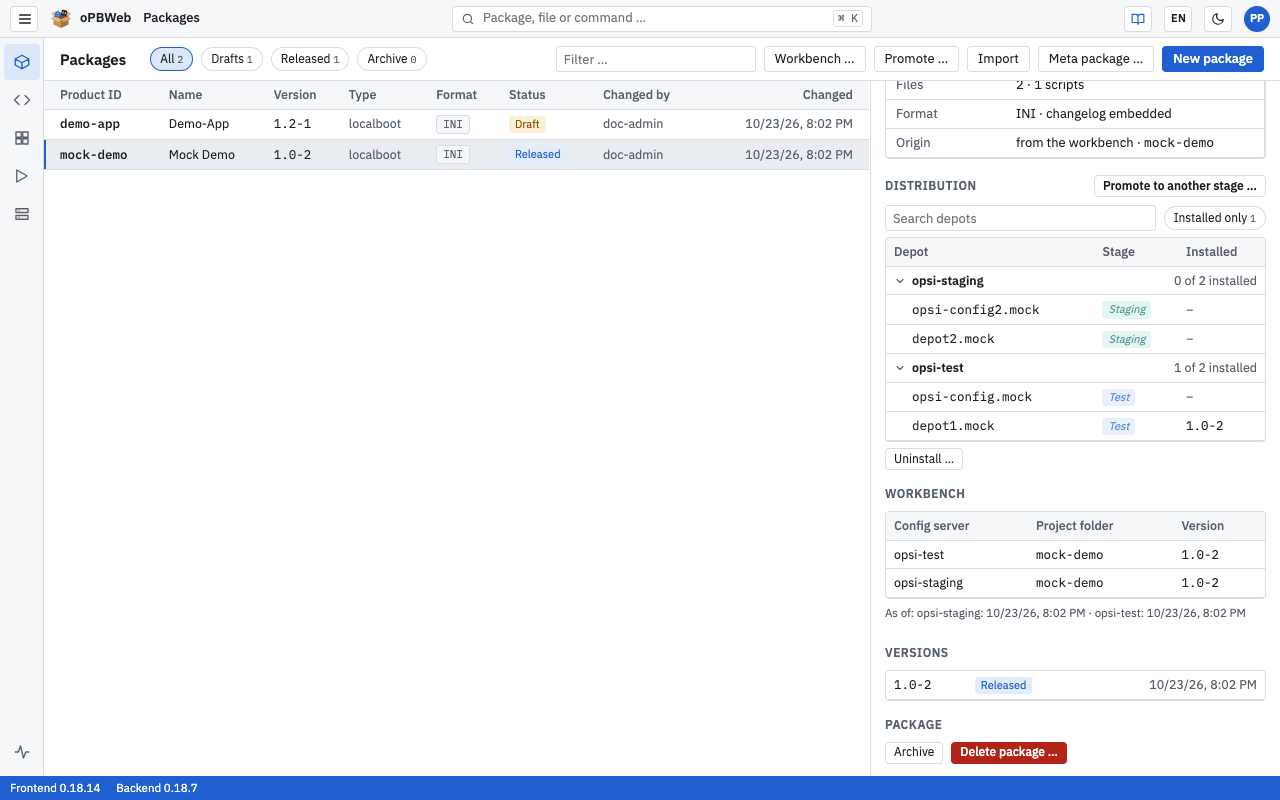
The Distribution table groups the depots by config server. The header row of a server tells you on how many of its depots the package is installed (“1 of 3 installed”). Below it, each depot shows its Stage and the version Installed:
- An italic stage is inherited by the depot from its config server.
- If the installed version differs from the latest one, it is marked orange.
- Click the header row of a config server to collapse or expand its depots. oPBWeb remembers this in this browser.
- “Search depots” narrows the depots down by depot ID or config server name; while searching, all groups are expanded.
- The Installed only chip hides all depots the package is not installed on. The number in the chip counts the depots with an installation.
Workbench
The Workbench section shows in which project folders of the workbenches the package lies: Config server, Project folder and Version. If the version differs from the latest one in oPBWeb, it is marked orange. If the package is not on any workbench, the section says “Not on any workbench.”
oPBWeb does not read the workbench every time you open a package; it remembers what it saw last. The information is refreshed
- when the Workbench … dialog reads a workbench (see Importing from the workbench ),
- on every export to the workbench ,
- on every sync via Sync or ⟳ in Depots and
- automatically by the worker, hourly by default (configurable under Settings → Worker ).
The “As of:” line below names, per config server, when its workbench was last read completely, or “never read”. If you changed the workbench directly on the server, sync first.
Building, installing and uninstalling are described in Build and Deploy . To take several packages at once from one stage to the next, use Promote … in the toolbar of the package list, see Promoting to another stage .
Creating a new package
Roles: Packager, Releaser, Administrator
In the package list, click New package.
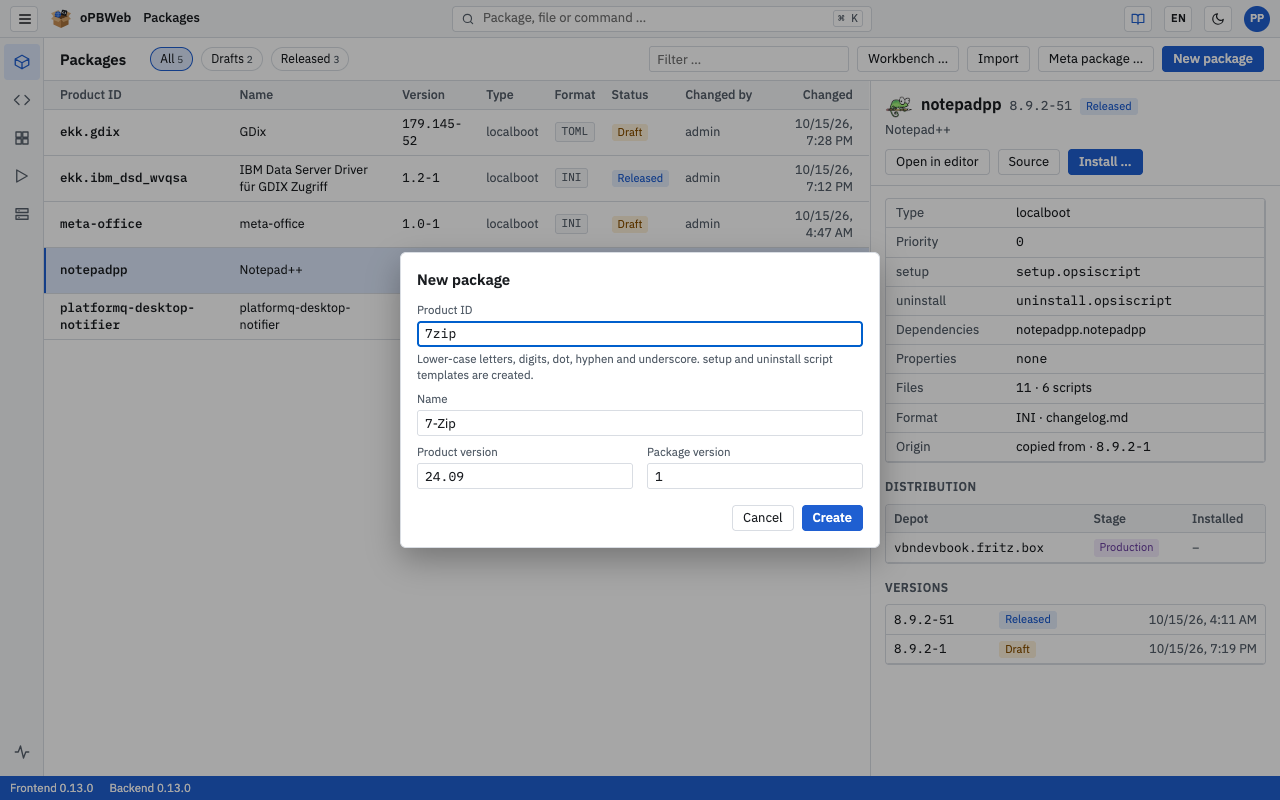
Fill in the fields:
- Product ID (required): only lowercase letters, digits, period, hyphen and underscore. The first character must be a lowercase letter or a digit, at most 128 characters in total. Example: firefox-esr.
- Name: display name. If you leave it empty, oPBWeb uses the product ID.
- Product version (required): version of the software, prefilled from the settings (default
1.0). - Package version (required): version of the package, prefilled from the settings (default
1).
Click Create. As long as the product ID is invalid, the button stays disabled.
oPBWeb creates the package as a draft and opens it in the package editor. The new package already contains a setup and an uninstall script as templates (CLIENT_DATA/setup.opsiscript, CLIENT_DATA/uninstall.opsiscript) and an empty SERVER_DATA/ folder. Priority, control format and changelog location come from the settings for new packages
.
Product and package version may contain only letters, digits and the characters ., + and ~. The product version may be at most 32, the package version at most 16 characters long. If the product ID already exists, oPBWeb reports “The product … already exists.” – in that case, create a New version in the package editor.
Importing .opsi files
Roles: Packager, Releaser, Administrator
You take over existing packages by importing their .opsi files. Every imported version becomes a draft.
Click Import. The “Import packages” dialog opens.
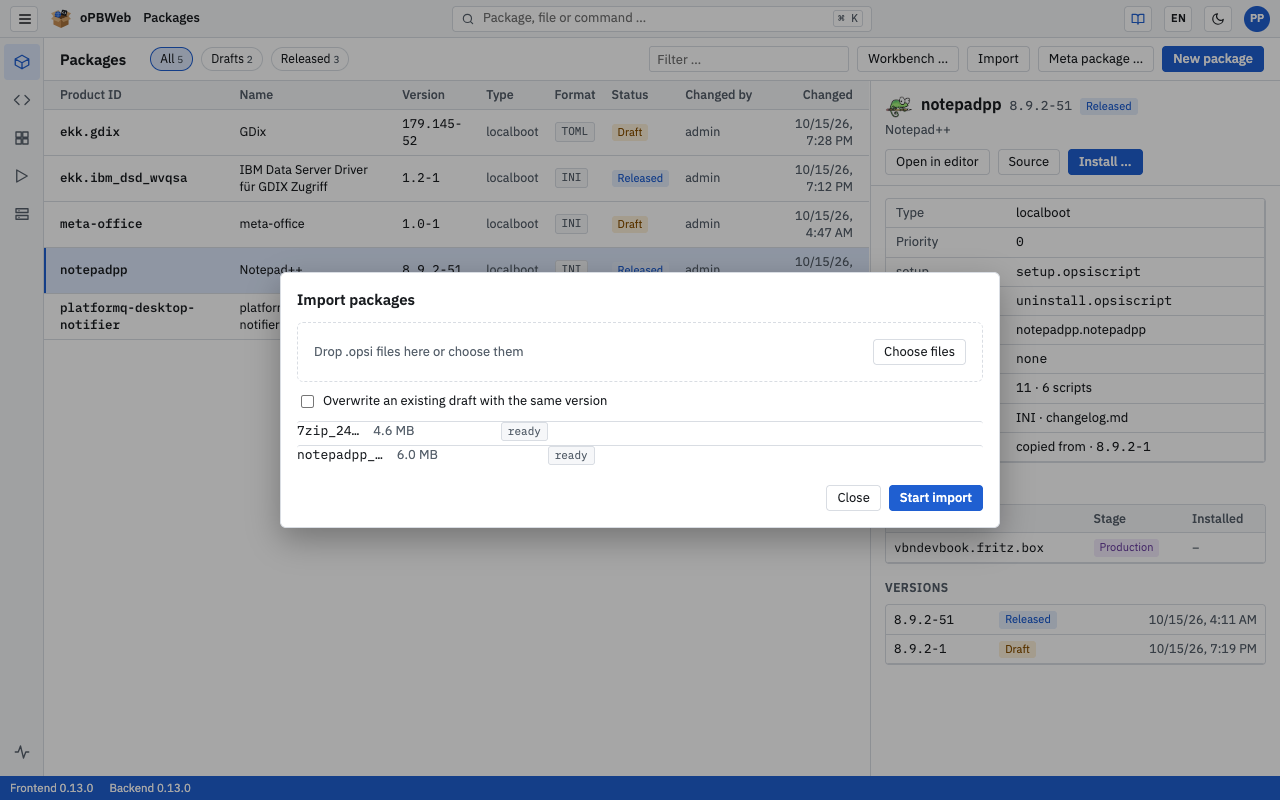
Drag one or more
.opsifiles into the “Drop .opsi files here or choose them” area or click Choose files. Other file types and files selected twice are ignored.Optional: Enable Overwrite an existing draft with the same version if an existing version should be replaced.
Click Start import.
oPBWeb uploads and imports the files one after the other. Each row shows its state: “ready”, “uploading”, “importing”, “imported” or “failed”. Below the list, the log of all imports runs in one shared field. While the import is running, Close is disabled.
If the version (product version and package version) already exists, the import fails without the option. With the option, only a draft is overwritten, never a released version. In that case the job reports “The existing version is released and will not be overwritten.”
During the import, oPBWeb stores the control data and the changelog in its database. The format of the control file (INI or TOML) and the changelog location are preserved. Old control-*.bak backups of the opsiPackageBuilder are not imported; the job log states how many were skipped.
Importing from the workbench
Roles: Packager, Releaser, Administrator
If package sources are stored as project folders in the workbench of a config server, you can take them over directly – individually, several or all at once.
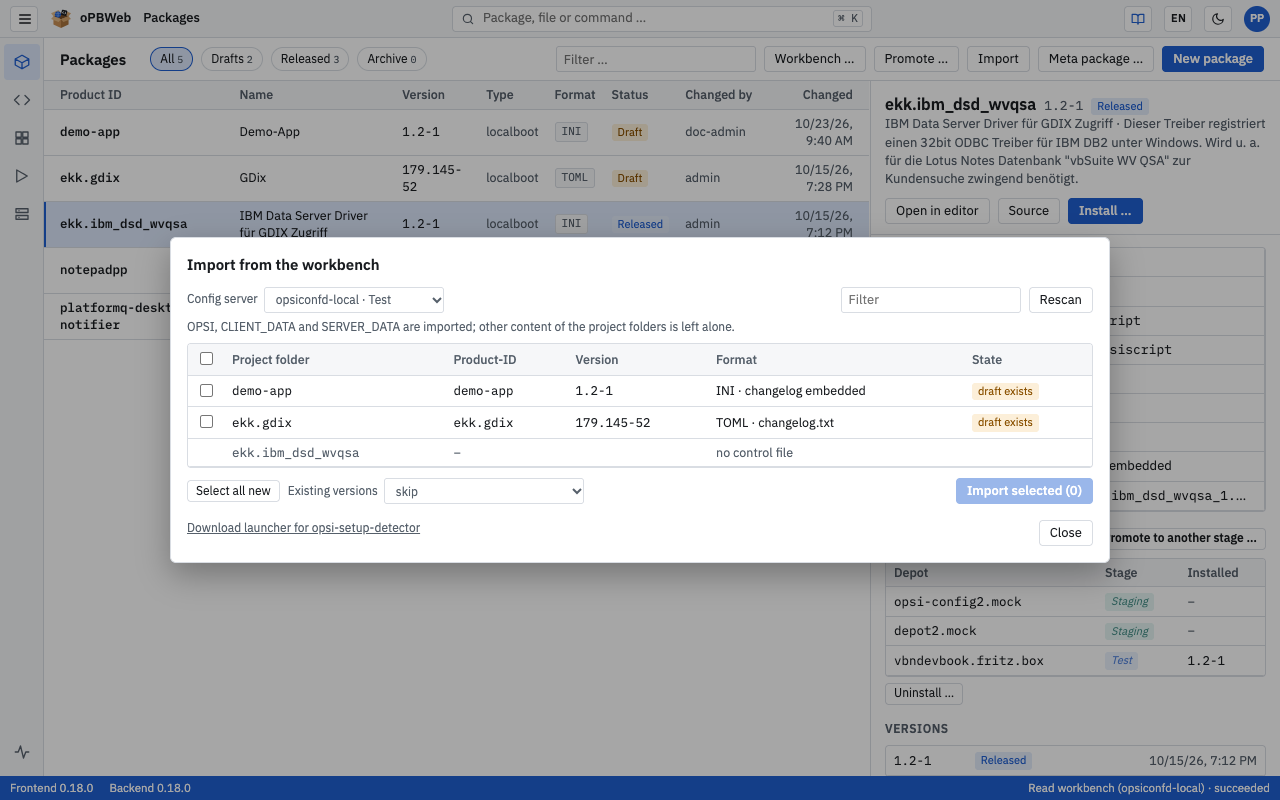
Click Workbench …. The “Import from the workbench” dialog opens.
At the top, under Config server, choose the server whose workbench you want to read. The list shows each server with name and stage. oPBWeb remembers your choice in this browser; without an earlier choice, the first server of the Test stage is preset, otherwise the first server. The dialog reads the workbench automatically (“Reading workbench …”), also after each change of server.
Check the table. It shows Project folder, product ID, Version, Format and State:
State Meaning “new package” The product ID does not exist in oPBWeb yet. “new version” The package exists, but this version does not yet. “draft exists” The version already exists as a draft. “released exists” The version already exists and is released. “archived” The package is archived and cannot be imported. Folders without an
OPSIfolder or with an unreadable control file show the reason in the Format column and have no checkbox. Use the filter field to narrow down the list.Select the checkboxes of the project folders you want to import. The checkbox in the table header selects all, Select all new selects all folders whose version does not exist in oPBWeb yet.
Under Existing versions, choose what happens with folders whose version already exists:
- “skip” (default): The folder is not imported.
- “overwrite drafts”: An existing draft is replaced. Released versions are skipped.
- “import as next package version”: oPBWeb creates the version with the next free package version (highest numeric package version of this product version + 1).
Click Import selected (n).
The import runs as a single job “Import from workbench (server), projects: n” and processes the folders one after the other. You see the progress as “Importing … 40 %”. If you close the dialog, the job keeps running. If a folder fails, oPBWeb continues with the others.
Afterwards, each row shows its result: “imported as 1.0-2”, “skipped” or “failed” (the tooltip shows the reason). At the bottom there is a summary such as “3 imported, 1 skipped, 0 failed”. The job log under Jobs contains one line per project.
Only the OPSI, CLIENT_DATA and SERVER_DATA folders are imported; other content of the project folders is left alone. Rescan refreshes the list. The import never overwrites released versions.
You can also import individual folders under Depots on the Files tab with Import into oPBWeb, see Depots . If an imported version was later changed directly on the workbench, bring the changes over with Compare with workbench … in the package editor, see Package Editor .
Hand-off from opsi-setup-detector
Roles: Packager, Releaser, Administrator
opsi-setup-detector can start the old opsiPackageBuilder after creating the product files. With the oPBWeb launcher, oPBWeb opens in the browser instead and asks whether you want to import the new workbench folder.
Setting up the launcher
Download the launcher for your system: in the “Import from the workbench” dialog via Download launcher for opsi-setup-detector, or directly under
/downloads/of your oPBWeb address. There is one zip file each for Windows, macOS and Linux (amd64 and arm64).Unpack the file. It is called
opsipackagebuilder.exe(Windows) oropsipackagebuilder. Do not rename it: opsi-setup-detector only accepts this name.Put it where opsi-setup-detector finds it, or enter its path in the opsi-setup-detector configuration under
PathToOpsiPackageBuilder:System Default path Windows C:\Program Files (x86)\opsi PackageBuilderNG\opsipackagebuilder.exemacOS /Applications/opsiPackageBuilder.app/Contents/MacOS/opsipackagebuilderLinux /usr/bin/opsipackagebuilderStore the oPBWeb address once:
opsipackagebuilder --set-url https://opbweb.example.orgAlternatively, create a file
opb-launcher.confnext to the launcher with the lineurl = https://opbweb.example.org(applies to all users of the computer) or set the environment variableOPBWEB_URL.If opsi-setup-detector works with a mapped drive (for example
W:\) instead of a UNC path, also store the config server of this workbench:opsipackagebuilder --set-server opsi-test.example.orgAlternatively, add the line
server = opsi-test.example.orgtoopb-launcher.confor set the environment variableOPBWEB_SERVER.
opsi-setup-detector and oPBWeb must use the same workbench: opsi-setup-detector writes to the workbench share of a config server, and this server must be set up in oPBWeb. The launcher tells oPBWeb which config server is meant: for a UNC path like \\opsi-test.example.org\opsi_workbench\firefox it is the host name from the path, otherwise the server stored with --set-server.
The launcher is not signed. Windows SmartScreen warns on first start. On macOS, remove the quarantine after downloading with xattr -d com.apple.quarantine opsipackagebuilder.
Using the hand-off
In opsi-setup-detector, choose the mode create opsi product files and start the interactive PackageBuilder and create the product.
oPBWeb opens in the browser. If you are not signed in, sign in first.
The “Hand-off from opsi-setup-detector” dialog reads the workbench folder. If several config servers are set up, Config server is preset to the server the launcher passed on (host name or short name). If oPBWeb does not know this server, a note appears and the last selected server is preset; then choose the matching server. The dialog then asks depending on the situation:
Situation Choice The package does not exist in oPBWeb yet Import or Cancel The package exists, the version does not Create new version or Cancel The version already exists Create as … (next free package version, for example 1.0-3 instead of 1.0-2), Overwrite draft (only if the existing version is a draft) or Cancel The package is archived Cancel only; restore the package first After the import, the new version opens in the editor.
The opsi-setup-detector modes build and build + install do not need the launcher: from opsi 4.2.0.311, opsi-setup-detector builds directly via the opsi service. If it still calls the launcher to build, the launcher reports an error, because oPBWeb does not build from the command line.
Creating a meta package
Roles: Packager, Releaser, Administrator
A meta package installs a set of other products. It contains no program itself, only dependencies: each selected product becomes a dependency “setup, installed, before”. The script of the meta package does nothing.
Click Meta package …. The “New meta package” dialog opens.
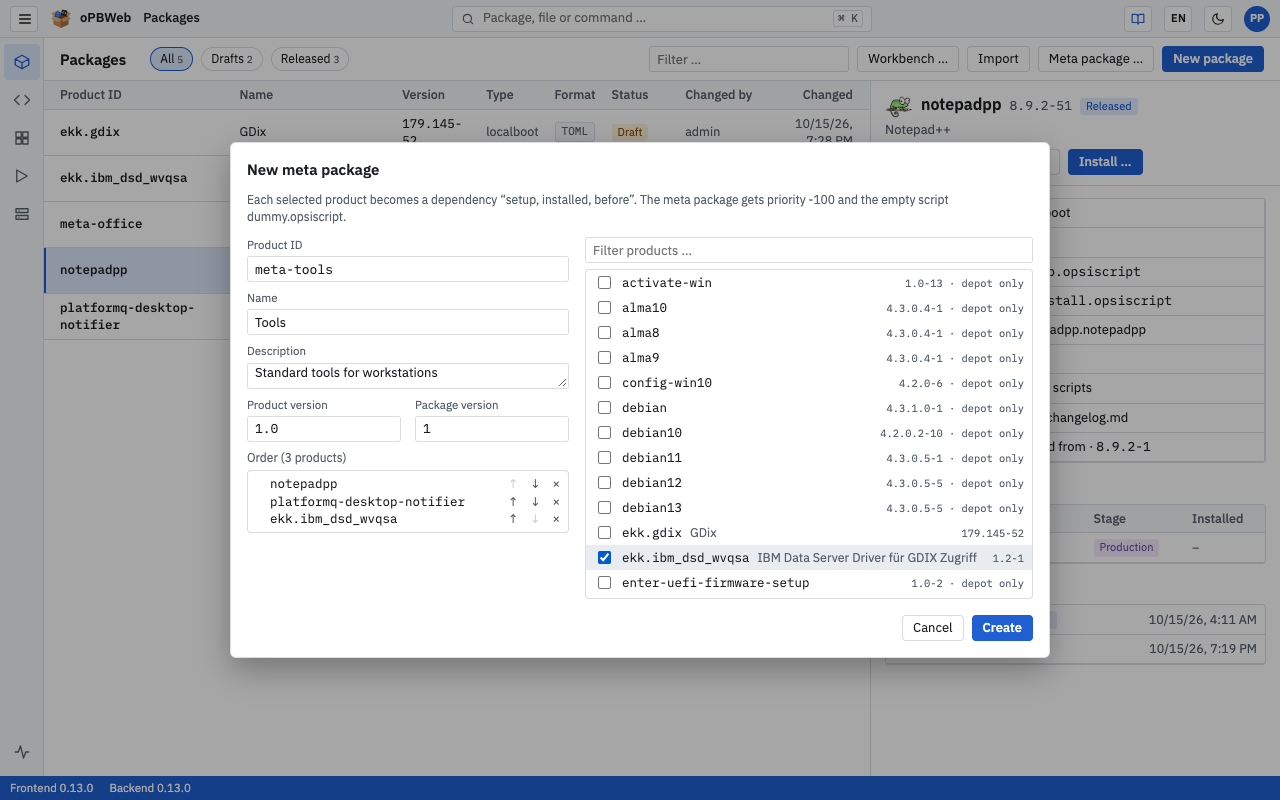
Fill in the fields on the left:
- Product ID: prefilled with the prefix from the settings (default
meta-). The same rules apply as for a new package. - Name, Description: optional.
- Product version, Package version: prefilled from the settings.
- Product ID: prefilled with the prefix from the settings (default
Select the products on the right. Use “Filter products …” to narrow down the list. You can choose from all packages in oPBWeb and all products found on the depots; products that exist only on a depot are marked “depot only”.
Under Order, use ↑ and ↓ to put the products in the desired installation order. × removes a product from the selection.
Click Create. The button is enabled as soon as the product ID is valid and at least one product is selected.
oPBWeb opens the new meta package in the editor. It gets the priority and the setup script name from the settings (default: priority −100, script dummy.opsiscript) and no uninstall script. A meta package cannot contain itself; at most 200 products are possible.
Deleting a version
Roles: Packager, Releaser, Administrator
You delete a single version in the package editor:
- Open the version in the Package Editor and select the Product section.
- At the bottom, click Delete this version.
- Confirm the prompt “Delete version … permanently?”.
Deleting is also possible for released versions and cannot be undone. If the version is installed on a production depot, only a Releaser may delete it (see stage rule
). The built .opsi file of the version is deleted as well. If it is the last version, the whole package disappears from the list. oPBWeb then opens another version of the package or the package list.
Deleting in oPBWeb removes nothing from the depots. Remove a product installed there beforehand with Uninstall …, see Build and Deploy .
Archiving a package
Roles: Packager, Releaser, Administrator
You archive a package that you no longer need but want to keep:
- Select the package in the package list.
- In the details, under Package, click Archive.
- Confirm the prompt “Archive …? The package disappears from the list and becomes read-only, the built .opsi files are deleted.”
An archived package
- only appears under the Archive filter and not in the search,
- is read-only: you can view it in the editor, but you cannot edit or build it, create a new version or delete a version; importing into the package is refused as well,
- no longer has build results and therefore cannot be installed.
If jobs are running or waiting for the package, oPBWeb refuses to archive it. Products installed on the depots are kept; you can still remove them in the details with Uninstall ….
To bring it back, select the package under Archive and click Restore. The versions keep their status. Build the package again before installing it next time.
Deleting a package
Roles: Packager, Releaser, Administrator
You delete a whole package with all its versions in the package list, even if it is archived:
- Select the package.
- In the details, under Package, click Delete package ….
- Type the product ID to confirm and click Delete permanently. The button is only enabled when your input matches exactly.
All versions, their files and build results are deleted. This cannot be undone. If any version of the product is installed on a production depot, only a Releaser may delete the package.
Here, too, nothing is removed from the depots. Remove a product installed there beforehand with Uninstall ….