Package Editor
Roles: Viewer, Packager, Releaser, Administrator
Overview
In the package editor you edit a package version: the control data (product information, scripts, dependencies, properties), the changelog and the files of the package. This chapter describes the control tab. Working with files and scripts is described in Package Files and Script Editor .
You can only edit drafts, and only with at least the Packager role. As a viewer and for released versions, all fields are locked; you can still view everything.
Opening the editor
You open the editor in one of these ways:
- Double-click a package in the package list, or click Open in editor in the package details.
- Package editor in the navigation bar opens the package you edited last.
- Select a package via the search (
Ctrl K).
Layout
The editor is split into three areas:
- Left: At the top, the list of all packages (Filter …, orange dot = draft, blue dot = released). Below it, the Files tab (file tree) and the Structure tab (include tree of the scripts).
- Middle: The control tab for the package data and one tab per open file. A ● indicates unsaved changes.
- Bottom: The JOBS panel with the last 30 jobs of this package and the live log of the selected job. Close it with ×, reopen it with “Jobs ▴”.
Toolbar of the control tab
| Element | Function |
|---|---|
| Edit | Source | Switches between the form and the generated source. |
| Product | Dependencies | Properties | Changelog | Sections of the form. Dependencies and Properties show their count, a ● marks unsaved changes. |
| Version selector | All versions of the package with status (for example “1.0-2 · Draft”). Selecting one switches to that version. |
| “built” / “changed since build” | State of the last build (only for drafts with a build). |
| Build | Creates the .opsi file. Disabled while there are unsaved changes. |
| Save | Saves all changed sections and changed open files. Only enabled if there are changes. |
| Download .opsi | Downloads the last build (only if one exists). |
| Install … | Distributes the build to depots. |
| ⋯ (More actions) | New version, Export to workbench …, Compare with workbench …, Download .opsi, Download .md5, Uninstall … |
Build, Save and Install … are only visible with at least the Packager role. Building, installing and exporting are described in Build and Deploy . Export to workbench … asks under Config server which workbench to write to. The comparison with the workbench is described in Comparing with the workbench .
Saving and unsaved changes
Changes in the form only reach the server when you click Save. After saving, oPBWeb briefly shows “Saved”.
If you try to leave the editor or the version with unsaved changes, oPBWeb asks: “There are unsaved changes. Leave anyway?”. The browser also warns you when you close the tab.
Product section
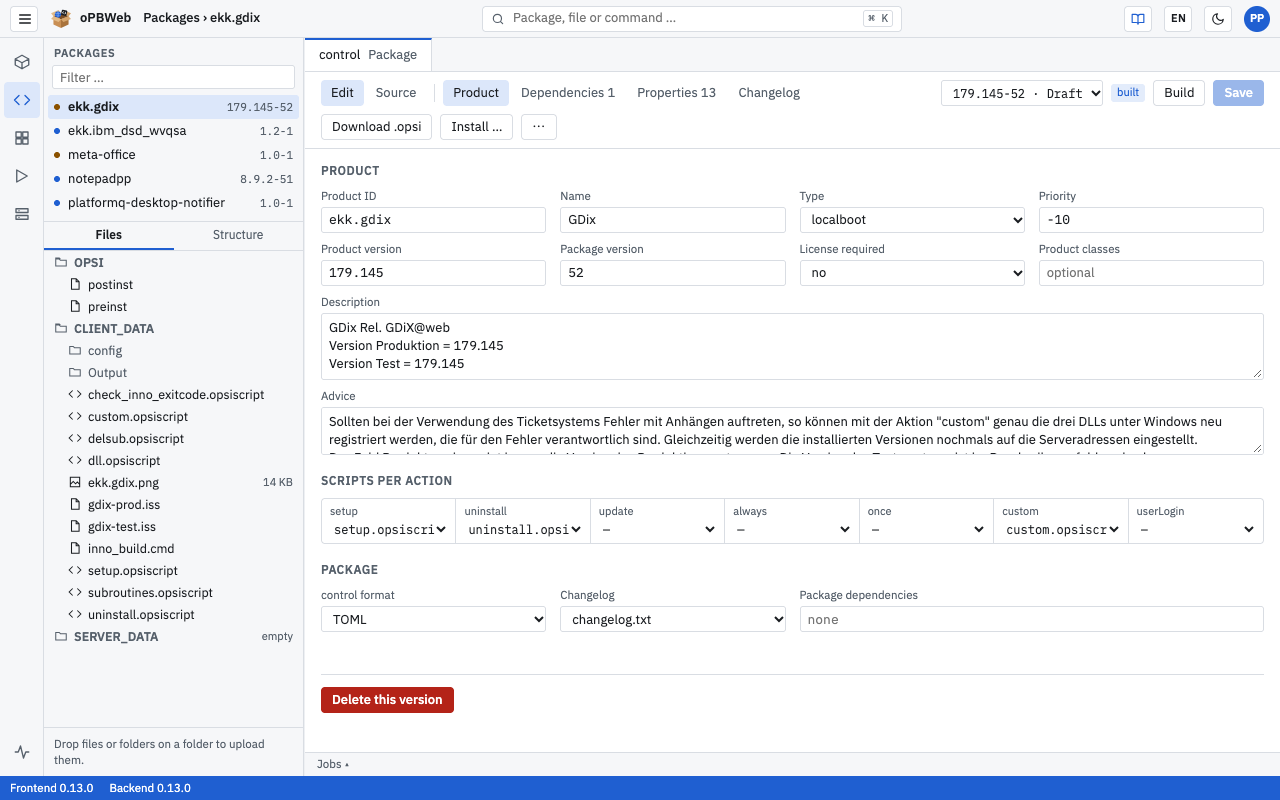
Product
| Field | Description |
|---|---|
| Product ID | Read only. The product ID cannot be changed after the package is created. |
| Name | Display name of the product |
| Type | localboot or netboot |
| Priority | Integer from −100 to 100. Products with a higher priority run earlier on the client. |
| Product version, Package version | Read only. You get a different version number via New version. |
| License required | “no”, “yes” or “not set” |
| Product classes | Optional, several separated by commas |
| Description | Description of the product |
| Advice | Advice text for administrators in opsi |
Scripts per action
For each action (setup, uninstall, update, always, once, custom, userLogin) you select the script. You can choose “—” (no script) and all script files under CLIENT_DATA/ with the extensions .opsiscript, .ins and .opsiinc.
If the control file refers to a script that does not exist, “(file missing)” is shown after it. Such a package cannot be built until you create the file or change the selection.
Package
| Field | Description |
|---|---|
| control format | “INI (legacy)” generates OPSI/control, “TOML” generates OPSI/control.toml. |
| Changelog | Where the changelog is stored: “changelog embedded” (as a [Changelog] section in the INI control file), “changelog.txt” or “changelog.md” in the OPSI/ folder. With TOML, “changelog embedded” is not possible. |
| Package dependencies | Packages that must be present on the depot, as a comma-separated list, optionally with a condition: for example opsi-script (>=4.12), mshotfix. Without a condition, >= applies. |
If you change the format, the notice “Saving switches the package format. The source view shows the result beforehand.” appears. If the changelog is still set to “embedded” when switching to TOML, oPBWeb stores it as changelog.txt when saving.
Delete this version
Below the Product section, as a packager you find the Delete this version button. It also works for released versions. Details are in Packages .
Dependencies section
Here you define which other products must be installed before or after this product.
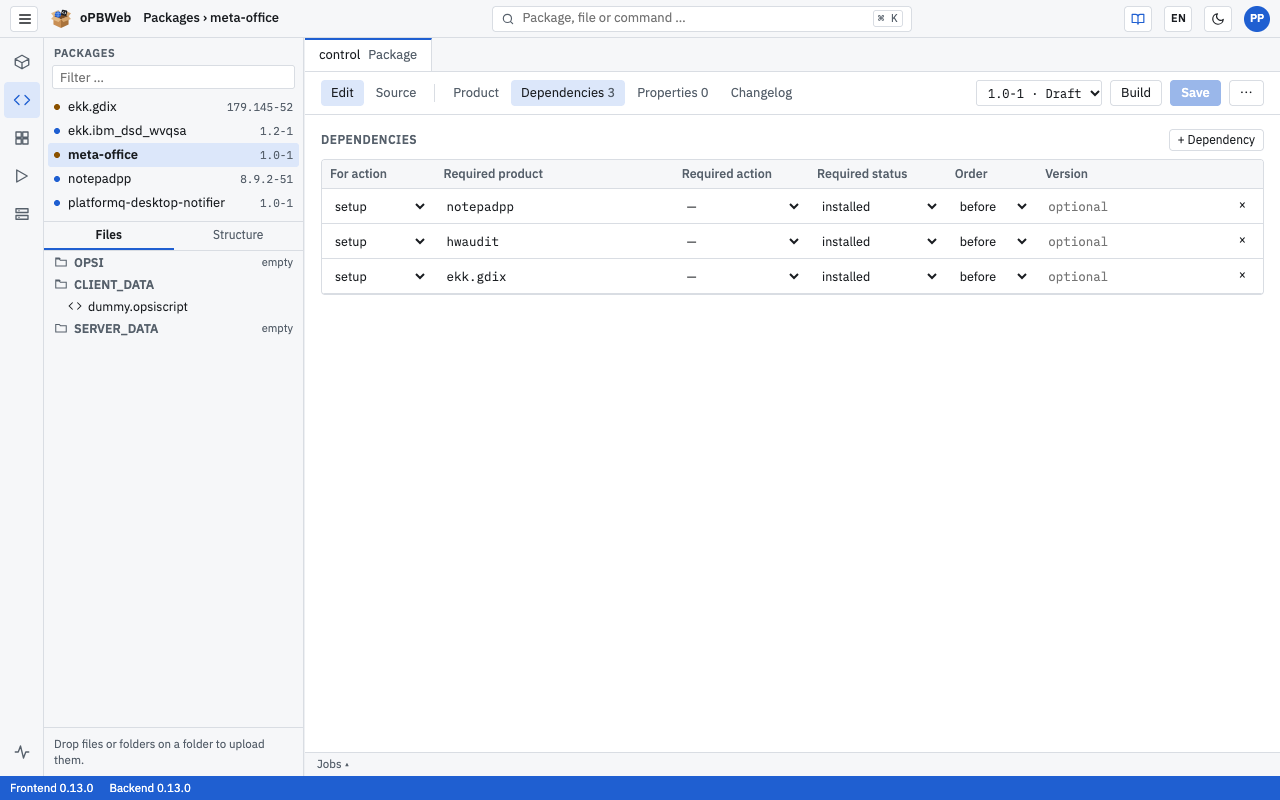
- Click + Dependency. A new row with “setup / setup / before” appears.
- Fill in the columns:
- For action: the action of this product for which the dependency applies (
setup,uninstall,update,always,once,custom,userLogin). - Required product: product ID of the other product. Known product IDs are suggested as you type.
- Required action: action that is set for the other product, or “—”.
- Required status:
installed,not_installed,unknownor “—”. - Order:
before,afteror “—”. - Version: optional, the required version.
- For action: the action of this product for which the dependency applies (
- Click Save.
Each dependency needs either a required action or a required status. × at the end of a row removes a dependency.
Properties section
Properties are settings that opsi administrators can set per client or depot and that your scripts read.
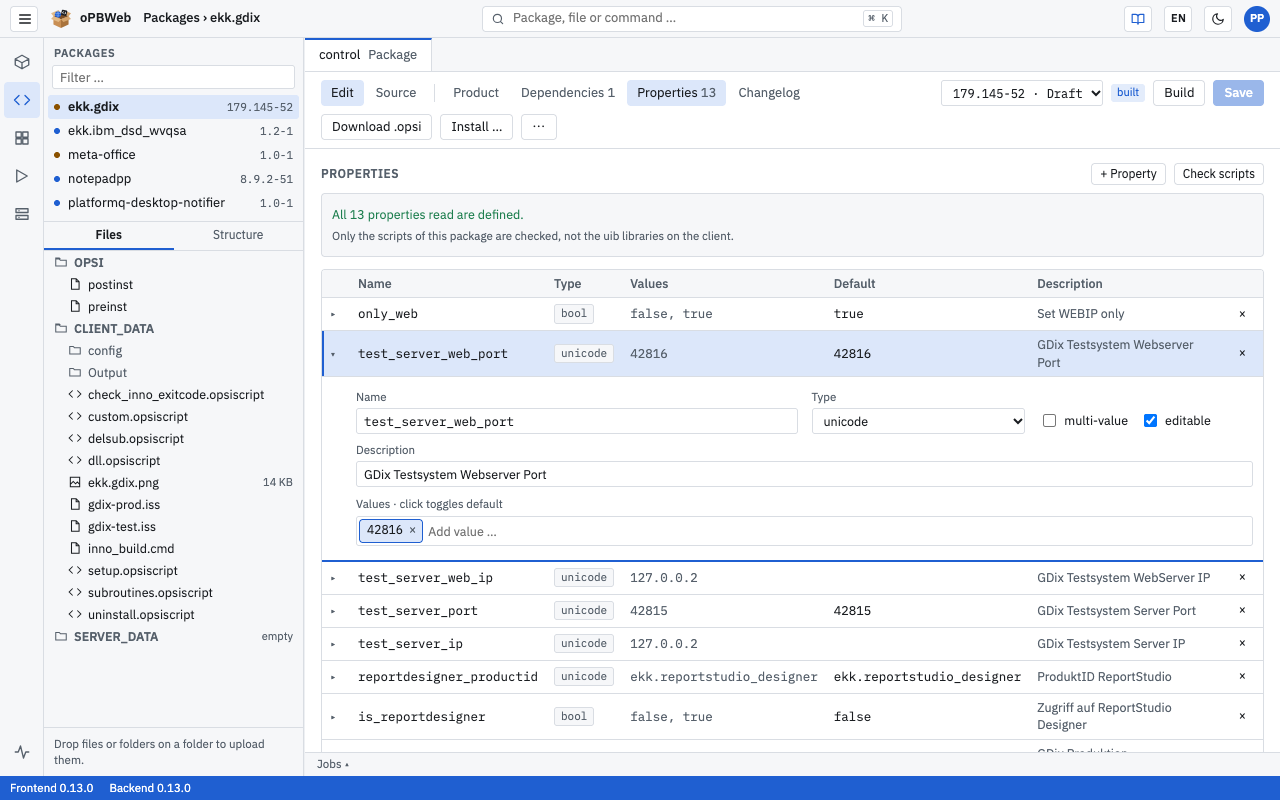
Creating or editing a property
- Click + Property. oPBWeb creates a property
property_<n>of type unicode and expands its editor. Clicking ▸ expands an existing property. - Fill in the fields:
- Name: letters, digits,
_,.and-; each name may occur only once in the version. - Type:
unicode(text) orbool(true/false). - For unicode: multi-value (several values can be selected at once) and editable (custom values allowed).
- Description.
- For unicode: values under “Values · click toggles default”. Type a value into “Add value …” and press
Enter. Clicking a value marks it as default or removes the mark, × removes it. - For bool: Default
trueorfalse.
- Name: letters, digits,
- Click Save.
Check scripts
Check scripts searches all scripts of the package for GetProductProperty, GetConfidentialProductProperty and GetProductPropertyList and compares the properties read with the ones defined:
- “… properties read by scripts are missing in the control:” lists properties that a script reads but that are not defined, with their location (file and line) and the default used in the script. Create adds a property directly.
- “Not read by any script: …” names defined properties that no script uses.
- “All … properties read are defined.” means everything is fine.
Only the scripts of this package are checked, not the uib libraries on the client. You can run the check as a viewer too; Create requires a draft and the Packager role.
Changelog section
A label next to the heading shows where the changelog is stored (OPSI/changelog.md, OPSI/changelog.txt or OPSI/control [Changelog]). Next to it you switch between Entries and Free text.
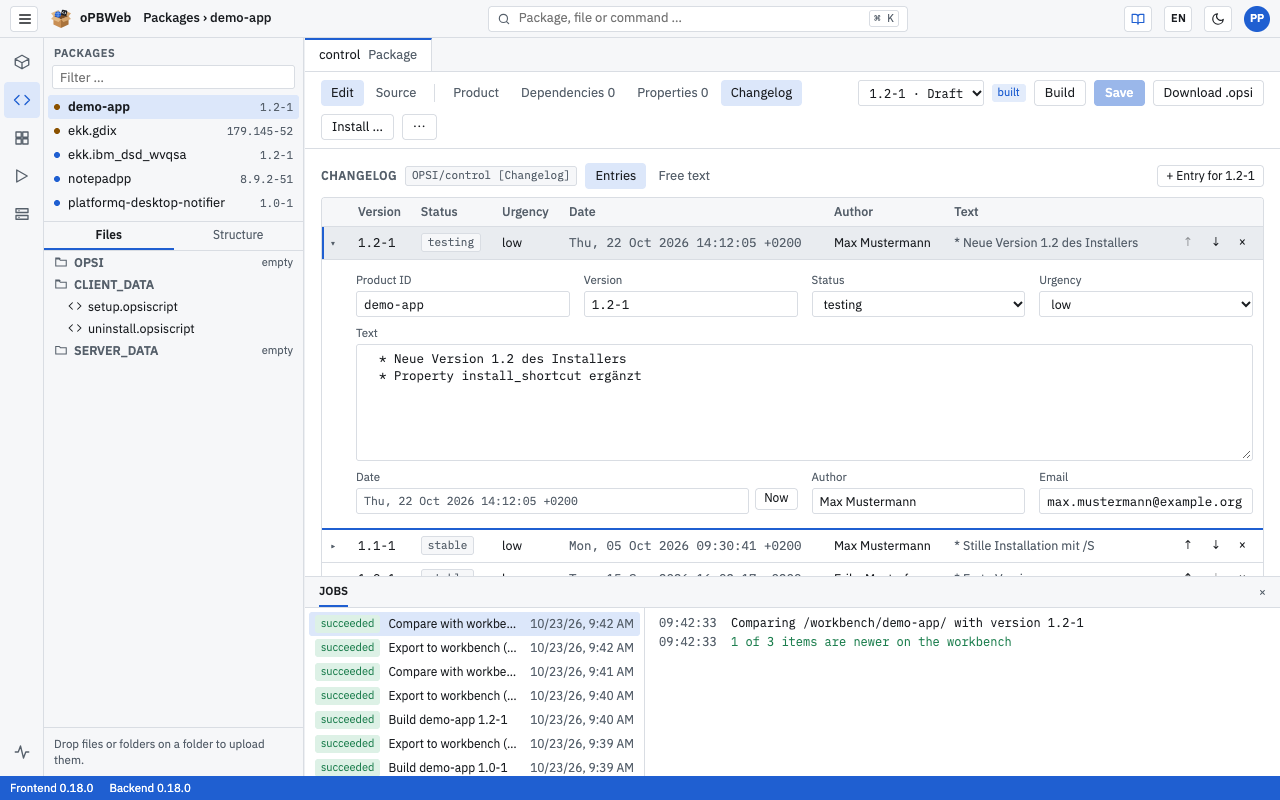
Entries
If the changelog is in standard form, oPBWeb opens it as a list of entries. Standard form means:
- txt and embedded (Debian style, as in the opsiPackageBuilder): for each entry the header line
product (version) status; urgency=urgency, the text and the trailer line-- Name <email> date. - md (format of the opsi-setup-detector): optionally a title
# Changelog …, then for each entry## [version] - date, the text and(Name <email>).
Clicking a row expands the entry. There you change version, status and urgency (Debian style only), text, author, email and date; Now sets the current date. Use ↑ and ↓ to move an entry, × deletes it after a confirmation. Save with Save in the toolbar. oPBWeb writes unchanged entries back character by character, so a change only affects the lines of the changed entry.
Free text
In free text you edit the changelog directly in the text editor; save with Save or Ctrl S. If the text deviates from the standard form, the note “The changelog is not in standard form. It can only be edited as free text.” appears above it and Entries is disabled. As soon as the text is in standard form again, you can switch back.
Adding an entry
- Click + Entry for … (the button name contains the current version).
- In the “New changelog entry” dialog, enter your changes under Changes (one per line).
- For txt and embedded changelogs: select Status (
testing,stable,unstable; defaulttesting) and Urgency (low,medium,high,critical; defaultlow). - Click Add.
The entry is inserted at the top, with your name, your email address and the current date. If you have no email address on file, oPBWeb uses username@<mail domain> from the settings. In the Entries view the new entry is then expanded and is stored with Save; in Free text oPBWeb saves it immediately.
Comparing with the workbench
Roles: Packager, Releaser, Administrator
Sometimes someone changes a package directly in the workbench of a config server, for example a script, and rebuilds it there. With ⋯ › Compare with workbench … you bring such changes into the version in oPBWeb so that they are not lost.
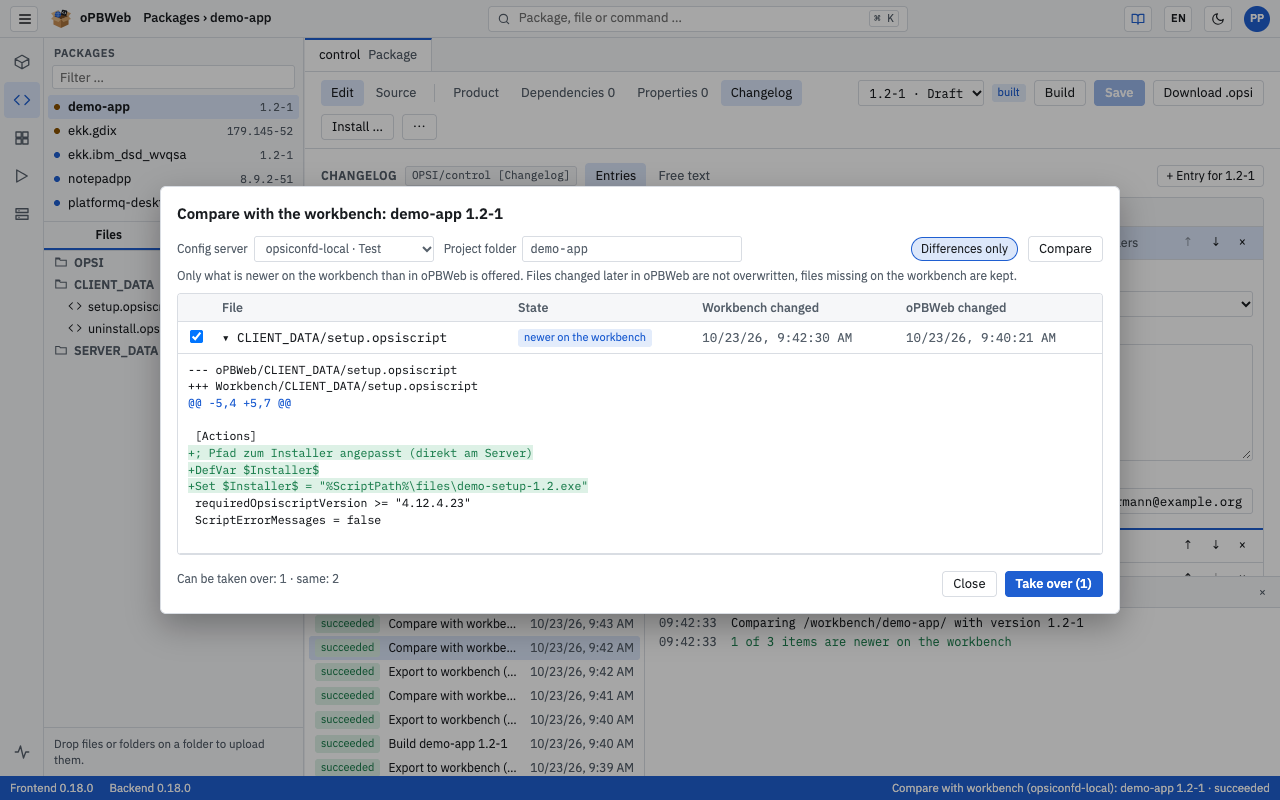
The comparison works in one direction only, from the workbench to oPBWeb, and offers only what is newer on the workbench. It does not overwrite files changed later in oPBWeb and does not delete files missing on the workbench.
Open the version in the editor and choose ⋯ › Compare with workbench …. The dialog “Compare with the workbench: firefox 128.0-1” opens and compares right away.
Check the settings at the top and click Compare after a change:
- Config server: the server whose workbench is compared.
- Project folder: preset with the folder the version was imported from, otherwise with the product ID.
- The Differences only chip (active by default) hides identical files.
Check the table with the columns File, State, Workbench changed and oPBWeb changed (time of the last change):
State Meaning Can be taken over “new on the workbench” The file only exists on the workbench. yes, preselected “newer on the workbench” The file was changed on the workbench later than in oPBWeb. yes, preselected “newer in oPBWeb” The file was changed later in oPBWeb. no, never overwritten “only in oPBWeb” The file is missing on the workbench. no, never deleted “same” no difference – Clicking a row with ▸ shows the differences: red is the state in oPBWeb, green the state on the workbench. At the bottom there is a summary such as “Can be taken over: 2 · same: 14”.
Clear the checkboxes of everything you do not want to take over and click Take over (n).
After taking over, oPBWeb reports “Changes taken over from the workbench”, compares again and reloads the version in the editor. Only the OPSI/, CLIENT_DATA/ and SERVER_DATA/ folders are compared; old control-*.bak backups are ignored. Comparing and taking over run as jobs (“Compare with workbench (server): …”, “Take over from workbench (server): …”).
Control data
The control file and the changelog file appear together as one row “Control data (control, changelog.txt)”. Here oPBWeb compares the data, not the text: different formatting, such as different spacing, does not count as a difference. If you take over this row, oPBWeb replaces the product data, dependencies, properties and changelog of the version with the state on the workbench.
Released versions
You can only take changes over into a draft. For a released version, the dialog shows the differences but reports “This version is released. To take changes over, create a new version first and compare that one.” Then create a new version with New version and compare that one.
Source view
Source shows the control file and the changelog exactly as they are generated when building. The view is read-only and available to all roles.
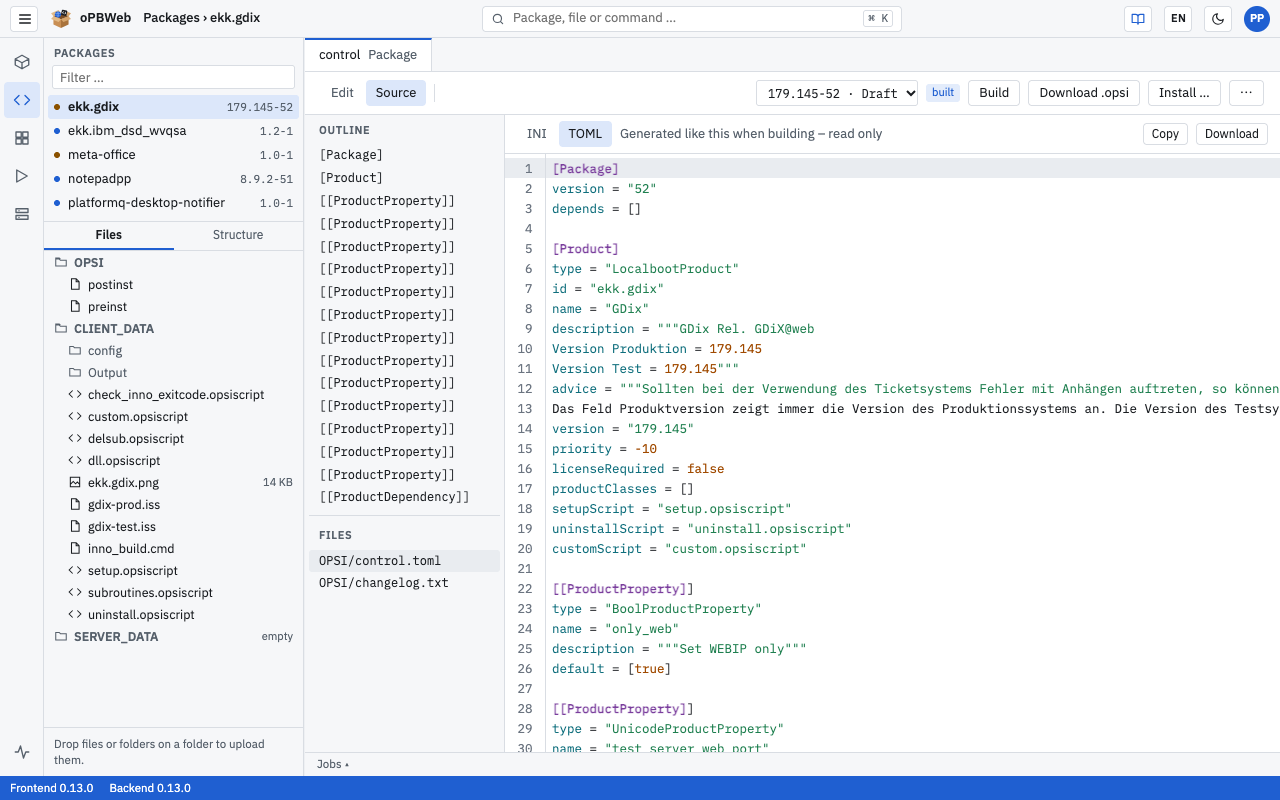
- On the left you find the OUTLINE (the sections of the file; a click jumps there) and the FILES (
OPSI/controlorOPSI/control.tomland, if applicable, the changelog). - INI | TOML selects the format. If it matches the package format, “Generated like this when building – read only” is shown. If you select the other format, you see a “Conversion preview – read only”. This lets you check the result before switching formats.
- Copy puts the text on the clipboard, Download saves it as a file.
The source view shows the saved state. Unsaved changes in the form appear there only after saving.
Released versions
As soon as a version has been installed on a depot, it is released and read-only. The editor then shows at the top:
Version … is released (installed) and read-only. Create a new version or set it back to draft to change it.
In this state:
- All fields, tables and text editors are locked; Save and Build are missing.
- Download .opsi and Install … remain available, as does the source view.
- As a packager, the notice bar offers two ways back to editing:
| Action | Effect |
|---|---|
| New version | Creates an editable copy with all data and files. The same product version and package version +1 are prefilled (for a non-numeric package version, .1 is appended). The released version stays unchanged. |
| Back to draft | Turns exactly this version back into a draft without changing the version number. If it is installed on a production depot, only a Releaser may do this. |
If the version is already installed on depots, the old package stays there until you rebuild and install again. Afterwards, different depots may hold two different packages with the same version number. For changes to distributed packages, New version is usually the safer way. More in Build and Deploy .