Account and Language
Roles: Viewer, Packager, Releaser, Administrator
Overview
You reach the settings of your own account via the avatar icon with your initials at the far right of the top bar. Next to it in the top bar you find the switches for language and light/dark appearance, as well as access to this manual.
These functions are available to all users, regardless of their role.
The user menu
Click the avatar icon to open the user menu.
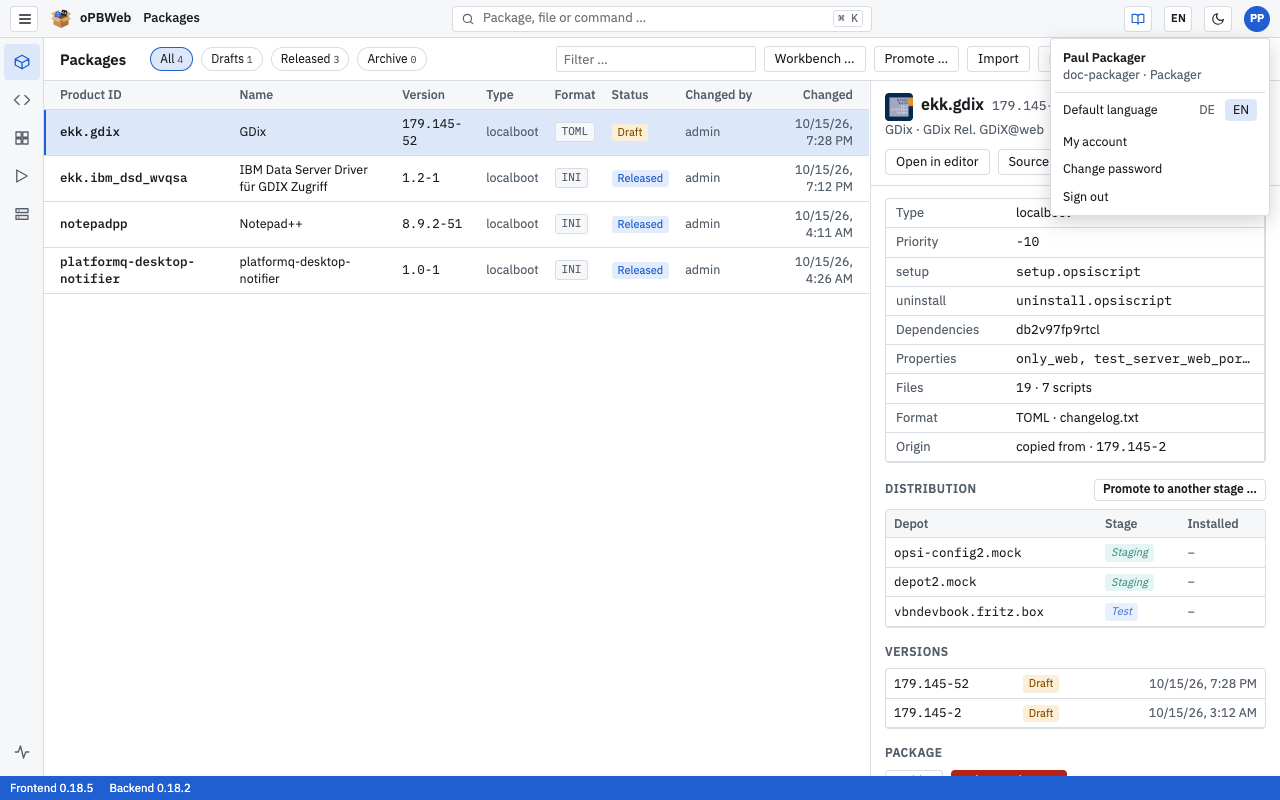
At the top of the menu you see your display name as well as your user name and role, for example mmuster · Packager. Below that follow Default language, My account, Change password and Sign out.
My account
My account in the user menu opens a page of its own. At the top it shows your account data: user name, name, email, role and source (local or directory). There you also set the Default language and change your password with Change password, just as in the user menu. Below follow the syntax colors of the editor .
Language
oPBWeb has two interface languages: German and English. There are two ways to switch the language, and they differ in their effect.
| Where? | Effect | Valid until |
|---|---|---|
| Default language in the user menu | is stored in your user account | permanently, at every sign-in and on every device |
| DE/EN switch in the top bar | applies only to this browser tab | the next sign-in |
Setting the default language
- Open the user menu.
- In the Default language row, click DE or EN.
The interface switches immediately, and oPBWeb stores the language in your account. After every sign-in, oPBWeb starts in this language, even on another computer or browser.
Switching the language temporarily
The switch in the top bar shows the current language (DE or EN). Click it to switch to the other language. This is handy if you want to quickly look up a term in the other language or show a colleague something in their language.
The change only applies to the current browser tab and is kept when you reload the page. As soon as you sign out and back in, your default language applies again.
Language on the sign-in page
The sign-in page also has a language switch. Before you sign in, oPBWeb does not know you yet; it uses the language last used in this browser or, on your first visit, the language of your browser. After you sign in, oPBWeb applies your default language.
Some texts stay German in the English interface: the descriptions of commands and functions in the script editor (taken from the German opsi-script manual), titles and logs of jobs created before version 0.15.0, and texts that opsiconfd returns unchanged (for example HTTP errors). Messages of the server (error messages, job titles and logs, details in the system status) and the diagnostics in the script editor follow the interface language.
Changing your password
This function is only available for local accounts, that is accounts created in oPBWeb itself.
- Open the user menu.
- Click Change password.
- Enter your Current password.
- Enter the New password and repeat it under Repeat new password. The new password must be at least 10 characters long.
- Click Save.
If the password is too short or the two entries do not match, the dialog shows “At least 10 characters.” or “The passwords do not match.” and Save stays disabled.
If you sign in with your directory account (LDAP, e.g. Active Directory), the Change password entry is missing. Change your password in the directory as usual, for example via Windows.
If you have forgotten your password, contact an administrator. They can set a new password for you, see Users and roles .
Signing out
In the user menu, click Sign out. oPBWeb ends your session and shows the sign-in page again. A temporarily switched language is discarded.
Light or dark
The moon icon in the top bar (Toggle light or dark) switches between light and dark appearance. As long as you have not chosen anything, oPBWeb follows the setting of your operating system. Your browser stores your choice; it therefore applies to this browser, not to your account.
The switch is also available on the sign-in page and as a command in the command search (Ctrl K).
Syntax colors in the editor
On the My account page, the section Syntax colors in the editor sets the colors the editor uses to highlight files. This applies to every editor in oPBWeb: script editor, snippets, the source view of the control file and the files on the depot. The setting belongs to your account and applies on every device you sign in on.
The section is built like this:
- Light / Dark: the light and the dark appearance each have a setting of their own. The page first shows the mode oPBWeb is currently running in. The editor always uses the colors of the current mode.
- File types (list on the left): Default (all file types) applies to every file type without an own scheme and to text files without highlighting. Below it are opsi-script, Shell / batch, control, Inno Setup, AutoIt, PowerShell, INI / REG / INF, XML, YAML, JSON and Python. Each type shows like default or own scheme.
- Preset: oPBWeb ships well-known color schemes, as light presets oPBWeb, opsi ScriptEditor (colors and font styles of the old opsi ScriptEditor), GitHub Light, Solarized Light, One Light, VS Code Light+ and Gruvbox Light, as dark presets oPBWeb, GitHub Dark, Solarized Dark, One Dark, VS Code Dark+, Gruvbox Dark, Monokai, Dracula and Nord. Every preset can be chosen in both modes, a dark preset in the light appearance too.
- Syntax and Editor: Syntax lists the colors of the language elements the selected file type knows, e.g. comment, section, keyword, function, string and variable. B (bold) and I (italic) next to each color set the font style of the element. Editor lists background, text, gutter, line numbers, current line, selection and cursor.
- Preview: shows a short example of the selected file type in the chosen colors.
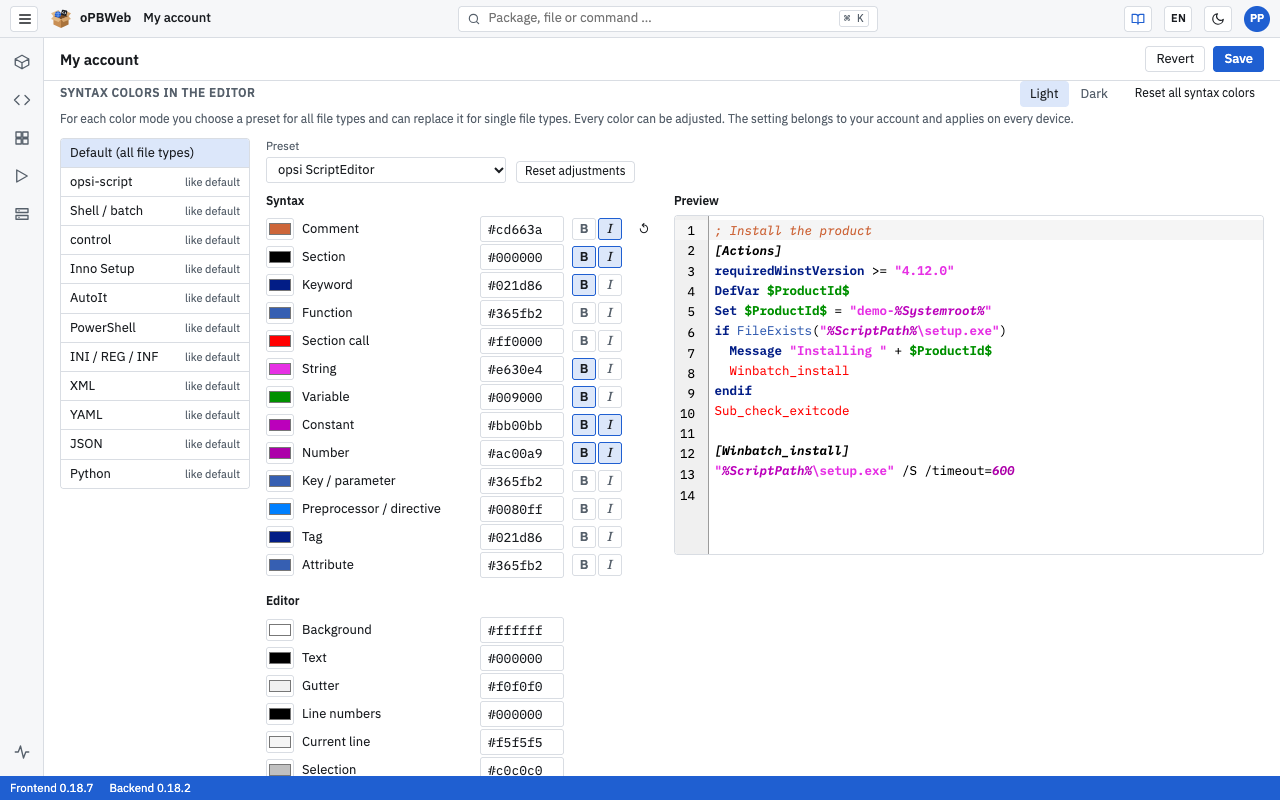
Setting colors
- Choose Light or Dark.
- Select the file type on the left. For all file types at once, take Default (all file types).
- For a single file type: tick Own scheme for this file type. The own scheme starts with the colors of the default.
- Choose a Preset.
- Change single colors if needed: click the color field or type the color as a hex value, e.g.
#a31515. Toggle bold and italic with B and I. A changed element gets the button ↺, which puts back the preset’s color and font style. - Click Save.
Choosing another preset discards the single colors and font styles changed for this file type. Reset adjustments sets all colors and font styles of the file type back to the preset. Unticking Own scheme for this file type makes the file type follow the default again. Reset all syntax colors restores, after a confirmation, the oPBWeb defaults for both modes and all file types. That too takes effect only with Save; Revert restores the last saved state.
Opening the manual
The book icon in the top bar (Manual (new tab)) opens this manual in a new browser tab, in the currently selected interface language: the German manual for German, the English manual for English.
Expanding and collapsing the navigation
The activity bar on the left edge normally shows only icons; the name of an area appears as a tooltip. Click the ☰ icon at the far left of the top bar (Expand/collapse menu labels) to show the labels, so that each icon has its name next to it. Click again to collapse the bar.
For an overview of the whole interface, see Getting started .