Jobs
Roles: Viewer, Packager, Releaser, Administrator
Overview
Everything that takes longer or talks to an opsi server runs in oPBWeb as a background job. You start the action, keep working and follow the progress in the status bar, in the package editor or in the Jobs view.
All users see all jobs, including those of their colleagues, together with their logs. This lets you trace who built or deployed what and when.
Which actions run as jobs?
| Action | Shown in the Action column |
|---|---|
Import an .opsi package | Import |
| Build | Build |
| Install …, Promote … to another stage | Install |
| Uninstall … | Uninstall |
| Sync the depots (one config server or all) | Depot sync |
| Clean up … the object storage (administrators only) | Cleanup |
| Scan, import, export the workbench | technical name, e.g. scan_workbench, import_workbench, import_workbench_many (import of several project folders), export_workbench |
| Compare with workbench …: compare, take over | compare_workbench, apply_workbench |
| Read the repository, delete repository files | list_repository, delete_repository_files |
| Unlock products | unlock_products |
| Upload and download files in the Files tab of the depots | files_upload, files_download |
| Fetch the CA certificate, test the connection (administrators only) | fetch_opsi_ca, check_opsi_server |
Only the first six actions have a translated name; all others appear with their technical name. Job titles and log lines come from the server and follow the interface language. Jobs created before version 0.15.0 keep their German titles and log lines.
The job list
Open Jobs in the activity bar.
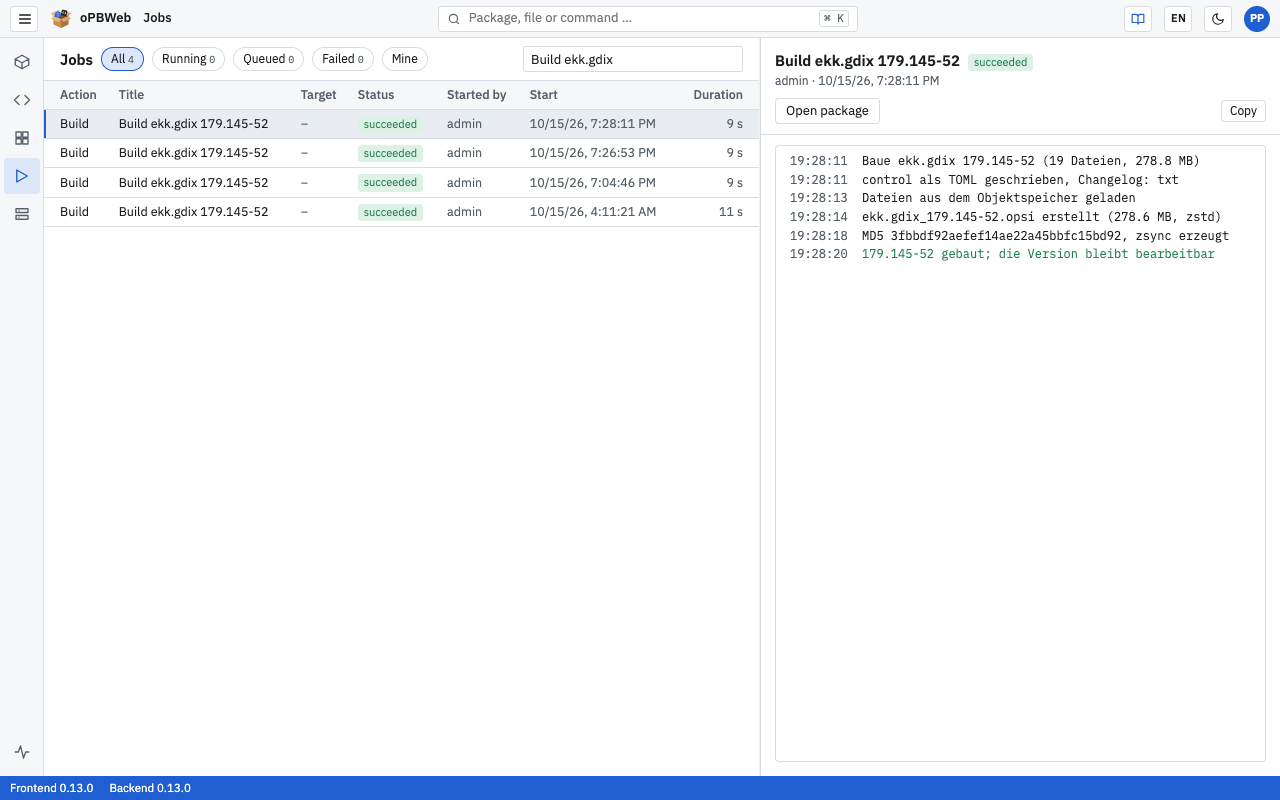
The filters are at the top:
- All, Running, Queued, Failed: chips with the respective count
- Mine: shows only jobs you started yourself
- search field “Package, depot or title …”
The table has the columns Action, Title, Target (package or depot), Status, Started by, Start and Duration. For running jobs, the status also shows the progress in percent. The list refreshes itself every few seconds and shows the last 200 jobs (“Showing 200 of 1,348 jobs”).
A job has one of these states: queued, running, succeeded, failed or cancelled.
In the command search (Ctrl K), My jobs takes you straight to the filtered list of your own jobs.
Job details and live log
Click a job in the list. On the right you see the title, status, target, who started it and the start time, a progress bar, the error message in case of errors and the log below.
For running jobs, new log lines are added live and the view scrolls along automatically. The lines are colored by meaning: green for success, orange for warnings, red for errors.
Depending on the job, the detail area offers these buttons:
- Open package: opens the affected package in the package editor (for jobs that belong to a package).
- Copy: copies the complete log with timestamps to the clipboard, for example for an error report to the administrator.
- Cancel: see below.
Cancelling jobs
You can only cancel jobs in the queued state, that is jobs that have not started yet. A running job cannot be cancelled; it runs until it finishes or fails.
- Every user can cancel their own queued jobs.
- Only an administrator can cancel queued jobs of other users.
Select the job and click Cancel. The job gets the state cancelled.
If you cancel a queued installation job that released a draft, the version is a Draft again afterwards.
Jobs are queued, for example, when another job is already working on the same depot. oPBWeb runs jobs for a depot one after the other so that installations do not interfere with each other.
Progress in the status bar
Jobs you started in this browser tab appear on the right of the status bar with title, progress bar and percentage. Click one to open the job in the job list. When no job is active any more, the status bar shows the most recently finished job with its result.
In addition, the Jobs icon in the activity bar shows the number of running jobs you started in this browser.
If the connection to the server drops during a job, oPBWeb reports “Connection to the job lost”. The job itself keeps running on the server; you see its final state in the job list.
Jobs in the package editor
At the bottom of the package editor is the JOBS panel. It lists the most recent jobs of the open package with status and time and shows the log of the selected job on the right, live for running jobs.
If you start a job in the editor, for example with Build or Install …, the panel opens automatically. Close it with ×; the Jobs ▴ button at the bottom edge shows it again.
More on building and deploying is in Build and deploy .