Getting Started
Roles: Viewer, Packager, Releaser, Administrator
Overview
This chapter shows you how to sign in, how the oPBWeb interface is laid out and how to use the search to jump quickly to packages, files and commands. At the end you find a short overview of the roles and the package lifecycle.
Signing in
- Open oPBWeb in your browser. Without a valid session, you land on the sign-in page.
- Enter your User name and Password.
- Click Sign in.
After signing in, the package list opens, or the page you originally wanted to open. On the sign-in page you can already switch the language (DE/EN) and light/dark mode in the top corner.
After five failed sign-in attempts, a local account is locked for 15 minutes (“Account locked until HH:MM.”), for the computer the attempts came from. An administrator can lift the lock earlier. If your organization uses LDAP, you sign in with your directory account; your role then follows from your LDAP groups.
Your session lasts up to seven days unless you sign out. You sign out via the avatar menu, see Account and Language .
Interface layout
The interface is laid out like a development environment: the top bar at the top, the navigation bar on the left, the work area in the middle and the status bar at the bottom.
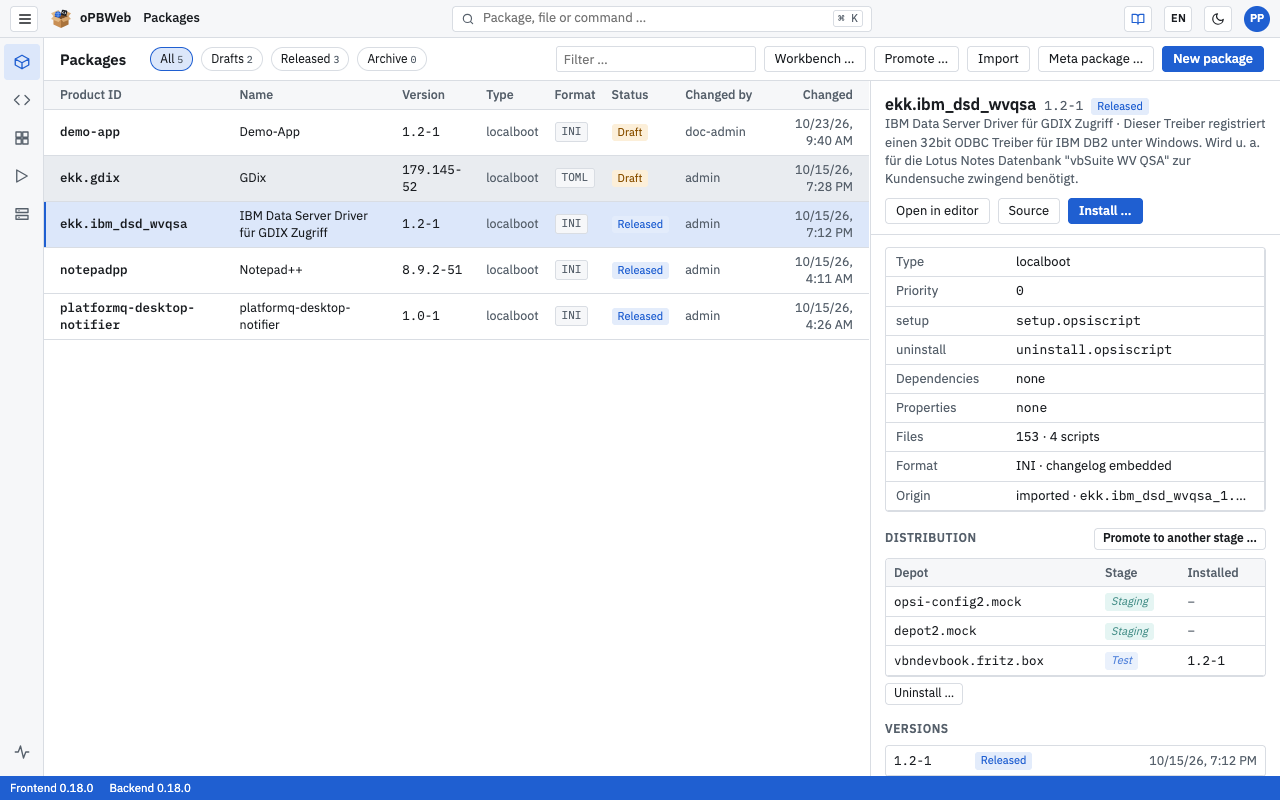
Top bar
From left to right you find:
| Element | Function |
|---|---|
| ☰ | Shows or hides the labels of the navigation bar (tooltip “Expand/collapse menu labels”). |
| oPBWeb logo | Takes you back to the package list. |
| Title | Shows where you are, in the package editor for example “Packages › firefox”. |
| Search field “Package, file or command …” | Opens the search
(shortcut Ctrl K, on a Mac ⌘ K). |
| Book icon | Opens this manual in a new tab (Manual (new tab)), in the current interface language. |
| DE / EN | Switches the language for this session. The next time you sign in, your default language applies again. |
| Moon icon | Switches between light and dark theme (Toggle light or dark). As long as you choose nothing, oPBWeb follows your operating system setting. |
| Avatar | Shows your initials. The menu contains your name and role, Default language, My account (account data and syntax colors of the editor ), Change password and Sign out. |
Navigation bar
Use the navigation bar on the left to switch between areas:
| Area | Content |
|---|---|
| Packages | List of all packages with details, start page after signing in |
| Package editor | Opens the package you edited last |
| Snippets | Text snippets for opsi-script |
| Jobs | All jobs with live log; a counter shows your running jobs |
| Depots | Config servers and their depots, installed products, files, repository |
| System status (bottom) | Availability of the services |
| Users and roles, Settings (bottom) | Visible to administrators only |
Without labels, the bar shows only icons; hover over an icon to see its name as a tooltip.
Status bar
On the left, the status bar shows the frontend and backend versions. If the server cannot be reached, it shows “Backend not connected”.
Next to it, an orange notice appears when something needs to be done on a config server, for example “No config server configured”, “Config server 1: new CA certificate” or “Config server 1: CA expires in 30 days”. For administrators, the notice leads to the Depots view. On the right you see the progress of the jobs you started in this browser tab. Clicking one opens the job in the Jobs area.
Resizing panes
Many views are split into panes, for example the package list and the package details. You can move the dividers:
- Drag with the mouse to change the width.
- With focus on the divider, the arrow keys move it by 20 pixels.
- Double-click to reset the width.
oPBWeb remembers the widths in your browser.
Search
The search lets you jump to packages, files and commands with the keyboard, without clicking.
- Press
Ctrl K(on a Mac⌘ K) or click the search field “Package, file or command …”. - Type a few letters.
- Select a result with the arrow keys ↑ and ↓ and press
Enter. PressEscto close the search.
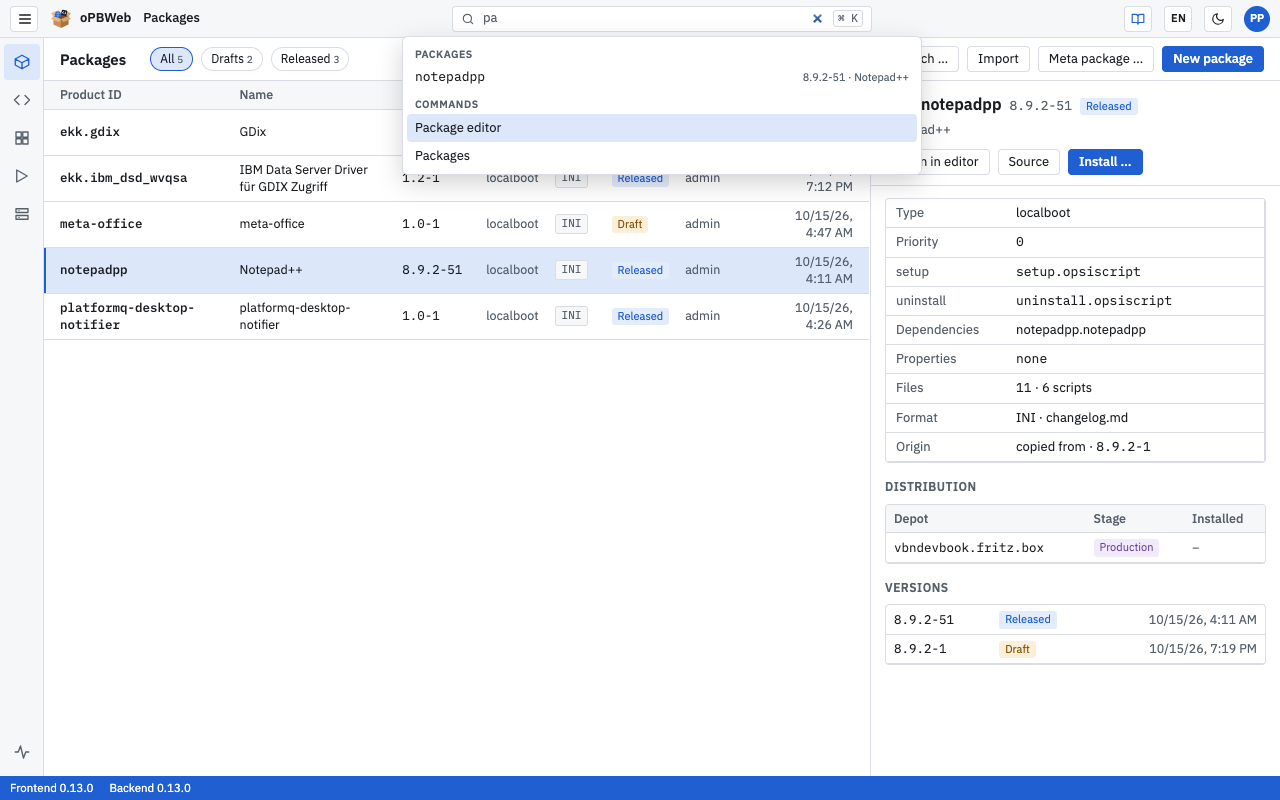
Results are sorted into groups, at most 14 at a time:
| Group | Content |
|---|---|
| Files in package | Files of the package currently open (only when a package is open). Selecting a result opens the file in the editor. |
| Packages | Packages by product ID, with version and name as a hint |
| Commands | The areas (Packages, Package editor, Snippets …), My jobs and Toggle light or dark |
Exact matches come before matches at the start of a word, followed by matches anywhere in the name. If none of these match, the search falls back to fuzzy matching (the letters in this order, gaps allowed).
Roles at a glance
Your role determines what you may do in oPBWeb:
| Role | In short |
|---|---|
| Viewer | read only |
| Packager | edit and build packages, install on test and staging depots |
| Releaser | also deploy to production depots |
| Administrator | also users, servers and settings |
The full table is in the user guide overview .
The lifecycle in one picture
Draft ──Build (any number of times)──► “built”
   ▲                                     │ Install …
   │                                     ▼
   └────── Back to draft ────────── Released (read-only)
                                         │ New version
                                         ▼
                                   new draft (copy)
You can edit and build a draft. Only installing on a depot releases the version. The details are described in Build and Deploy .