Depots
Roles: Viewer, Packager, Releaser, Administrator
Overview
The Depots view shows all opsi config servers set up in oPBWeb and their depots as oPBWeb last read them. You see which products are installed in which version, clean up the repository, edit files directly on the server and compare the depots with each other.
Viewers see everything but cannot change anything. What Packagers and Releasers may change on a depot depends on its stage (see Stages and roles ). Only administrators can add, edit and remove config servers, see opsi server .
Config servers and depots
On the left is a tree with all config servers and their depots. Each depot belongs to exactly one config server.
Config servers are shown in bold. Each row shows:
- a status dot: green if the last check succeeded, red if it failed, gray if the server has not been checked yet,
- the name of the server and a stage badge (Production, Staging or Test),
- below it the short info “Config server · 3 depots”.
Depots are indented below their config server, each with depot ID, stage badge and a short info line such as “config server · 42 products” (for the depot on the config server itself) or “17 products”. An italic, lighter stage badge means: the depot has no stage of its own and inherits that of its config server (tooltip “inherited from the config server”). The following hints can also appear there:
- disabled: An administrator has switched the depot off for oPBWeb. You cannot install anything on it.
- no longer present: The config server no longer reports the depot. oPBWeb keeps it with its settings until an administrator removes it.
If no config server is set up yet, the tree shows “No config server configured yet.” An administrator adds the servers.
Collapsing and searching the list
With many depots, two things help:
- Collapse: Click the arrow in front of a config server’s name to collapse or expand its depots. The server row stays visible. oPBWeb remembers in this browser which servers are collapsed.
- Search: The “Search depots” field above the list searches depot ID and description. If the name of a config server matches, you see all of its depots. While searching, all servers with matches are expanded. If nothing matches, the list shows “No depot matches the search.”
Viewing a config server
Click the row of a config server. As a Packager, Releaser or Viewer you see a read-only overview on the right:
- name and stage of the server,
- Config server URL,
- State: “reachable” or “not reachable” with the error message of the last check,
- the validity of the stored CA certificate.
From Packager upwards, Sync at the top syncs exactly this server. Administrators see the server form here instead, see opsi server .
Viewing a depot
Click a depot to see its details on the right. At the top you see the depot ID, the stage, the name of the config server and the time of the last sync (“synced …”).
Syncing
A sync reads the depots of a config server and their installed products again. It runs as a job; while it runs, the button shows “Syncing …”. You can sync from the Packager role upwards:
| Button | Effect | Job title |
|---|---|---|
| Sync in the detail view of a depot or config server | syncs only this config server and its depots | “Synchronize depots (server)” |
| ⟳ at the top of the list (tooltip “Synchronize all config servers”) | syncs all config servers one after the other | “Synchronize depots of all config servers” |
Syncing one server never changes the depots of another server.
A sync via Sync or ⟳ also reads the workbench of each config server. oPBWeb remembers which project folder holds which package in which version; you see this in the package list under Workbench . If the workbench cannot be read, the job logs a warning and syncs the depots anyway.
In addition, oPBWeb automatically checks all config servers every five minutes (default, configurable under Settings → Worker) and syncs the depots of every reachable server; this automatic sync does not appear in the job list and does not read the workbench. The worker reads the workbench separately, hourly by default (also under Settings → Worker). You mainly need a manual sync when you want to see a change on the server immediately.
Depot settings
Below the depot details are the Settings with Stage, Service URL and Enabled, as well as info fields such as URL in use and Reported by opsi. Under Stage, “as config server (Production)” means that the depot inherits the stage of its config server. Only administrators can change these values; for everyone else they are read-only. Details are in Depot management .
Stages and roles
Each config server has a stage: Production, Staging or Test. Its depots inherit this stage unless an administrator sets a stage of their own for a depot. The effective stage of a depot determines who may perform write actions on it:
| Action | Test and staging depot | Production depot |
|---|---|---|
| Install, uninstall | Packager | Releaser |
| Promote packages to this stage | Packager | Releaser |
| Unlock products | Packager | Releaser |
| Delete files from the repository | Packager | Releaser |
Administrators may do everything Releasers may do. New config servers start in the Production stage; an administrator switches test and staging servers or individual depots over. If you lack the required role, oPBWeb hides the corresponding buttons or locks the depot in the dialog.
How to take a tested package from one stage to the next is described in Build and deploy .
“Installed products” tab
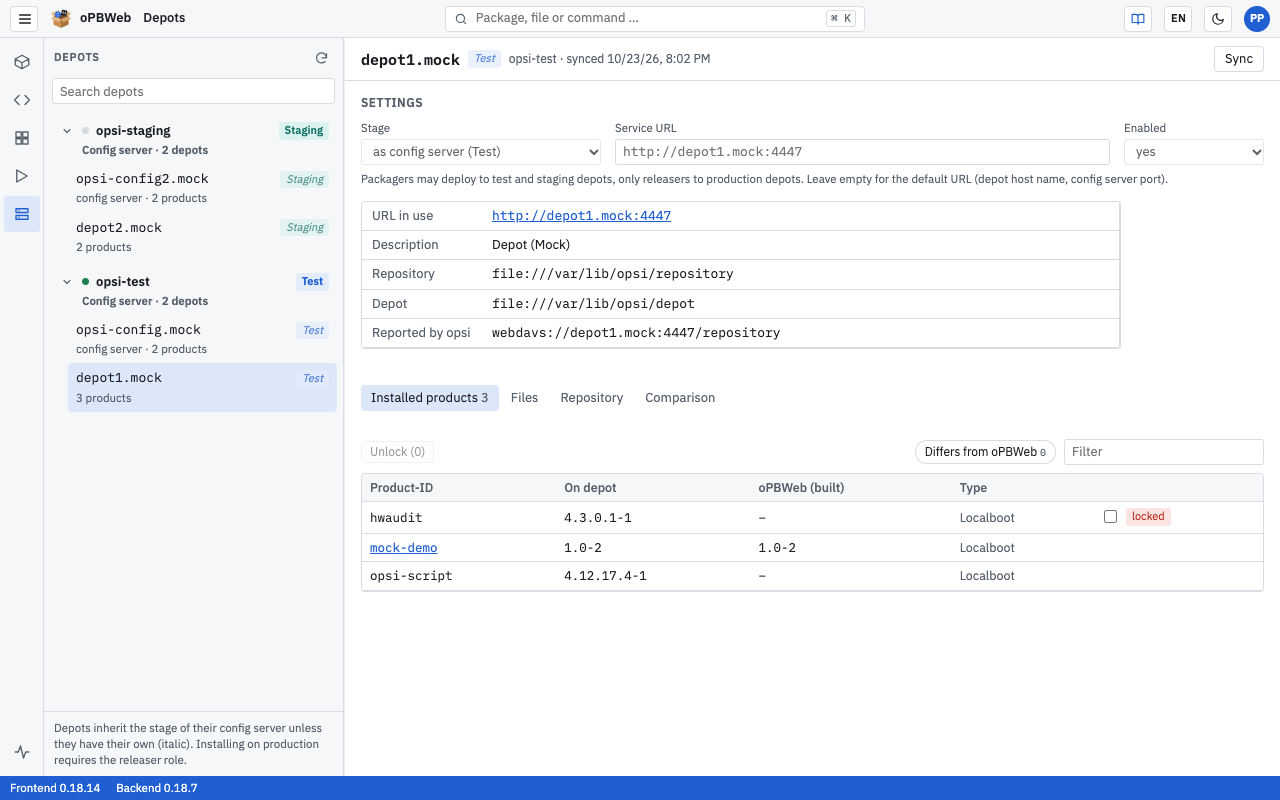
The table shows all products installed on the depot:
| Column | Meaning |
|---|---|
| Product-ID | Identifier of the product. If the package exists in oPBWeb, the ID is a link to the package editor. |
| On depot | installed version (product and package version) |
| oPBWeb (built) | built version in oPBWeb; orange if it differs from the installed one |
| Type | product type |
The Differs from oPBWeb chip limits the list to products whose versions differ between the depot and oPBWeb. The “Filter …” field searches by product ID.
Unlocking locked products
If an installation is aborted, the product sometimes stays locked on the depot. It then carries the locked badge. To remove the lock:
- Select the checkboxes of the locked products.
- Click Unlock (n).
Unlocking runs as a job; afterwards oPBWeb reports “2 products unlocked”. You only see the checkboxes and the button if you may write on this depot.
“Files” tab
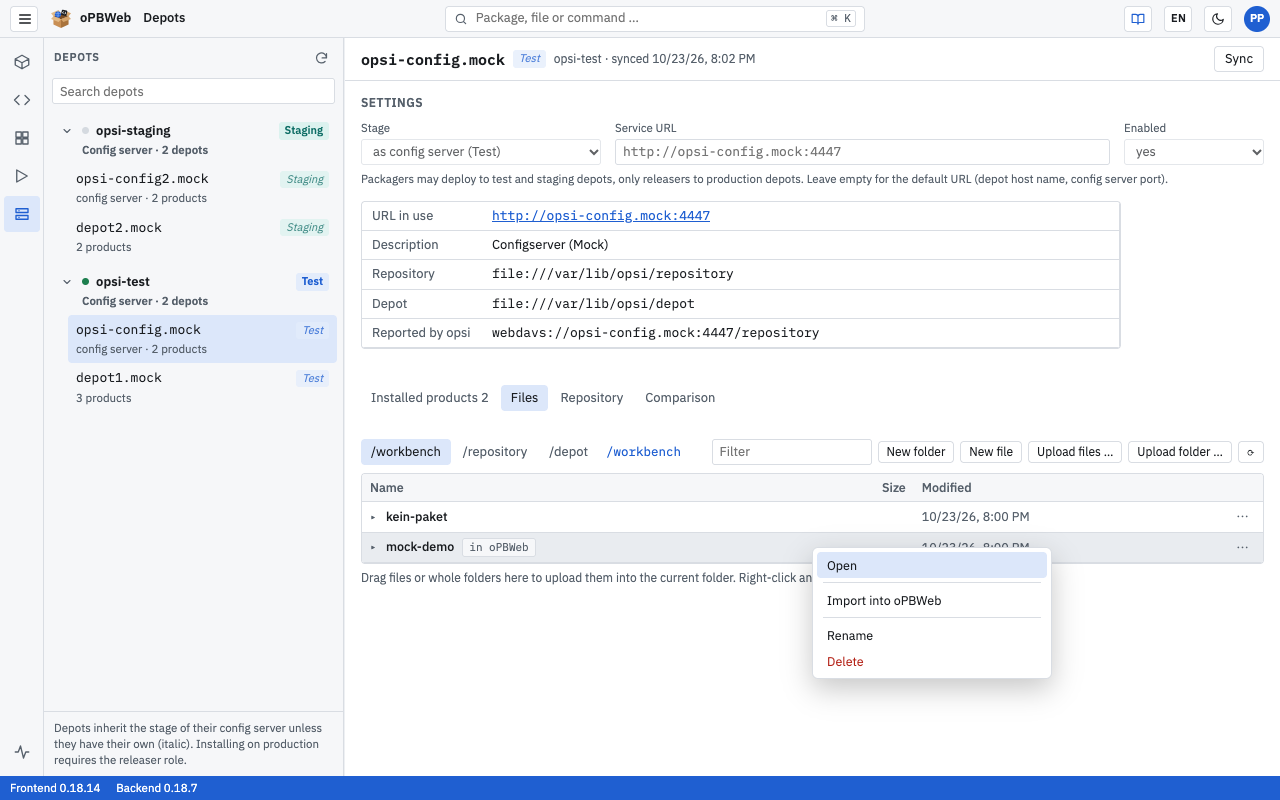
The Files tab is a file manager for the shares of the depot. Depending on the depot, there are up to three shares as sub-tabs:
| Share | Content | Access |
|---|---|---|
/workbench | working directory for package sources | read for everyone, write from Packager on |
/repository | uploaded .opsi files | read only |
/depot | unpacked, installed products | read only |
/workbench only exists on the configserver and on depots that report a workbench. In read-only shares, oPBWeb shows the notice “/repository is read only.” or “Changes require the packager role.”
Navigating
- Click a folder to open it; the ‹ up one level row takes you back. The current path is shown at the top.
- The “Filter …” field filters the current folder.
- Reload reads the folder again from the server.
- Folders in the root of
/workbenchfor which a package with the same product ID exists in oPBWeb carry the in oPBWeb badge.
Viewing and editing files
Click a text file (scripts, control, .ini, .xml, .json, .ps1, .cmd, .log and many more) to open it in the text editor. opsi scripts get the same highlighting as in the script editor. In /workbench you can change the file and write it back with Save; in the other shares it is “read only”.
The editor keeps the character encoding (UTF-8 or CP1252) and the line endings of the file; the encoding is shown at the bottom of the dialog. You can edit text files up to 2 MB. Download larger files and binary files.
Downloading
Click a file that is not text, or choose Download in the context menu (right-click). The download takes two steps: first a job copies the file from the server, then your browser starts the download. Only the user who started the download can fetch the file.
Working in the workbench (Packager and above)
In /workbench you additionally have:
- New folder and New file (suggested name
neu.opsiscript) - Upload files … and Upload folder …
- in the context menu: Rename and Delete (with confirmation; for folders including their content)
Alternatively, drag files or whole folders into the list. They end up in the currently open folder. The progress appears as “Uploading … 45 %”; then a job copies the files to the server and oPBWeb reports “3 files uploaded”.
Importing a package from the workbench
You can import a package directory in /workbench directly into oPBWeb:
- Open the root of
/workbench. - Right-click the package folder.
- Choose Import into oPBWeb.
The import runs as a job and reads from the workbench of the config server the depot belongs to; afterwards oPBWeb reports “{name} imported”. An existing version is not overwritten. To replace versions and to import several folders, use the Workbench … dialog in the package list, see Packages .
“Repository” tab
The repository of a depot contains the uploaded .opsi files together with their .md5 and .zsync check files. Over time, old versions accumulate there.
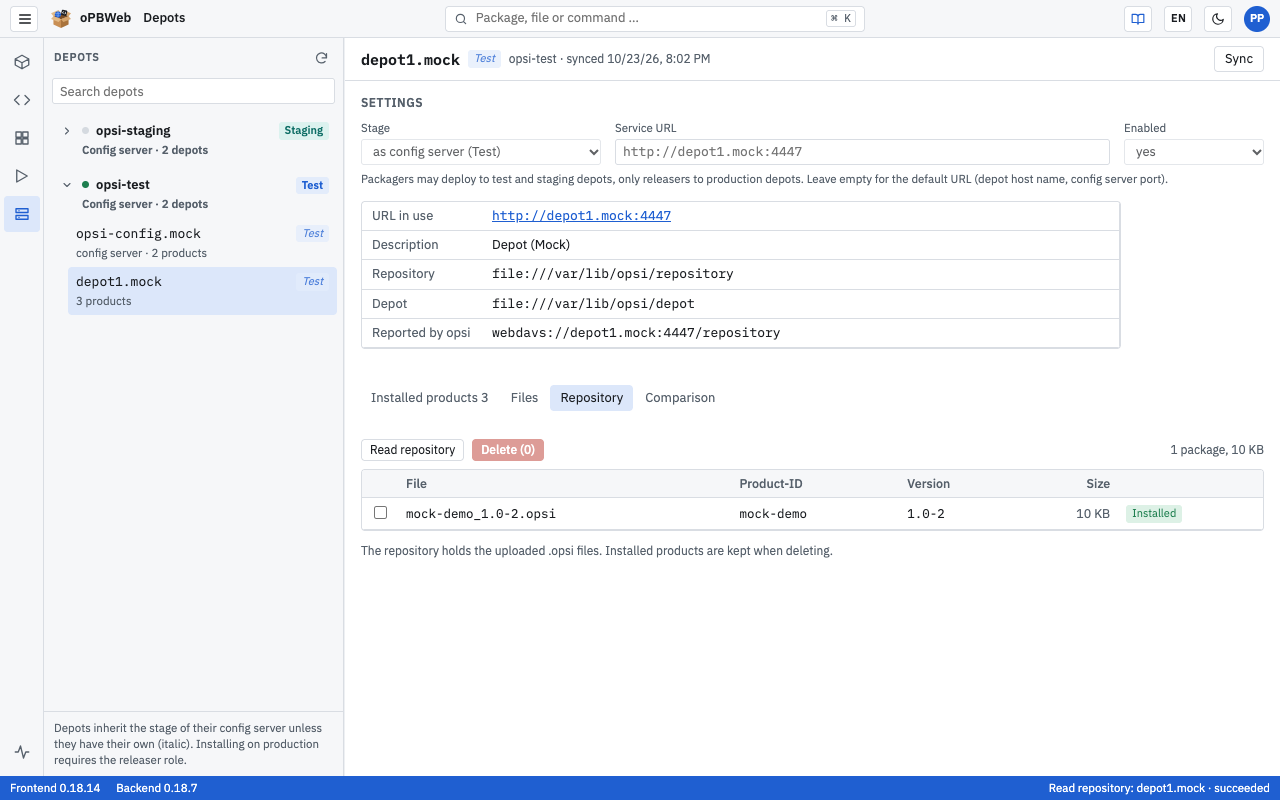
When you first open the tab, oPBWeb reads the repository automatically; click Read repository to repeat this. Reading runs as a job. Above the table there is a summary such as “12 packages, 1.4 GB”.
The table shows File, Product-ID, Version and Size, as well as these badges:
- Installed: This version is installed on the depot.
- no MD5: Without
.md5, the depot cannot verify the file. - no zsync: The
.zsyncfile is missing.
oPBWeb lists check files without a matching .opsi file under “Orphaned checksums”.
Deleting files from the repository
- Select the checkboxes of the packages you want to remove.
- Click Delete (n).
- Confirm the prompt “Delete 2 packages including .md5 and .zsync from the repository of depot01.example.local?”.
oPBWeb deletes the .opsi files together with their check files. Installed products are kept. You only see the checkboxes if you may write on this depot (see Stages and roles
).
“Comparison” tab
For the selected depot, the Comparison tab shows three versions of each product side by side: oPBWeb (built), the config server the depot belongs to (column header with the addition “config server”), and the depot itself. If you select the depot on the config server, there are only the two columns oPBWeb and config server. Differing versions are marked orange.
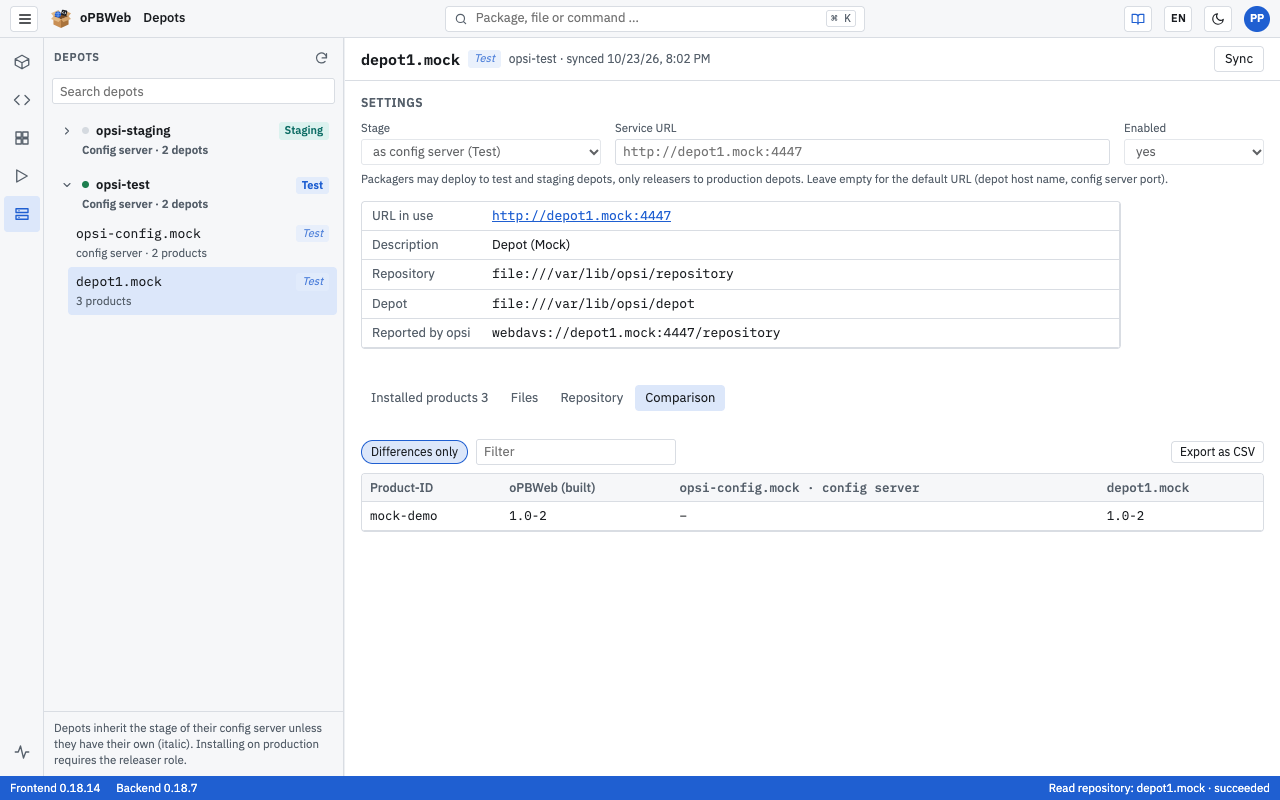
- The Differences only chip is active by default and hides products that are the same everywhere.
- “Filter …” searches by product ID.
- Export as CSV saves the comparison over all depots of all config servers as
depot-vergleich-YYYY-MM-DD.csv, so the file has more columns than the table shows. The filter and Differences only apply to the file as well; there, “differing” means: not the same on all depots. The file is UTF-8 encoded (with BOM) and semicolon-separated; the columns areproduct_id,opbweband then the depot ID for each depot.
Related topics
- Build and deploy : install and uninstall packages on depots
- Jobs : progress and log of depot actions
- opsi server : add, edit and remove config servers
- Depot management : set stage, service URL and enabled state