Package Files
Role: Packager
Overview
Every package version consists of the three areas OPSI/, CLIENT_DATA/ and SERVER_DATA/. In the package editor you see them on the left under the Files tab. There you create files and folders, upload installers, rename, move and delete. The Structure tab next to it shows which scripts include which other scripts.
You can only change files in a version with the status Draft and with at least the Packager role. In released versions and with the Viewer role, the file tree is read-only: opening and downloading still work, all changing entries in the context menu are grayed out.
The file tree
The three areas are always at the top of the tree. OPSI/ and CLIENT_DATA/ are expanded when you open the package. An area without content is labeled “empty”. For binary files, the file size is shown after the name.
- Clicking a file opens it as a tab in the editor. Text files up to 5 MB open in the Script Editor .
- oPBWeb shows images (PNG, JPG, GIF, BMP, ICO, SVG up to 10 MB) as a preview.
- For other binary files and text files that are too large, you see Path, Size, SHA-256 and Kind (“Binary file” or “Text file, too large for the editor”) as well as the Download button.
You can neither rename nor delete the areas themselves.
The file OPSI/control does not appear in the tree and cannot be uploaded: oPBWeb generates it from the package data when building. You edit the control content and the changelog on the control tab in the Product, Dependencies, Properties and Changelog sections, see Package Editor
.
The context menu
Right-click a file or folder to open the context menu.
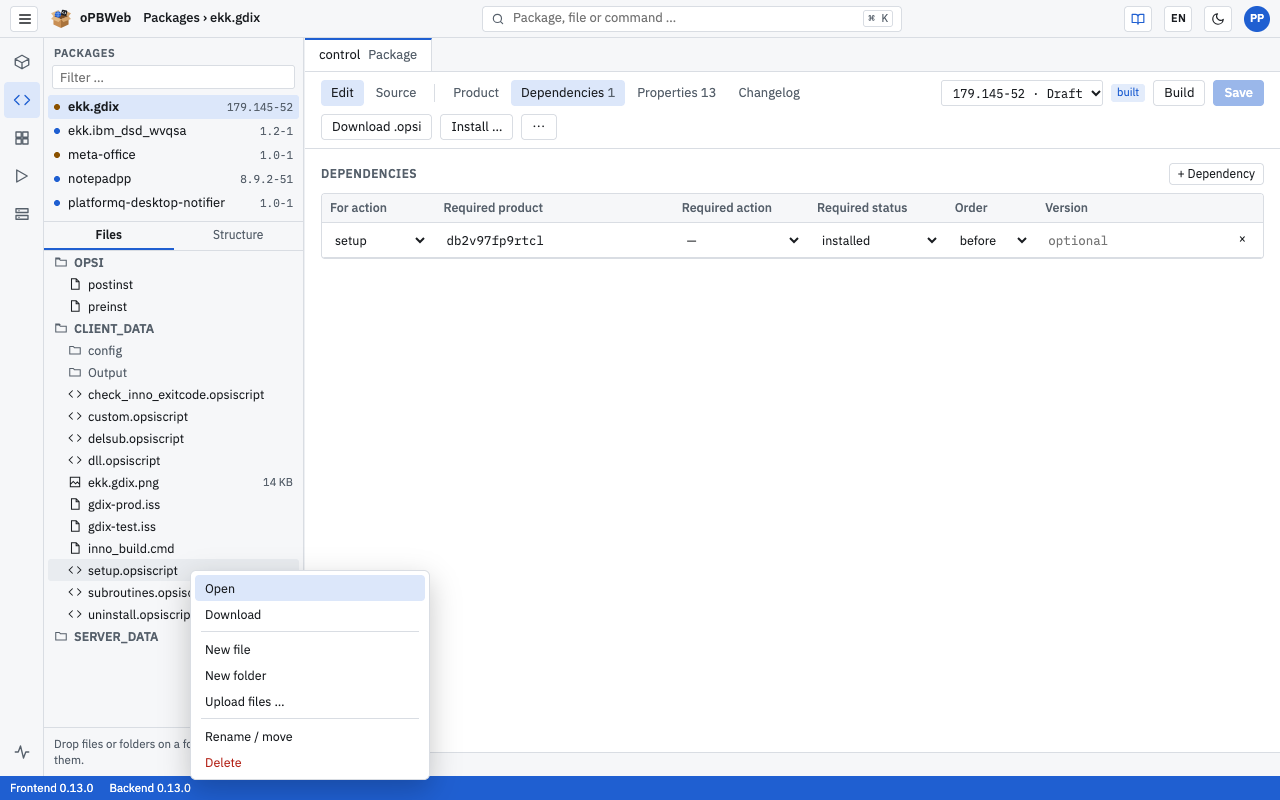
| Entry | Effect |
|---|---|
| Open | Opens the file as a tab (files only). |
| Download | Downloads the file to your computer (files only). |
| MSI information | Shows the properties of a Windows installer (.msi files only). |
| New file | Creates a file in the selected folder. neu.opsiscript is suggested. |
| New folder | Creates a subfolder. |
| Upload files … | Opens your browser’s file picker; the files go into the selected folder. |
| Rename / move | Asks for the New path. If you specify a different folder, the file is moved there. This also works for whole folders. |
| Delete | After a confirmation, deletes the file or the folder with its content. |
When you right-click a file, New file, New folder and Upload files … refer to the folder that contains the file.
Creating a new file
- Right-click the target folder, e.g.
CLIENT_DATA/. - Select New file.
- In the “Name in CLIENT_DATA/” field, enter the file name, e.g.
install.opsiinc. - Confirm the dialog. The file is created and appears in the tree.
Uploading files
There are two ways to add files to the package:
- Via the context menu: Right-click the target folder, then Upload files …. You can select several files at once.
- Via drag and drop: Drag files or whole folders from your file manager onto a folder in the tree. The folder structure is preserved. If you drop them on a file, they go into that file’s folder; if you drop them on an empty area of the tree, they go into
CLIENT_DATA/.
During the upload, a progress bar shows the status. Afterwards oPBWeb reports “3 file(s) uploaded”. An existing file with the same path is replaced without confirmation.
You can safely upload large installers several times: oPBWeb stores identical content only once, even across package versions.
Executable files
The file tree does not show whether a file is executable (e.g. a shell script on Linux). oPBWeb takes over the flag when importing an .opsi package and sets it again when building. When importing from the workbench, .sh and .py files in CLIENT_DATA/ are automatically marked as executable.
MSI information
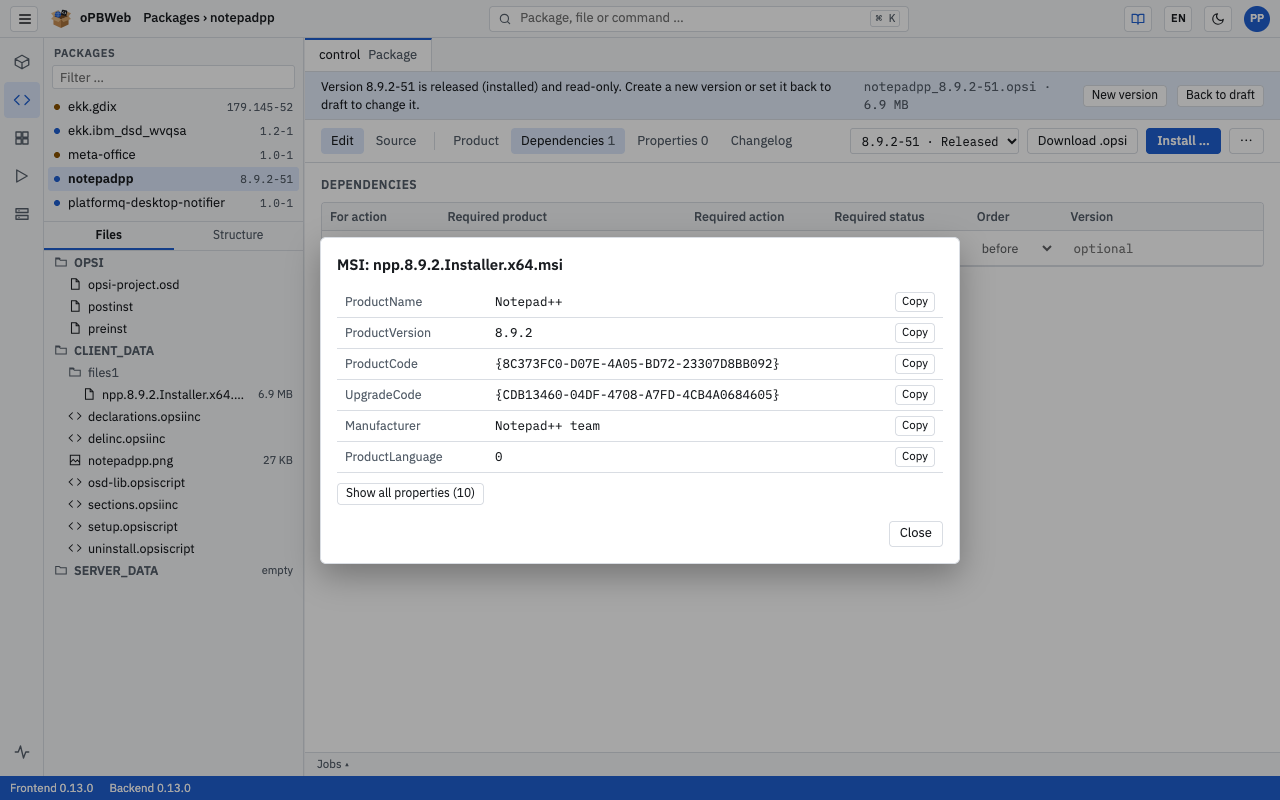
For .msi files, oPBWeb reads the most important properties directly from the installer. This is handy for copying the ProductCode and version into your script.
- Right-click the
.msifile. - Select MSI information. The “MSI: setup.msi” dialog briefly shows “Reading MSI file …” and then a table with, among others, ProductName, ProductVersion, ProductCode, UpgradeCode, Manufacturer and ProductLanguage.
- Click Copy next to a value to put it on the clipboard. The button briefly shows “copied”.
- Show all properties (24) shows the installer’s complete property table, Show less hides it again.
The Structure tab
The Structure tab shows how the scripts of the package are connected. The starting points are the scripts entered in the control for the individual actions (setup, uninstall, update …).
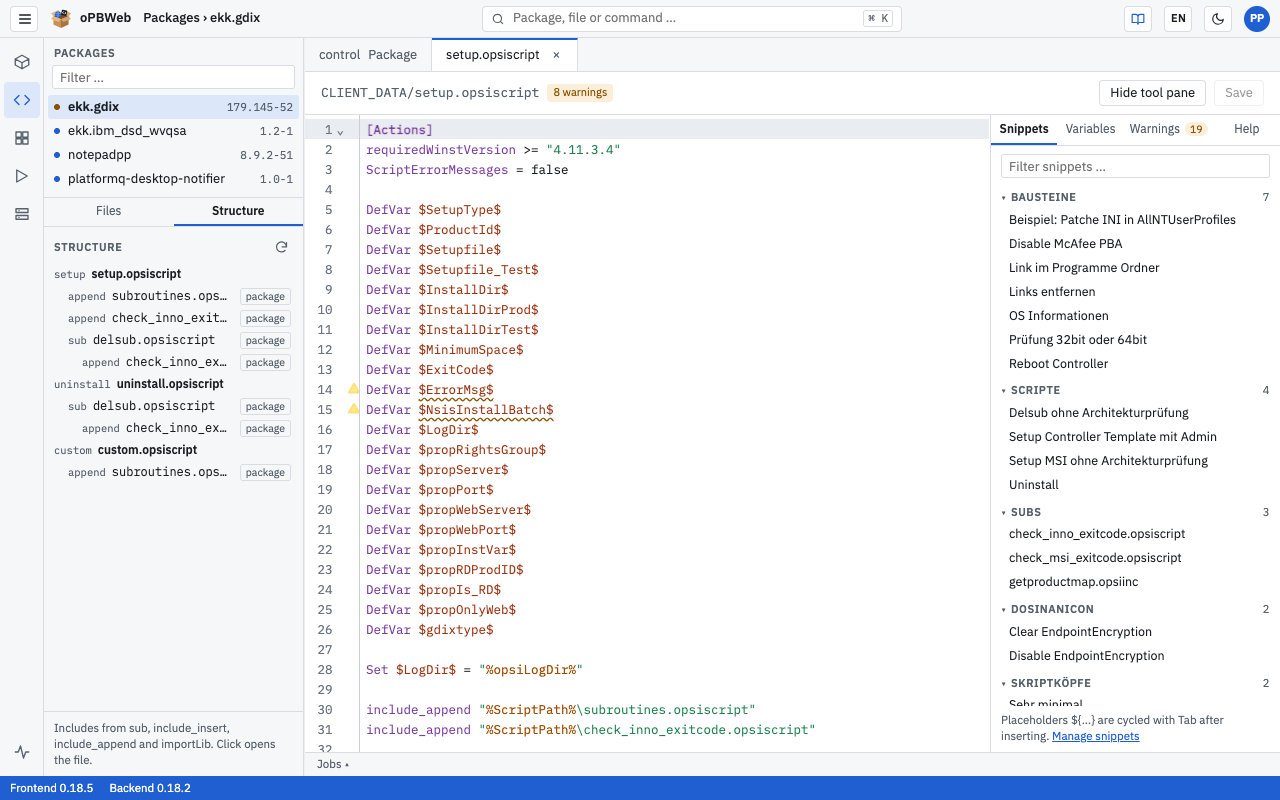
- For each action you see the corresponding script. If the file does not exist, “missing” is shown.
- Indented below it are the files the script includes, each with the kind of inclusion (
sub,include_insert,include_append,importLib). - A badge shows the origin: package (the file is in the package), library (uib library of opsi-script on the client) or missing (not found).
- The ↺ symbol marks a recursive inclusion.
- Clicking an entry opens the file in the editor.
- ⟳ (Reload) refreshes the view, e.g. after you have saved a script.
If no action scripts are set in the control, “No action scripts defined in the control.” appears.
An entry marked “missing” is a warning sign: if a script that is entered in the control for an action is missing, the build fails with the message “Script … is missing in CLIENT_DATA.”