Build and Deploy
Roles: Packager, Releaser
Overview
This chapter describes the path of a package version from draft to the depots: Build creates the .opsi file, Install … transfers it to one or more depots and releases the version in the process, Promote … takes a tested version unchanged to the depots of the next stage. You find all actions in the toolbar of the control tab in the package editor
and in the ⋯ menu (More actions).
Building, installing on test and staging depots and the other actions in this chapter require at least the Packager role. Production depots require the Releaser role. With the Viewer role you can only download built packages.
The lifecycle of a version
Draft ──Build (any number of times)──► "built"
   ▲          change → "changed since build" → build again
   │
   │      Install … (only with a current build)
   │                     ▼
   └── Back to draft ── Released (read-only)
                              └── New version → new draft
| Status | Meaning |
|---|---|
| Draft | The version can be edited and built any number of times. |
| Released | The version has been installed and is read-only. |
Building alone does not release a version. It is released only when you install it on a depot.
Building
- Open the version in the package editor and switch to the control tab.
- Save all changes – in the control and in all open files. As long as anything is unsaved, Build stays grayed out (“Please save all changes first.”).
- Click Build. The button shows “Building …”, and the log of the build job runs in the JOBS panel at the bottom.
- When the job is done, oPBWeb reports “Package built” or “Build failed”. The built badge appears next to the version selector.
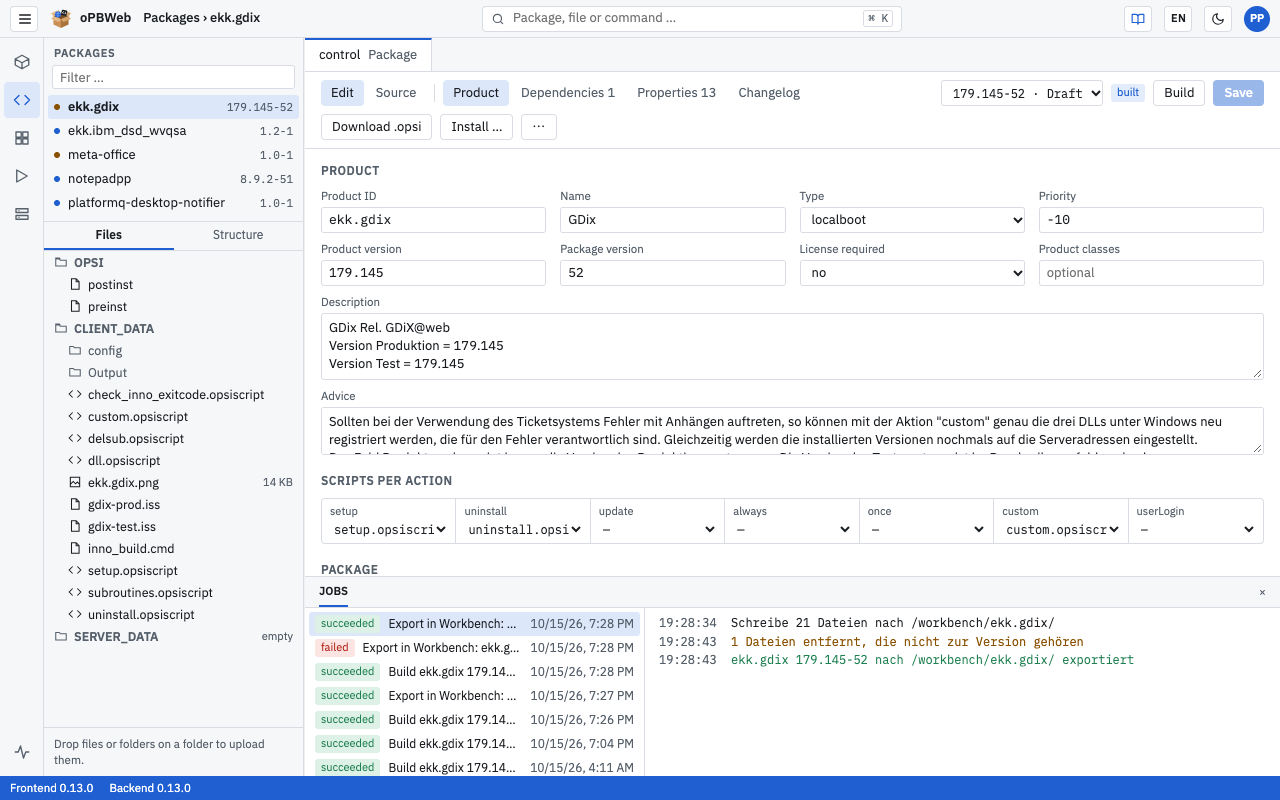
You can build a version with the status Draft as often as you like. Each build replaces the previous one; the version stays editable.
The “built” badge
The badge shows whether the last build still matches the current state of the version:
- built – The build matches the current state. You can install.
- changed since build – Since the last build, you have changed control data, properties, dependencies or files. Build the version again before you install it.
If there is no badge, the version has never been built.
When the build fails
The log in the JOBS panel (and under Jobs ) states the reason. Common causes:
| Message | Cause and remedy |
|---|---|
| “Script file (action) is missing in CLIENT_DATA.” | The control lists a script for an action that does not exist. Create the file or correct the entry under Product › Scripts per action. |
| “The version was changed during the build. Please build again.” | Someone saved while the build was running. Build again. |
| “A build is already running for this version.” | Wait until the running build has finished. |
Warnings in the log (no script for any action, no files in CLIENT_DATA/) do not abort the build, but they usually indicate an incomplete package.
Downloading the built package
As soon as a build exists, download it with Download .opsi in the toolbar. To get the checksum file, use ⋯ › Download .md5. Both are available to every role, including for released versions.
Installing
Install … transfers the build to the selected depots and installs it there. The button is only active if
- the version is built and shows the built badge (otherwise: “Please build first: the version has not been built or was changed since.”) and
- there are no unsaved changes.
Installing releases the version; it becomes read-only. The release already happens when the installation job starts, so that the version cannot change during the transfer. If the version ends up installed on no depot – because the installation fails everywhere or you cancel the queued job – it is a Draft again afterwards. If the installation succeeds on at least one depot, it stays released. If you want to change something afterwards, use Back to draft or New version.
Click Install …. The dialog “Install: firefox 128.0-1” opens.
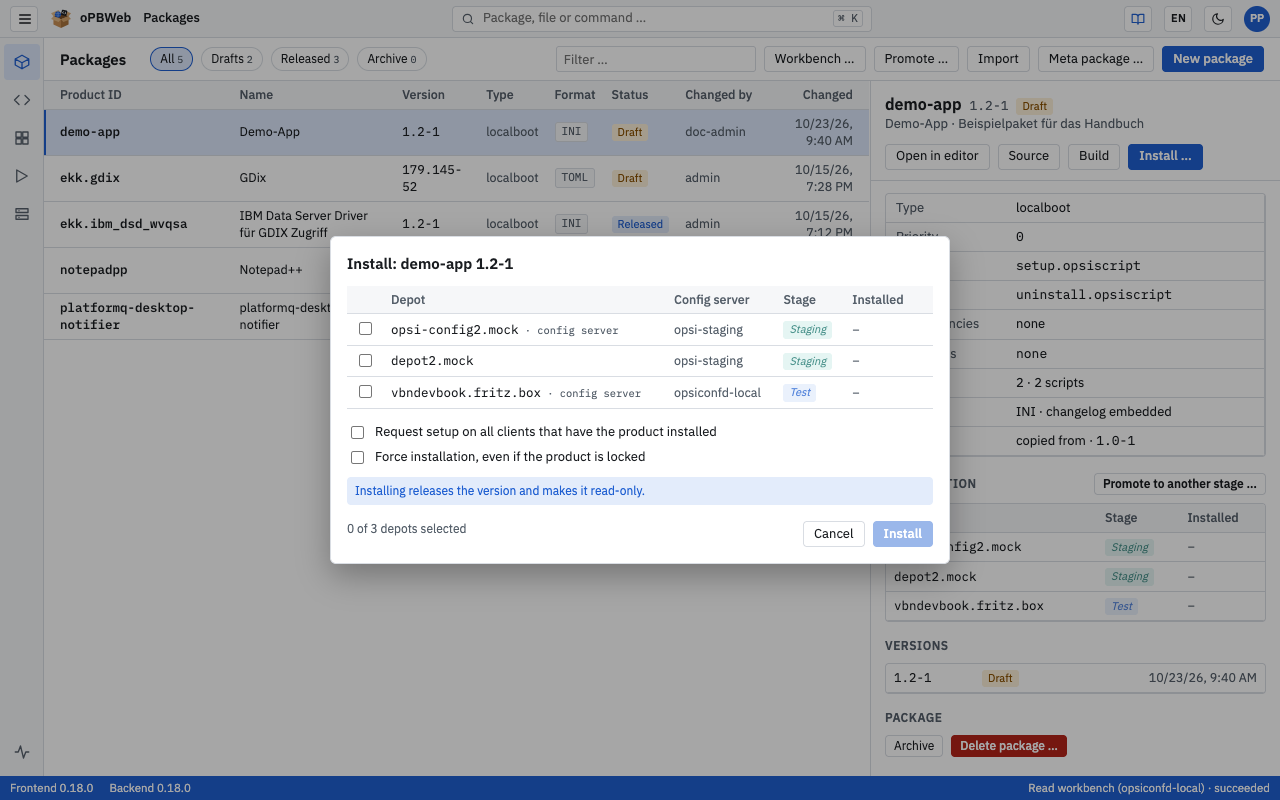
Select the depots in the table. The table contains the depots of all config servers. For each depot you see:
- Depot – the depot ID, for the depot on the config server itself with the addition “config server”,
- Config server – the name of the config server the depot belongs to,
- Stage – the effective stage Production, Staging or Test; italic if the depot inherits it from its config server,
- Installed – the version installed there and the time of the last sync.
The depots you installed on last time are preselected.
Set the options if needed (see below).
Check the counter “2 of 3 depots selected” and click Install.
The dialog closes and the JOBS panel shows the log. At the end, oPBWeb reports “Job finished successfully” or “Job failed”.
The depots are processed one after the other. If a depot is busy with another job, the installation waits until it is free.
Unavailable depots in the dialog
Not every depot can be selected. The reason is shown in the last column:
| Hint | Meaning |
|---|---|
| “requires releaser role” | The depot has the Production stage, but you only have the Packager role. As a Packager you may deploy to test and staging depots. |
| “disabled” | An administrator has disabled the depot. |
| “no longer present” | The config server no longer reports the depot. |
Depots inherit the stage of their config server; new config servers start with the Production stage. An administrator decides which servers and depots have the test or staging stage, see opsi server and Depot management . If you have selected at least one production depot, the dialog points this out with “At least one production depot is selected.”
If no depots are known at all, the dialog shows “No depots known. Please sync under “Depots”.” – see Depots .
Installation options
- Request setup on all clients that have the product installed – After the installation, oPBWeb sets the action request setup on each selected depot for all clients that already have the product installed. Clients without the product are not affected. This way you roll out an update specifically to the existing installations.
- Force installation, even if the product is locked – Installs even if the product is locked on the depot, for example after an aborted installation. Alternatively, unlock the product under Depots .
Released versions
After the installation, the version is released. The editor shows the notice “Version 128.0-1 is released (installed) and read-only. Create a new version or set it back to draft to change it.” with the file name and size of the build and the buttons New version and Back to draft. All forms, the file tree and the script editor are read-only.
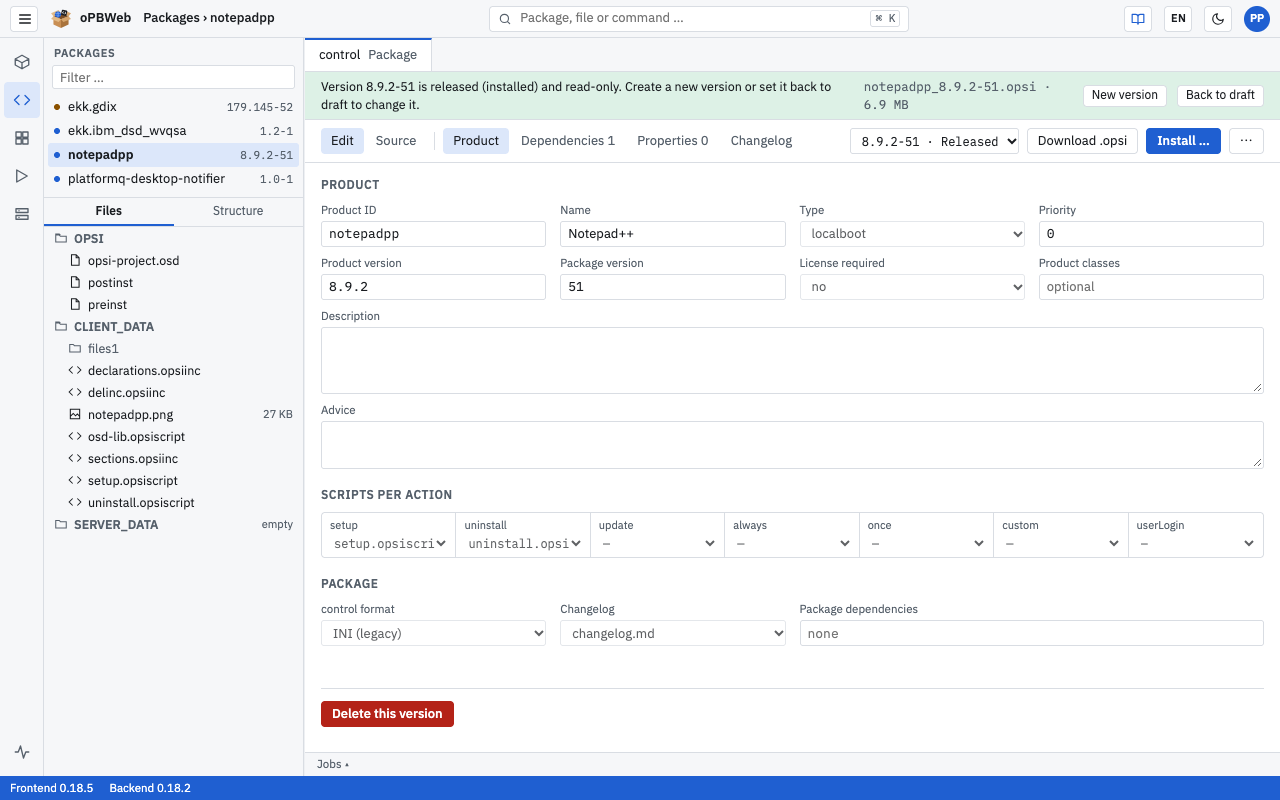
You can install a released version again at any time, for example on further depots. Install … is then the highlighted button.
Promoting to another stage
Roles: Packager, Releaser
Once a package works on the test depots, this action takes it unchanged to the depots of the next stage. Exactly the package installed on the depots of the source stage is promoted – the same build, not a new one. That is why only released versions can be promoted.
oPBWeb has one shared package inventory for all config servers. What is installed on which depot differs per server and comes from the last depot sync .
Typical workflow
- Develop on the test config server: import from the workbench, edit, build and install on the test depots. This releases the version.
- Test, then take the version from Test to Staging with Promote ….
- After testing on Staging, promote the version from Staging to Production. This requires the Releaser role.
Opening the dialog
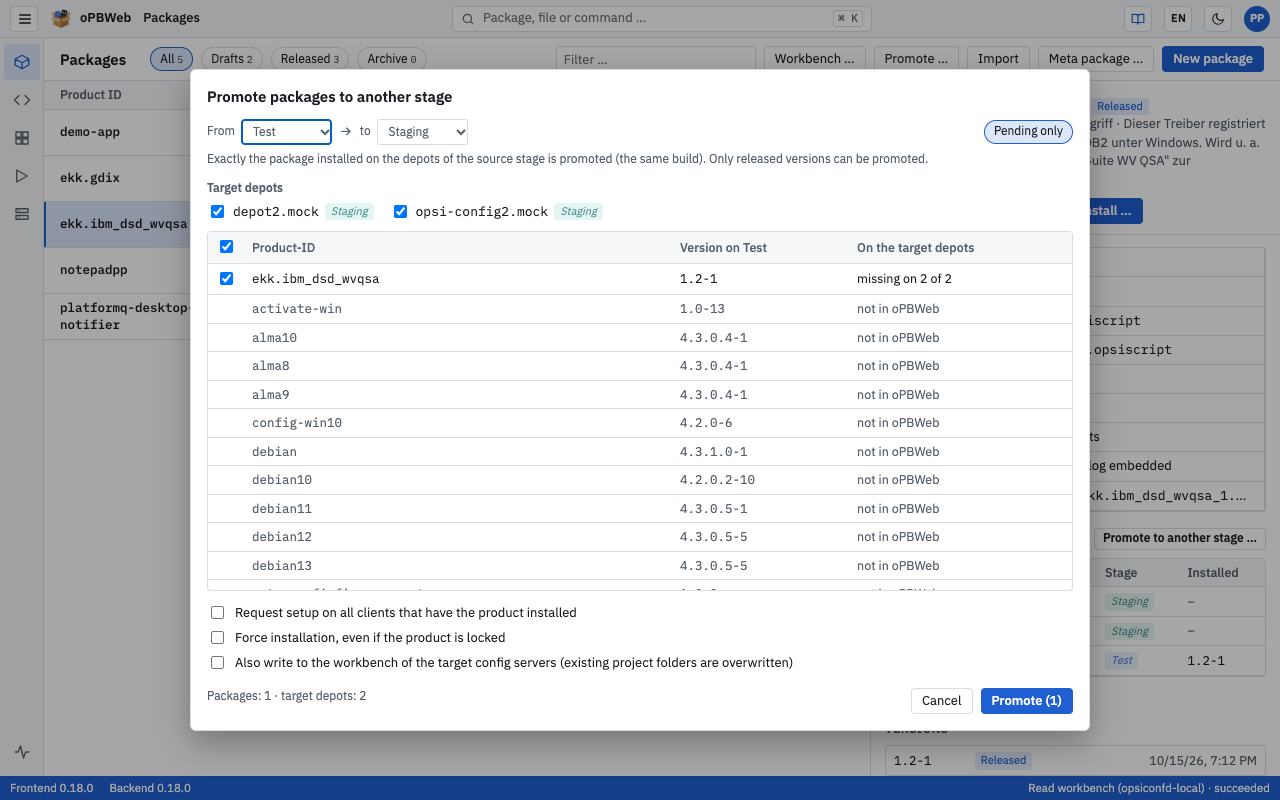
- Promote … in the toolbar of the package list opens the dialog “Promote packages to another stage” for all packages.
- Promote to another stage … in the Distribution section of the package details opens the same dialog for the selected package only (“Promote firefox to another stage”).
Promoting packages
At the top, choose From (source stage, default Test) to (target stage, default Staging). Source and target stage must differ.
Under Target depots, check the depots you promote to. All enabled depots of the target stage on all config servers are offered. All depots you are allowed to change are preselected; production depots are locked without the Releaser role (“requires releaser role”).
Check the package table:
Column Content Product ID Identifier of the product Version on … (e.g. Version on Test) the newest version installed on a depot of the source stage On the target depots “up to date everywhere” or “missing on 2 of 3”, plus the versions found on the target depots instead The Pending only chip (active by default, only in the dialog for all packages) hides packages that are already up to date on all target depots. All pending packages that can be promoted are preselected. Packages that can be promoted are listed first.
Set the options if needed:
- Request setup on all clients that have the product installed and Force installation, even if the product is locked – as for installing .
- Also write to the workbench of the target config servers (existing project folders are overwritten) – additionally writes the version as a project folder into the workbench of each config server a target depot belongs to.
Check the counter “Packages: 2 · target depots: 3” and click Promote (n).
oPBWeb starts one installation job per version and, if selected, one export job per version and target config server. It reports “Jobs started: 3”. Jobs for the same depot run one after the other. Follow the progress under Jobs .
Why can a package not be promoted?
Packages without a checkmark show the reason in the On the target depots column:
| Hint | Meaning |
|---|---|
| “not in oPBWeb” | The product only exists on the depots, not in oPBWeb. |
| “draft again in oPBWeb (no tested build)” | The version was made editable again with Back to draft after testing. The tested build no longer exists. Build it and install it again on the source stage. |
| “archived” | The package is archived. |
If you have selected a production depot, the dialog points this out with “At least one production depot is selected.”
Uninstalling
Use ⋯ › Uninstall … to remove the product from depots.
- Open ⋯ and choose Uninstall …. The dialog “Uninstall: firefox” opens.
- All depots on which the product is installed are preselected. Depots without the product are unavailable with “not installed”; the stage rule applies as for installing.
- Check the options:
- Delete files on the depot (default) – also removes the package files from the depot.
- Force uninstall – uninstalls even if the product is locked.
- Click Uninstall. The log appears in the JOBS panel.
Uninstalling applies to the product, not to the version currently open. The status of the version in oPBWeb does not change.
Back to draft
Back to draft makes a released version editable again without changing the version number. This is useful if you spot an error but want to keep the version number.
- In the notice of the released version, click Back to draft.
- The dialog “Edit version 128.0-1 again” explains the consequences. If the version is already installed on depots, it lists them.
- Confirm with Back to draft. oPBWeb reports “The version can be edited again”.
The old package stays installed on the depots until you rebuild and install again. After that, the depots hold a package with the same version number but different content. Clients that already have the product do not notice the change by themselves – use the option Request setup on all clients that have the product installed when installing.
As long as a job is queued or running for the version, Back to draft is not possible.
New version
New version creates an editable copy of the current version with all data and files. You find the action in the notice of a released version and in the ⋯ menu; it works for drafts and released versions.
- Click New version.
- Check Product version and Package version. The suggestion is the same product version with the package version increased by one; if the package version is not a plain number,
.1is appended. - Click Create. The editor opens the new version with the status Draft.
Remember to add a changelog entry in the new version, see Package editor .
Exporting to the workbench
Use ⋯ › Export to workbench … to write the version as a project folder into the workbench of a config server, for example to continue working there with opsi-makepackage or other tools. This works for drafts and released versions.
- Open ⋯ and choose Export to workbench ….
- Under Config server, choose the server whose workbench you want to write to (name and stage; the last selected server is preset, otherwise the first server of the Test stage).
- Enter the Project folder. The suggestion is the product ID;
/and\are not allowed. - If the folder already exists, select Overwrite existing folder (extra files in the package folders are deleted). Without this option, the export fails for an existing folder.
- Click Export. After the job, oPBWeb reports “Exported to the workbench”.
Only OPSI/, CLIENT_DATA/ and SERVER_DATA/ are written. Other content of the project folder is kept. After the export, the package list shows the project folder under Workbench
. The opposite direction is described in Packages
(Workbench …). Changes made directly on the workbench later can be brought back with Compare with workbench …, see Package editor
.
Following the job output
Building, installing, uninstalling, promoting to other stages and exporting run as background jobs. You can keep working in the meantime.
- The JOBS panel at the bottom of the editor opens automatically when a job starts. It lists the last 30 jobs of this product and shows the log of the selected job live. Close the panel with ×, reopen it with Jobs ▴.
- The status bar shows the progress of the jobs you started in this browser tab.
- You find all jobs of all users under Jobs .