Initial Setup
Role: Administrator
Overview
After the Installation , oPBWeb is reachable but does not know any opsi server yet and has only one account: the first administrator. During the initial setup you sign in with this account, change its password, connect oPBWeb to one or more opsi configservers, define the depot stages and set up the first users.
For this you need the admin password from secrets/admin_password.txt, the credentials of the technical opsi user and shell access to the configserver to verify the fingerprint of the CA certificate.
1. Sign in as administrator
Open oPBWeb in the browser, for example
https://opbweb.example.local/.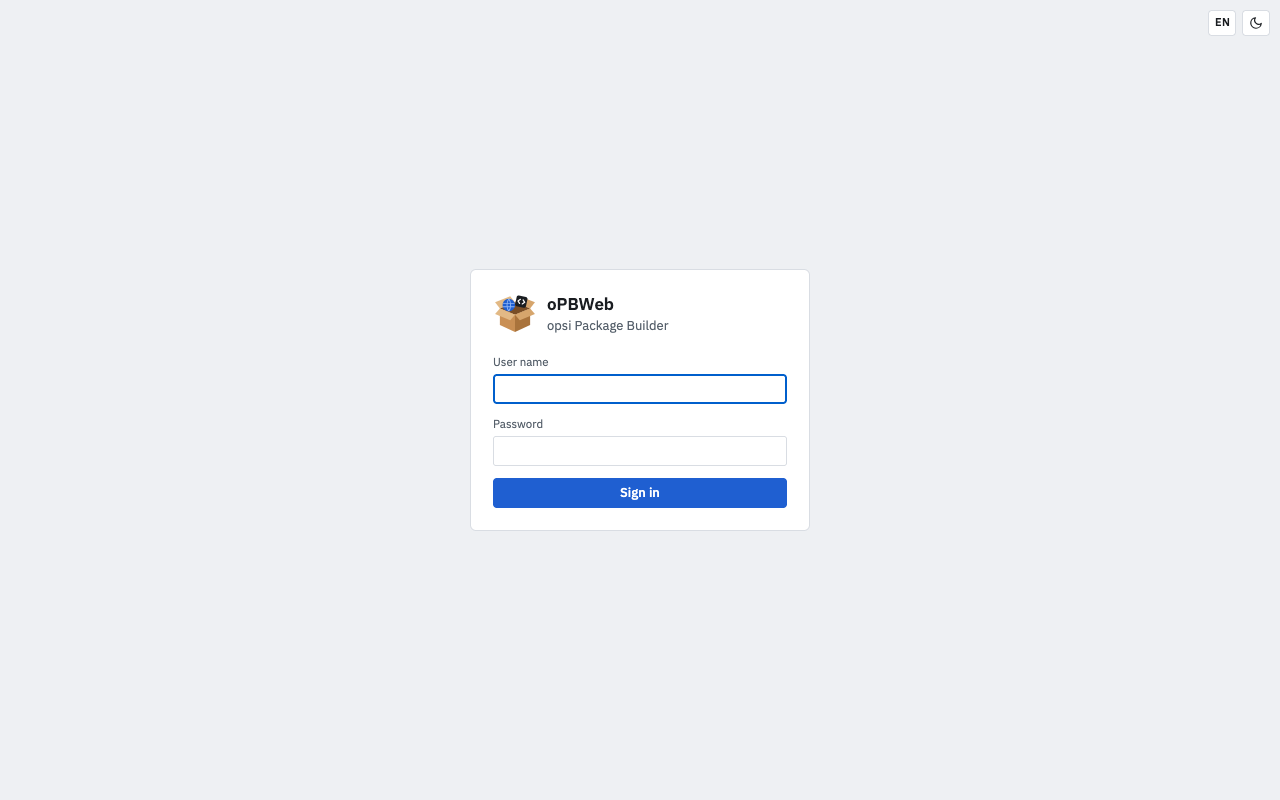
Enter
adminin User name (or the value ofADMIN_USERNAMEfrom.env).Enter the password from
secrets/admin_password.txtin Password.Click Sign in.
After signing in you see the package list. The orange notice “No config server configured” appears in the status bar at the bottom until you have set up the first configserver.
2. Change the admin password
The generated password is stored in plain text in secrets/admin_password.txt. Change it right after the first sign-in:
- Click your avatar (your initials) in the top right corner.
- Select Change password.
- Enter the Current password, then the new password twice in New password and Repeat new password. The password must be at least 10 characters long.
- Click Save.
The file secrets/admin_password.txt is not changed. It is only evaluated as long as no user exists, that is, on the very first start.
3. Set up configservers
oPBWeb can work with several opsi configservers, for example a test and a production system. You add them in the Depots view; the password is stored encrypted in the database and decrypted only by the worker. Repeat the following steps for every additional configserver.
Click Depots in the activity bar on the left.
Click + (“New config server”) at the top of the list on the left.
Enter the following values:
- Name – a label, for example Configserver. If you leave the field empty, the host name from the URL is used.
- Config server URL – fully qualified host name with port 4447, for example
https://opsi.example.local:4447. Use the FQDN, not the IP address: the opsiconfd certificate is issued for the name. - Technical user – the opsi user with admin rights (default
opsiadm). - Password – the password of this user.
- Stage – Production (default), Staging or Test. For a test server, select Test; all depots of the server take over this stage (see step 4 ).
Leave Verify the server TLS certificate (recommended) switched on.
Under TRUSTED CA CERTIFICATE, click Fetch from server. oPBWeb loads the CA certificate of the configserver and shows it with its SHA-256 fingerprint in the CA certificate of the server dialog.
On the configserver, determine the fingerprint of the opsi CA:
openssl x509 -in /etc/opsi/ssl/opsi-ca-cert.pem -noout -fingerprint -sha256Compare both fingerprints. If they match, click Trust. If they differ, cancel and find out which server you are actually connected to.
Click Add. The message “opsi server saved” confirms this.
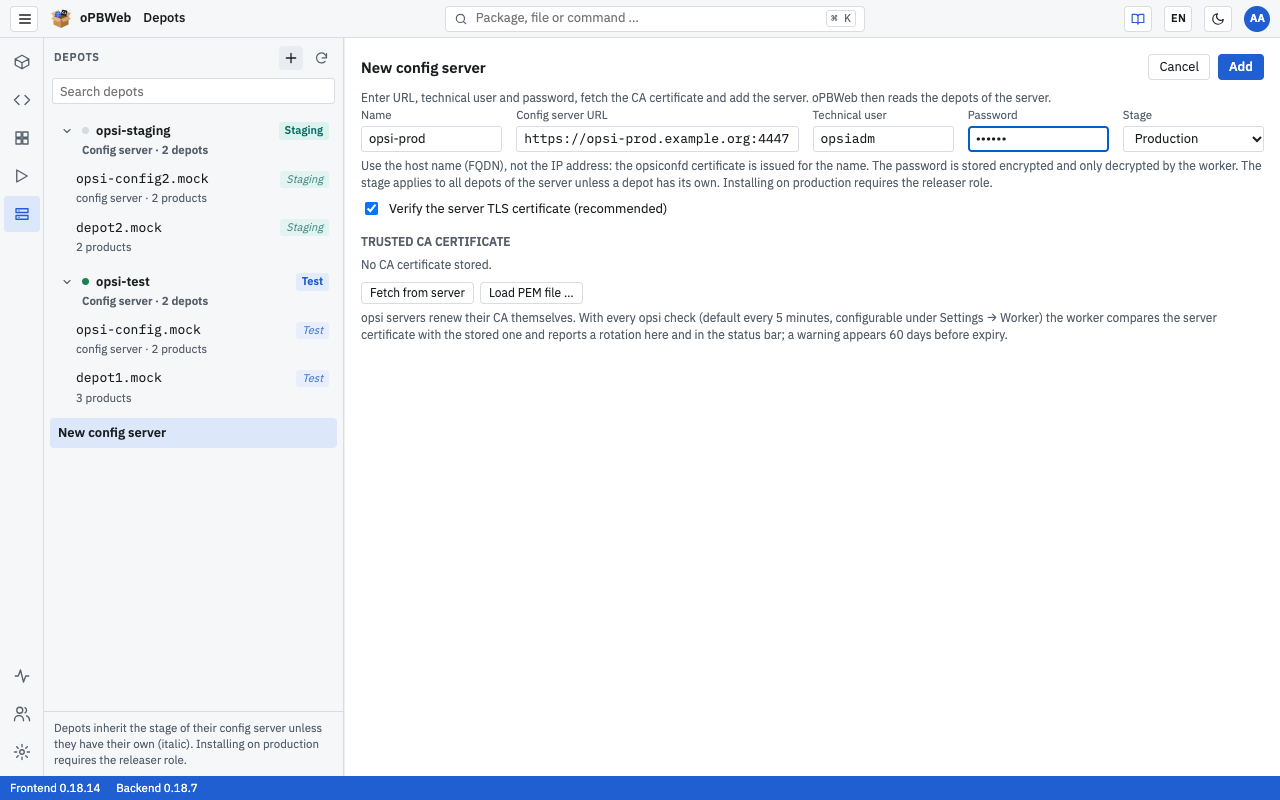
Right after adding, oPBWeb runs Test connection for the new server. The test checks sign-in, admin rights and opsi version and reads the depots of the configserver; they then appear in the list below the server. If it succeeds, the dot in front of the server name turns green and the badge in the form shows “reachable”. Later you can repeat the test at any time with Test connection in the server’s form.
Afterwards you see a line such as “Last checked … · opsi 4.3 … · 2 depots” below the CA certificate.
Instead of Fetch from server you can also load the CA from a file with Load PEM file …, for example if you have copied /etc/opsi/ssl/opsi-ca-cert.pem from the configserver beforehand.
If the test fails, check the most common causes:
| Message or symptom | Cause |
|---|---|
| “… has no opsi admin rights” | The technical user is not an admin in opsi. |
| HTTP 403 | opsiconfd only allows admin calls from the admin-networks; the worker’s Docker network is missing there, see Requirements
. |
| Certificate error | The URL contains an IP address instead of the FQDN, or no CA certificate or a wrong one is stored. |
The chapter Troubleshooting describes further causes. The chapter Config Servers explains all functions of the form, including removing a configserver and replacing the CA certificate after a rotation.
The opsi server row on the System status page is filled by a worker check that runs every 5 minutes by default (Settings → Worker ). It can therefore take a few minutes after the setup until it shows “OK”.
4. Define depot stages
With the successful connection test, oPBWeb reads the depots from the configserver. After that, the worker syncs the depots of all configservers automatically every 5 minutes; under Depots you can also trigger a sync yourself with Sync (one configserver) or ⟳ (all configservers).
Each depot has a stage: Test, Staging or Production. Packagers may install on test and staging depots; only Releasers may install on production depots. A depot inherits the stage of its configserver; you recognize this by the italic badge. If you already chose the right stage for the configserver, there is nothing left to do here.
If individual depots should differ from the stage of their configserver, for example a test depot on a production configserver, change the stage on the depot itself:
Click Depots in the activity bar.
Select the depot on the left.
In the Settings area, select the value you want for Stage, for example Test. With “as config server (…)” the depot inherits the stage of its server again.
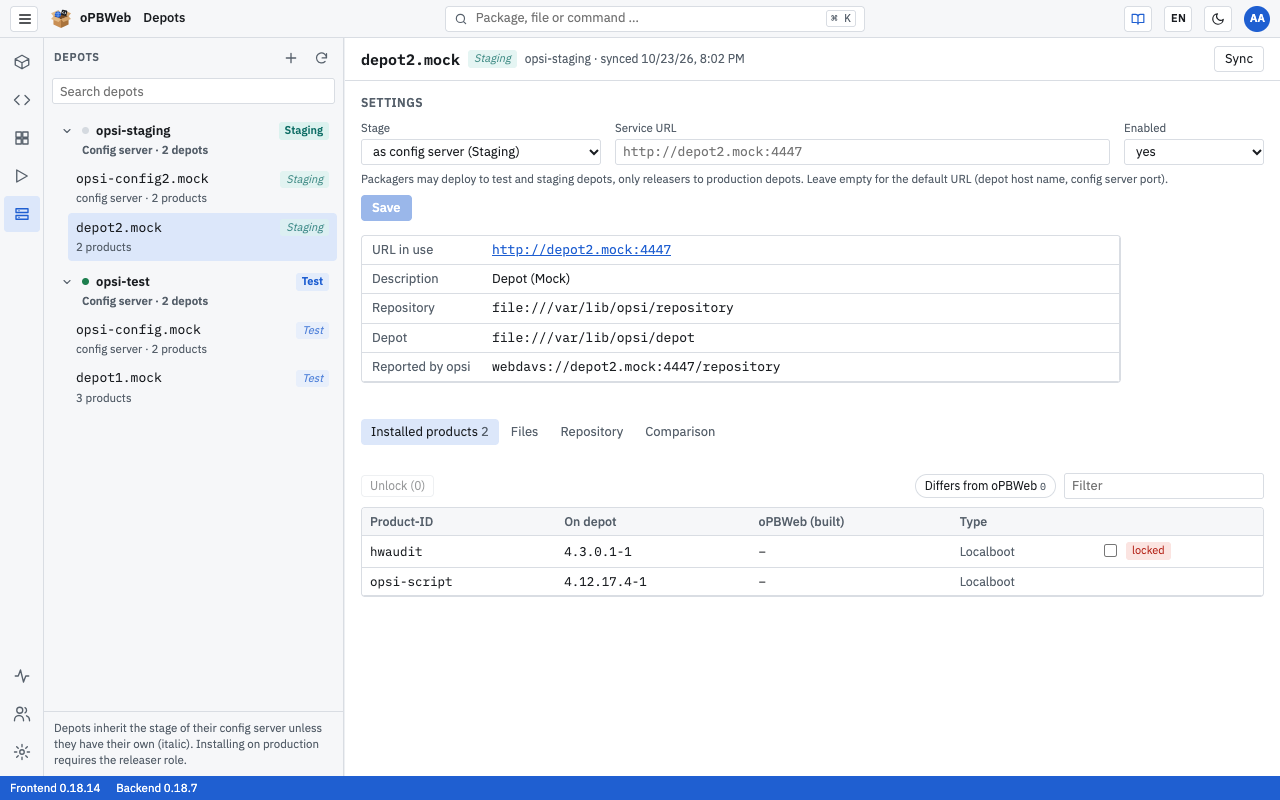
Click Save. The message “Settings saved” confirms the change, and the depot shows the Test badge in the list.
Repeat the steps for all other depots that differ.
The chapter Depot Management describes the other depot settings (Service URL, Enabled).
5. Create the first users
Create separate accounts for everyone who works with oPBWeb instead of sharing the admin account:
- Click Users and roles in the activity bar.
- Click New user.
- Fill in User name, Role, Name, Email, Default language and New password, and click Create.
The chapter Users and Roles explains which role may do what and how to edit, lock or delete accounts later.
Create at least one second account with the Administrator role. Otherwise, if the only admin account is locked or its password is forgotten, nobody can access the administration anymore.
6. Optional: sign-in via LDAP
In addition to local accounts, users can sign in with their directory account (LDAP or Active Directory). Their role is then derived from their group membership at every sign-in. The setup is done via .env and is a task for technical administration, see LDAP Sign-in
.
Result
After the initial setup:
- the admin password is changed,
- the configservers are set up and “reachable”, and the status bar no longer shows an opsi notice,
- the depots are known and have the right stage (Test, Staging or Production),
- the first users can sign in.
The chapter Getting Started shows what working in oPBWeb looks like from there.