System Status
Role: Administrator
Overview
The System status area shows whether all oPBWeb services are running and gives administrators insight into how the database and object storage are used. Open it with the System status icon at the bottom of the activity bar.
All roles see the services table. Only administrators see the Database, Object storage (with Clean up …) and Bucket contents sections.
Checking services
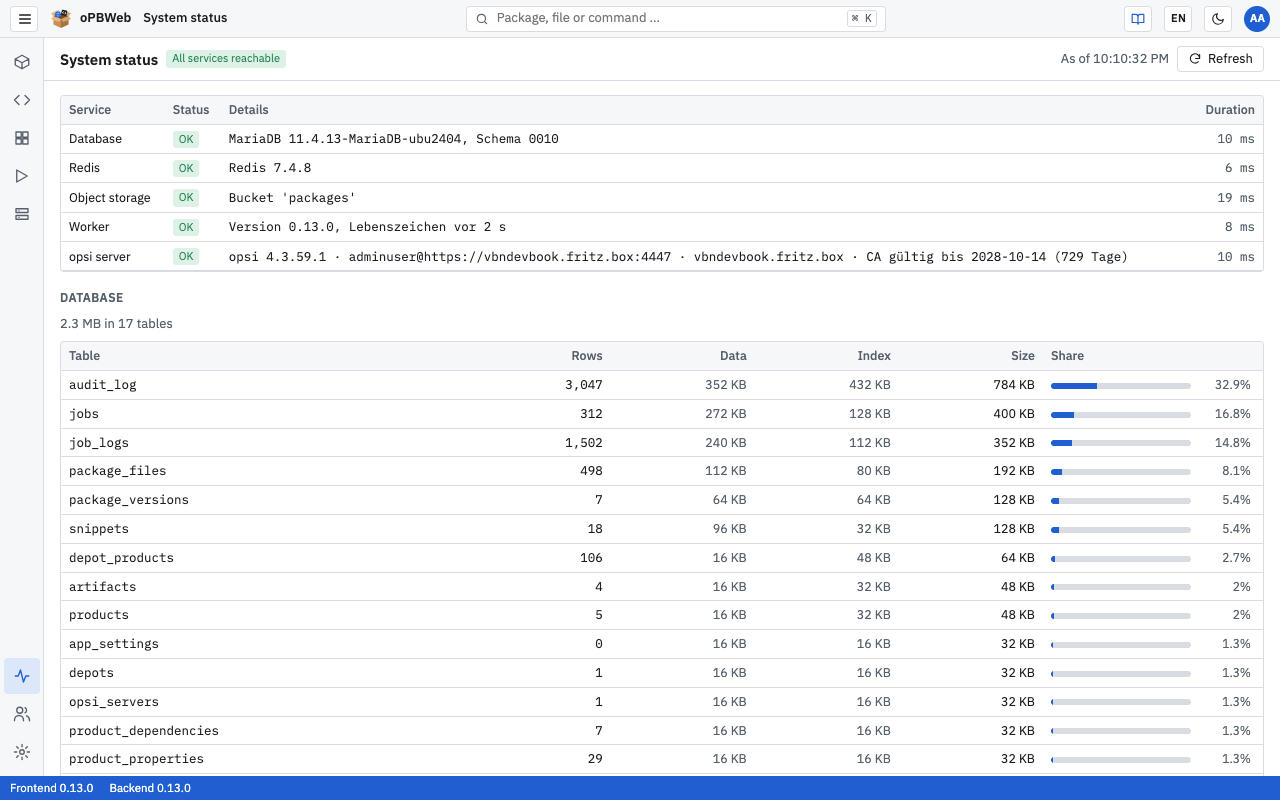
In the toolbar, a badge summarizes the state: “All services reachable”, “At least one service is not reachable” or “API not reachable”. Next to it, you see “As of HH:MM:SS”. The table refreshes itself every ten seconds; Refresh reloads it immediately.
The texts in the Details column come from the server and follow the interface language.
| Service | What is checked | Typical content of Details |
|---|---|---|
| Database | Connection to MariaDB | Version and schema revision |
| Redis | Connection to Redis (job queue) | Redis version |
| Object storage | Whether the bucket exists | Bucket name or “Bucket ‘…’ is missing” |
| Worker | Heartbeat of the worker that runs all jobs | “Version …, sign of life n s ago”; error on “no sign of life” or if the last one is older than 90 seconds |
| opsi server | Result of the last automatic check of all config servers | one entry per config server, “Name: opsi version · user@URL · depots · CA valid until …”, separated by “|”; “no config server configured” if there is none |
The Status column shows OK or Error, Duration the response time of the check in milliseconds.
The opsi server row is set to Error as soon as one of the config servers is not reachable, serves a new CA certificate or its CA expires in less than 60 days, even if all others are fine. The entry of the affected server names the reason, for example “Server delivers a new CA certificate, please accept it under Depots”. What to do then is described in Config servers . If it shows “not checked yet”, the worker has not completed a check yet; the result arrives after five minutes at the latest.
If Worker shows Error, all jobs (build, install, import, sync) stay stuck in the queue. Technical administration investigates the cause, see Troubleshooting .
Storage usage
The Database and Object storage sections are loaded when you open the page and with Refresh, not every ten seconds.
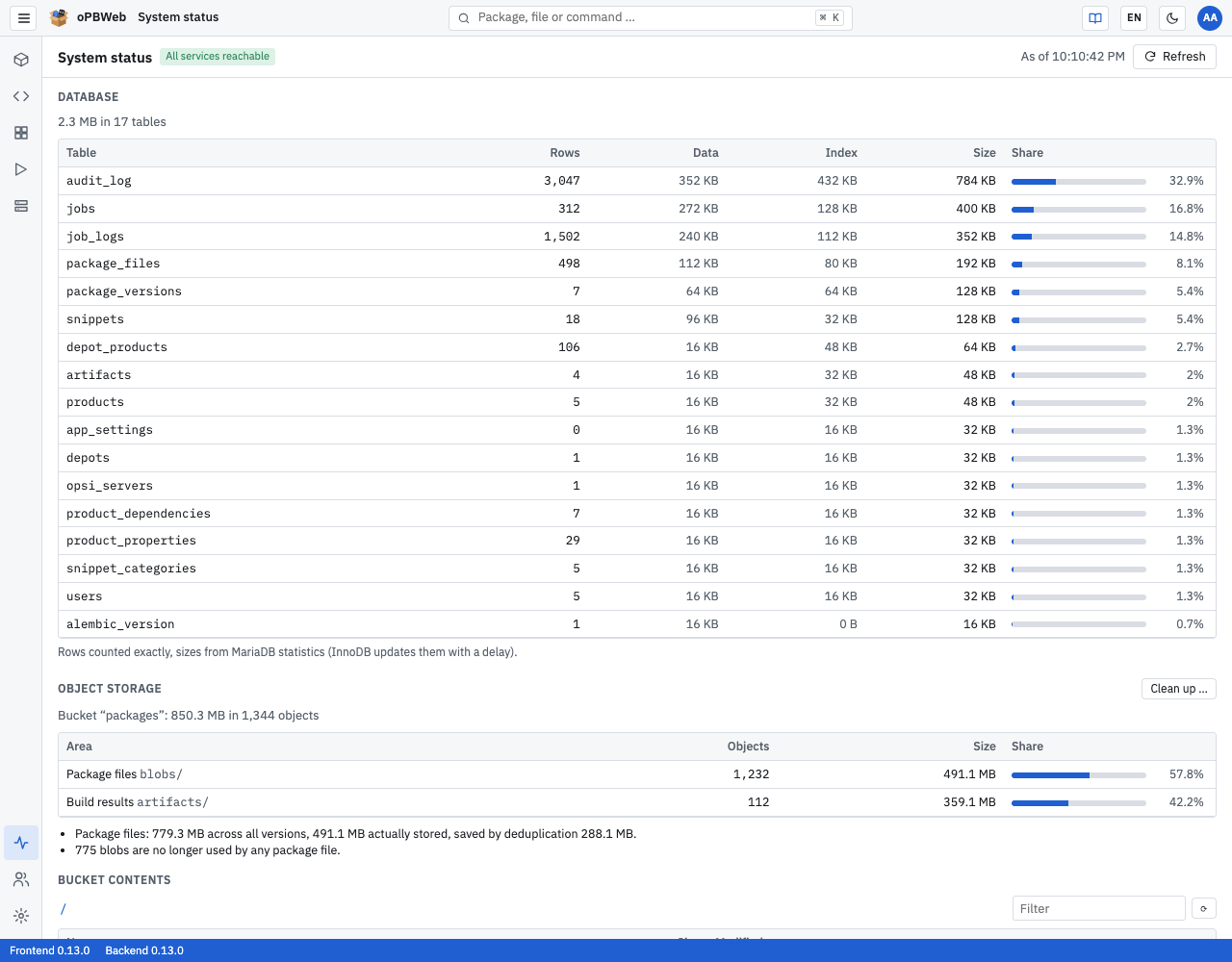
Database
Above the table, you see the total size, for example “48 MB in 21 tables”. The table lists every database table, largest first:
| Column | Content |
|---|---|
| Table | Name of the table |
| Rows | Number of records, counted exactly |
| Data | Space used by the data |
| Index | Space used by the indexes |
| Size | Data and index combined |
| Share | Share of the total size as a bar and a percentage |
The sizes come from MariaDB statistics, which are updated with a delay. After larger changes, they are therefore not quite exact for a while.
Object storage
The object storage holds the package files and build results. Above the table, you see “Bucket “packages”: 4.8 GB in 1,523 objects”. The table splits the content into areas:
| Area | Content |
|---|---|
Package files (blobs/) | Contents of all files of all package versions. Each content is stored only once, even if many versions contain the same file. |
Build results (artifacts/) | Built .opsi files with .md5 and .zsync |
Uploads (temporary) (uploads/) | Uploaded files that are still being processed |
Downloads (temporary) (downloads/) | Files prepared for a download from a depot |
Bucket root (/) | Objects outside these areas |
oPBWeb automatically deletes uploads and downloads older than 24 hours every night.
Below the table, up to three figures are shown:
- Savings through deduplication: “Package files: 12.6 GB across all versions, 4.1 GB actually stored, saved by deduplication 8.5 GB.” The more versions of a package exist, the greater the savings, because unchanged files are not stored twice.
- Unused blobs: “37 blobs are no longer used by any package file.” Such contents remain after versions or files have been deleted. You remove them with Clean up … .
- Missing blobs (red): “2 package files refer to missing blobs.” This should never happen and indicates a damaged or incompletely restored object storage. Contact technical administration.
Browsing the bucket contents
Under Bucket contents, you can browse the object storage like a file tree. The browser is read-only: you can view and download objects, but not change or delete anything.
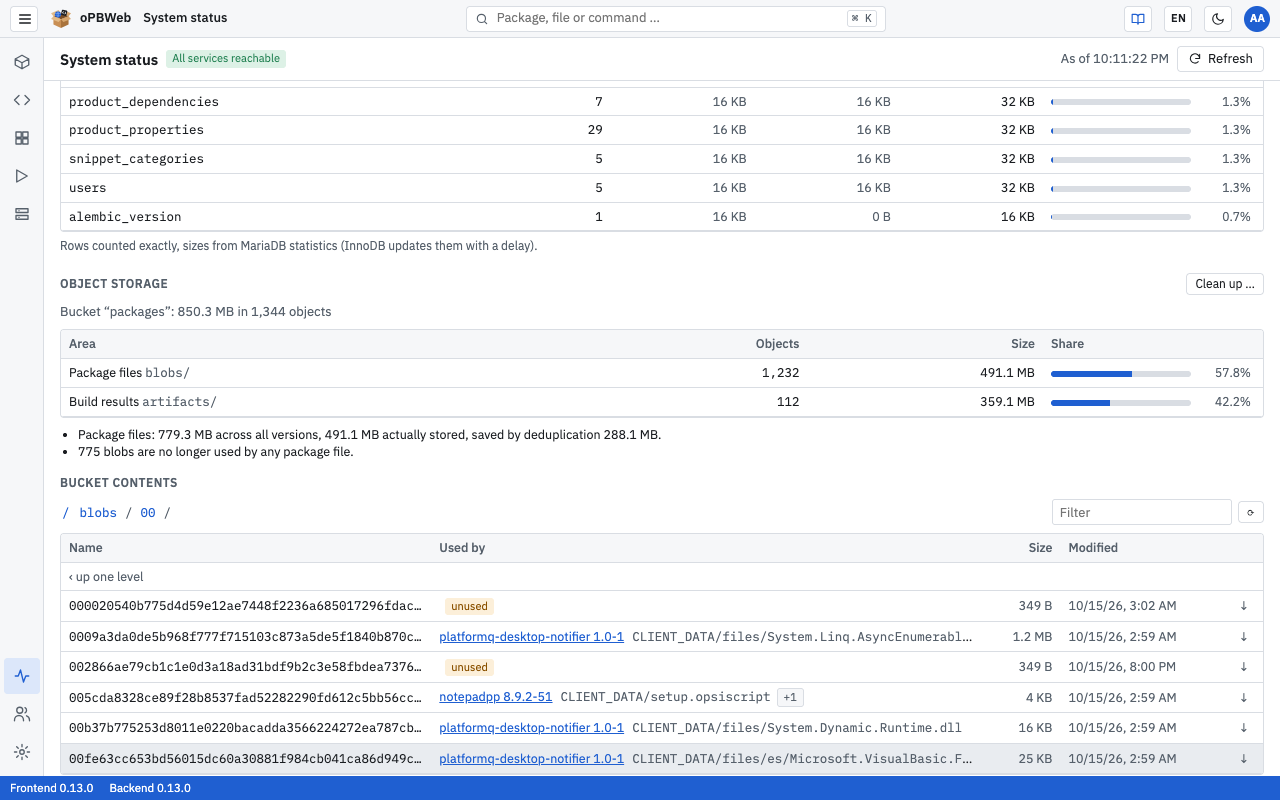
- Click a folder to open it. Use the path bar above the table (starting with
/) or the “‹ up one level” row to go back. - Narrow down the list with the Filter field. ⟳ reloads the folder.
- To download, click ↓ at the end of the row or double-click the row.
The table shows Name, Size and Modified. In the blobs/ and artifacts/ areas, there is an additional Used by column:
- A link leads to the package version that uses the object; for package files, the file path within the package follows.
- “+n” means that further versions or files use the same object. Hover over the cell to see the list.
- unused means that no package version needs the object any more. It is a candidate for cleanup.
The objects under blobs/ are named after the SHA-256 hash of their content, not after the file name in the package. The Used by column shows which file is behind them.
Cleaning up object storage
When versions or files are deleted, their contents initially remain in the object storage. With Clean up …, you remove package files (blobs/) and build results (artifacts/) that nothing uses any more. Cleanup works in two steps: a dry run determines what would be deleted, and deletion only happens after you confirm.
- In the Object storage section, click Clean up …. A dry run starts as a job; the button shows “Running …”.
- If the dry run finds nothing, “Nothing to clean up” or “Nothing to clean up, 5 unused objects are younger than 24 hours” appears next to the button. You are done.
- Otherwise, the Clean up object storage dialog opens. It shows:
- the total number and size, for example “The dry run found 37 unused objects (1.2 GB).”
- number and size per area
- a list of examples; the full list is in the job log under Jobs
- how many unused objects are younger than 24 hours and are kept
- Check the information and click Delete 37 objects. Cancel closes the dialog without deleting anything.
- The deletion run starts as a second job. Afterwards, the button shows, for example, “37 objects deleted, 1.2 GB freed”.
Several safety rules apply to cleanup:
- 24-hour grace period: Only objects older than 24 hours qualify. This spares freshly uploaded contents that are just being assigned to a version.
- Dry run valid for one hour: Only objects from the confirmed dry run are deleted. If it is older than one hour, oPBWeb refuses to delete (“The dry run is missing or older than one hour. Please check again.”). Start Clean up … again in that case.
- Re-check on deletion: Each object is checked once more immediately before deletion. If it is in use again by then, it is kept.
- Not during imports and builds: As long as an import or build is queued or running, no cleanup starts (“Imports or builds are running. Please start again after they have finished.”). If an import or build begins during deletion, the deletion run stops. Objects already deleted stay deleted; you catch the rest in the next run.
The confirmed deletion run appears in the Audit log
as storage.cleanup.
Ideally, clean up at a time when nobody is building or importing, for example after business hours. The deletion run then completes without interruption.