Config Servers
Role: Administrator
Overview
oPBWeb works with any number of opsi config servers, for example a test, a staging and a production system. Through each config server, oPBWeb reads its depots, installs packages and accesses /repository, /workbench and /depot. Each depot belongs to exactly one config server.
You manage the config servers in the Depots view in the activity bar. As long as no config server is configured, depots, installing and the workbench do not work, and the status bar shows “No config server configured”.
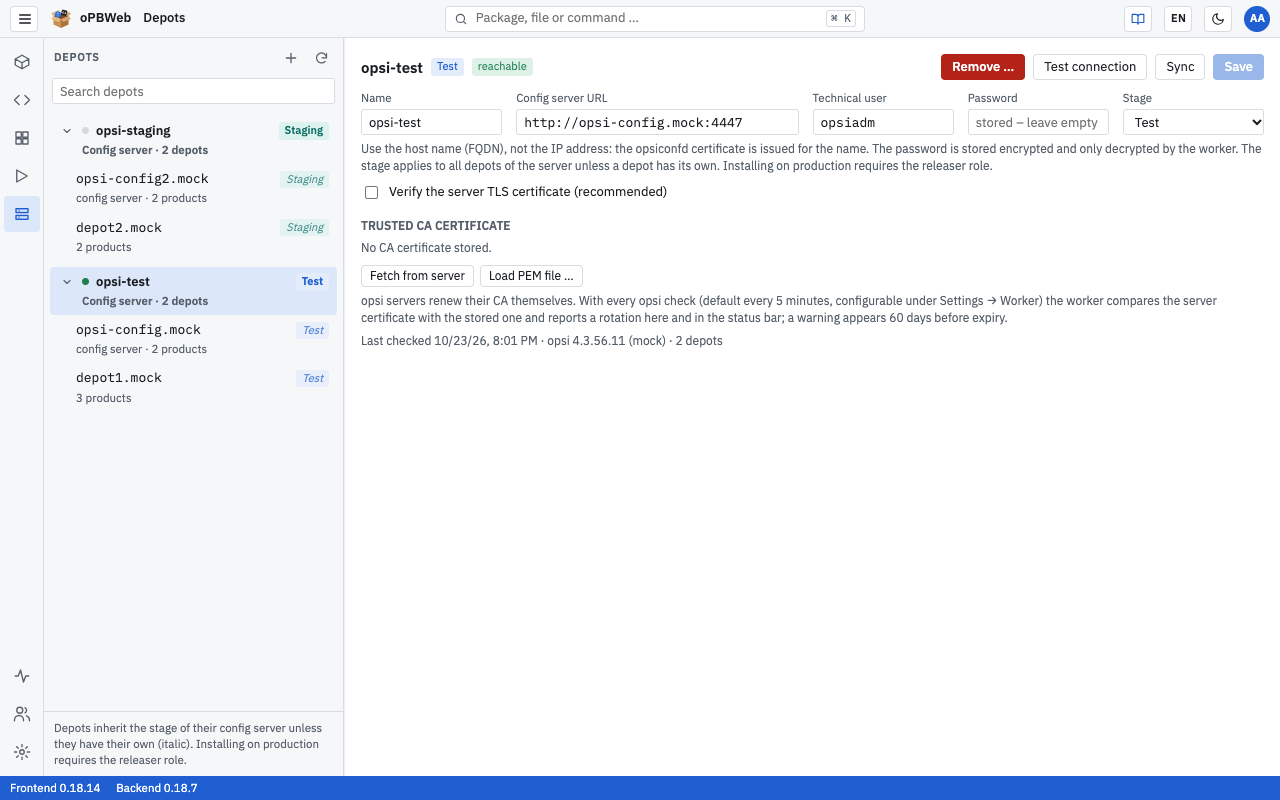
Config servers in the depot list
The list on the left of the Depots view is grouped by config server. Each config server is shown as a bold row, with its depots indented below it. The arrow in front of the name collapses or expands the depots of a server, and the “Search depots” field above searches the list (see Depots ).
| Element | Meaning |
|---|---|
| Dot in front of the name | green: last check OK, red: last check failed, gray: not checked yet |
| Badge | Stage of the config server (Production, Staging or Test) |
| Second line | “Config server · 3 depots” |
There are two buttons at the top of the list:
- + (“New config server”) adds another config server. Only administrators see it.
- ⟳ (“Synchronize all config servers”) syncs the depots of all config servers. The button is available from the Packager role.
Clicking a config server row opens the server’s form on the right. Next to the heading, you see the stage badge and the result of the last check: reachable or not reachable. The header contains the buttons Remove …, Test connection, Sync and Save.
Users without the Administrator role see a card instead of the form, with name, stage, Config server URL, State (reachable or not reachable including the error message) and the validity of the CA certificate. From the Packager role, the card has a Sync button.
The fields
| Field | Content |
|---|---|
| Name | Display name of your choice, for example config server. If the field is empty, oPBWeb uses the host name from the URL. |
| Config server URL | Address of opsiconfd including the port, for example https://opsi.example.local:4447. Use the fully qualified host name (FQDN), not an IP address: the opsiconfd certificate is issued for the name. Each URL can be configured only once. |
| Technical user | opsi user that oPBWeb works with. The default is opsiadm. The user needs opsi admin rights. |
| Password | Password of the technical user. It is stored encrypted and never shown again. If a password is already stored, the field shows “stored – leave empty to keep”. |
| Stage | Production, Staging or Test. The stage applies to all depots of the server unless a depot has its own. Installing on production requires the Releaser role. New config servers start with Production. |
| Verify the server TLS certificate (recommended) | Checks the server certificate against the stored CA certificate. Leave this option enabled. |
With TLS verification enabled, oPBWeb trusts only the CA certificate you store under TRUSTED CA CERTIFICATE, not the certificate authorities of the operating system. Without a stored CA certificate, an https connection with TLS verification cannot be saved (“A CA certificate is required for the TLS check.”).
What the stage means for permissions and how depots inherit it is described in Depot management .
Adding a config server
Open Depots in the activity bar.
Click + at the top of the list on the left. The “New config server” form appears on the right.
Enter Config server URL, Technical user and Password, and optionally a Name.
Select the Stage, for example Test for a test server.
Under TRUSTED CA CERTIFICATE, click Fetch from server. oPBWeb loads the server’s CA certificate in a short job; meanwhile the button shows “Loading …”.
The CA certificate of the server dialog shows the certificate with its SHA-256 fingerprint. Compare it with the fingerprint on the config server:
openssl x509 -in /etc/opsi/ssl/opsi-ca-cert.pem -noout -fingerprint -sha256If both match, click Trust. Below the certificate table, “Changed CA certificate – save to apply.” appears.
Click Add. The message “Config server saved” confirms this.
Right after adding, oPBWeb runs Test connection for the new server. The test also reads the server’s depots; they then appear in the list below the config server. Cancel discards a new config server before it is saved.
If the URL is already configured, oPBWeb refuses to save: “A config server with this URL is already configured: …”.
Only click Trust if the fingerprint really matches the one on the server. When fetching, oPBWeb does not verify the certificate yet – that is exactly what the comparison is for. If it does not match, close the dialog and find out why.
Changing a config server
Select the config server in the list, change the fields and click Save. As long as there are unsaved changes, Test connection and Sync are disabled. If you switch to another entry in the list with unsaved changes, oPBWeb asks for confirmation first.
Loading the CA certificate from a file
Instead of fetching the certificate from the server, you can upload it as a file, for example if you copied opsi-ca-cert.pem from the server beforehand:
- Click Load PEM file … and select a file with the extension
.pem,.crtor.cer. - “New PEM file loaded, it is checked on save.” appears.
- Click Save (for a new server, Add). Only now does the server check the file. If it does not contain a valid certificate, the message is “Not a valid PEM certificate: …”.
Remove below the certificate table deletes the stored CA certificate; this, too, only takes effect when you click Save.
Removing a config server
- Select the config server in the list.
- Click Remove … in the header.
- Confirm the prompt “Remove config server name? Its 3 depots disappear from oPBWeb (nothing changes on the opsi server).”
The message “Config server name removed” confirms this. oPBWeb deletes the config server, its depots with their settings and the product lists of these depots. Packages and jobs are kept. Nothing changes on the opsi server itself.
Validity of the CA certificate
The table under TRUSTED CA CERTIFICATE lists every certificate in the stored file with Certificate (subject), Validity and SHA-256 fingerprint. If the file contains no CA certificate, “not a CA certificate” is shown after the subject.
The badge in the Validity column shows the remaining lifetime:
| Badge | Meaning |
|---|---|
| green, “729 days left” | valid for more than 60 days |
| orange, “45 days left” | valid for less than 60 days |
| red, “10 days left” | valid for less than 14 days |
| red, “expired” | the certificate has expired |
From 60 days before expiry, the status bar additionally shows “name: CA expires in {n} days”, and the opsi server row in System status is set to error.
CA rotation
opsi servers renew their CA themselves. Afterwards, the certificate stored in oPBWeb no longer matches the server’s, and connections with TLS verification fail. oPBWeb detects this during the regular check and reports it in three places:
- in the status bar: “name: new CA certificate” (a link to Depots for administrators)
- in System status in the opsi server row
- in the config server form as a box “The server serves a new CA certificate” above the fields
To accept the new certificate:
- Open Depots and select the affected config server. The box shows the new certificate with its expiry date and SHA-256 fingerprint.
- Compare the fingerprint with
/etc/opsi/ssl/opsi-ca-cert.pemon the server (command as above). - Click Accept new certificate. The message “New CA certificate accepted” confirms this; no further save is needed.
Remaining warnings in the status bar and system status disappear with the next check, after five minutes at the latest. If you do not want to wait, click Test connection.
Testing the connection
Test connection checks the saved settings of the selected config server immediately. The button is disabled as long as there are unsaved changes (“Please save first”).
The test runs as a job and checks, in order:
- whether the stored CA certificate matches the server
- whether signing in with the technical user and password works
- whether the technical user has opsi admin rights
- which opsi version is running and which depots the server reports
If the test succeeds, oPBWeb then syncs the depots of this server. The result appears as “Connection OK” or as an error message. Below the form, you then see, for example, “Last checked 10/15/26, 09:30 · opsi 4.3.x · 3 depots” or the error message of the last check in red.
Syncing
Sync in the config server form reads only the depots of this server, their installed products and the project folders of its workbench again; the job is called “Synchronize depots (name)”. ⟳ at the top of the list syncs all config servers (“Synchronize depots of all config servers”). A sync never touches the depots of another config server. What happens to the depots during a sync is described in Depot management .
Automatic background check
You do not have to run the test by hand regularly. The worker checks all config servers every five minutes (default, configurable under Settings → Worker) in the same way and syncs the depots of every reachable server. You see the result:
- in the dot in front of the server name in the depot list, in the reachable / not reachable badge and in “Last checked …” in the form
- in the opsi server row in System status, with one entry per config server
- as an orange hint in the status bar if the server is missing, the CA was rotated or the CA expires soon
Common errors
Error messages come from the server and follow the interface language. Details that opsiconfd itself returns (for example HTTP errors) are shown unchanged.
| Message | Cause and solution |
|---|---|
| “user has no opsi admin rights” | The technical user is not an opsi administrator. Add the user to the opsi admin group on the config server, or enter a different user. |
| “… HTTP 403” | opsiconfd rejects admin calls from the oPBWeb network. If the opsiconfd configuration contains admin-networks, the Docker network of the oPBWeb worker must be included. Technical administration adjusts this (see Troubleshooting
). |
| “The server delivers a different CA certificate than the stored one (rotation?)” | CA rotation on the server, see CA rotation . |
| “No CA certificate is stored for the opsi server (Depots → config server).” | TLS verification is on, but no CA certificate is saved. Fetch it with Fetch from server and save. |
| “CA not retrievable: …” | The server cannot be reached at the URL entered. Check the host name, the port (usually 4447) and reachability from the oPBWeb server. |
| “A config server with this URL is already configured: …” | The server has already been added. Select it in the list instead of adding it a second time. |
| “Depot … already belongs to config server … and is skipped” (in the job log) | Another configured config server reports the same depot, for example because the same server was added under two URLs. Remove the duplicate entry. |
| Certificate error despite the correct CA | Most likely the URL contains an IP address instead of the host name. Enter the FQDN. |
| “The server does not deliver a different certificate.” | With Accept new certificate: the rotation has already been accepted in the meantime. Nothing else to do. |