Users and Roles
Role: Administrator
Overview
Under Users and roles, you manage all accounts that can sign in to oPBWeb. Each account has exactly one role, which defines what it may do in the UI. Besides local accounts that you create yourself, there are directory accounts from LDAP whose role is derived from their groups in the directory.
Open the area with the Users and roles icon at the bottom of the activity bar. It has two tabs: Users (with the number of accounts) and Audit log. The audit log is described in the Audit log chapter.
Roles and permissions
There are four roles. They build on each other: each role has all permissions of the roles above it and adds its own.
| Role | Short description in the UI |
|---|---|
| Viewer | read only |
| Packager | edit and build packages, install on test depots |
| Releaser | also deploy to production depots |
| Administrator | also users, servers and settings |
The UI hides or disables buttons when the role is not sufficient. Every permission is still checked on the server. If a permission is missing, the message “No permission for this action.” appears.
Viewer
- view the package list and package details, open the package editor read-only, view the Source of the control file
- download built
.opsiand.md5files - read snippets
- follow all jobs with their live log, cancel their own queued jobs
- view depots and download files from them
- see the services table in System status
- set their own Default language, change their own password (local accounts only)
Packager
- create packages: New package, Import, Workbench …, Meta package …
- edit drafts and Build, create a New version, create, upload, rename and delete files in the package
- Archive and Restore packages
- Delete this version, Back to draft and Delete package …, as long as the package or version is not installed on a production depot (see stage rule )
- Compare with workbench …, Export to workbench …, write to
/workbenchof every config server and Import into oPBWeb - Sync depots and read the repository
- on test and staging depots: Install …, Uninstall …, Promote … or Promote to another stage …, Unlock products, delete repository files
- maintain their own snippets and snippet categories
Releaser
- all depot actions of the Packager (install, uninstall, promote, unlock, delete from repository) on production depots as well
- delete versions and packages and set versions back to draft, even if they are installed on a production depot
Administrator
- the Users and roles (including Audit log) and Settings areas
- add, change and remove config servers under Depots
- depot settings (Stage, Service URL, Enabled) and Remove for depots
- maintain global snippets
- cancel queued jobs of other users
- the Database, Object storage, Clean up … and Bucket contents sections in System status
The stage rule for depots
What a Packager may do with a package on a depot depends on the depot’s Stage, not only on their role. The table shows who may perform which action on which stage:
| Action | Test | Staging | Production |
|---|---|---|---|
| Install … (also with setup) | Packager and above | Packager and above | Releaser and above |
| Uninstall … | Packager and above | Packager and above | Releaser and above |
| Promote … / Promote to another stage … (target depots) | Packager and above | Packager and above | Releaser and above |
| Unlock products | Packager and above | Packager and above | Releaser and above |
| Delete repository files | Packager and above | Packager and above | Releaser and above |
| Delete a version, Back to draft, Delete package …, if installed there | Packager and above | Packager and above | Releaser and above |
| Sync depots, read the repository | Packager and above | Packager and above | Packager and above |
| View the depot, download files | Viewer and above | Viewer and above | Viewer and above |
| Change the depot’s Stage, Service URL, Enabled | Administrator | Administrator | Administrator |
For deleting and for Back to draft, it matters where the package is currently installed: if the version (or, when deleting the package, any of its versions) is on a production depot, the Releaser role is required. A Packager then gets a message listing the depots on which the package is installed. This is based on the state of the last depot sync.
Depots inherit the stage of their config server unless you give them their own. New config servers start in the Production stage. So a Packager can install on their depots only after you set the config server or the individual depot to Test or Staging. In the Install … dialog, a locked depot is shown with the hint “requires releaser role”. How to change the stage is described in Depot management .
The workbench of a config server is not covered by the stage rule: Packagers may write to /workbench of every config server, including production servers.
The user list
The Users tab shows all accounts in a table. The User details pane for the selected account opens to its right.
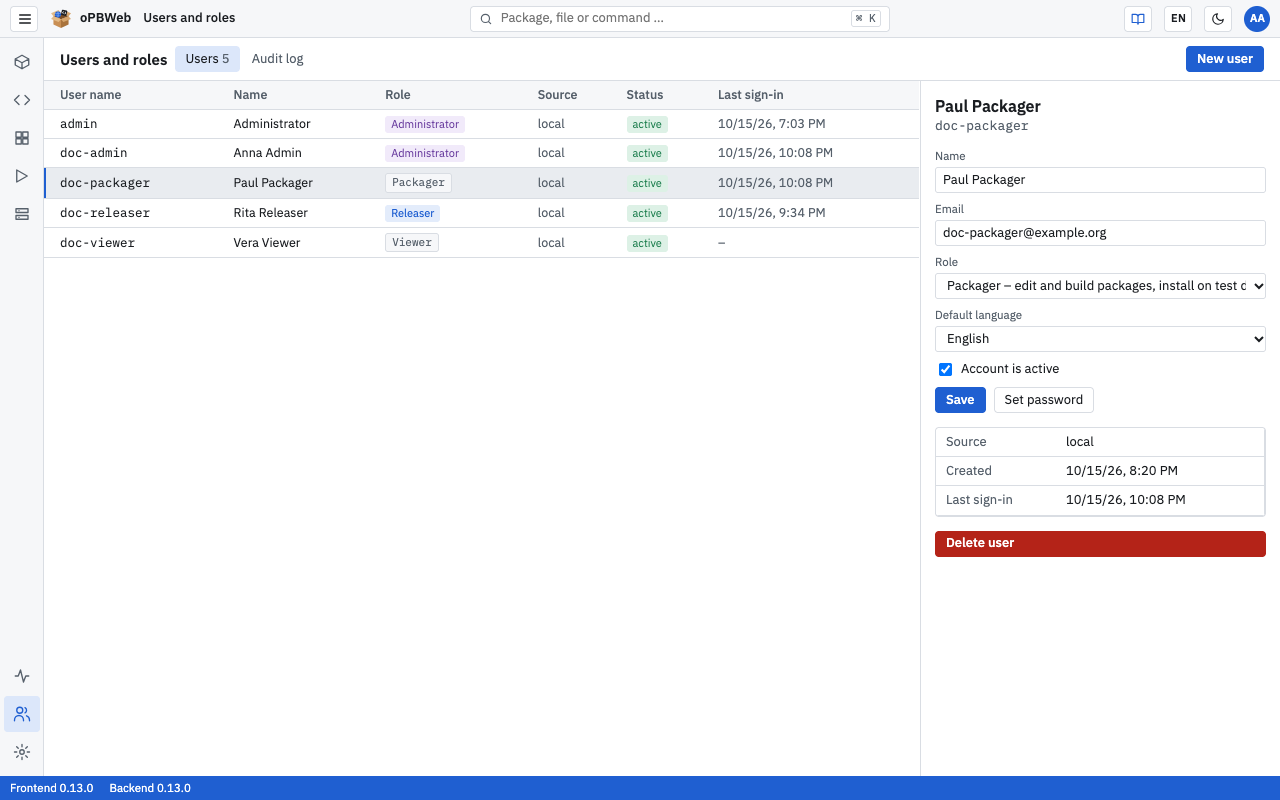
| Column | Meaning |
|---|---|
| User name | Sign-in name of the account |
| Name | Display name |
| Role | Role as a colored badge |
| Source | local (created in oPBWeb) or Directory (LDAP) |
| Status | active, disabled or locked (after too many failed attempts) |
| Last sign-in | Time of the last successful sign-in |
Below the fields, the user details also show Source, Created and Last sign-in.
Local accounts
Local accounts sign in with a password that oPBWeb stores itself. The first administrator account (admin) is created when the system starts for the first time; you create all further local accounts here.
Creating an account
Click New user in the toolbar.
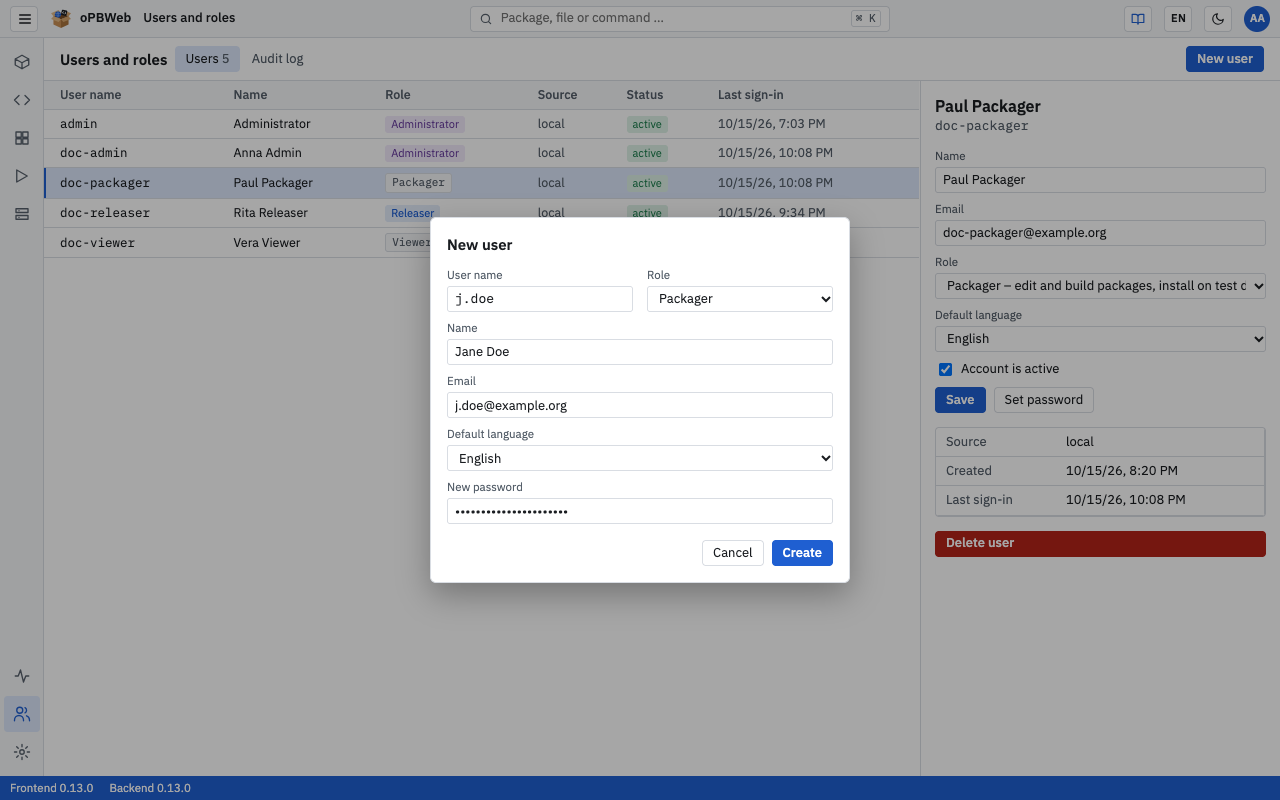
Enter the User name. Allowed are 2 to 128 characters consisting of letters, digits and
._@-.Select the Role. The dialog suggests Viewer, the role with the fewest permissions.
Optionally enter Name and Email. The email address appears in changelog entries of this user.
Select the Default language (Deutsch or English). The UI starts in this language after every sign-in.
In the New password field, set an initial password with at least 10 characters.
Click Create.
The new account appears in the list and is selected right away. Pass the initial password to the user through a secure channel; they can then replace it themselves under Change password in the avatar menu.
If the user name is already taken, the dialog reports “User name is already taken.” This also applies to names of directory accounts that have signed in before.
Editing an account
- Select the account in the list.
- In the User details, change Name, Email, Role or Default language.
- Click Save. “Saved” appears in the toolbar.
Every user can also change their default language themselves in the avatar menu (see Account and language ).
Disabling an account
A disabled account is kept with all its data but can no longer sign in. The sign-in fails with “Account is disabled.”
- Select the account.
- Clear the Account is active checkbox.
- Click Save.
To re-enable it, select the checkbox again and save.
Setting a password
If a user has forgotten their password, set a new one:
- Select the account and click Set password.
- Enter the new password twice (at least 10 characters).
- Confirm the dialog. “Password set” appears in the toolbar.
You do not need the old password for this. Setting a password also lifts an existing lock.
Unlocking an account
After 5 wrong passwords in a row, oPBWeb locks a local account for 15 minutes. During the lock, the sign-in message is “Account locked until HH:MM.”, even if the password is correct. In the list, the account shows as locked.
You do not have to wait for the lock to expire:
- Select the locked account.
- Click Unlock. The button only appears for locked accounts.
The user can sign in again immediately. If they have actually forgotten their password, use Set password instead.
Deleting an account
- Select the account.
- Click Delete user.
- Confirm the prompt “Delete user?” with Delete user.
The account is removed permanently. Entries in the Audit log are kept with the user name. You cannot delete your own account; the button is disabled for it.
If you are not sure whether an account will be needed later, disable it instead. A disabled account can be re-enabled at any time.
Protection of the last administrator
oPBWeb prevents a situation where nobody can reach the administration any more. For the last active administrator account:
- You cannot give it a lower role or disable it. The message is “The last active administrator cannot be removed.”
- You cannot delete it: “The last active administrator cannot be deleted.”
So create a second administrator account first before you downgrade or remove the existing one.
Directory accounts (LDAP)
If technical administration has enabled LDAP sign-in, users from the directory (for example Active Directory) can sign in as well. You recognize these accounts by the source Directory (LDAP). The setup is described in LDAP Sign-in .
Directory accounts follow different rules than local accounts:
- Creating: You do not create them yourself. The account is created automatically at the first successful sign-in.
- Role: The role is derived from the user’s LDAP groups at every sign-in. If the user is in several matching groups, the highest role applies. The Role field is locked, and below it you see “The role of directory accounts is derived from their LDAP groups at every sign-in.” To change the role, change the group membership in the directory.
- Name and email: oPBWeb takes these values from the directory at every sign-in. Changes you save here are overwritten at the next sign-in.
- Password: Directory accounts have no password in oPBWeb. Set password is missing, and the user changes their password in the directory. The lock after failed attempts also applies only to local accounts.
- Disabling: Works as for local accounts. A disabled directory account can no longer sign in, even if it is still authorized in the directory.
- Deleting: A deleted directory account is recreated at the next sign-in as long as the user is still in a matching group. To exclude someone permanently, disable the account or remove the user from the groups.
If a user in the directory is not in any of the groups configured for oPBWeb, the sign-in fails with “No permission for oPBWeb (no matching group).” In that case, the user does not appear in the user list at all.
Local accounts always sign in locally, even when LDAP is enabled. This keeps the local administrator admin reachable even if the directory fails.