User Guide
Create, edit, build and distribute packages
Roles: Viewer, Packager, Releaser, Administrator
Overview
The user guide describes your daily work with oPBWeb: creating or importing packages, editing control data and scripts, building packages and distributing them to the depots of your opsi config servers, from the test stage through to production. It also covers the Snippets, Depots and Jobs areas and the settings for your own account.
What you can use depends on your role. oPBWeb hides or disables buttons your role does not allow. The server checks every action as well.
Roles
The roles build on each other: each role has all permissions of the role before it. You can see your role in the avatar menu at the top right, below your name.
| Role | What you can do |
|---|
| Viewer | View everything except Users and roles and Settings: package list, package editor (read only), source, snippets, jobs, depots, system status. Download built .opsi and .md5 files. |
| Packager | Additionally create, import and edit packages, build, create new versions, delete versions, maintain your own snippets, sync depots, compare with the workbench. Install, uninstall and promote packages on depots of the Test and Staging stages. |
| Releaser | Additionally install, uninstall and promote packages on depots of the Production stage. |
| Administrator | Additionally users, config servers, settings, stages of config servers and depots, global snippets and storage cleanup. See Functional Administration
. |
Depot stages
oPBWeb can manage several opsi config servers. Each config server has a stage: Production, Staging or Test. Its depots inherit this stage unless an administrator sets a stage of their own for a depot; new config servers start in Production. The stage decides who may install, uninstall, promote packages, unlock locked products and delete repository files on the depot:
| Stage | Required role |
|---|
| Test | Packager or higher |
| Staging | Packager or higher |
| Production | Releaser or higher |
In the install dialog, depots your role is not sufficient for are marked “requires releaser role” and cannot be selected. With Promote … you take a tested version unchanged from one stage to the next, see Promoting to another stage
.
Package lifecycle
Every package version is either Draft or Released:
- Draft: A new, imported or copied version is a draft. You can edit it as you like.
- Build: Build creates the
.opsi file. The version stays a draft, and you can rebuild it as often as you like. If you change something afterwards, oPBWeb shows “changed since build”. - Installing releases: With Install … you distribute the current build to depots. This releases the version and makes it read-only.
- Promote: With Promote … you take the tested, released version (the same build) to the depots of the next stage, for example from Test to Staging and then to Production.
- Continue working: To make changes, create a New version (editable copy with a new version number) or set the version Back to draft (same version number).
For details, see Build and deploy
.
Chapters
- Getting Started
– sign-in, interface layout, search
- Packages
– package list, new packages, import, meta packages
- Package Editor
– control data, dependencies, properties, changelog
- Package Files
– file tree, upload, MSI information, structure
- Script Editor
– edit opsi-script with completion, help and checks
- Build and Deploy
– build, install, uninstall, release, promote to other stages
- Snippets
– create, insert and import text snippets
- Depots
– config servers and depots, installed products, files, repository, comparison
- Jobs
– follow running and finished jobs
- Account and Language
– default language, password, sign-out
Getting Started
Sign in, the interface layout and fast navigation with the search
Roles: Viewer, Packager, Releaser, Administrator
Overview
This chapter shows you how to sign in, how the oPBWeb interface is laid out and how to use the search to jump quickly to packages, files and commands. At the end you find a short overview of the roles and the package lifecycle.
Signing in
- Open oPBWeb in your browser. Without a valid session, you land on the sign-in page.
- Enter your User name and Password.
- Click Sign in.
After signing in, the package list opens, or the page you originally wanted to open. On the sign-in page you can already switch the language (DE/EN) and light/dark mode in the top corner.
Note
After five failed sign-in attempts, a local account is locked for 15 minutes (“Account locked until HH:MM.”), for the computer the attempts came from. An administrator can lift the lock earlier. If your organization uses LDAP, you sign in with your directory account; your role then follows from your LDAP groups.
Your session lasts up to seven days unless you sign out. You sign out via the avatar menu, see Account and Language
.
Interface layout
The interface is laid out like a development environment: the top bar at the top, the navigation bar on the left, the work area in the middle and the status bar at the bottom.
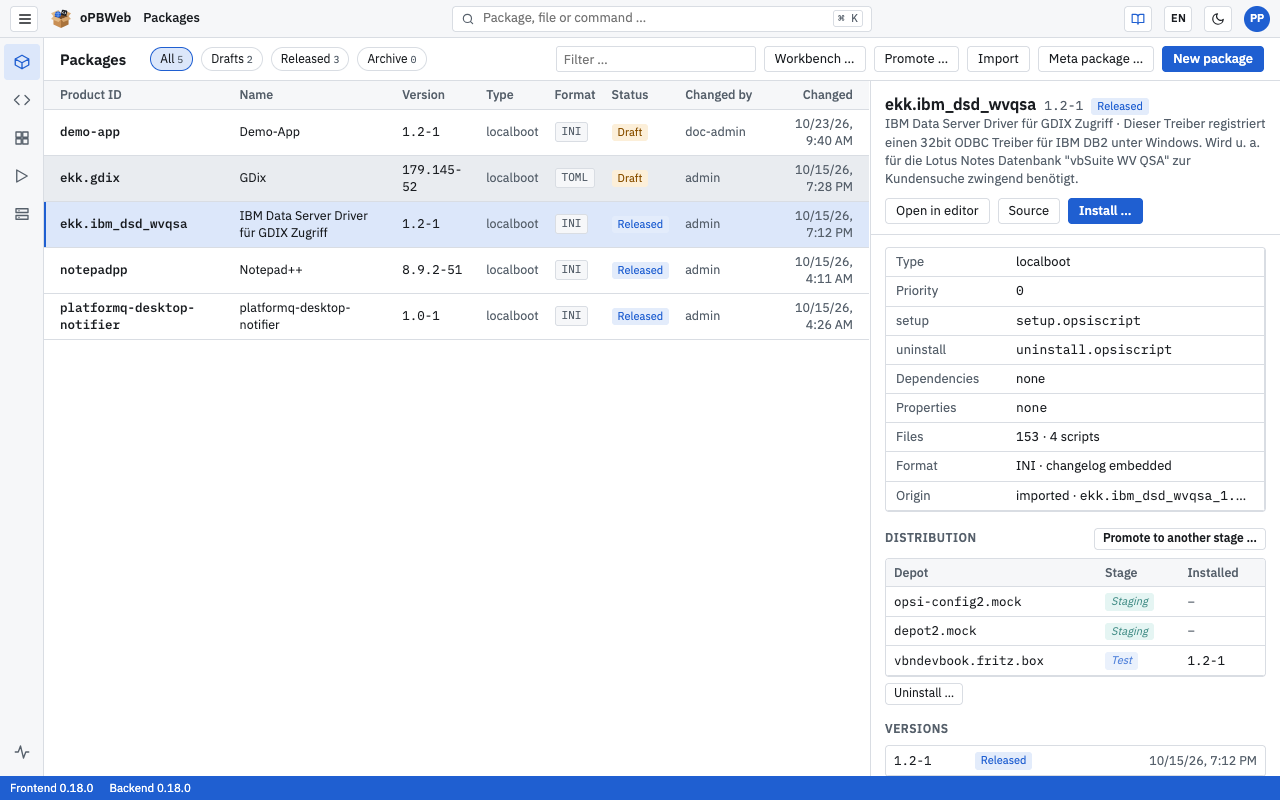
Top bar
From left to right you find:
| Element | Function |
|---|
| ☰ | Shows or hides the labels of the navigation bar (tooltip “Expand/collapse menu labels”). |
| oPBWeb logo | Takes you back to the package list. |
| Title | Shows where you are, in the package editor for example “Packages › firefox”. |
| Search field “Package, file or command …” | Opens the search
(shortcut Ctrl K, on a Mac ⌘ K). |
| Book icon | Opens this manual in a new tab (Manual (new tab)), in the current interface language. |
| DE / EN | Switches the language for this session. The next time you sign in, your default language applies again. |
| Moon icon | Switches between light and dark theme (Toggle light or dark). As long as you choose nothing, oPBWeb follows your operating system setting. |
| Avatar | Shows your initials. The menu contains your name and role, Default language, My account (account data and syntax colors of the editor
), Change password and Sign out. |
Navigation bar
Use the navigation bar on the left to switch between areas:
| Area | Content |
|---|
| Packages | List of all packages with details, start page after signing in |
| Package editor | Opens the package you edited last |
| Snippets | Text snippets for opsi-script |
| Jobs | All jobs with live log; a counter shows your running jobs |
| Depots | Config servers and their depots, installed products, files, repository |
| System status (bottom) | Availability of the services |
| Users and roles, Settings (bottom) | Visible to administrators only |
Without labels, the bar shows only icons; hover over an icon to see its name as a tooltip.
Status bar
On the left, the status bar shows the frontend and backend versions. If the server cannot be reached, it shows “Backend not connected”.
Next to it, an orange notice appears when something needs to be done on a config server, for example “No config server configured”, “Config server 1: new CA certificate” or “Config server 1: CA expires in 30 days”. For administrators, the notice leads to the Depots view. On the right you see the progress of the jobs you started in this browser tab. Clicking one opens the job in the Jobs
area.
Resizing panes
Many views are split into panes, for example the package list and the package details. You can move the dividers:
- Drag with the mouse to change the width.
- With focus on the divider, the arrow keys move it by 20 pixels.
- Double-click to reset the width.
oPBWeb remembers the widths in your browser.
Search
The search lets you jump to packages, files and commands with the keyboard, without clicking.
- Press
Ctrl K (on a Mac ⌘ K) or click the search field “Package, file or command …”. - Type a few letters.
- Select a result with the arrow keys ↑ and ↓ and press
Enter. Press Esc to close the search.
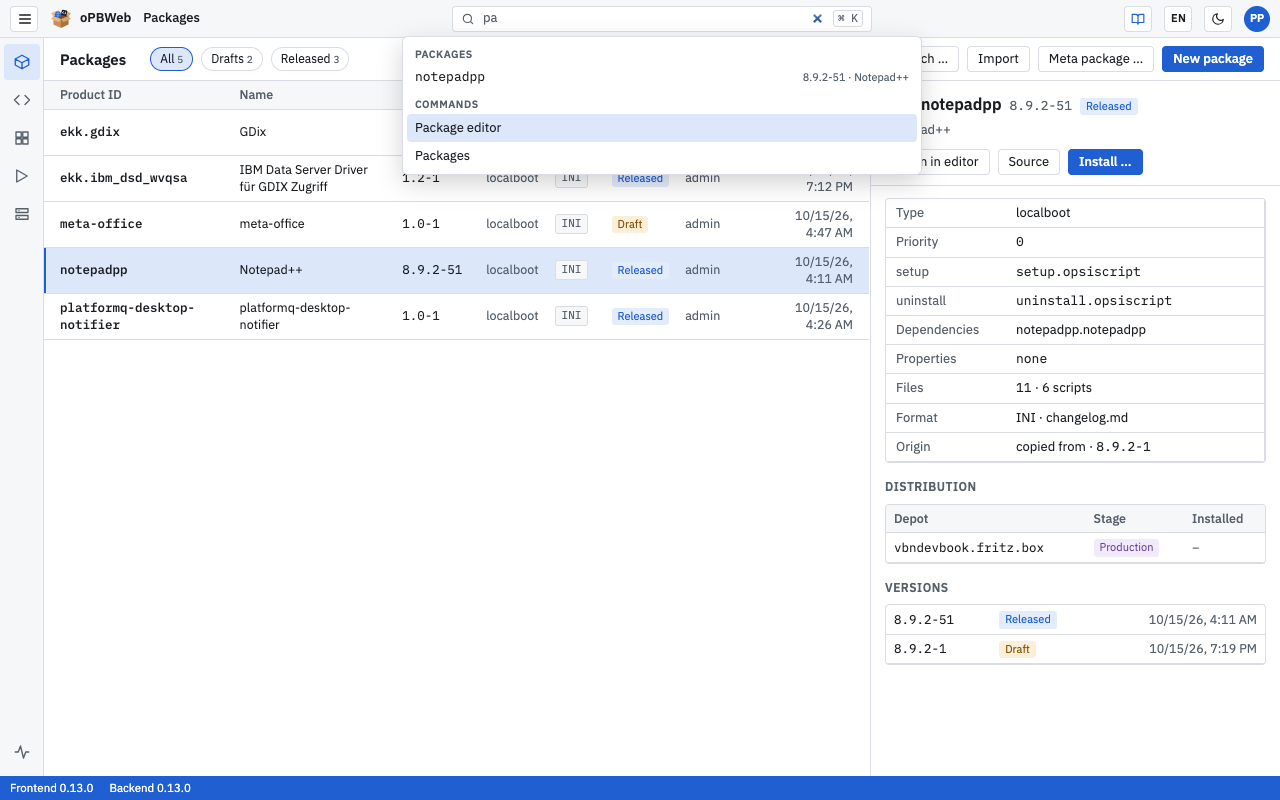
Results are sorted into groups, at most 14 at a time:
| Group | Content |
|---|
| Files in package | Files of the package currently open (only when a package is open). Selecting a result opens the file in the editor. |
| Packages | Packages by product ID, with version and name as a hint |
| Commands | The areas (Packages, Package editor, Snippets …), My jobs and Toggle light or dark |
Exact matches come before matches at the start of a word, followed by matches anywhere in the name. If none of these match, the search falls back to fuzzy matching (the letters in this order, gaps allowed).
Roles at a glance
Your role determines what you may do in oPBWeb:
| Role | In short |
|---|
| Viewer | read only |
| Packager | edit and build packages, install on test and staging depots |
| Releaser | also deploy to production depots |
| Administrator | also users, servers and settings |
The full table is in the user guide overview
.
The lifecycle in one picture
Draft ──Build (any number of times)──► “built”
   ▲                                     │ Install …
   │                                     ▼
   └────── Back to draft ────────── Released (read-only)
                                         │ New version
                                         ▼
                                   new draft (copy)
You can edit and build a draft. Only installing on a depot releases the version. The details are described in Build and Deploy
.
Packages
Package list, creating new packages, importing .opsi files and workbench folders, creating meta packages
Roles: Viewer, Packager, Releaser, Administrator
Overview
The Packages area is the start page of oPBWeb. Here you see all packages with their latest version, check in the package details on which depots they are installed, and create new packages. As a viewer you can see the list and the details; creating, importing and all changing actions require at least the Packager role.
The package list
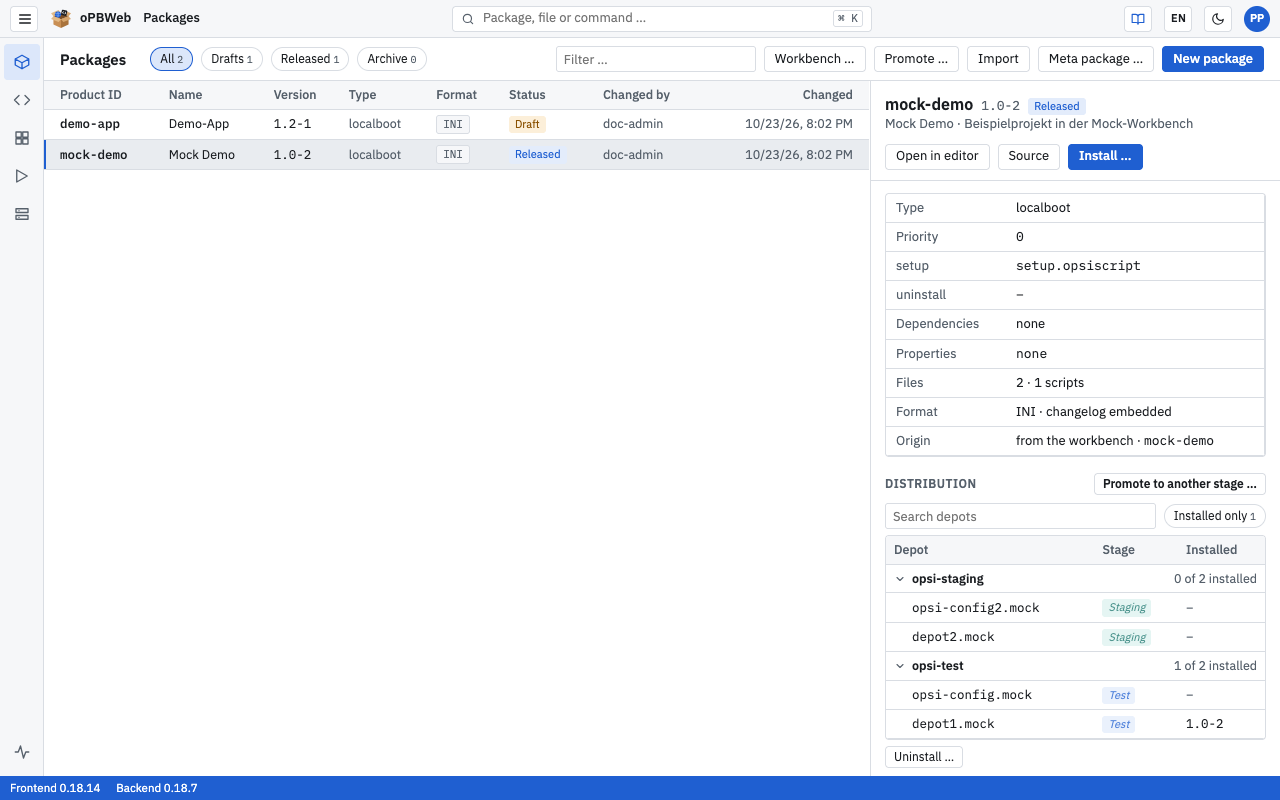
The table shows the latest version of each package:
| Column | Content |
|---|
| Product ID | Unique identifier of the product |
| Name | Display name |
| Version | Product version and package version, for example 1.0-3 |
| Type | localboot or netboot |
| Format | Format of the control file: INI or TOML |
| Status | Draft or Released |
| Changed by, Changed | Who last changed the version and when |
A click selects a package and shows its details on the right. A double-click opens it in the Package Editor
.
Filtering
- The All, Drafts and Released buttons filter by the status of the latest version. The number next to each shows how many packages match.
- Archive shows the archived packages instead of the active ones (see Archiving a package
). If there are none, “No archived packages.” appears.
- In the “Filter …” field you search by product ID or name.
If no package matches, “No package matches the filter.” appears.
Package details
The right-hand pane shows for the selected package:
- Header: product logo (if any), product ID, version, status, name and the first line of the description.
- Buttons: Open in editor and Source (opens the editor directly in the source view). As a packager, also Build (drafts only) and Install … (only if the latest version has an up-to-date build). If the build is outdated, “changed since build” is shown.
- Key data: Type, Priority, setup and uninstall script, Dependencies, Properties, number of Files and scripts, Format (for example “INI · changelog embedded”) and Origin (“created”, “imported”, “copied from …” or “from the workbench”).
- Distribution: For each depot the Stage (Production, Staging or Test) and the version Installed there, grouped by config server (see Distribution
). As a packager, you take the package from one stage to the next with Promote to another stage … (see Promoting to another stage
). If the product is installed anywhere, you can remove it with Uninstall ….
- Workbench: Which workbench the package lies on, see Workbench
.
- Versions: All versions of the package with status and date. A click opens that version in the editor.
- Package (packager and above): Archive, or Restore for archived packages, and Delete package …, see Archiving a package
and Deleting a package
.
Distribution
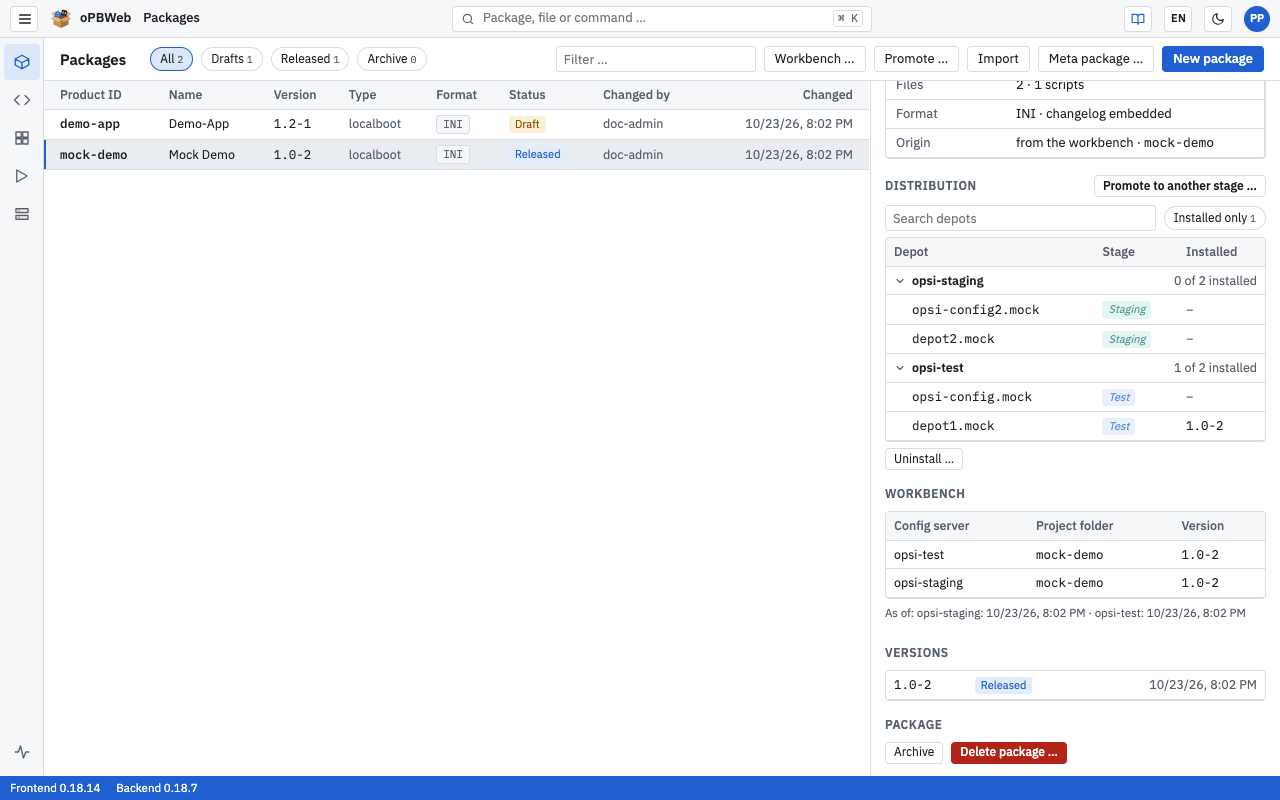
The Distribution table groups the depots by config server. The header row of a server tells you on how many of its depots the package is installed (“1 of 3 installed”). Below it, each depot shows its Stage and the version Installed:
- An italic stage is inherited by the depot from its config server.
- If the installed version differs from the latest one, it is marked orange.
- Click the header row of a config server to collapse or expand its depots. oPBWeb remembers this in this browser.
- “Search depots” narrows the depots down by depot ID or config server name; while searching, all groups are expanded.
- The Installed only chip hides all depots the package is not installed on. The number in the chip counts the depots with an installation.
Workbench
The Workbench section shows in which project folders of the workbenches the package lies: Config server, Project folder and Version. If the version differs from the latest one in oPBWeb, it is marked orange. If the package is not on any workbench, the section says “Not on any workbench.”
oPBWeb does not read the workbench every time you open a package; it remembers what it saw last. The information is refreshed
The “As of:” line below names, per config server, when its workbench was last read completely, or “never read”. If you changed the workbench directly on the server, sync first.
Building, installing and uninstalling are described in Build and Deploy
. To take several packages at once from one stage to the next, use Promote … in the toolbar of the package list, see Promoting to another stage
.
Creating a new package
Roles: Packager, Releaser, Administrator
In the package list, click New package.
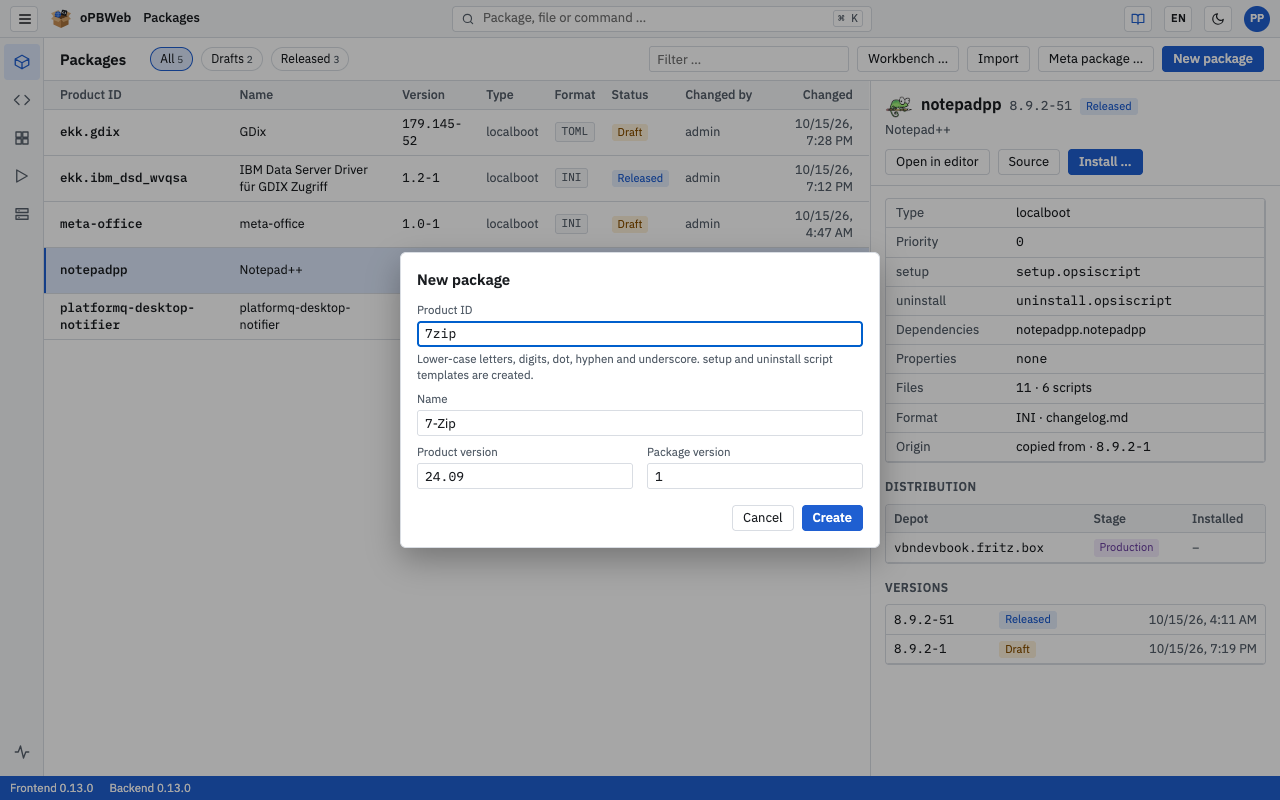
Fill in the fields:
- Product ID (required): only lowercase letters, digits, period, hyphen and underscore. The first character must be a lowercase letter or a digit, at most 128 characters in total. Example: firefox-esr.
- Name: display name. If you leave it empty, oPBWeb uses the product ID.
- Product version (required): version of the software, prefilled from the settings (default
1.0). - Package version (required): version of the package, prefilled from the settings (default
1).
Click Create. As long as the product ID is invalid, the button stays disabled.
oPBWeb creates the package as a draft and opens it in the package editor. The new package already contains a setup and an uninstall script as templates (CLIENT_DATA/setup.opsiscript, CLIENT_DATA/uninstall.opsiscript) and an empty SERVER_DATA/ folder. Priority, control format and changelog location come from the settings for new packages
.
Allowed characters in versions
Product and package version may contain only letters, digits and the characters ., + and ~. The product version may be at most 32, the package version at most 16 characters long. If the product ID already exists, oPBWeb reports “The product … already exists.” – in that case, create a New version in the package editor.
Importing .opsi files
Roles: Packager, Releaser, Administrator
You take over existing packages by importing their .opsi files. Every imported version becomes a draft.
Click Import. The “Import packages” dialog opens.
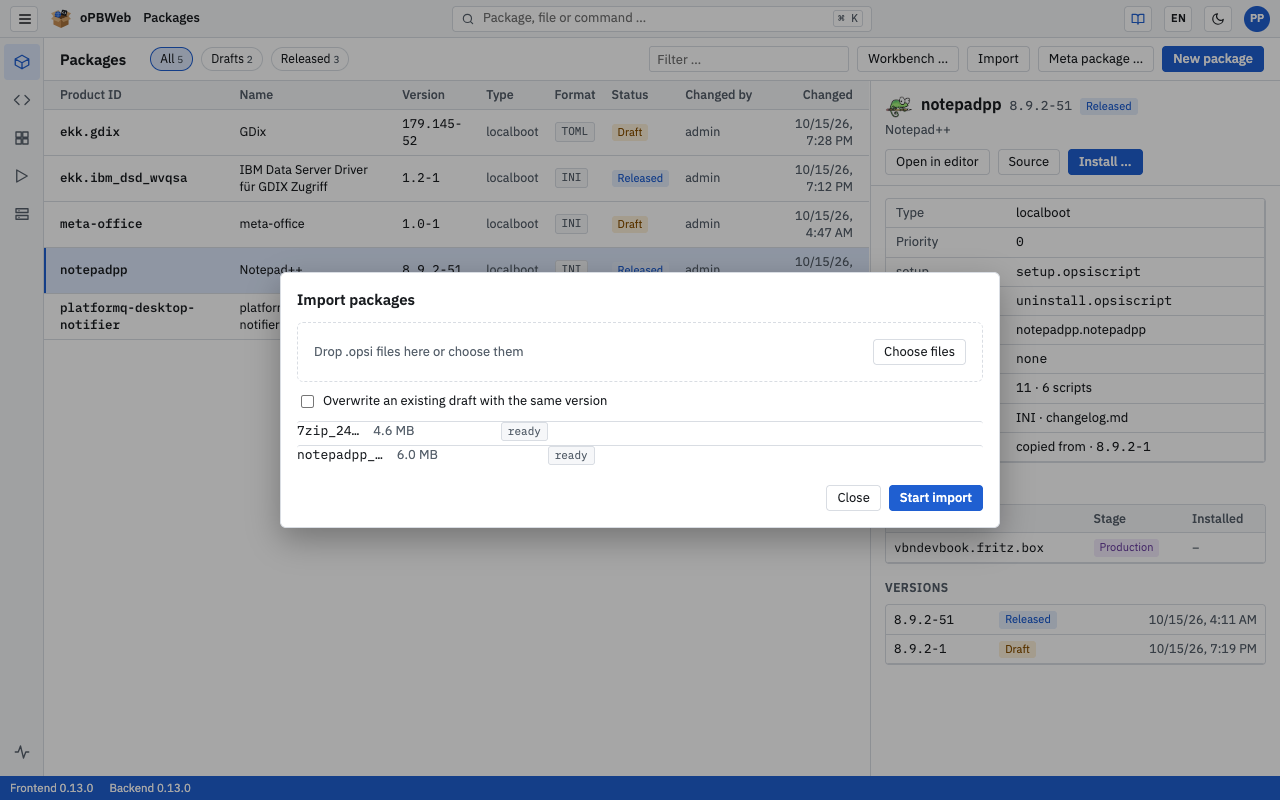
Drag one or more .opsi files into the “Drop .opsi files here or choose them” area or click Choose files. Other file types and files selected twice are ignored.
Optional: Enable Overwrite an existing draft with the same version if an existing version should be replaced.
Click Start import.
oPBWeb uploads and imports the files one after the other. Each row shows its state: “ready”, “uploading”, “importing”, “imported” or “failed”. Below the list, the log of all imports runs in one shared field. While the import is running, Close is disabled.
When is a version overwritten?
If the version (product version and package version) already exists, the import fails without the option. With the option, only a draft is overwritten, never a released version. In that case the job reports “The existing version is released and will not be overwritten.”
During the import, oPBWeb stores the control data and the changelog in its database. The format of the control file (INI or TOML) and the changelog location are preserved. Old control-*.bak backups of the opsiPackageBuilder are not imported; the job log states how many were skipped.
Importing from the workbench
Roles: Packager, Releaser, Administrator
If package sources are stored as project folders in the workbench of a config server, you can take them over directly – individually, several or all at once.
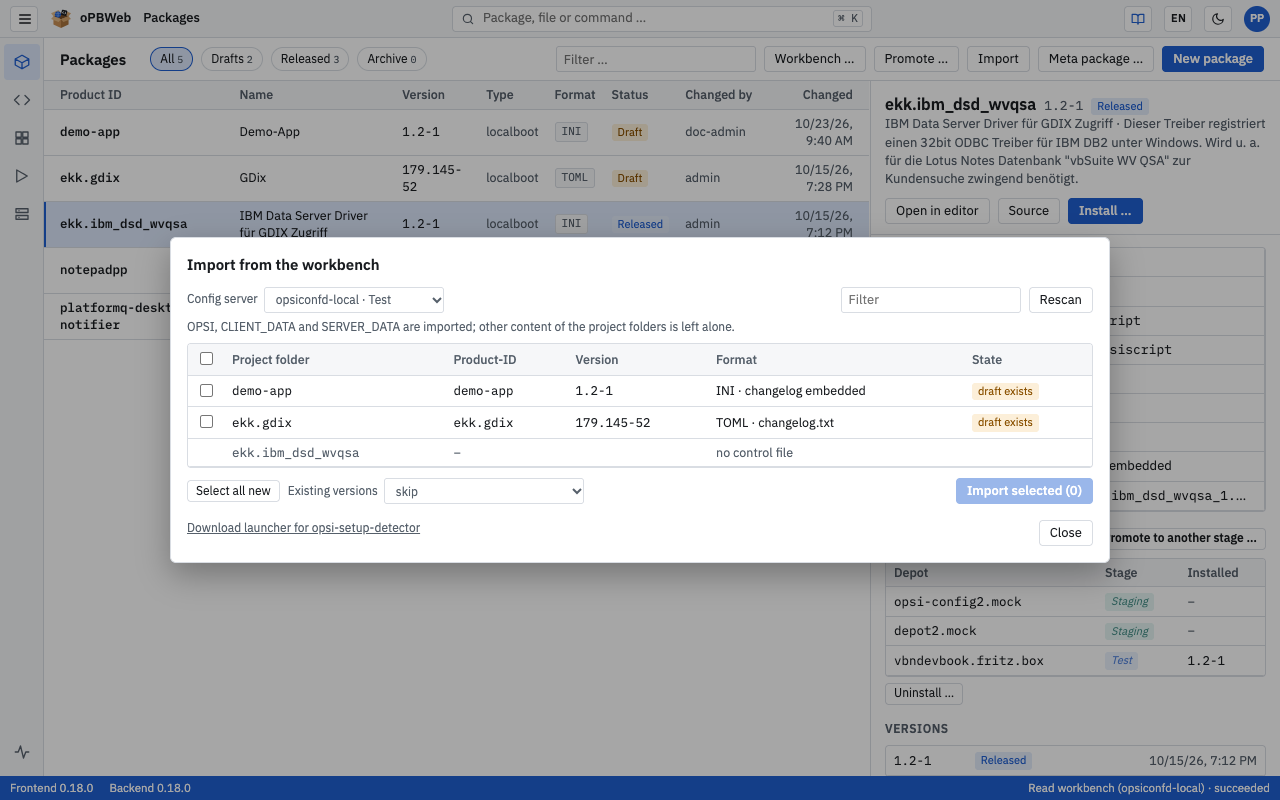
Click Workbench …. The “Import from the workbench” dialog opens.
At the top, under Config server, choose the server whose workbench you want to read. The list shows each server with name and stage. oPBWeb remembers your choice in this browser; without an earlier choice, the first server of the Test stage is preset, otherwise the first server. The dialog reads the workbench automatically (“Reading workbench …”), also after each change of server.
Check the table. It shows Project folder, product ID, Version, Format and State:
| State | Meaning |
|---|
| “new package” | The product ID does not exist in oPBWeb yet. |
| “new version” | The package exists, but this version does not yet. |
| “draft exists” | The version already exists as a draft. |
| “released exists” | The version already exists and is released. |
| “archived” | The package is archived and cannot be imported. |
Folders without an OPSI folder or with an unreadable control file show the reason in the Format column and have no checkbox. Use the filter field to narrow down the list.
Select the checkboxes of the project folders you want to import. The checkbox in the table header selects all, Select all new selects all folders whose version does not exist in oPBWeb yet.
Under Existing versions, choose what happens with folders whose version already exists:
- “skip” (default): The folder is not imported.
- “overwrite drafts”: An existing draft is replaced. Released versions are skipped.
- “import as next package version”: oPBWeb creates the version with the next free package version (highest numeric package version of this product version + 1).
Click Import selected (n).
The import runs as a single job “Import from workbench (server), projects: n” and processes the folders one after the other. You see the progress as “Importing … 40 %”. If you close the dialog, the job keeps running. If a folder fails, oPBWeb continues with the others.
Afterwards, each row shows its result: “imported as 1.0-2”, “skipped” or “failed” (the tooltip shows the reason). At the bottom there is a summary such as “3 imported, 1 skipped, 0 failed”. The job log under Jobs
contains one line per project.
Only the OPSI, CLIENT_DATA and SERVER_DATA folders are imported; other content of the project folders is left alone. Rescan refreshes the list. The import never overwrites released versions.
You can also import individual folders under Depots on the Files tab with Import into oPBWeb, see Depots
. If an imported version was later changed directly on the workbench, bring the changes over with Compare with workbench … in the package editor, see Package Editor
.
Hand-off from opsi-setup-detector
Roles: Packager, Releaser, Administrator
opsi-setup-detector can start the old opsiPackageBuilder after creating the product files. With the oPBWeb launcher, oPBWeb opens in the browser instead and asks whether you want to import the new workbench folder.
Setting up the launcher
Download the launcher for your system: in the “Import from the workbench” dialog via Download launcher for opsi-setup-detector, or directly under /downloads/ of your oPBWeb address. There is one zip file each for Windows, macOS and Linux (amd64 and arm64).
Unpack the file. It is called opsipackagebuilder.exe (Windows) or opsipackagebuilder. Do not rename it: opsi-setup-detector only accepts this name.
Put it where opsi-setup-detector finds it, or enter its path in the opsi-setup-detector configuration under PathToOpsiPackageBuilder:
| System | Default path |
|---|
| Windows | C:\Program Files (x86)\opsi PackageBuilderNG\opsipackagebuilder.exe |
| macOS | /Applications/opsiPackageBuilder.app/Contents/MacOS/opsipackagebuilder |
| Linux | /usr/bin/opsipackagebuilder |
Store the oPBWeb address once:
opsipackagebuilder --set-url https://opbweb.example.org
Alternatively, create a file opb-launcher.conf next to the launcher with the line url = https://opbweb.example.org (applies to all users of the computer) or set the environment variable OPBWEB_URL.
If opsi-setup-detector works with a mapped drive (for example W:\) instead of a UNC path, also store the config server of this workbench:
opsipackagebuilder --set-server opsi-test.example.org
Alternatively, add the line server = opsi-test.example.org to opb-launcher.conf or set the environment variable OPBWEB_SERVER.
opsi-setup-detector and oPBWeb must use the same workbench: opsi-setup-detector writes to the workbench share of a config server, and this server must be set up in oPBWeb. The launcher tells oPBWeb which config server is meant: for a UNC path like \\opsi-test.example.org\opsi_workbench\firefox it is the host name from the path, otherwise the server stored with --set-server.
Note
The launcher is not signed. Windows SmartScreen warns on first start. On macOS, remove the quarantine after downloading with xattr -d com.apple.quarantine opsipackagebuilder.
Using the hand-off
In opsi-setup-detector, choose the mode create opsi product files and start the interactive PackageBuilder and create the product.
oPBWeb opens in the browser. If you are not signed in, sign in first.
The “Hand-off from opsi-setup-detector” dialog reads the workbench folder. If several config servers are set up, Config server is preset to the server the launcher passed on (host name or short name). If oPBWeb does not know this server, a note appears and the last selected server is preset; then choose the matching server. The dialog then asks depending on the situation:
| Situation | Choice |
|---|
| The package does not exist in oPBWeb yet | Import or Cancel |
| The package exists, the version does not | Create new version or Cancel |
| The version already exists | Create as … (next free package version, for example 1.0-3 instead of 1.0-2), Overwrite draft (only if the existing version is a draft) or Cancel |
| The package is archived | Cancel only; restore the package first |
After the import, the new version opens in the editor.
The opsi-setup-detector modes build and build + install do not need the launcher: from opsi 4.2.0.311, opsi-setup-detector builds directly via the opsi service. If it still calls the launcher to build, the launcher reports an error, because oPBWeb does not build from the command line.
Roles: Packager, Releaser, Administrator
A meta package installs a set of other products. It contains no program itself, only dependencies: each selected product becomes a dependency “setup, installed, before”. The script of the meta package does nothing.
Click Meta package …. The “New meta package” dialog opens.
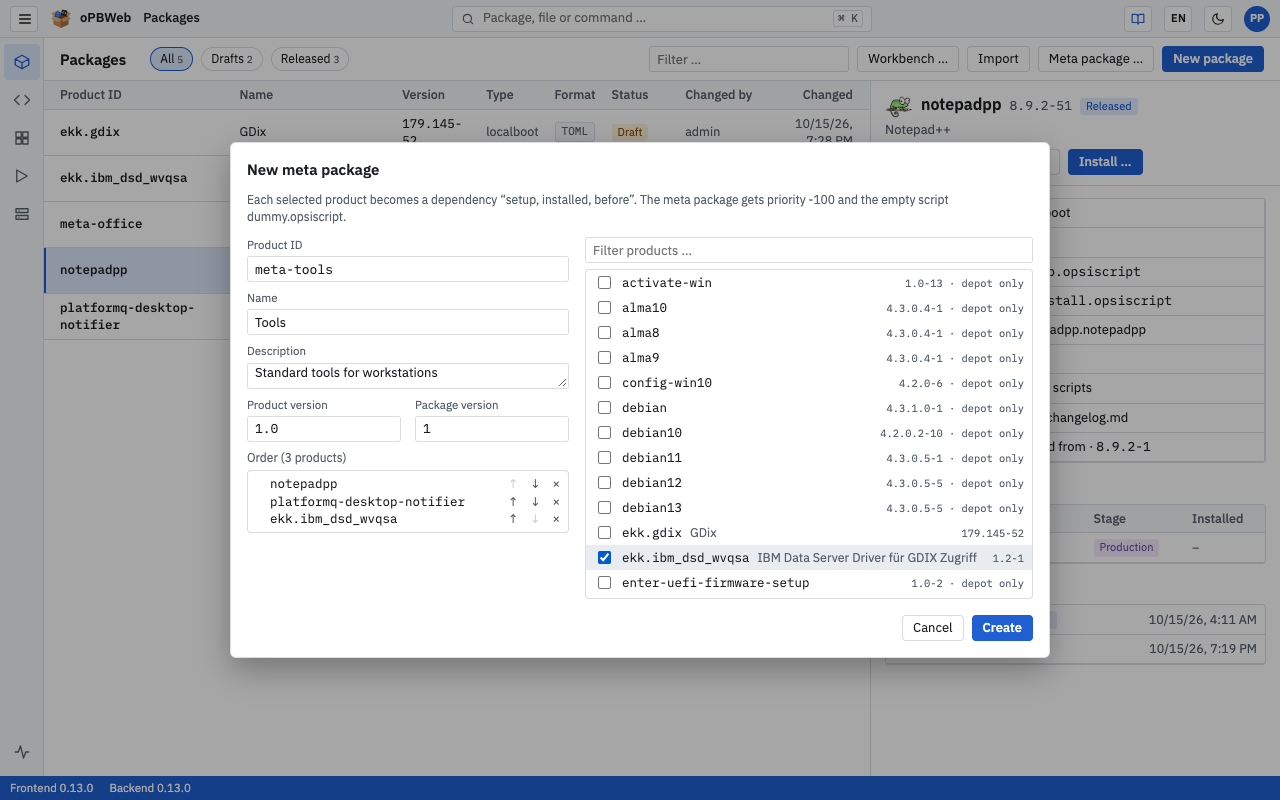
Fill in the fields on the left:
- Product ID: prefilled with the prefix from the settings (default
meta-). The same rules apply as for a new package. - Name, Description: optional.
- Product version, Package version: prefilled from the settings.
Select the products on the right. Use “Filter products …” to narrow down the list. You can choose from all packages in oPBWeb and all products found on the depots; products that exist only on a depot are marked “depot only”.
Under Order, use ↑ and ↓ to put the products in the desired installation order. × removes a product from the selection.
Click Create. The button is enabled as soon as the product ID is valid and at least one product is selected.
oPBWeb opens the new meta package in the editor. It gets the priority and the setup script name from the settings (default: priority −100, script dummy.opsiscript) and no uninstall script. A meta package cannot contain itself; at most 200 products are possible.
Deleting a version
Roles: Packager, Releaser, Administrator
You delete a single version in the package editor:
- Open the version in the Package Editor
and select the Product section.
- At the bottom, click Delete this version.
- Confirm the prompt “Delete version … permanently?”.
Deleting is also possible for released versions and cannot be undone. If the version is installed on a production depot, only a Releaser may delete it (see stage rule
). The built .opsi file of the version is deleted as well. If it is the last version, the whole package disappears from the list. oPBWeb then opens another version of the package or the package list.
Warning
Deleting in oPBWeb removes nothing from the depots. Remove a product installed there beforehand with Uninstall …, see Build and Deploy
.
Archiving a package
Roles: Packager, Releaser, Administrator
You archive a package that you no longer need but want to keep:
- Select the package in the package list.
- In the details, under Package, click Archive.
- Confirm the prompt “Archive …? The package disappears from the list and becomes read-only, the built .opsi files are deleted.”
An archived package
- only appears under the Archive filter and not in the search,
- is read-only: you can view it in the editor, but you cannot edit or build it, create a new version or delete a version; importing into the package is refused as well,
- no longer has build results and therefore cannot be installed.
If jobs are running or waiting for the package, oPBWeb refuses to archive it. Products installed on the depots are kept; you can still remove them in the details with Uninstall ….
To bring it back, select the package under Archive and click Restore. The versions keep their status. Build the package again before installing it next time.
Deleting a package
Roles: Packager, Releaser, Administrator
You delete a whole package with all its versions in the package list, even if it is archived:
- Select the package.
- In the details, under Package, click Delete package ….
- Type the product ID to confirm and click Delete permanently. The button is only enabled when your input matches exactly.
All versions, their files and build results are deleted. This cannot be undone. If any version of the product is installed on a production depot, only a Releaser may delete the package.
Warning
Here, too, nothing is removed from the depots. Remove a product installed there beforehand with Uninstall ….
Package Editor
Edit the control data of a package: product, dependencies, properties, changelog and source
Roles: Viewer, Packager, Releaser, Administrator
Overview
In the package editor you edit a package version: the control data (product information, scripts, dependencies, properties), the changelog and the files of the package. This chapter describes the control tab. Working with files and scripts is described in Package Files
and Script Editor
.
You can only edit drafts, and only with at least the Packager role. As a viewer and for released versions, all fields are locked; you can still view everything.
Opening the editor
You open the editor in one of these ways:
- Double-click a package in the package list, or click Open in editor in the package details.
- Package editor in the navigation bar opens the package you edited last.
- Select a package via the search (
Ctrl K).
Layout
The editor is split into three areas:
- Left: At the top, the list of all packages (Filter …, orange dot = draft, blue dot = released). Below it, the Files tab (file tree) and the Structure tab (include tree of the scripts).
- Middle: The control tab for the package data and one tab per open file. A ● indicates unsaved changes.
- Bottom: The JOBS panel with the last 30 jobs of this package and the live log of the selected job. Close it with ×, reopen it with “Jobs ▴”.
| Element | Function |
|---|
| Edit | Source | Switches between the form and the generated source. |
| Product | Dependencies | Properties | Changelog | Sections of the form. Dependencies and Properties show their count, a ● marks unsaved changes. |
| Version selector | All versions of the package with status (for example “1.0-2 · Draft”). Selecting one switches to that version. |
| “built” / “changed since build” | State of the last build (only for drafts with a build). |
| Build | Creates the .opsi file. Disabled while there are unsaved changes. |
| Save | Saves all changed sections and changed open files. Only enabled if there are changes. |
| Download .opsi | Downloads the last build (only if one exists). |
| Install … | Distributes the build to depots. |
| ⋯ (More actions) | New version, Export to workbench …, Compare with workbench …, Download .opsi, Download .md5, Uninstall … |
Build, Save and Install … are only visible with at least the Packager role. Building, installing and exporting are described in Build and Deploy
. Export to workbench … asks under Config server which workbench to write to. The comparison with the workbench is described in Comparing with the workbench
.
Saving and unsaved changes
Changes in the form only reach the server when you click Save. After saving, oPBWeb briefly shows “Saved”.
If you try to leave the editor or the version with unsaved changes, oPBWeb asks: “There are unsaved changes. Leave anyway?”. The browser also warns you when you close the tab.
Product section
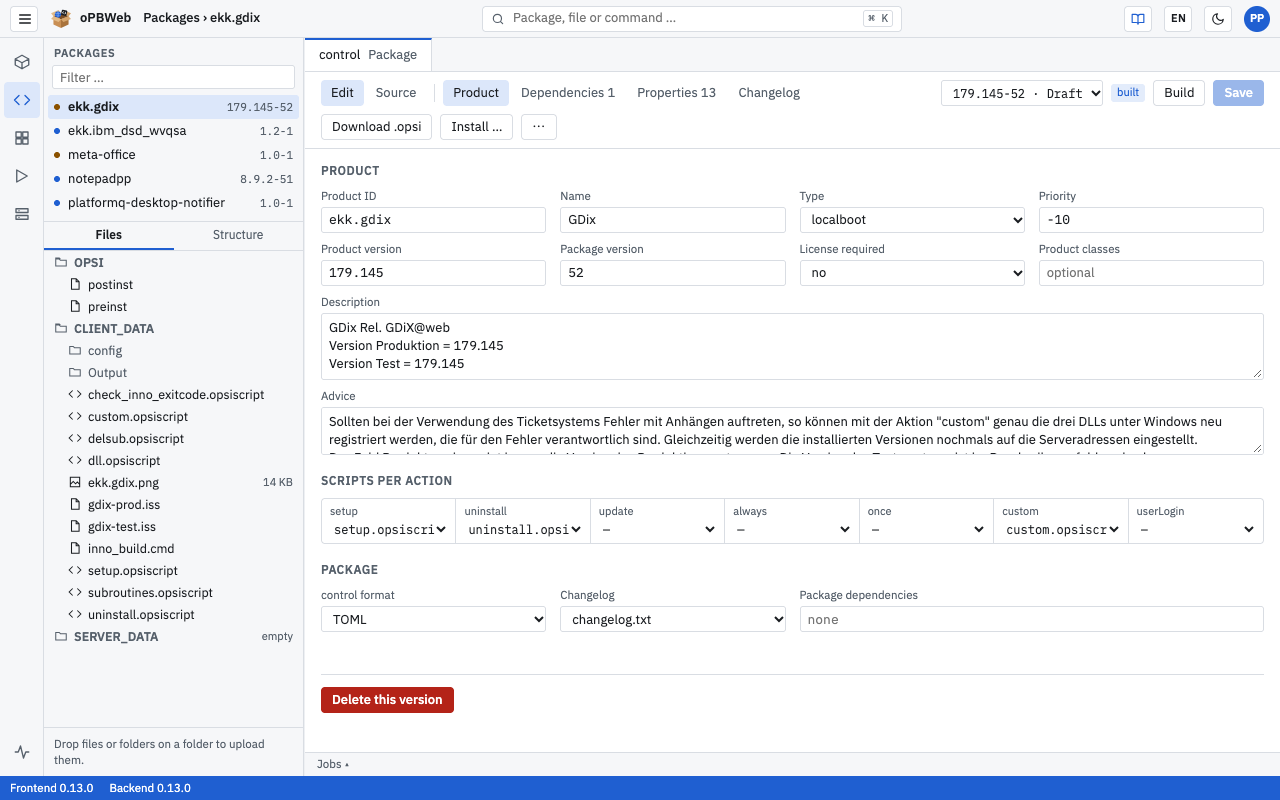
Product
| Field | Description |
|---|
| Product ID | Read only. The product ID cannot be changed after the package is created. |
| Name | Display name of the product |
| Type | localboot or netboot |
| Priority | Integer from −100 to 100. Products with a higher priority run earlier on the client. |
| Product version, Package version | Read only. You get a different version number via New version. |
| License required | “no”, “yes” or “not set” |
| Product classes | Optional, several separated by commas |
| Description | Description of the product |
| Advice | Advice text for administrators in opsi |
Scripts per action
For each action (setup, uninstall, update, always, once, custom, userLogin) you select the script. You can choose “—” (no script) and all script files under CLIENT_DATA/ with the extensions .opsiscript, .ins and .opsiinc.
If the control file refers to a script that does not exist, “(file missing)” is shown after it. Such a package cannot be built until you create the file or change the selection.
Package
| Field | Description |
|---|
| control format | “INI (legacy)” generates OPSI/control, “TOML” generates OPSI/control.toml. |
| Changelog | Where the changelog is stored: “changelog embedded” (as a [Changelog] section in the INI control file), “changelog.txt” or “changelog.md” in the OPSI/ folder. With TOML, “changelog embedded” is not possible. |
| Package dependencies | Packages that must be present on the depot, as a comma-separated list, optionally with a condition: for example opsi-script (>=4.12), mshotfix. Without a condition, >= applies. |
If you change the format, the notice “Saving switches the package format. The source view shows the result beforehand.” appears. If the changelog is still set to “embedded” when switching to TOML, oPBWeb stores it as changelog.txt when saving.
Delete this version
Below the Product section, as a packager you find the Delete this version button. It also works for released versions. Details are in Packages
.
Dependencies section
Here you define which other products must be installed before or after this product.
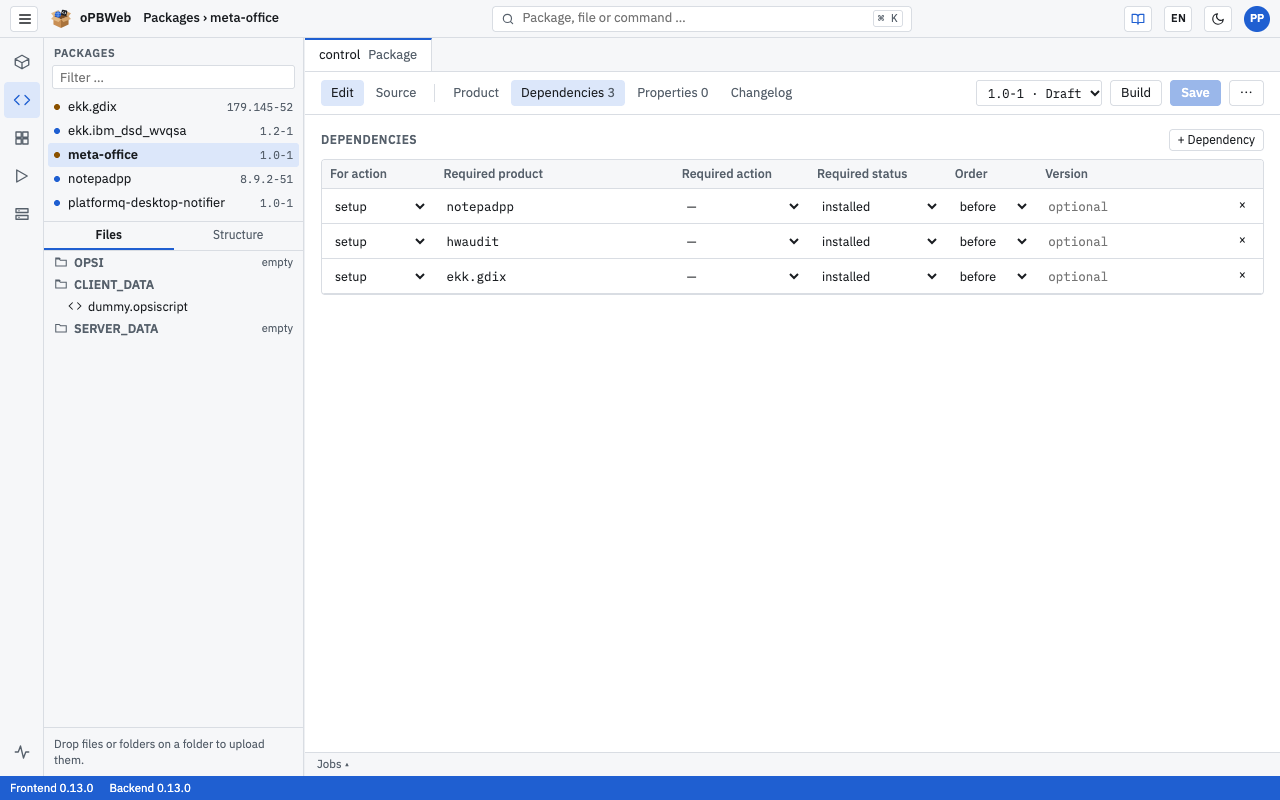
- Click + Dependency. A new row with “setup / setup / before” appears.
- Fill in the columns:
- For action: the action of this product for which the dependency applies (
setup, uninstall, update, always, once, custom, userLogin). - Required product: product ID of the other product. Known product IDs are suggested as you type.
- Required action: action that is set for the other product, or “—”.
- Required status:
installed, not_installed, unknown or “—”. - Order:
before, after or “—”. - Version: optional, the required version.
- Click Save.
Each dependency needs either a required action or a required status. × at the end of a row removes a dependency.
Properties section
Properties are settings that opsi administrators can set per client or depot and that your scripts read.
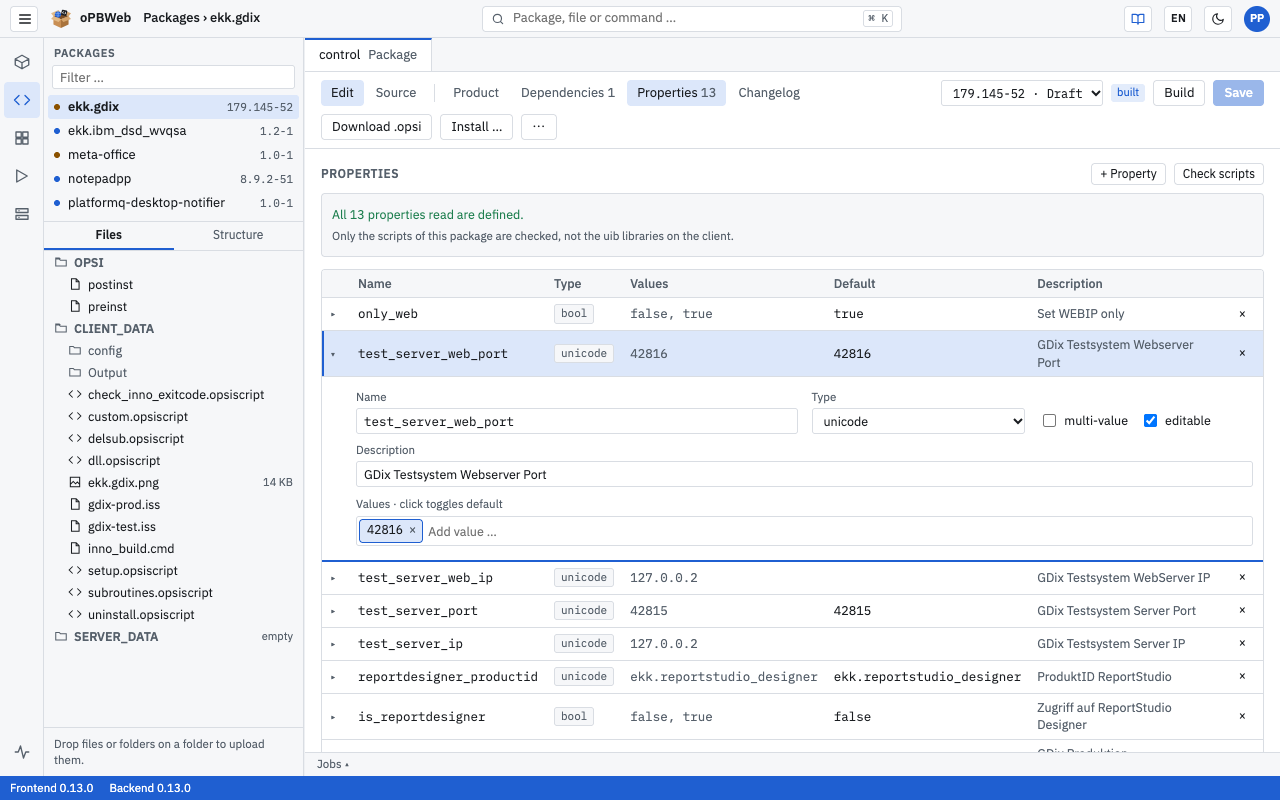
Creating or editing a property
- Click + Property. oPBWeb creates a property
property_<n> of type unicode and expands its editor. Clicking ▸ expands an existing property. - Fill in the fields:
- Name: letters, digits,
_, . and -; each name may occur only once in the version. - Type:
unicode (text) or bool (true/false). - For unicode: multi-value (several values can be selected at once) and editable (custom values allowed).
- Description.
- For unicode: values under “Values · click toggles default”. Type a value into “Add value …” and press
Enter. Clicking a value marks it as default or removes the mark, × removes it. - For bool: Default
true or false.
- Click Save.
Check scripts
Check scripts searches all scripts of the package for GetProductProperty, GetConfidentialProductProperty and GetProductPropertyList and compares the properties read with the ones defined:
- “… properties read by scripts are missing in the control:” lists properties that a script reads but that are not defined, with their location (file and line) and the default used in the script. Create adds a property directly.
- “Not read by any script: …” names defined properties that no script uses.
- “All … properties read are defined.” means everything is fine.
Only the scripts of this package are checked, not the uib libraries on the client. You can run the check as a viewer too; Create requires a draft and the Packager role.
Changelog section
A label next to the heading shows where the changelog is stored (OPSI/changelog.md, OPSI/changelog.txt or OPSI/control [Changelog]). Next to it you switch between Entries and Free text.
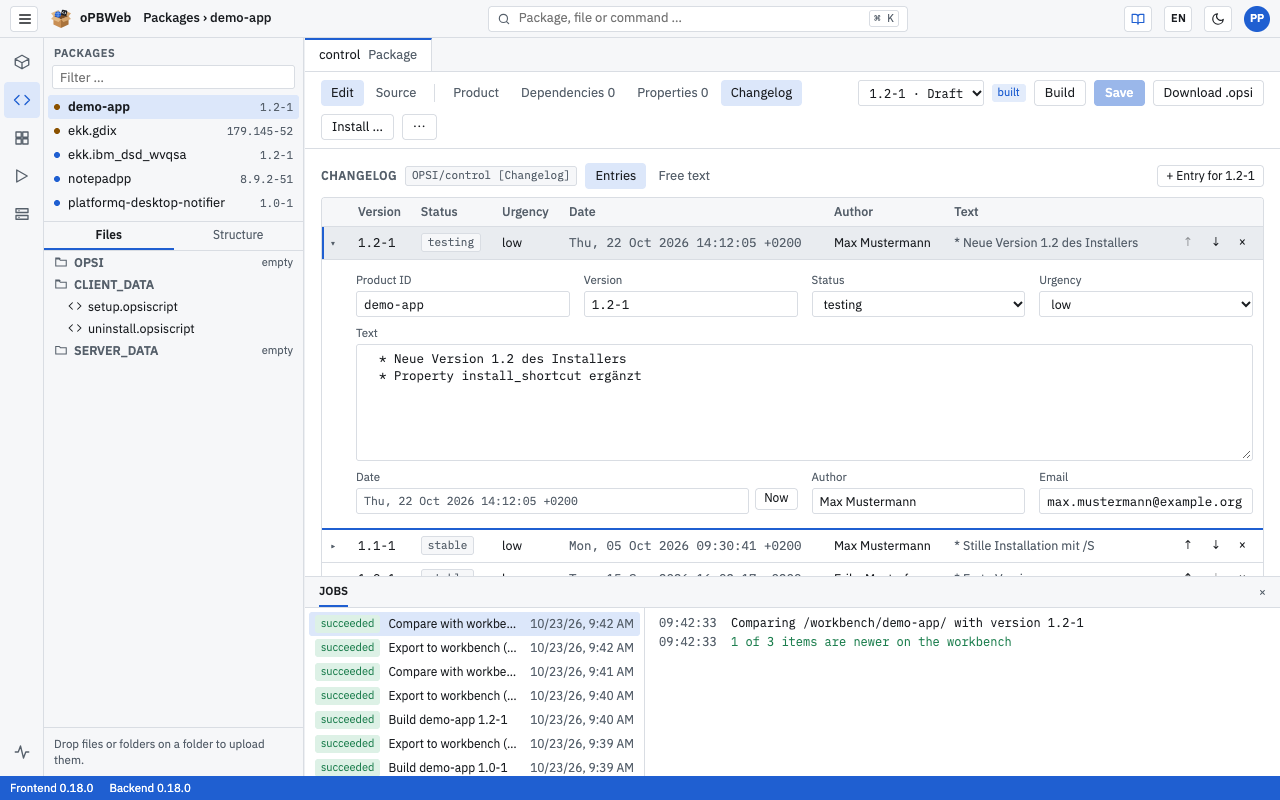
Entries
If the changelog is in standard form, oPBWeb opens it as a list of entries. Standard form means:
- txt and embedded (Debian style, as in the opsiPackageBuilder): for each entry the header line
product (version) status; urgency=urgency, the text and the trailer line -- Name <email> date. - md (format of the opsi-setup-detector): optionally a title
# Changelog …, then for each entry ## [version] - date, the text and (Name <email>).
Clicking a row expands the entry. There you change version, status and urgency (Debian style only), text, author, email and date; Now sets the current date. Use ↑ and ↓ to move an entry, × deletes it after a confirmation. Save with Save in the toolbar. oPBWeb writes unchanged entries back character by character, so a change only affects the lines of the changed entry.
Free text
In free text you edit the changelog directly in the text editor; save with Save or Ctrl S. If the text deviates from the standard form, the note “The changelog is not in standard form. It can only be edited as free text.” appears above it and Entries is disabled. As soon as the text is in standard form again, you can switch back.
Adding an entry
- Click + Entry for … (the button name contains the current version).
- In the “New changelog entry” dialog, enter your changes under Changes (one per line).
- For txt and embedded changelogs: select Status (
testing, stable, unstable; default testing) and Urgency (low, medium, high, critical; default low). - Click Add.
The entry is inserted at the top, with your name, your email address and the current date. If you have no email address on file, oPBWeb uses username@<mail domain> from the settings. In the Entries view the new entry is then expanded and is stored with Save; in Free text oPBWeb saves it immediately.
Comparing with the workbench
Roles: Packager, Releaser, Administrator
Sometimes someone changes a package directly in the workbench of a config server, for example a script, and rebuilds it there. With ⋯ › Compare with workbench … you bring such changes into the version in oPBWeb so that they are not lost.
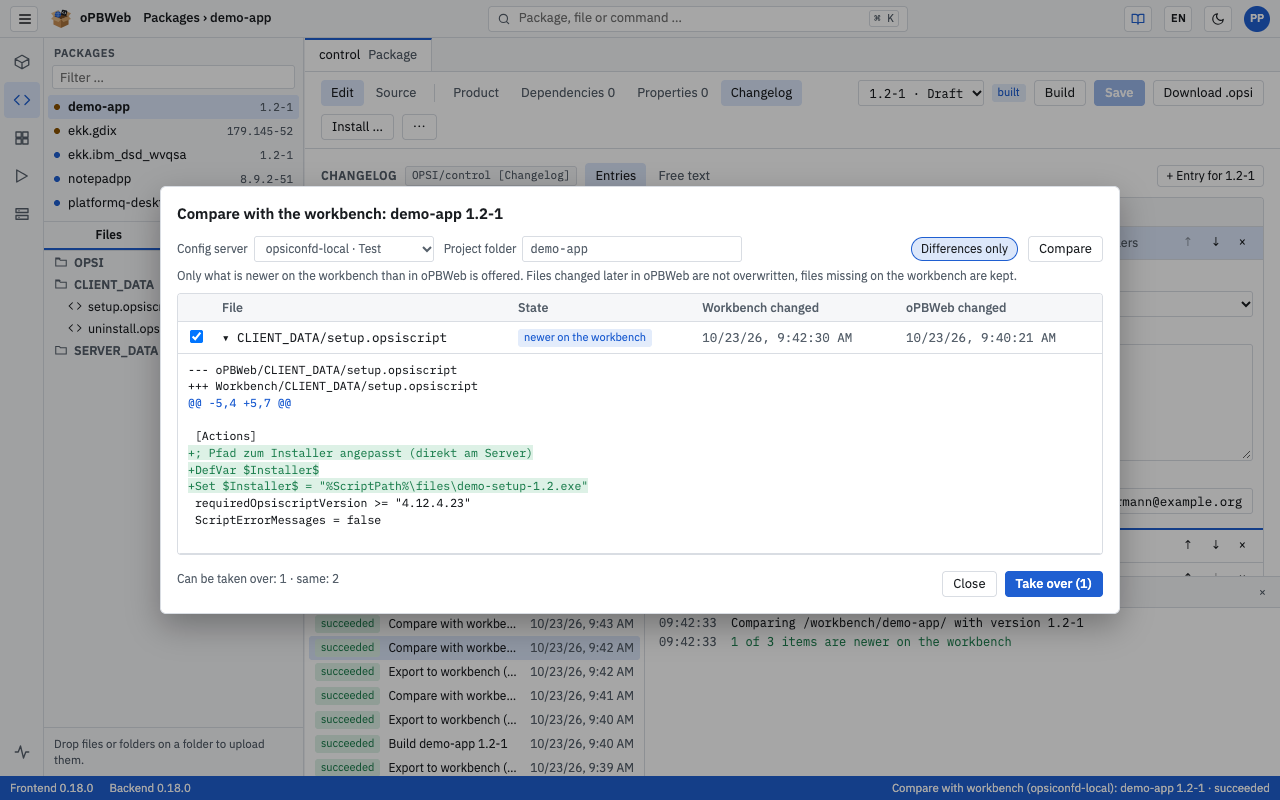
The comparison works in one direction only, from the workbench to oPBWeb, and offers only what is newer on the workbench. It does not overwrite files changed later in oPBWeb and does not delete files missing on the workbench.
Open the version in the editor and choose ⋯ › Compare with workbench …. The dialog “Compare with the workbench: firefox 128.0-1” opens and compares right away.
Check the settings at the top and click Compare after a change:
- Config server: the server whose workbench is compared.
- Project folder: preset with the folder the version was imported from, otherwise with the product ID.
- The Differences only chip (active by default) hides identical files.
Check the table with the columns File, State, Workbench changed and oPBWeb changed (time of the last change):
| State | Meaning | Can be taken over |
|---|
| “new on the workbench” | The file only exists on the workbench. | yes, preselected |
| “newer on the workbench” | The file was changed on the workbench later than in oPBWeb. | yes, preselected |
| “newer in oPBWeb” | The file was changed later in oPBWeb. | no, never overwritten |
| “only in oPBWeb” | The file is missing on the workbench. | no, never deleted |
| “same” | no difference | – |
Clicking a row with ▸ shows the differences: red is the state in oPBWeb, green the state on the workbench. At the bottom there is a summary such as “Can be taken over: 2 · same: 14”.
Clear the checkboxes of everything you do not want to take over and click Take over (n).
After taking over, oPBWeb reports “Changes taken over from the workbench”, compares again and reloads the version in the editor. Only the OPSI/, CLIENT_DATA/ and SERVER_DATA/ folders are compared; old control-*.bak backups are ignored. Comparing and taking over run as jobs (“Compare with workbench (server): …”, “Take over from workbench (server): …”).
Control data
The control file and the changelog file appear together as one row “Control data (control, changelog.txt)”. Here oPBWeb compares the data, not the text: different formatting, such as different spacing, does not count as a difference. If you take over this row, oPBWeb replaces the product data, dependencies, properties and changelog of the version with the state on the workbench.
Released versions
You can only take changes over into a draft. For a released version, the dialog shows the differences but reports “This version is released. To take changes over, create a new version first and compare that one.” Then create a new version with New version and compare that one.
Source view
Source shows the control file and the changelog exactly as they are generated when building. The view is read-only and available to all roles.
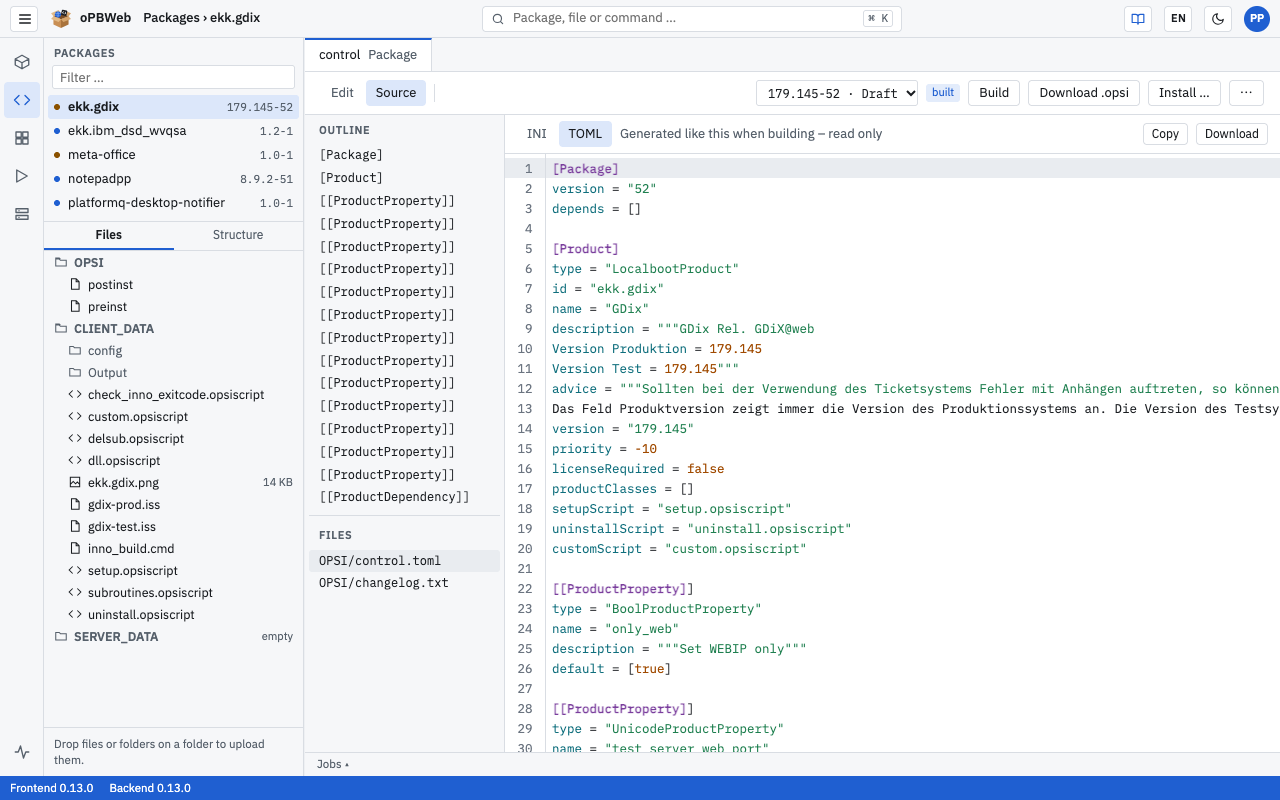
- On the left you find the OUTLINE (the sections of the file; a click jumps there) and the FILES (
OPSI/control or OPSI/control.toml and, if applicable, the changelog). - INI | TOML selects the format. If it matches the package format, “Generated like this when building – read only” is shown. If you select the other format, you see a “Conversion preview – read only”. This lets you check the result before switching formats.
- Copy puts the text on the clipboard, Download saves it as a file.
The source view shows the saved state. Unsaved changes in the form appear there only after saving.
Released versions
As soon as a version has been installed on a depot, it is released and read-only. The editor then shows at the top:
Version … is released (installed) and read-only. Create a new version or set it back to draft to change it.
In this state:
- All fields, tables and text editors are locked; Save and Build are missing.
- Download .opsi and Install … remain available, as does the source view.
- As a packager, the notice bar offers two ways back to editing:
| Action | Effect |
|---|
| New version | Creates an editable copy with all data and files. The same product version and package version +1 are prefilled (for a non-numeric package version, .1 is appended). The released version stays unchanged. |
| Back to draft | Turns exactly this version back into a draft without changing the version number. If it is installed on a production depot, only a Releaser may do this. |
Caution with “Back to draft”
If the version is already installed on depots, the old package stays there until you rebuild and install again. Afterwards, different depots may hold two different packages with the same version number. For changes to distributed packages, New version is usually the safer way. More in Build and Deploy
.
Package Files
File tree, upload, context menu, MSI information and the include structure of the scripts.
Role: Packager
Overview
Every package version consists of the three areas OPSI/, CLIENT_DATA/ and SERVER_DATA/. In the package editor you see them on the left under the Files tab. There you create files and folders, upload installers, rename, move and delete. The Structure tab next to it shows which scripts include which other scripts.
You can only change files in a version with the status Draft and with at least the Packager role. In released versions and with the Viewer role, the file tree is read-only: opening and downloading still work, all changing entries in the context menu are grayed out.
The file tree
The three areas are always at the top of the tree. OPSI/ and CLIENT_DATA/ are expanded when you open the package. An area without content is labeled “empty”. For binary files, the file size is shown after the name.
- Clicking a file opens it as a tab in the editor. Text files up to 5 MB open in the Script Editor
.
- oPBWeb shows images (PNG, JPG, GIF, BMP, ICO, SVG up to 10 MB) as a preview.
- For other binary files and text files that are too large, you see Path, Size, SHA-256 and Kind (“Binary file” or “Text file, too large for the editor”) as well as the Download button.
You can neither rename nor delete the areas themselves.
Note
The file OPSI/control does not appear in the tree and cannot be uploaded: oPBWeb generates it from the package data when building. You edit the control content and the changelog on the control tab in the Product, Dependencies, Properties and Changelog sections, see Package Editor
.
Right-click a file or folder to open the context menu.
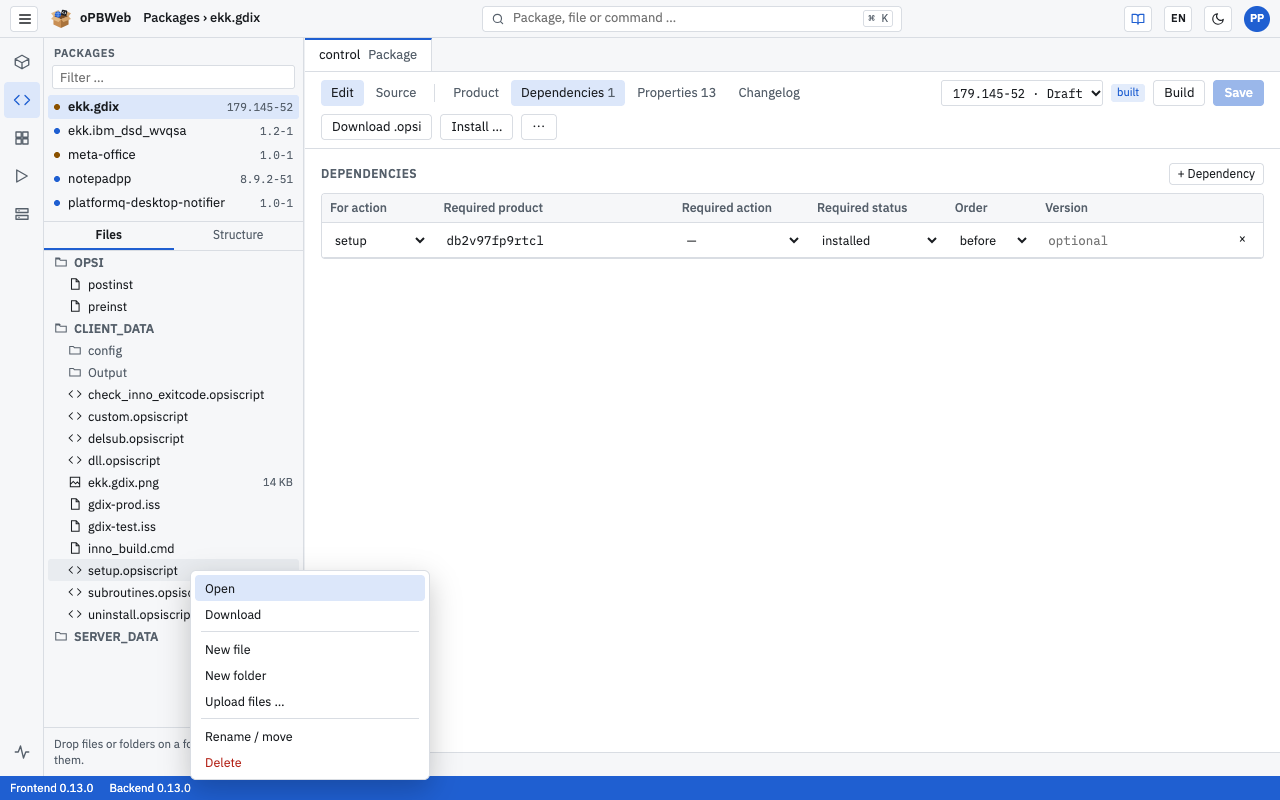
| Entry | Effect |
|---|
| Open | Opens the file as a tab (files only). |
| Download | Downloads the file to your computer (files only). |
| MSI information | Shows the properties of a Windows installer (.msi files only). |
| New file | Creates a file in the selected folder. neu.opsiscript is suggested. |
| New folder | Creates a subfolder. |
| Upload files … | Opens your browser’s file picker; the files go into the selected folder. |
| Rename / move | Asks for the New path. If you specify a different folder, the file is moved there. This also works for whole folders. |
| Delete | After a confirmation, deletes the file or the folder with its content. |
When you right-click a file, New file, New folder and Upload files … refer to the folder that contains the file.
Creating a new file
- Right-click the target folder, e.g.
CLIENT_DATA/. - Select New file.
- In the “Name in CLIENT_DATA/” field, enter the file name, e.g.
install.opsiinc. - Confirm the dialog. The file is created and appears in the tree.
Uploading files
There are two ways to add files to the package:
- Via the context menu: Right-click the target folder, then Upload files …. You can select several files at once.
- Via drag and drop: Drag files or whole folders from your file manager onto a folder in the tree. The folder structure is preserved. If you drop them on a file, they go into that file’s folder; if you drop them on an empty area of the tree, they go into
CLIENT_DATA/.
During the upload, a progress bar shows the status. Afterwards oPBWeb reports “3 file(s) uploaded”. An existing file with the same path is replaced without confirmation.
Tip
You can safely upload large installers several times: oPBWeb stores identical content only once, even across package versions.
Executable files
The file tree does not show whether a file is executable (e.g. a shell script on Linux). oPBWeb takes over the flag when importing an .opsi package and sets it again when building. When importing from the workbench, .sh and .py files in CLIENT_DATA/ are automatically marked as executable.
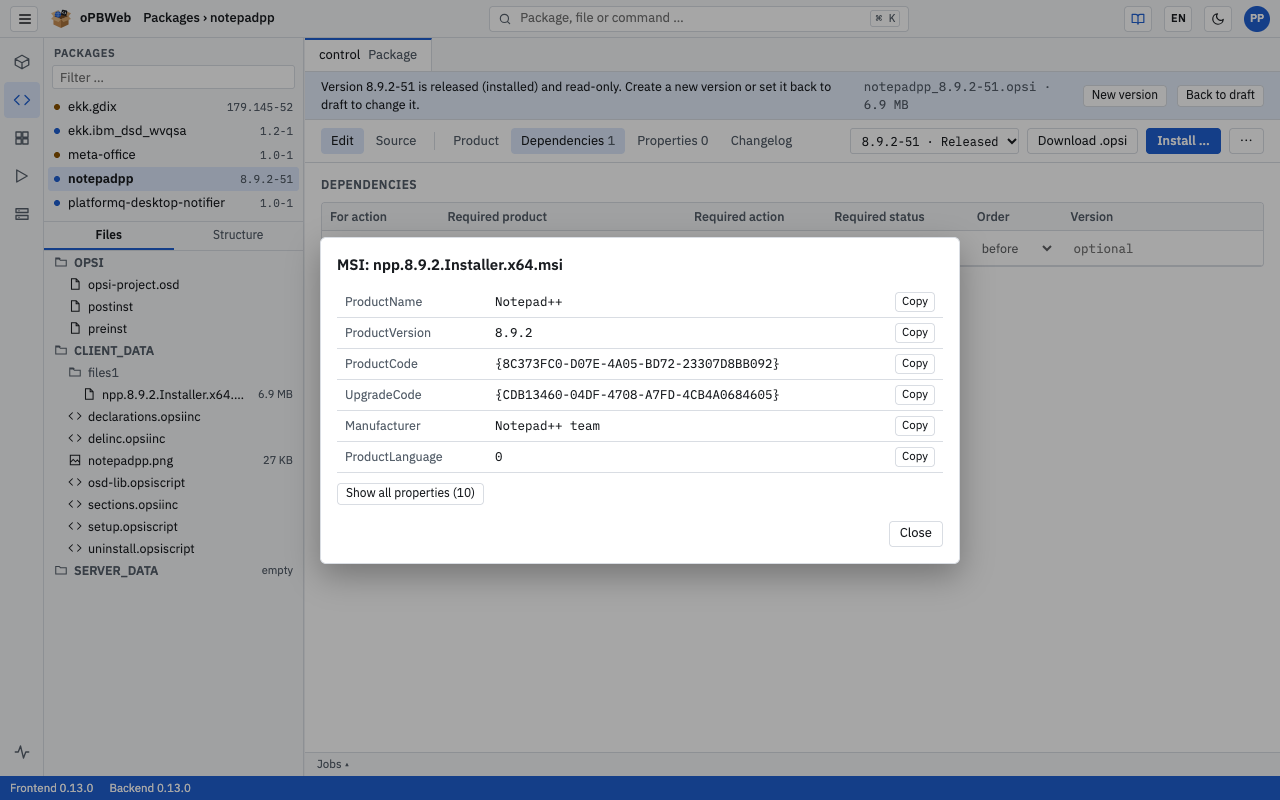
For .msi files, oPBWeb reads the most important properties directly from the installer. This is handy for copying the ProductCode and version into your script.
- Right-click the
.msi file. - Select MSI information. The “MSI: setup.msi” dialog briefly shows “Reading MSI file …” and then a table with, among others, ProductName, ProductVersion, ProductCode, UpgradeCode, Manufacturer and ProductLanguage.
- Click Copy next to a value to put it on the clipboard. The button briefly shows “copied”.
- Show all properties (24) shows the installer’s complete property table, Show less hides it again.
The Structure tab
The Structure tab shows how the scripts of the package are connected. The starting points are the scripts entered in the control for the individual actions (setup, uninstall, update …).
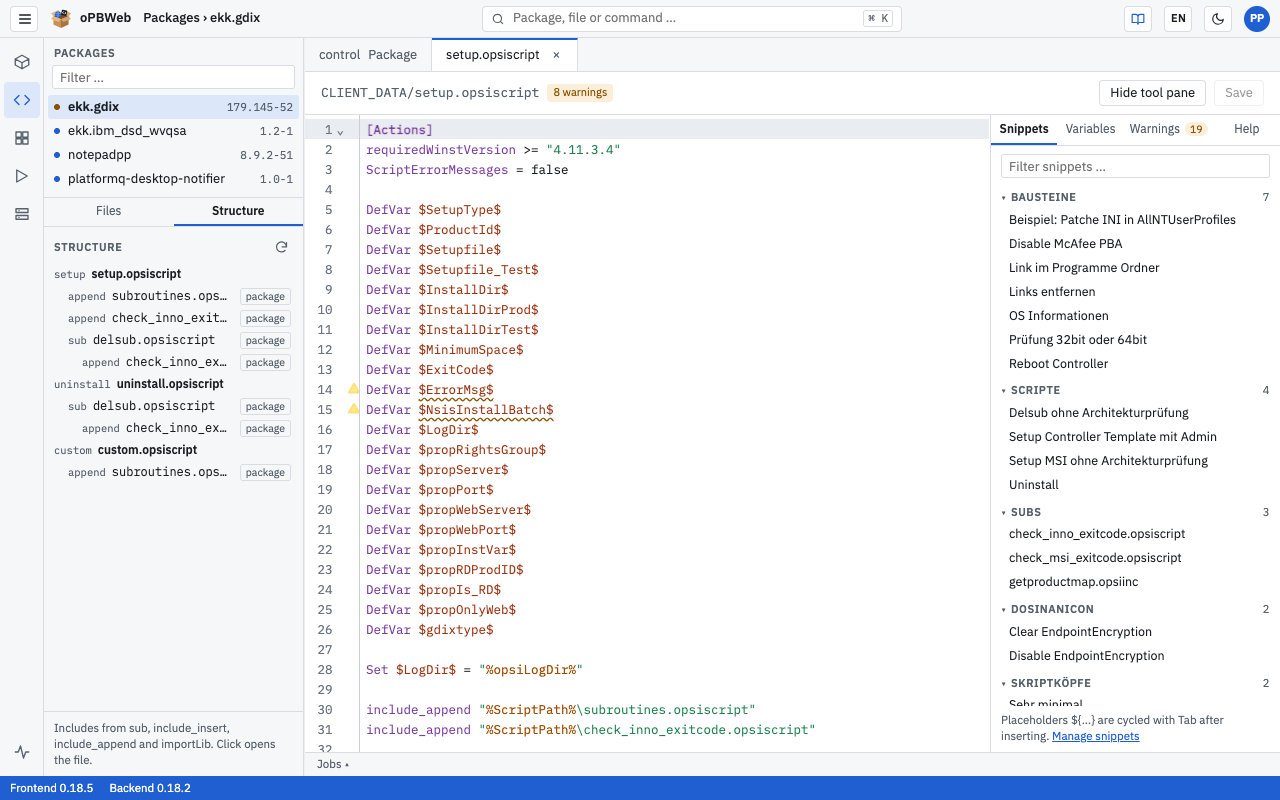
- For each action you see the corresponding script. If the file does not exist, “missing” is shown.
- Indented below it are the files the script includes, each with the kind of inclusion (
sub, include_insert, include_append, importLib). - A badge shows the origin: package (the file is in the package), library (uib library of opsi-script on the client) or missing (not found).
- The ↺ symbol marks a recursive inclusion.
- Clicking an entry opens the file in the editor.
- ⟳ (Reload) refreshes the view, e.g. after you have saved a script.
If no action scripts are set in the control, “No action scripts defined in the control.” appears.
Note
An entry marked “missing” is a warning sign: if a script that is entered in the control for an action is missing, the build fails with the message “Script … is missing in CLIENT_DATA.”
Script Editor
Edit opsi scripts and other text files of the package: highlighting, completion, diagnostics, help and snippets.
Role: Packager
Overview
To open a text file of the package, click it in the file tree (see Package files
). It opens as a separate tab next to the control tab in the script editor. For opsi scripts, the editor offers completion, error checking, command help and snippets. All other text formats get syntax highlighting. You set the highlighting colors per file type under My account
.
You can only edit files in a version with the status Draft and with at least the Packager role. Otherwise the editor is read-only; reading, searching, help and copying text still work.
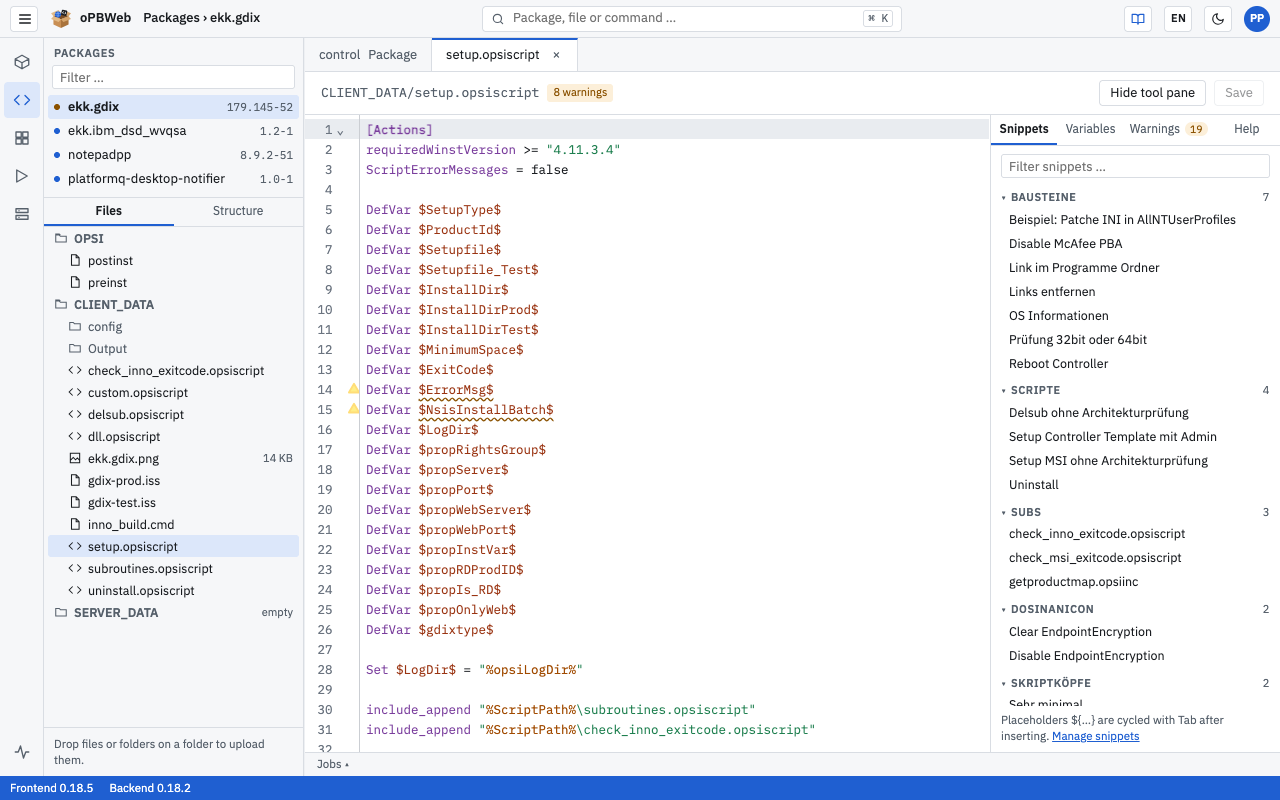
Layout
- Tab toolbar: the file path, for opsi scripts the counters “2 errors” and “5 warnings”, the Hide tool pane or Show tool pane button for the side pane, and Save.
- Editor area: line numbers, fold markers in the margin and, for opsi scripts, a gutter with diagnostic icons.
- Side pane (opsi scripts only) with the tabs Snippets, Variables, Warnings and Help. Drag its edge to make it wider or narrower.
- Bottom JOBS panel: shows the cursor position (“Ln 12, Col 8”) and the line ending of the file (CRLF or LF) on the right.
Line endings are preserved when you save: a file with Windows line endings (CRLF) stays a CRLF file.
Supported languages
The editor detects the language from the file name.
| Language | Files |
|---|
| opsi-script | .opsiscript, .opsiinc, .ins, .opsifunc |
| Shell / Batch | preinst, postinst, .sh, .cmd, .bat |
| Inno Setup | .iss, .isl |
| AutoIt | .au3 |
| PowerShell | .ps1, .psm1, .psd1 |
| INI and similar | .ini, .inf, .reg, .cfg, .conf, .properties, .toml, .desktop |
| XML | .xml, .xsd, .xsl, .manifest, .config, .plist, .svg |
| YAML | .yml, .yaml |
| JSON | .json |
| Python | .py |
For opsi-script, the editor knows the language scope from the opsi-script manual 4.3: statements, built-in functions, section types, secondary section commands and constants. It also knows the functions of the uib libraries that ship with opsi-script (for example uib_exitcode.opsiscript, uib_strlistutils.opsiscript, uib_backend.opsiscript, osd-lib.opsiscript).
All other features – completion, diagnostics, help, context menu, snippets and side pane – are available for opsi scripts only.
Completion
As you type, the editor suggests matching entries. Press Ctrl+Space to open the list manually at any time. Use the arrow keys to choose an entry and Enter to accept it.
The editor suggests:
- opsi-script statements and built-in functions,
- functions of the uib libraries, each with the required
importLib "<file>" as its origin, - functions defined in the package itself with
DefFunc (see Package functions
), - variables of the current file as soon as you type
$, - constants such as
%ScriptPath% as soon as you type %, - sections of the file,
- snippets, labeled with “Snippet ·” and their category, for example “Snippet · Allgemein”.
When you accept a function, the editor adds the parentheses and places the cursor inside them. Within the parentheses, a small tooltip shows the signature; the parameter you are currently typing is bold.
Command help
When you hover over a command, function, variable or constant, a tooltip appears:
- for commands and functions, the signature and a short description, if applicable with “since opsi-script 4.12”,
- for variables, the type of declaration and “declared in line 5”,
- for constants, their meaning.
The descriptions of commands, functions and constants are summaries from the German opsi-script manual and stay German in the English UI as well.
The detailed help is in the Help tab of the side pane: name, signature, description, category and origin (for example the library, or the file with line number). The tab always shows the help for the most recently requested command, even if you only hovered over it. Press F1 on the command or choose Command help in the context menu to switch the side pane straight to the Help tab.
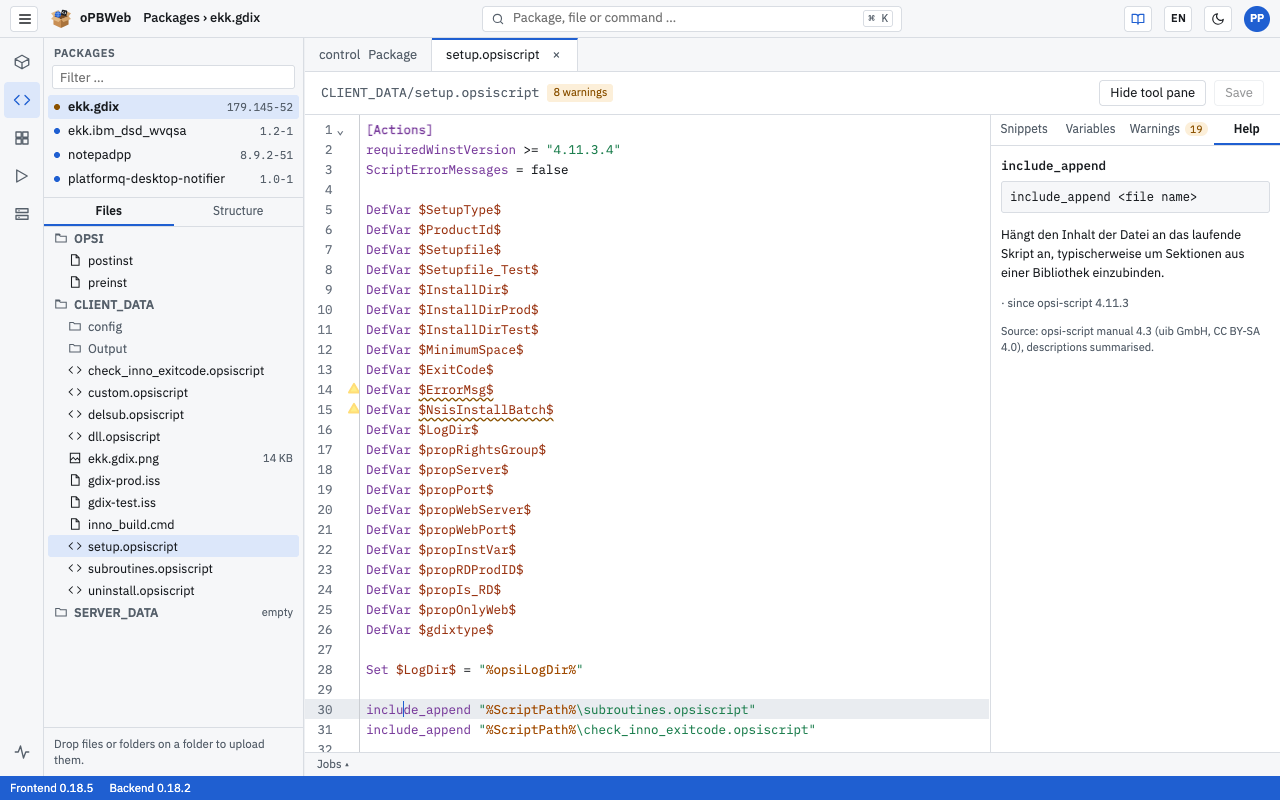
If the editor finds no entry, the tab shows “No help found for “Messagebox”.” The descriptions are summaries from the opsi-script manual 4.3 by uib GmbH (CC BY-SA 4.0).
Diagnostics
While you type, the editor checks the current file and marks issues in the text and in the left margin. Hover over a mark to see the message. The counters “2 errors” and “5 warnings” in the toolbar summarize the result.
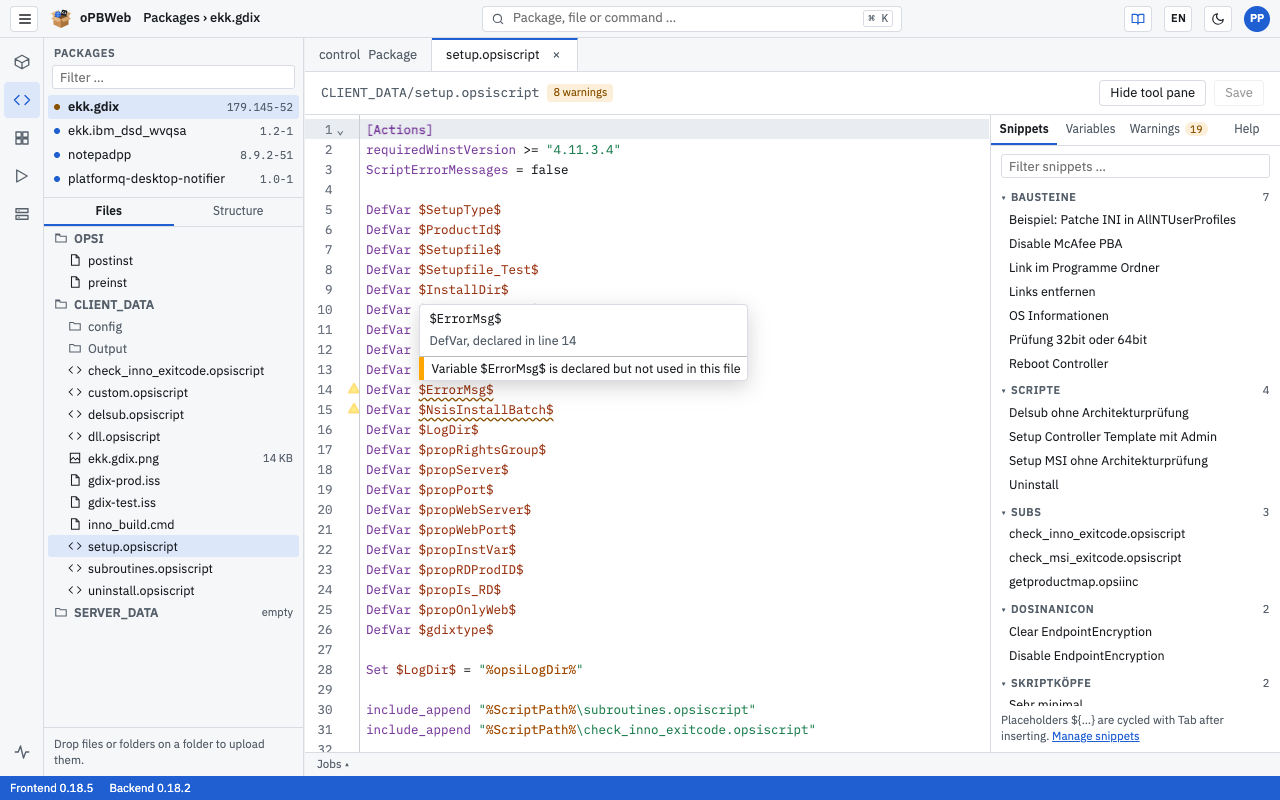
| Kind | Message | Meaning |
|---|
| Error | “Section [x] is not defined” | The file calls a section that does not exist. |
| Hint | “Section [x] is not defined in this file (possibly in an included file)” | As above, but the section may come from an included file (for sub_ sections and files with includes). |
| Warning | “Variable $x$ is declared but not used in this file” | The variable is unnecessary. |
| Warning | “Variable $x$ is set but not read in this file” | The value of the variable is never used. |
Note
The check only looks at the open file. Variables or sections used in an included file can therefore be reported as unused.
Navigating and folding
- Go to definition: F12 or Ctrl+click on a variable or section jumps to the line where it is defined. If a called section is not in this file (hint “Section … is not defined in this file”), oPBWeb searches the other scripts of the package and opens the file at the definition. If there is none, oPBWeb reports “Section … is not defined in any script of the package.”
- Select all occurrences: Ctrl+Shift+L selects all occurrences of the word under the cursor; you can then change them together.
- Folding: Every section (
[Actions], [Files_copy] …) can be collapsed and expanded with the marker in the margin. - Variables side pane: Click an entry to jump to its line (see below).
Right-click in the text or press Shift+F10 to open the context menu. You can also use it with the keyboard: arrow keys, Enter or Space to run an entry, → to open the submenu, Esc to close.
| Entry | Shortcut |
|---|
| Go to definition | F12 |
| Select all occurrences | Ctrl+Shift+L |
| Command help | F1 |
| Show suggestions | Ctrl+Space |
| Insert snippet ▸ | submenu by category |
| Create snippet from selection … | – |
| Cut | Ctrl+X |
| Copy | Ctrl+C |
| Paste | Ctrl+V |
| Toggle comment | Ctrl+Shift+C |
| Fold section | Ctrl+Shift+[ |
| Fold all | Ctrl+Alt+[ |
| Unfold all | Ctrl+Alt+] |
| Find/Replace | Ctrl+F |
Entries that change the text are grayed out in read-only files. If your browser does not allow clipboard access, oPBWeb shows “No clipboard access – please use Ctrl+C/V.”
Keyboard shortcuts
On a Mac, use ⌘ instead of Ctrl and ⌥ instead of Alt.
| Shortcut | Effect | Files |
|---|
| Ctrl+S | Save file | all |
| Ctrl+Z / Ctrl+Y | Undo / Redo | all |
| Ctrl+F | Find/Replace (bar at the top of the editor) | all |
| F3 / Shift+F3 | next / previous match | all |
| Ctrl+/ or Ctrl+Shift+C | Toggle comment | all |
| Tab | indent | all |
| Alt+drag with the mouse | rectangular selection | all |
| Ctrl+Space | Show suggestions | opsi-script |
| F1 | Help for the command under the cursor | opsi-script |
| F12 or Ctrl+click | Go to definition | opsi-script |
| Ctrl+Shift+L | select all occurrences | opsi-script |
| Shift+F10 | open context menu | opsi-script |
| Tab / Shift+Tab | after inserting a snippet, go to the next / previous placeholder | opsi-script |
The side pane
For opsi scripts, the side pane with four tabs sits to the right of the text. Click Hide tool pane in the tab toolbar to hide it and Show tool pane to show it again.
Snippets
Here you find all snippets you may use: the global ones and your own (badge “mine”). They are grouped by category; the “Filter snippets …” field narrows down the list. When you hover over a snippet, a preview of its first ten lines with highlighted placeholders appears at the bottom. Click a category to collapse or expand it.
To insert a snippet:
- Place the cursor where the snippet should go in the script.
- Double-click the snippet in the side pane, or move to it with the Tab key and press Enter. Alternatively, drag the snippet to the desired position in the text, choose it in the context menu under Insert snippet or accept it from the completion list.
- If the snippet contains placeholders of the form
${Name}, the first one is selected. Type over it and press Tab to jump to the next placeholder.
The Manage snippets link takes you to snippet management, see Snippets
.
Variables
- Defined variables: all variables of the file with their kind (
DefVar, DefStringList) and line. - Sections: all sections of the file with their line.
- Constants: the opsi-script constants with a description.
Click a variable or section to jump to its line.
Warnings
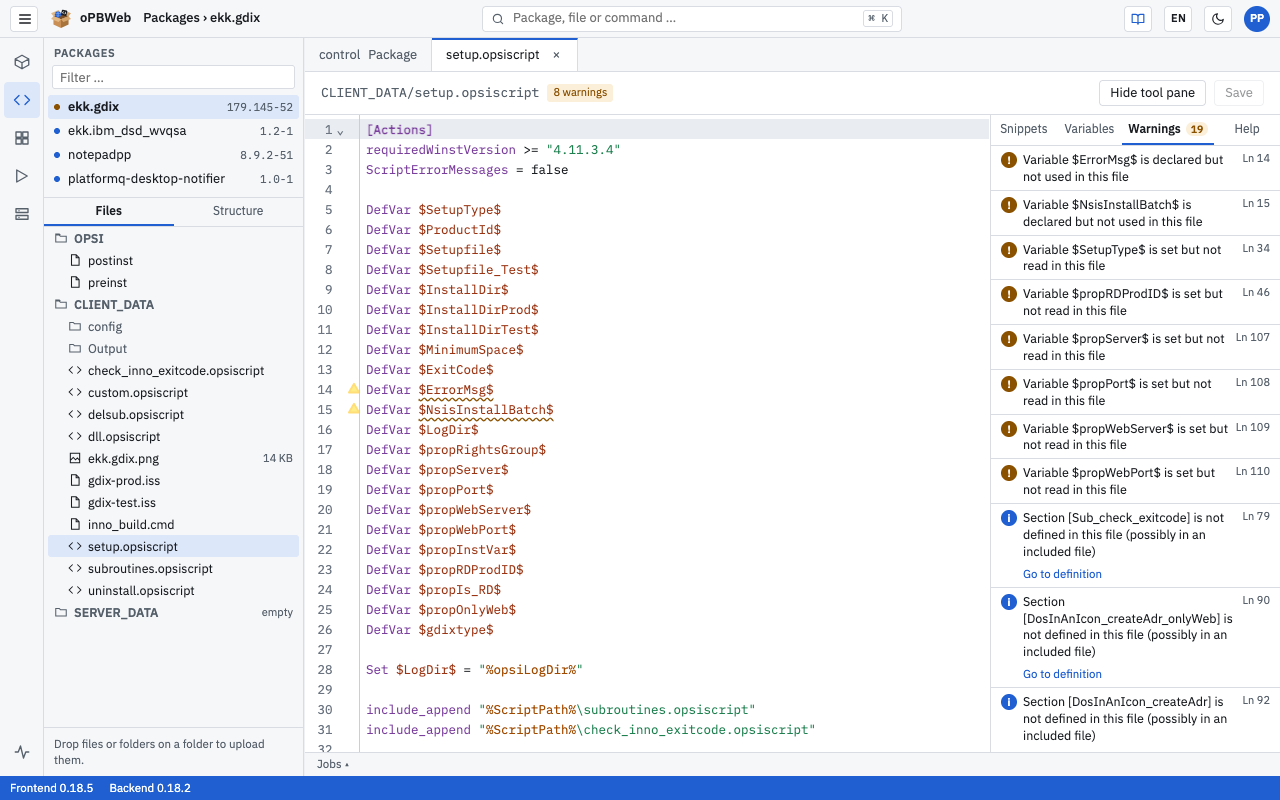
Lists all errors, warnings and hints of the file one below the other, errors first, with line number. The number on the tab gives their count. Clicking an entry jumps to the line. For sections that may be in another file, Go to definition below the message leads directly to the definition in another script of the package.
Help
Shows the detailed help for the most recently requested command, see Command help
. If nothing has been requested yet, it shows “Press F1 on a command to show its help here.”
Creating a snippet from a selection
Turn code you need often into your own snippet directly in the editor.
- Select the text in the script.
- Right-click to open the context menu and choose Create snippet from selection ….
- In the “Snippet from selection” dialog, check the Name. It defaults to the first non-empty line of the selection (at most 60 characters).
- Choose a Category, or create one with New category and enter the Category name.
- Choose the Visibility: Only me or – as an administrator only – Global.
- Click Save. oPBWeb reports “Snippet saved”; the snippet is available in the side pane right away.
Tip
Write the parts that change with every use as placeholders ${name} in the snippet. After inserting, press Tab to jump from placeholder to placeholder. You can set placeholders conveniently in snippet management with Selection as placeholder.
Package functions
Functions that you define with DefFunc in a script of the package are known to the editor in all scripts of the same package. They appear in completion and in the help, each with the file and line of the definition as their origin.
oPBWeb uses the comment lines directly above the DefFunc as the description. Comments in the style of the uib libraries with @Description and @Returns are evaluated:
; @Description Returns the installation path of the product
; @Returns path as string
DefFunc GetInstallDir(val $Arch$ : string) : string
  ...
EndFunc
The list of functions is updated as soon as you have saved a file.
Saving
Press Ctrl+S or click Save in the tab toolbar to save the file. oPBWeb confirms with “Saved”.
Unsaved changes are not lost without warning:
- If you close a changed tab, oPBWeb asks “Discard unsaved changes to setup.opsiscript?”.
- If you switch the version or leave the editor, it asks “There are unsaved changes. Leave anyway?”.
- If you close or reload the browser window, the browser warns you.
Note
As long as a file has unsaved changes, you can neither build nor install the package. Save all files first, see Build and deploy
.
Build and Deploy
Build packages, install and uninstall them on depots, promote them to other stages, release versions, set them back to draft and create new versions.
Roles: Packager, Releaser
Overview
This chapter describes the path of a package version from draft to the depots: Build creates the .opsi file, Install … transfers it to one or more depots and releases the version in the process, Promote … takes a tested version unchanged to the depots of the next stage. You find all actions in the toolbar of the control tab in the package editor
and in the ⋯ menu (More actions).
Building, installing on test and staging depots and the other actions in this chapter require at least the Packager role. Production depots require the Releaser role. With the Viewer role you can only download built packages.
The lifecycle of a version
Draft ──Build (any number of times)──► "built"
   ▲          change → "changed since build" → build again
   │
   │      Install … (only with a current build)
   │                     ▼
   └── Back to draft ── Released (read-only)
                              └── New version → new draft
| Status | Meaning |
|---|
| Draft | The version can be edited and built any number of times. |
| Released | The version has been installed and is read-only. |
Building alone does not release a version. It is released only when you install it on a depot.
Building
- Open the version in the package editor and switch to the control tab.
- Save all changes – in the control and in all open files. As long as anything is unsaved, Build stays grayed out (“Please save all changes first.”).
- Click Build. The button shows “Building …”, and the log of the build job runs in the JOBS panel at the bottom.
- When the job is done, oPBWeb reports “Package built” or “Build failed”. The built badge appears next to the version selector.
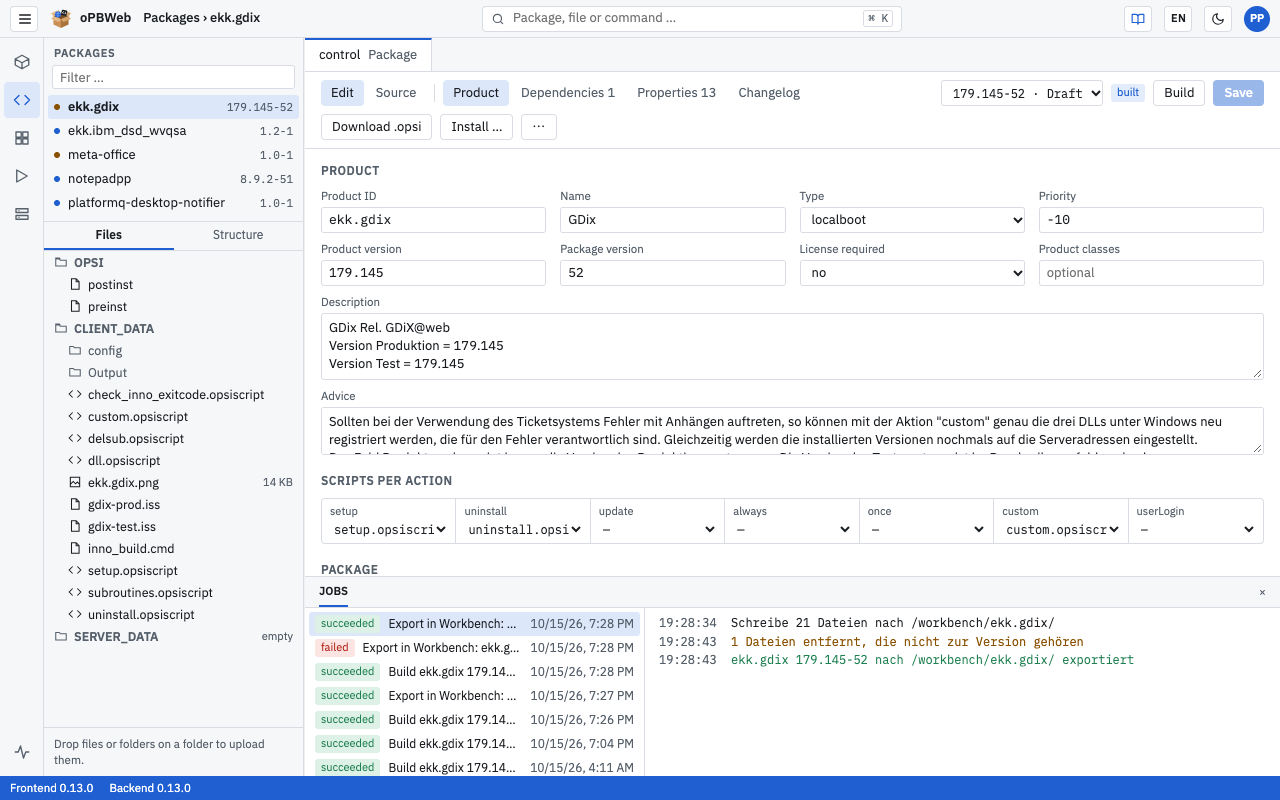
You can build a version with the status Draft as often as you like. Each build replaces the previous one; the version stays editable.
The “built” badge
The badge shows whether the last build still matches the current state of the version:
- built – The build matches the current state. You can install.
- changed since build – Since the last build, you have changed control data, properties, dependencies or files. Build the version again before you install it.
If there is no badge, the version has never been built.
When the build fails
The log in the JOBS panel (and under Jobs
) states the reason. Common causes:
| Message | Cause and remedy |
|---|
| “Script file (action) is missing in CLIENT_DATA.” | The control lists a script for an action that does not exist. Create the file or correct the entry under Product › Scripts per action. |
| “The version was changed during the build. Please build again.” | Someone saved while the build was running. Build again. |
| “A build is already running for this version.” | Wait until the running build has finished. |
Warnings in the log (no script for any action, no files in CLIENT_DATA/) do not abort the build, but they usually indicate an incomplete package.
Downloading the built package
As soon as a build exists, download it with Download .opsi in the toolbar. To get the checksum file, use ⋯ › Download .md5. Both are available to every role, including for released versions.
Installing
Install … transfers the build to the selected depots and installs it there. The button is only active if
- the version is built and shows the built badge (otherwise: “Please build first: the version has not been built or was changed since.”) and
- there are no unsaved changes.
Warning
Installing releases the version; it becomes read-only. The release already happens when the installation job starts, so that the version cannot change during the transfer. If the version ends up installed on no depot – because the installation fails everywhere or you cancel the queued job – it is a Draft again afterwards. If the installation succeeds on at least one depot, it stays released. If you want to change something afterwards, use Back to draft or New version.
Click Install …. The dialog “Install: firefox 128.0-1” opens.
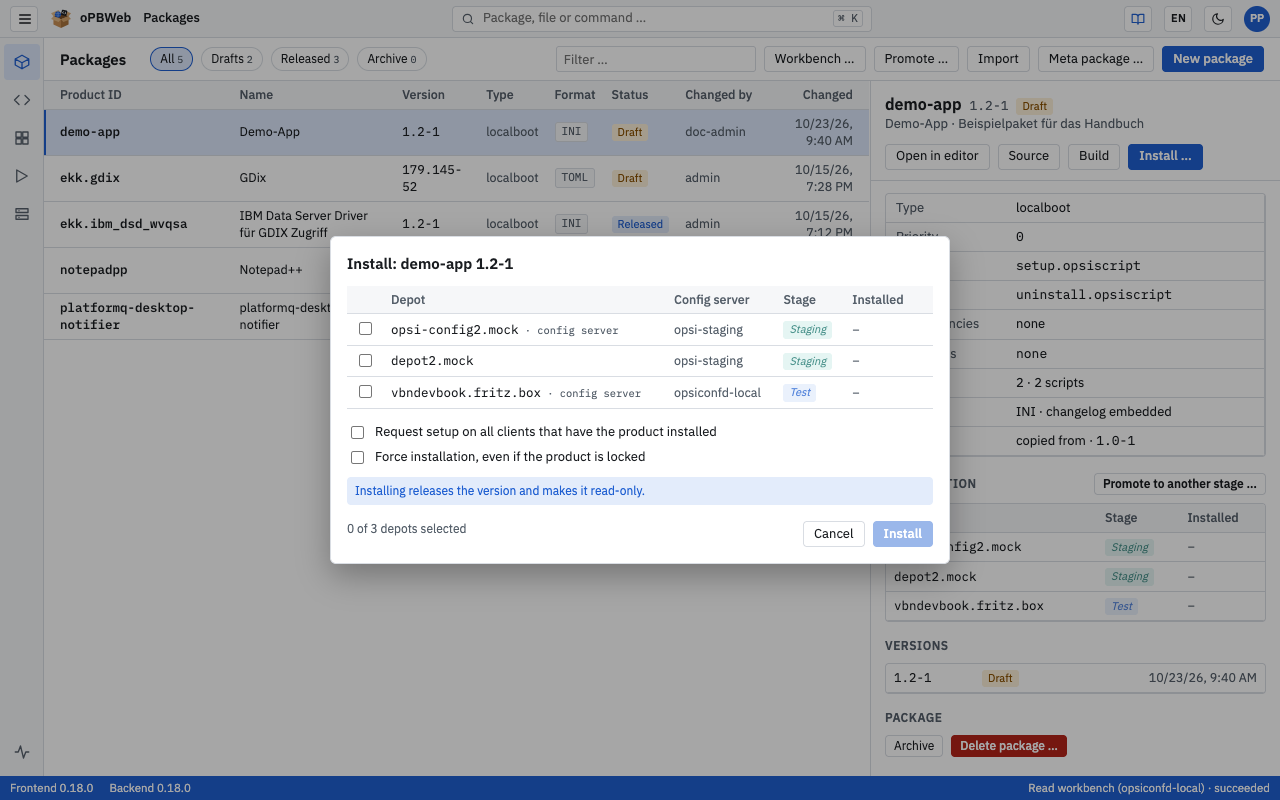
Select the depots in the table. The table contains the depots of all config servers. For each depot you see:
- Depot – the depot ID, for the depot on the config server itself with the addition “config server”,
- Config server – the name of the config server the depot belongs to,
- Stage – the effective stage Production, Staging or Test; italic if the depot inherits it from its config server,
- Installed – the version installed there and the time of the last sync.
The depots you installed on last time are preselected.
Set the options if needed (see below).
Check the counter “2 of 3 depots selected” and click Install.
The dialog closes and the JOBS panel shows the log. At the end, oPBWeb reports “Job finished successfully” or “Job failed”.
The depots are processed one after the other. If a depot is busy with another job, the installation waits until it is free.
Unavailable depots in the dialog
Not every depot can be selected. The reason is shown in the last column:
| Hint | Meaning |
|---|
| “requires releaser role” | The depot has the Production stage, but you only have the Packager role. As a Packager you may deploy to test and staging depots. |
| “disabled” | An administrator has disabled the depot. |
| “no longer present” | The config server no longer reports the depot. |
Depots inherit the stage of their config server; new config servers start with the Production stage. An administrator decides which servers and depots have the test or staging stage, see opsi server
and Depot management
. If you have selected at least one production depot, the dialog points this out with “At least one production depot is selected.”
If no depots are known at all, the dialog shows “No depots known. Please sync under “Depots”.” – see Depots
.
Installation options
- Request setup on all clients that have the product installed – After the installation, oPBWeb sets the action request setup on each selected depot for all clients that already have the product installed. Clients without the product are not affected. This way you roll out an update specifically to the existing installations.
- Force installation, even if the product is locked – Installs even if the product is locked on the depot, for example after an aborted installation. Alternatively, unlock the product under Depots
.
Released versions
After the installation, the version is released. The editor shows the notice “Version 128.0-1 is released (installed) and read-only. Create a new version or set it back to draft to change it.” with the file name and size of the build and the buttons New version and Back to draft. All forms, the file tree and the script editor are read-only.
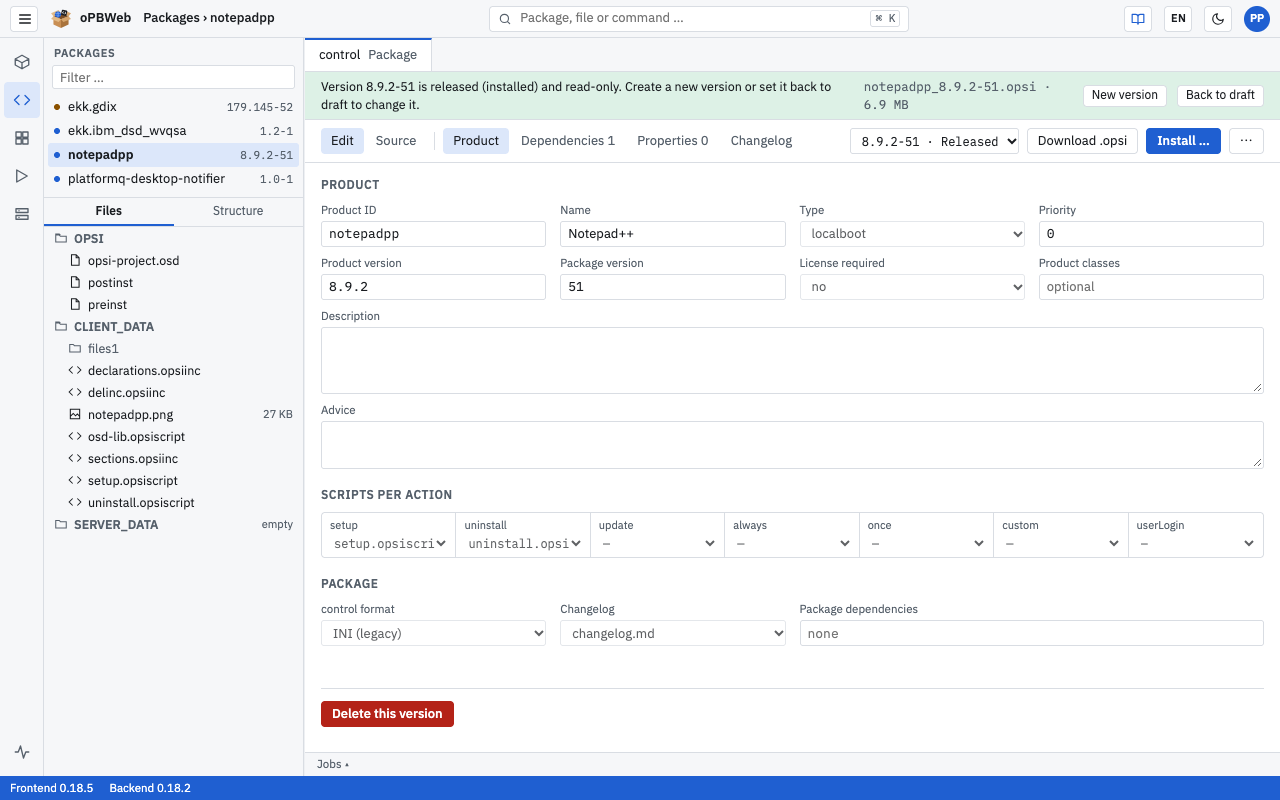
You can install a released version again at any time, for example on further depots. Install … is then the highlighted button.
Promoting to another stage
Roles: Packager, Releaser
Once a package works on the test depots, this action takes it unchanged to the depots of the next stage. Exactly the package installed on the depots of the source stage is promoted – the same build, not a new one. That is why only released versions can be promoted.
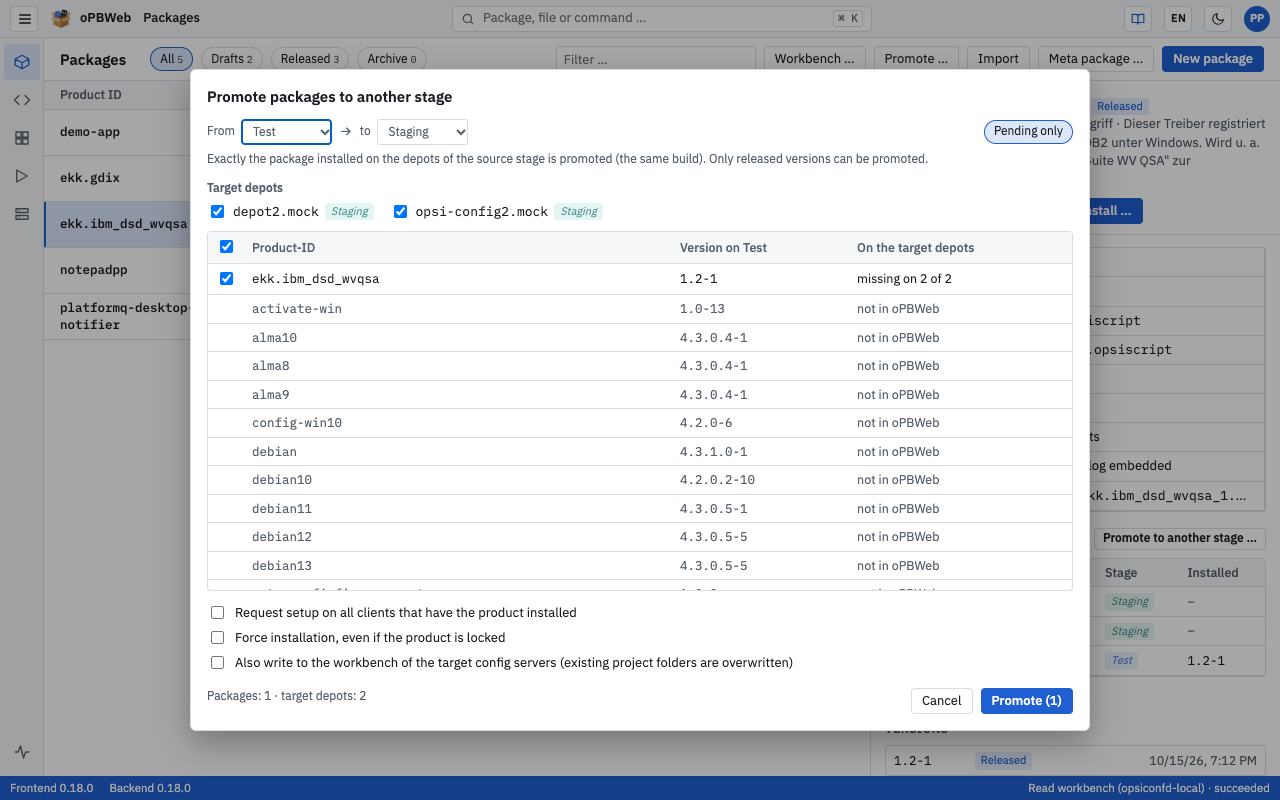
oPBWeb has one shared package inventory for all config servers. What is installed on which depot differs per server and comes from the last depot sync
.
Typical workflow
- Develop on the test config server: import from the workbench, edit, build and install on the test depots. This releases the version.
- Test, then take the version from Test to Staging with Promote ….
- After testing on Staging, promote the version from Staging to Production. This requires the Releaser role.
Opening the dialog
- Promote … in the toolbar of the package list opens the dialog “Promote packages to another stage” for all packages.
- Promote to another stage … in the Distribution section of the package details opens the same dialog for the selected package only (“Promote firefox to another stage”).
At the top, choose From (source stage, default Test) to (target stage, default Staging). Source and target stage must differ.
Under Target depots, check the depots you promote to. All enabled depots of the target stage on all config servers are offered. All depots you are allowed to change are preselected; production depots are locked without the Releaser role (“requires releaser role”).
Check the package table:
| Column | Content |
|---|
| Product ID | Identifier of the product |
| Version on … (e.g. Version on Test) | the newest version installed on a depot of the source stage |
| On the target depots | “up to date everywhere” or “missing on 2 of 3”, plus the versions found on the target depots instead |
The Pending only chip (active by default, only in the dialog for all packages) hides packages that are already up to date on all target depots. All pending packages that can be promoted are preselected. Packages that can be promoted are listed first.
Set the options if needed:
- Request setup on all clients that have the product installed and Force installation, even if the product is locked – as for installing
.
- Also write to the workbench of the target config servers (existing project folders are overwritten) – additionally writes the version as a project folder into the workbench of each config server a target depot belongs to.
Check the counter “Packages: 2 · target depots: 3” and click Promote (n).
oPBWeb starts one installation job per version and, if selected, one export job per version and target config server. It reports “Jobs started: 3”. Jobs for the same depot run one after the other. Follow the progress under Jobs
.
Packages without a checkmark show the reason in the On the target depots column:
| Hint | Meaning |
|---|
| “not in oPBWeb” | The product only exists on the depots, not in oPBWeb. |
| “draft again in oPBWeb (no tested build)” | The version was made editable again with Back to draft after testing. The tested build no longer exists. Build it and install it again on the source stage. |
| “archived” | The package is archived. |
If you have selected a production depot, the dialog points this out with “At least one production depot is selected.”
Uninstalling
Use ⋯ › Uninstall … to remove the product from depots.
- Open ⋯ and choose Uninstall …. The dialog “Uninstall: firefox” opens.
- All depots on which the product is installed are preselected. Depots without the product are unavailable with “not installed”; the stage rule applies as for installing.
- Check the options:
- Delete files on the depot (default) – also removes the package files from the depot.
- Force uninstall – uninstalls even if the product is locked.
- Click Uninstall. The log appears in the JOBS panel.
Uninstalling applies to the product, not to the version currently open. The status of the version in oPBWeb does not change.
Back to draft
Back to draft makes a released version editable again without changing the version number. This is useful if you spot an error but want to keep the version number.
- In the notice of the released version, click Back to draft.
- The dialog “Edit version 128.0-1 again” explains the consequences. If the version is already installed on depots, it lists them.
- Confirm with Back to draft. oPBWeb reports “The version can be edited again”.
Warning
The old package stays installed on the depots until you rebuild and install again. After that, the depots hold a package with the same version number but different content. Clients that already have the product do not notice the change by themselves – use the option Request setup on all clients that have the product installed when installing.
As long as a job is queued or running for the version, Back to draft is not possible.
New version
New version creates an editable copy of the current version with all data and files. You find the action in the notice of a released version and in the ⋯ menu; it works for drafts and released versions.
- Click New version.
- Check Product version and Package version. The suggestion is the same product version with the package version increased by one; if the package version is not a plain number,
.1 is appended. - Click Create. The editor opens the new version with the status Draft.
Remember to add a changelog entry in the new version, see Package editor
.
Exporting to the workbench
Use ⋯ › Export to workbench … to write the version as a project folder into the workbench of a config server, for example to continue working there with opsi-makepackage or other tools. This works for drafts and released versions.
- Open ⋯ and choose Export to workbench ….
- Under Config server, choose the server whose workbench you want to write to (name and stage; the last selected server is preset, otherwise the first server of the Test stage).
- Enter the Project folder. The suggestion is the product ID;
/ and \ are not allowed. - If the folder already exists, select Overwrite existing folder (extra files in the package folders are deleted). Without this option, the export fails for an existing folder.
- Click Export. After the job, oPBWeb reports “Exported to the workbench”.
Only OPSI/, CLIENT_DATA/ and SERVER_DATA/ are written. Other content of the project folder is kept. After the export, the package list shows the project folder under Workbench
. The opposite direction is described in Packages
(Workbench …). Changes made directly on the workbench later can be brought back with Compare with workbench …, see Package editor
.
Following the job output
Building, installing, uninstalling, promoting to other stages and exporting run as background jobs. You can keep working in the meantime.
- The JOBS panel at the bottom of the editor opens automatically when a job starts. It lists the last 30 jobs of this product and shows the log of the selected job live. Close the panel with ×, reopen it with Jobs ▴.
- The status bar shows the progress of the jobs you started in this browser tab.
- You find all jobs of all users under Jobs
.
Snippets
Create, organize, import and export reusable code blocks with placeholders.
Roles: Viewer, Packager, Releaser, Administrator
Overview
Snippets are text blocks for opsi-script that you insert in the script editor by double-click, autocompletion or the context menu. The Snippets view in the activity bar is where you manage them: create categories, write and test snippets, import and export files.
Viewers see all snippets but cannot change anything. From the Packager role on, you create your own snippets and maintain the shared categories.
Global and personal snippets
Every snippet has a Visibility:
| Visibility | Who sees it? | Who may change it? |
|---|
| Global (everyone) | all users | administrators only |
| Only me | only you | only you |
In the list, the badge global or mine shows the visibility. Categories, by contrast, are shared by everyone: every Packager can create, rename and delete categories, and everyone sees the same category structure.
Administrators only
Only administrators may create, change, move and delete global snippets. If you open a global snippet as a Packager, you see the notice “Global snippet – only admins can change it. Use “Duplicate” to create your own copy.” Click Duplicate to create your own copy that you can edit freely.
Layout of the view
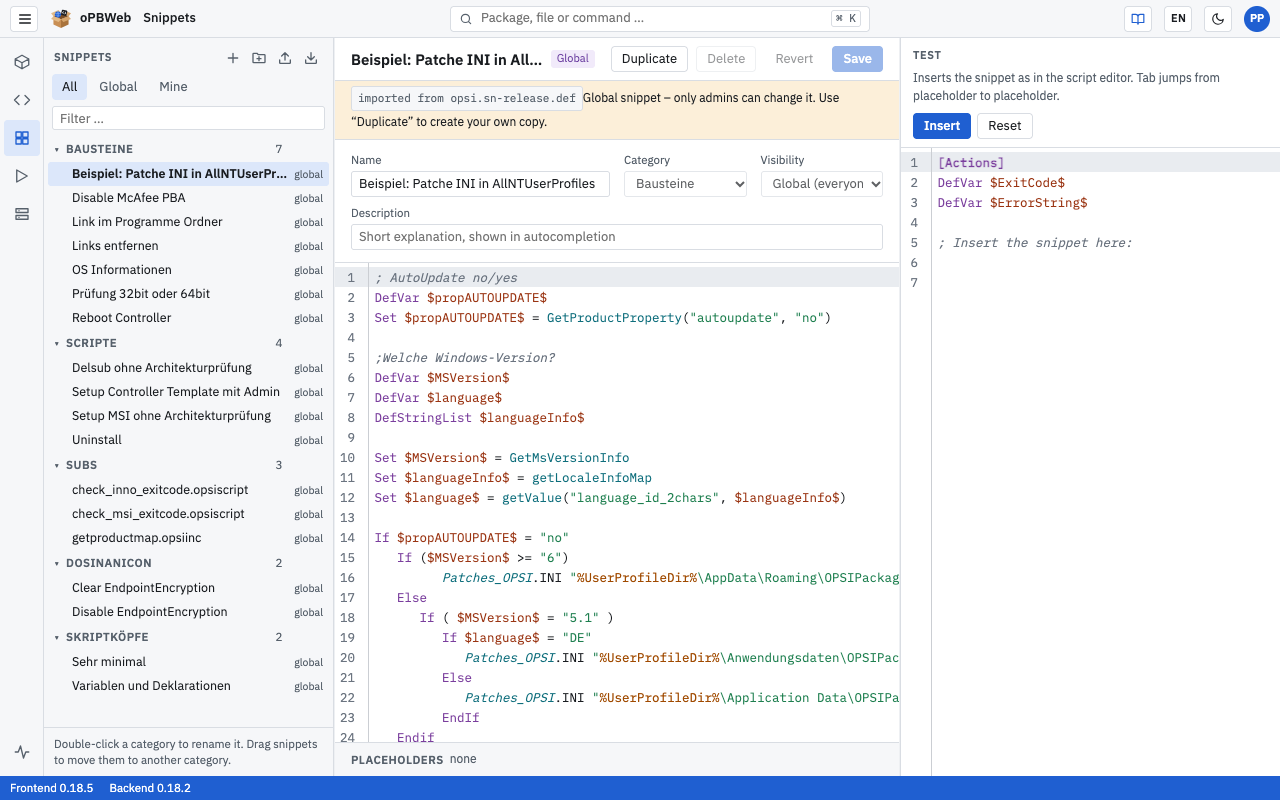
The view has three columns. Drag the edge of the left and right columns to change their width.
- Left – SNIPPETS: the buttons New snippet, New category, Import snippets and Export snippets, below them the filter All | Global | Mine and the search field “Filter …” (searches name and text). Below that, the category tree with the number of snippets per category.
- Center: the selected snippet with the fields Name, Category, Visibility and Description, the code editor and the PLACEHOLDERS bar. At the top right: Duplicate, Delete, Revert and Save.
- Right – TEST: a small script editor where you try out how the snippet behaves when inserted.
Managing categories
Every snippet belongs to exactly one category. Before you can create the first snippet, at least one category must exist.
- Create: Click New category. The category is initially called “New category”.
- Rename: Double-click the category name or click ✎ (Rename category). Enter the new name and confirm with Enter; Esc cancels. Category names must be unique.
- Delete: Click × next to the category. This only works for empty categories (“Only empty categories can be deleted”).
- Move a snippet: Drag a snippet onto another category. Only administrators can move global snippets.
Creating and editing a snippet
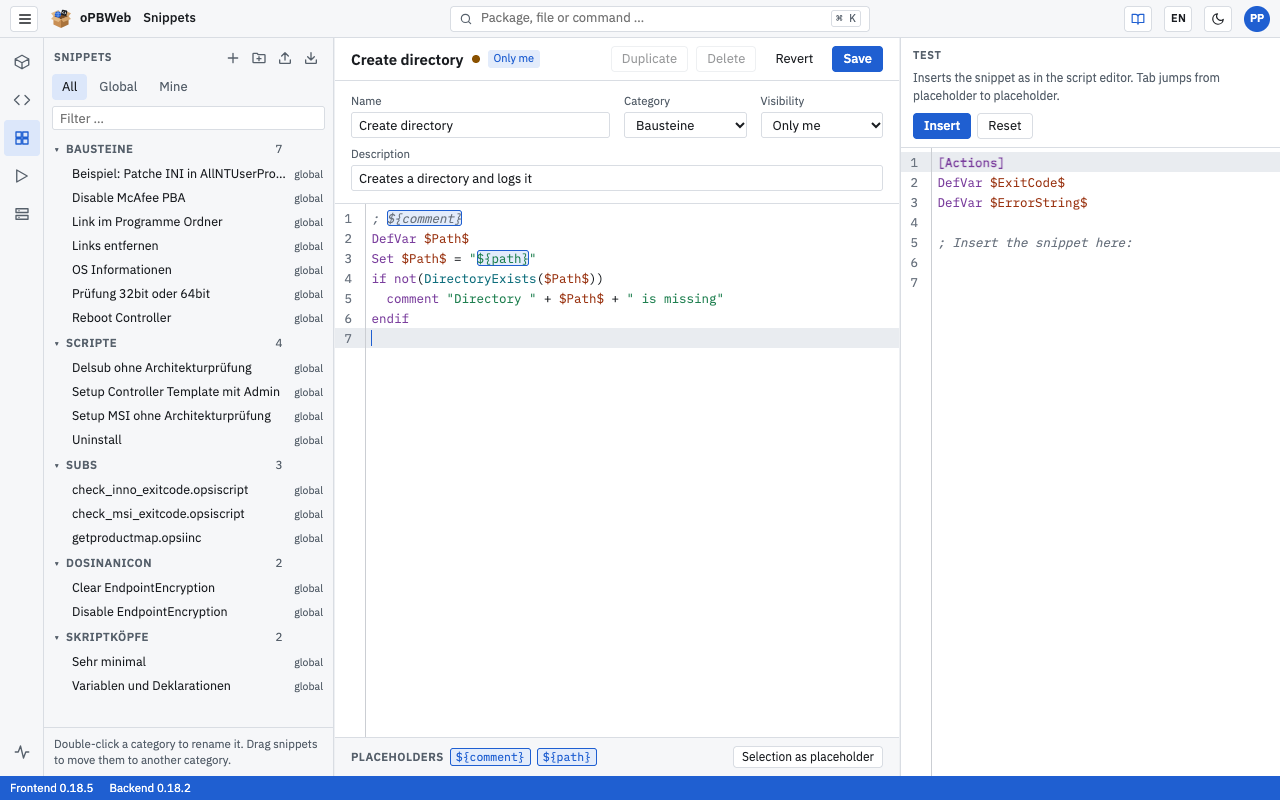
- Click New snippet. A draft named “New snippet” with the text
; ${Kommentar} is created. - Enter a meaningful Name and choose the Category.
- Choose the Visibility. As a Packager, only Only me is available; Global (everyone) is reserved for administrators.
- Optionally enter a Description. It appears later in the autocompletion of the script editor.
- Write the snippet text in the editor. It supports opsi-script highlighting; placeholders are highlighted in color.
- Click Save.
As long as there are unsaved changes, a dot next to the title indicates them. Revert restores the saved state. If you switch to another snippet with unsaved changes, oPBWeb asks “Discard unsaved changes?”.
Delete removes the snippet permanently after a confirmation.
Placeholders
Placeholders mark the spots you have to adjust after inserting. They have the form ${name}, for example:
; ${Kommentar}
Winbatch_${Sektionsname}
After inserting, press the Tab key to jump from placeholder to placeholder and type over each one.
- The PLACEHOLDERS bar below the editor lists all placeholders of the snippet (or “none”).
- Select some text in the editor and click Selection as placeholder to wrap it in
${…}.
Testing a snippet
In the TEST area, you try out the snippet before you use it in a real script:
- Place the cursor at the desired position in the test editor.
- Click Insert. The snippet is inserted exactly as in the script editor.
- Press Tab to step through the placeholders.
- Click Reset to restore the sample text in the test editor.
Creating a snippet from the script editor
You can also create a snippet directly from a script:
- Select the text in the script editor.
- Right-click to open the context menu and choose Create snippet from selection ….
- In the “Snippet from selection” dialog, check Name (prefilled with the first non-empty line), Category and Visibility. Use “New category” to create a new category right away if needed.
- Click Save.
How to insert snippets in the script editor is described in Script editor
.
Importing snippets
oPBWeb reads two file formats:
- oPBWeb JSON exports (
.json, format “opbweb-snippets”), for example from another oPBWeb installation or a colleague. - Snippet files of the old ScriptEditor (
opsi.sn-*.def, for example opsi.sn.def).
To import:
- Click Import snippets.
- Choose the Visibility of the imported snippets. Packagers always import as Only me; only administrators can import globally.
- Click Choose file … and select the file.
oPBWeb then reports “42 snippets imported, 3 skipped”. Snippets that already exist with the same name in the same category and visibility are skipped. Missing categories are created automatically; snippets without a category end up in „Allgemein“ (General).
Legacy placeholders
The old ScriptEditor wrote placeholders in angle brackets (<name>). On import, oPBWeb converts them to ${name}. The imported snippet then shows the notice “Legacy placeholders in angle brackets were converted to ${x} on import.” with a list of the conversions, and its origin “imported from …”.
Exporting snippets
Click Export snippets (the button is available from the Packager role on). Your browser downloads the file opbweb-snippets.json. It contains all snippets you are allowed to see, that is all global ones and your own, each with name, category, description and text. You can import the file again in another oPBWeb installation.
Depots
View and sync config servers and depots, check installed products and the repository, manage files on the server and compare depots.
Roles: Viewer, Packager, Releaser, Administrator
Overview
The Depots view shows all opsi config servers set up in oPBWeb and their depots as oPBWeb last read them. You see which products are installed in which version, clean up the repository, edit files directly on the server and compare the depots with each other.
Viewers see everything but cannot change anything. What Packagers and Releasers may change on a depot depends on its stage (see Stages and roles
). Only administrators can add, edit and remove config servers, see opsi server
.
Config servers and depots
On the left is a tree with all config servers and their depots. Each depot belongs to exactly one config server.
Config servers are shown in bold. Each row shows:
- a status dot: green if the last check succeeded, red if it failed, gray if the server has not been checked yet,
- the name of the server and a stage badge (Production, Staging or Test),
- below it the short info “Config server · 3 depots”.
Depots are indented below their config server, each with depot ID, stage badge and a short info line such as “config server · 42 products” (for the depot on the config server itself) or “17 products”. An italic, lighter stage badge means: the depot has no stage of its own and inherits that of its config server (tooltip “inherited from the config server”). The following hints can also appear there:
- disabled: An administrator has switched the depot off for oPBWeb. You cannot install anything on it.
- no longer present: The config server no longer reports the depot. oPBWeb keeps it with its settings until an administrator removes it.
If no config server is set up yet, the tree shows “No config server configured yet.” An administrator adds the servers.
Collapsing and searching the list
With many depots, two things help:
- Collapse: Click the arrow in front of a config server’s name to collapse or expand its depots. The server row stays visible. oPBWeb remembers in this browser which servers are collapsed.
- Search: The “Search depots” field above the list searches depot ID and description. If the name of a config server matches, you see all of its depots. While searching, all servers with matches are expanded. If nothing matches, the list shows “No depot matches the search.”
Viewing a config server
Click the row of a config server. As a Packager, Releaser or Viewer you see a read-only overview on the right:
- name and stage of the server,
- Config server URL,
- State: “reachable” or “not reachable” with the error message of the last check,
- the validity of the stored CA certificate.
From Packager upwards, Sync at the top syncs exactly this server. Administrators see the server form here instead, see opsi server
.
Viewing a depot
Click a depot to see its details on the right. At the top you see the depot ID, the stage, the name of the config server and the time of the last sync (“synced …”).
Syncing
A sync reads the depots of a config server and their installed products again. It runs as a job; while it runs, the button shows “Syncing …”. You can sync from the Packager role upwards:
| Button | Effect | Job title |
|---|
| Sync in the detail view of a depot or config server | syncs only this config server and its depots | “Synchronize depots (server)” |
| ⟳ at the top of the list (tooltip “Synchronize all config servers”) | syncs all config servers one after the other | “Synchronize depots of all config servers” |
Syncing one server never changes the depots of another server.
A sync via Sync or ⟳ also reads the workbench of each config server. oPBWeb remembers which project folder holds which package in which version; you see this in the package list under Workbench
. If the workbench cannot be read, the job logs a warning and syncs the depots anyway.
In addition, oPBWeb automatically checks all config servers every five minutes (default, configurable under Settings → Worker) and syncs the depots of every reachable server; this automatic sync does not appear in the job list and does not read the workbench. The worker reads the workbench separately, hourly by default (also under Settings → Worker). You mainly need a manual sync when you want to see a change on the server immediately.
Depot settings
Below the depot details are the Settings with Stage, Service URL and Enabled, as well as info fields such as URL in use and Reported by opsi. Under Stage, “as config server (Production)” means that the depot inherits the stage of its config server. Only administrators can change these values; for everyone else they are read-only. Details are in Depot management
.
Stages and roles
Each config server has a stage: Production, Staging or Test. Its depots inherit this stage unless an administrator sets a stage of their own for a depot. The effective stage of a depot determines who may perform write actions on it:
| Action | Test and staging depot | Production depot |
|---|
| Install, uninstall | Packager | Releaser |
| Promote packages to this stage | Packager | Releaser |
| Unlock products | Packager | Releaser |
| Delete files from the repository | Packager | Releaser |
Administrators may do everything Releasers may do. New config servers start in the Production stage; an administrator switches test and staging servers or individual depots over. If you lack the required role, oPBWeb hides the corresponding buttons or locks the depot in the dialog.
How to take a tested package from one stage to the next is described in Build and deploy
.
“Installed products” tab
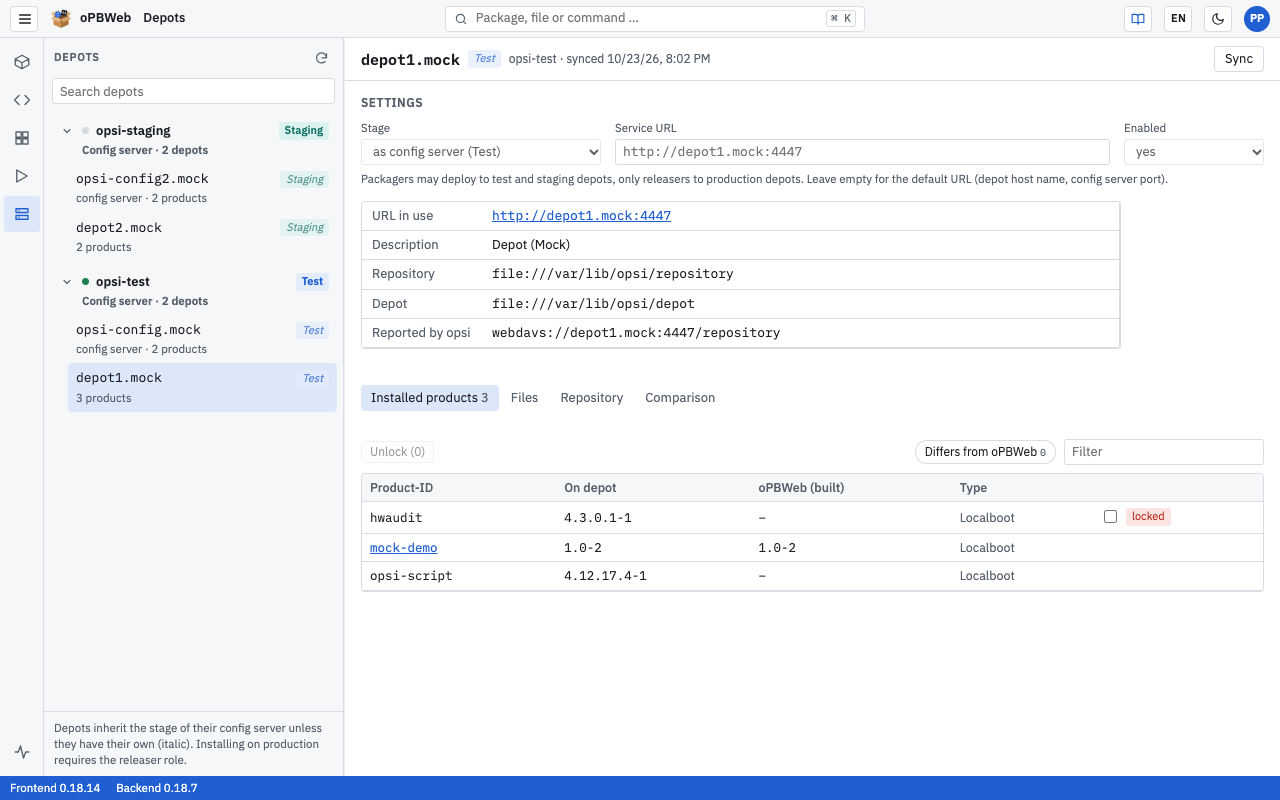
The table shows all products installed on the depot:
| Column | Meaning |
|---|
| Product-ID | Identifier of the product. If the package exists in oPBWeb, the ID is a link to the package editor. |
| On depot | installed version (product and package version) |
| oPBWeb (built) | built version in oPBWeb; orange if it differs from the installed one |
| Type | product type |
The Differs from oPBWeb chip limits the list to products whose versions differ between the depot and oPBWeb. The “Filter …” field searches by product ID.
Unlocking locked products
If an installation is aborted, the product sometimes stays locked on the depot. It then carries the locked badge. To remove the lock:
- Select the checkboxes of the locked products.
- Click Unlock (n).
Unlocking runs as a job; afterwards oPBWeb reports “2 products unlocked”. You only see the checkboxes and the button if you may write on this depot.
“Files” tab
The Files tab is a file manager for the shares of the depot. Depending on the depot, there are up to three shares as sub-tabs:
| Share | Content | Access |
|---|
/workbench | working directory for package sources | read for everyone, write from Packager on |
/repository | uploaded .opsi files | read only |
/depot | unpacked, installed products | read only |
/workbench only exists on the configserver and on depots that report a workbench. In read-only shares, oPBWeb shows the notice “/repository is read only.” or “Changes require the packager role.”
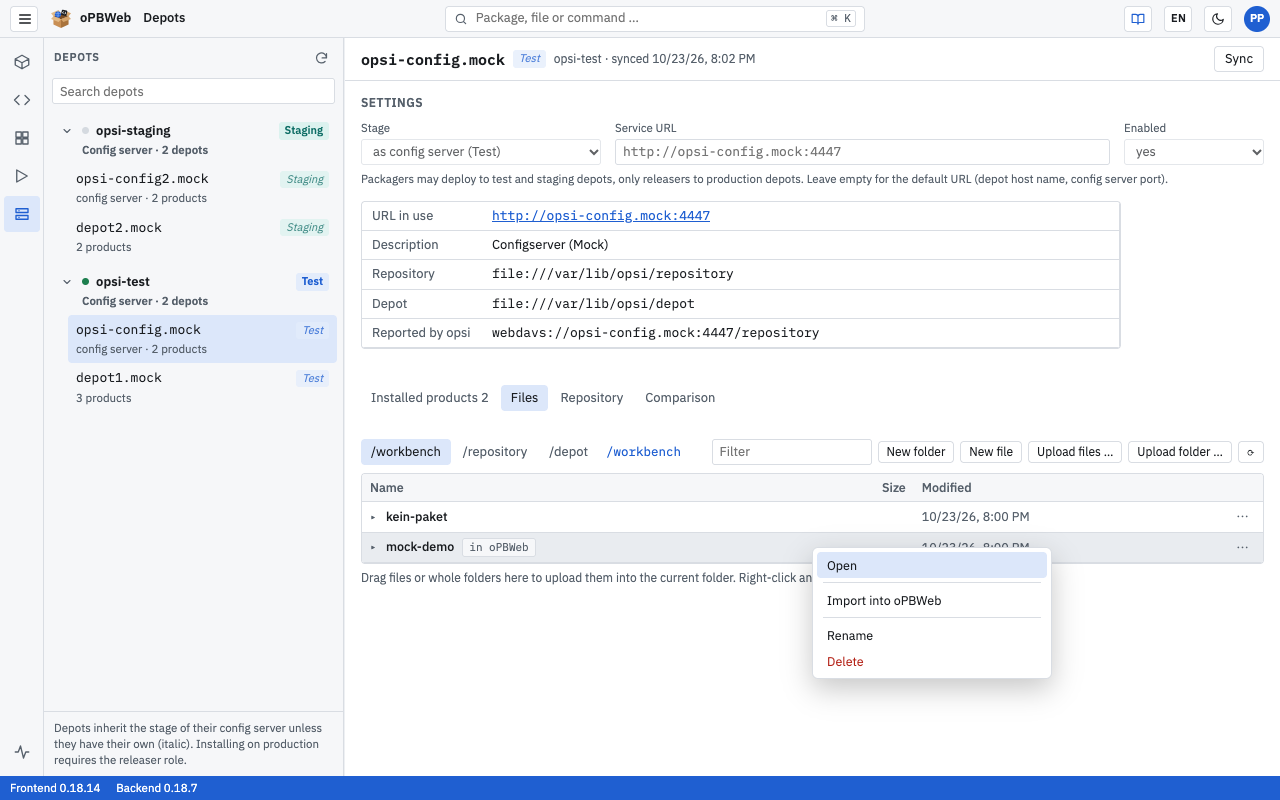
Navigating
- Click a folder to open it; the ‹ up one level row takes you back. The current path is shown at the top.
- The “Filter …” field filters the current folder.
- Reload reads the folder again from the server.
- Folders in the root of
/workbench for which a package with the same product ID exists in oPBWeb carry the in oPBWeb badge.
Viewing and editing files
Click a text file (scripts, control, .ini, .xml, .json, .ps1, .cmd, .log and many more) to open it in the text editor. opsi scripts get the same highlighting as in the script editor. In /workbench you can change the file and write it back with Save; in the other shares it is “read only”.
The editor keeps the character encoding (UTF-8 or CP1252) and the line endings of the file; the encoding is shown at the bottom of the dialog. You can edit text files up to 2 MB. Download larger files and binary files.
Downloading
Click a file that is not text, or choose Download in the context menu (right-click). The download takes two steps: first a job copies the file from the server, then your browser starts the download. Only the user who started the download can fetch the file.
Working in the workbench (Packager and above)
In /workbench you additionally have:
- New folder and New file (suggested name
neu.opsiscript) - Upload files … and Upload folder …
- in the context menu: Rename and Delete (with confirmation; for folders including their content)
Alternatively, drag files or whole folders into the list. They end up in the currently open folder. The progress appears as “Uploading … 45 %”; then a job copies the files to the server and oPBWeb reports “3 files uploaded”.
Importing a package from the workbench
You can import a package directory in /workbench directly into oPBWeb:
- Open the root of
/workbench. - Right-click the package folder.
- Choose Import into oPBWeb.
The import runs as a job and reads from the workbench of the config server the depot belongs to; afterwards oPBWeb reports “{name} imported”. An existing version is not overwritten. To replace versions and to import several folders, use the Workbench … dialog in the package list, see Packages
.
“Repository” tab
The repository of a depot contains the uploaded .opsi files together with their .md5 and .zsync check files. Over time, old versions accumulate there.
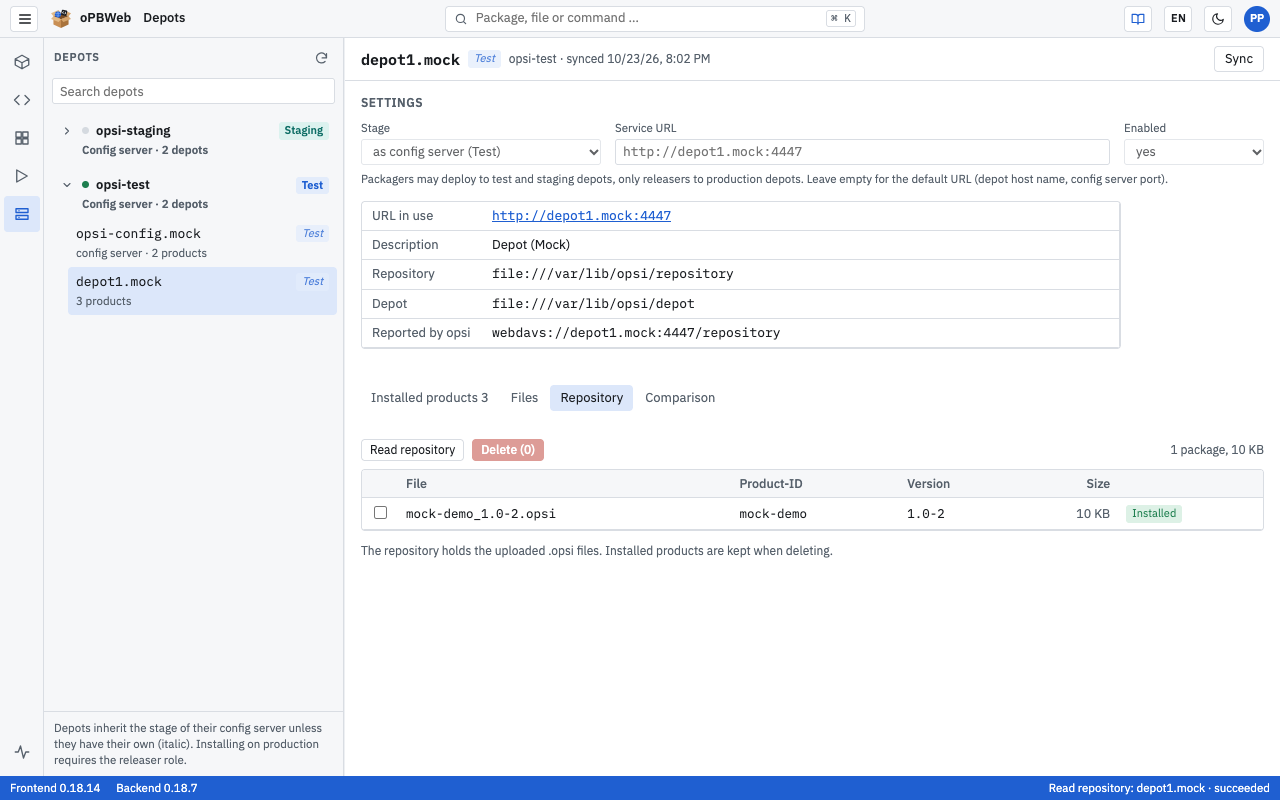
When you first open the tab, oPBWeb reads the repository automatically; click Read repository to repeat this. Reading runs as a job. Above the table there is a summary such as “12 packages, 1.4 GB”.
The table shows File, Product-ID, Version and Size, as well as these badges:
- Installed: This version is installed on the depot.
- no MD5: Without
.md5, the depot cannot verify the file. - no zsync: The
.zsync file is missing.
oPBWeb lists check files without a matching .opsi file under “Orphaned checksums”.
Deleting files from the repository
- Select the checkboxes of the packages you want to remove.
- Click Delete (n).
- Confirm the prompt “Delete 2 packages including .md5 and .zsync from the repository of depot01.example.local?”.
oPBWeb deletes the .opsi files together with their check files. Installed products are kept. You only see the checkboxes if you may write on this depot (see Stages and roles
).
“Comparison” tab
For the selected depot, the Comparison tab shows three versions of each product side by side: oPBWeb (built), the config server the depot belongs to (column header with the addition “config server”), and the depot itself. If you select the depot on the config server, there are only the two columns oPBWeb and config server. Differing versions are marked orange.
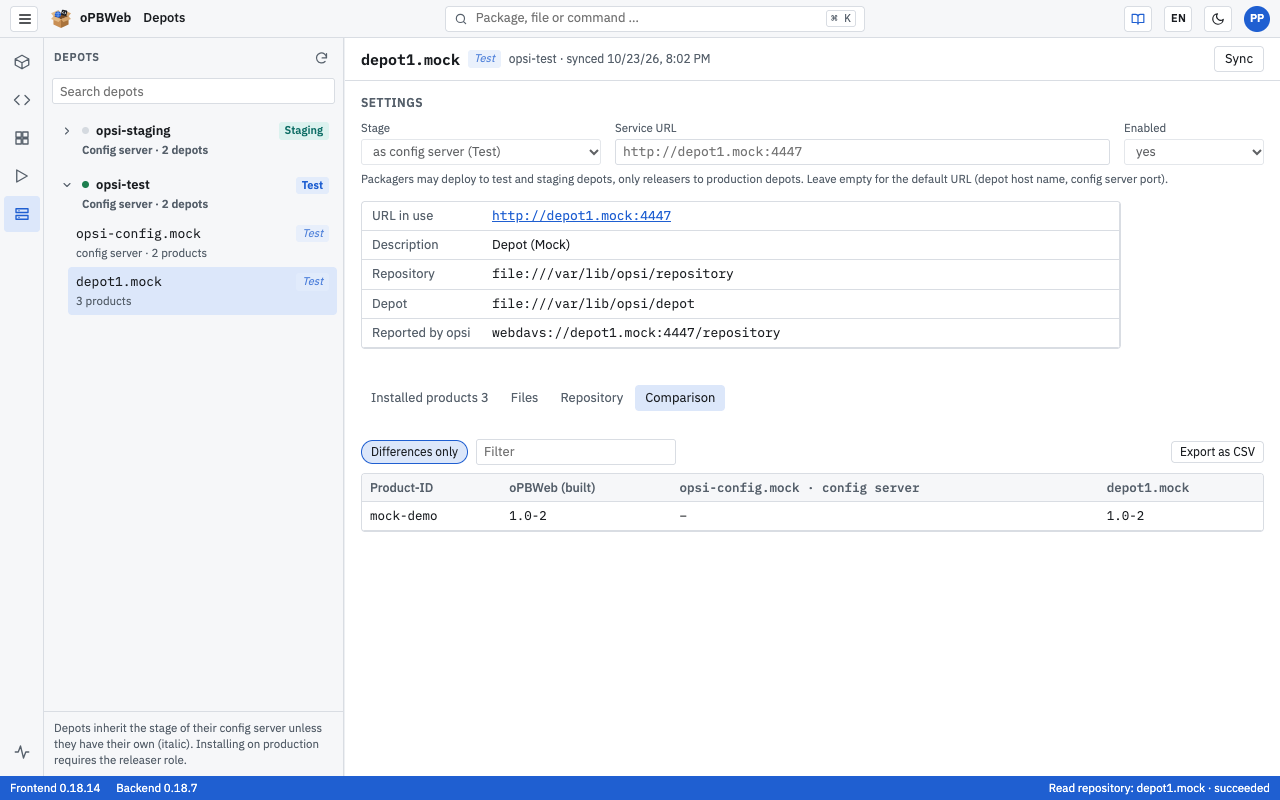
- The Differences only chip is active by default and hides products that are the same everywhere.
- “Filter …” searches by product ID.
- Export as CSV saves the comparison over all depots of all config servers as
depot-vergleich-YYYY-MM-DD.csv, so the file has more columns than the table shows. The filter and Differences only apply to the file as well; there, “differing” means: not the same on all depots. The file is UTF-8 encoded (with BOM) and semicolon-separated; the columns are product_id, opbweb and then the depot ID for each depot.
Jobs
Track long-running actions as jobs, read logs and cancel queued jobs.
Roles: Viewer, Packager, Releaser, Administrator
Overview
Everything that takes longer or talks to an opsi server runs in oPBWeb as a background job. You start the action, keep working and follow the progress in the status bar, in the package editor or in the Jobs view.
All users see all jobs, including those of their colleagues, together with their logs. This lets you trace who built or deployed what and when.
Which actions run as jobs?
| Action | Shown in the Action column |
|---|
Import an .opsi package | Import |
| Build | Build |
| Install …, Promote … to another stage | Install |
| Uninstall … | Uninstall |
| Sync the depots (one config server or all) | Depot sync |
| Clean up … the object storage (administrators only) | Cleanup |
| Scan, import, export the workbench | technical name, e.g. scan_workbench, import_workbench, import_workbench_many (import of several project folders), export_workbench |
| Compare with workbench …: compare, take over | compare_workbench, apply_workbench |
| Read the repository, delete repository files | list_repository, delete_repository_files |
| Unlock products | unlock_products |
| Upload and download files in the Files tab of the depots | files_upload, files_download |
| Fetch the CA certificate, test the connection (administrators only) | fetch_opsi_ca, check_opsi_server |
Only the first six actions have a translated name; all others appear with their technical name. Job titles and log lines come from the server and follow the interface language. Jobs created before version 0.15.0 keep their German titles and log lines.
The job list
Open Jobs in the activity bar.
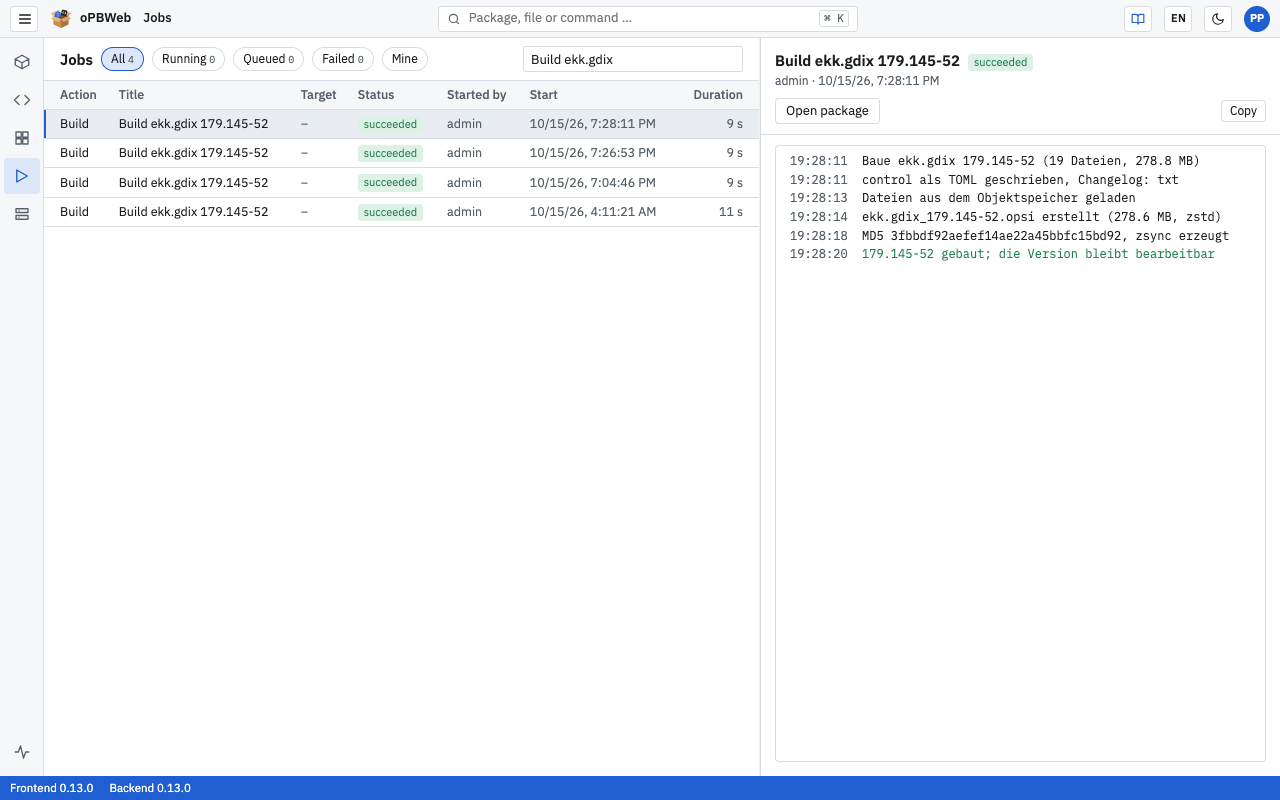
The filters are at the top:
- All, Running, Queued, Failed: chips with the respective count
- Mine: shows only jobs you started yourself
- search field “Package, depot or title …”
The table has the columns Action, Title, Target (package or depot), Status, Started by, Start and Duration. For running jobs, the status also shows the progress in percent. The list refreshes itself every few seconds and shows the last 200 jobs (“Showing 200 of 1,348 jobs”).
A job has one of these states: queued, running, succeeded, failed or cancelled.
Tip
In the command search (Ctrl K), My jobs takes you straight to the filtered list of your own jobs.
Job details and live log
Click a job in the list. On the right you see the title, status, target, who started it and the start time, a progress bar, the error message in case of errors and the log below.
For running jobs, new log lines are added live and the view scrolls along automatically. The lines are colored by meaning: green for success, orange for warnings, red for errors.
Depending on the job, the detail area offers these buttons:
- Open package: opens the affected package in the package editor (for jobs that belong to a package).
- Copy: copies the complete log with timestamps to the clipboard, for example for an error report to the administrator.
- Cancel: see below.
Cancelling jobs
You can only cancel jobs in the queued state, that is jobs that have not started yet. A running job cannot be cancelled; it runs until it finishes or fails.
- Every user can cancel their own queued jobs.
- Only an administrator can cancel queued jobs of other users.
Select the job and click Cancel. The job gets the state cancelled.
If you cancel a queued installation job that released a draft, the version is a Draft again afterwards.
Note
Jobs are queued, for example, when another job is already working on the same depot. oPBWeb runs jobs for a depot one after the other so that installations do not interfere with each other.
Progress in the status bar
Jobs you started in this browser tab appear on the right of the status bar with title, progress bar and percentage. Click one to open the job in the job list. When no job is active any more, the status bar shows the most recently finished job with its result.
In addition, the Jobs icon in the activity bar shows the number of running jobs you started in this browser.
If the connection to the server drops during a job, oPBWeb reports “Connection to the job lost”. The job itself keeps running on the server; you see its final state in the job list.
Jobs in the package editor
At the bottom of the package editor is the JOBS panel. It lists the most recent jobs of the open package with status and time and shows the log of the selected job on the right, live for running jobs.
If you start a job in the editor, for example with Build or Install …, the panel opens automatically. Close it with ×; the Jobs ▴ button at the bottom edge shows it again.
More on building and deploying is in Build and deploy
.
Account and Language
Set the interface language, change your password, sign out, adjust the appearance and the syntax colors of the editor.
Roles: Viewer, Packager, Releaser, Administrator
Overview
You reach the settings of your own account via the avatar icon with your initials at the far right of the top bar. Next to it in the top bar you find the switches for language and light/dark appearance, as well as access to this manual.
These functions are available to all users, regardless of their role.
Click the avatar icon to open the user menu.
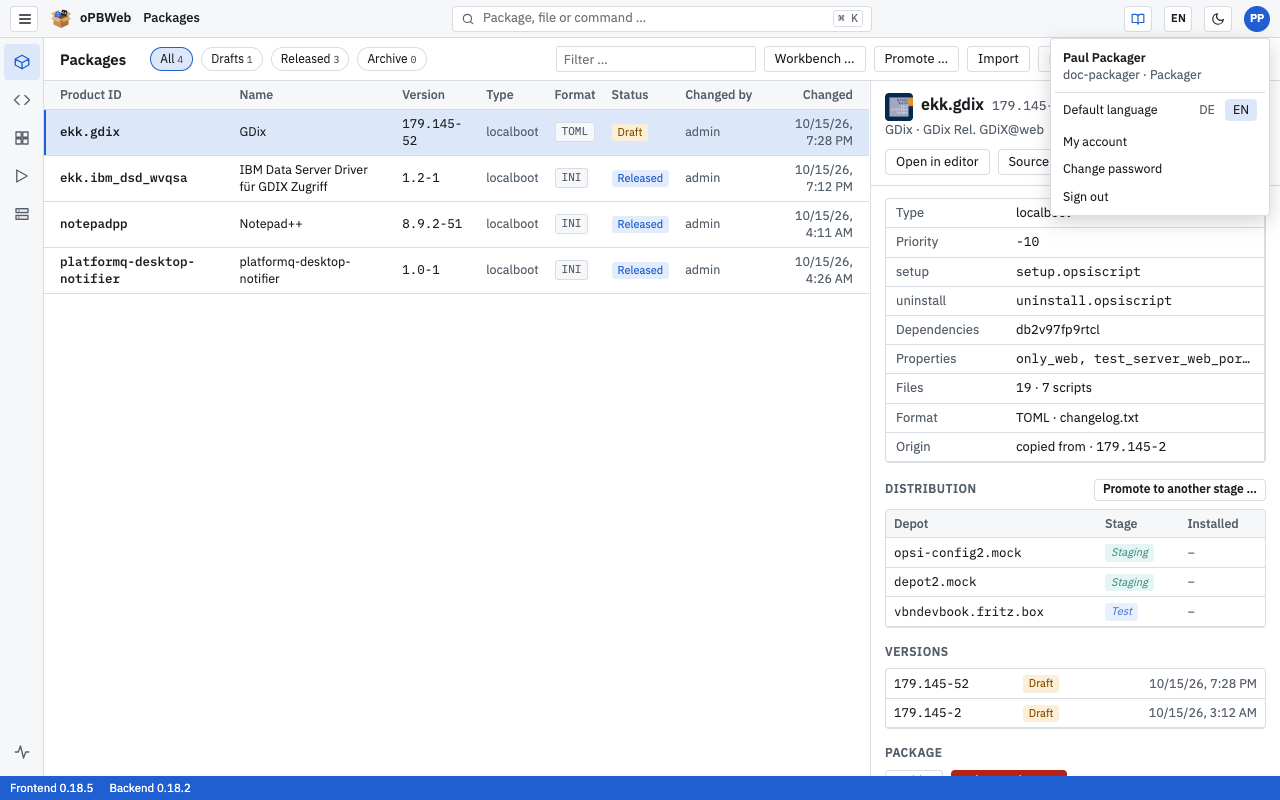
At the top of the menu you see your display name as well as your user name and role, for example mmuster · Packager. Below that follow Default language, My account, Change password and Sign out.
My account
My account in the user menu opens a page of its own. At the top it shows your account data: user name, name, email, role and source (local or directory). There you also set the Default language and change your password with Change password, just as in the user menu. Below follow the syntax colors of the editor
.
Language
oPBWeb has two interface languages: German and English. There are two ways to switch the language, and they differ in their effect.
| Where? | Effect | Valid until |
|---|
| Default language in the user menu | is stored in your user account | permanently, at every sign-in and on every device |
| DE/EN switch in the top bar | applies only to this browser tab | the next sign-in |
Setting the default language
- Open the user menu.
- In the Default language row, click DE or EN.
The interface switches immediately, and oPBWeb stores the language in your account. After every sign-in, oPBWeb starts in this language, even on another computer or browser.
Switching the language temporarily
The switch in the top bar shows the current language (DE or EN). Click it to switch to the other language. This is handy if you want to quickly look up a term in the other language or show a colleague something in their language.
The change only applies to the current browser tab and is kept when you reload the page. As soon as you sign out and back in, your default language applies again.
Language on the sign-in page
The sign-in page also has a language switch. Before you sign in, oPBWeb does not know you yet; it uses the language last used in this browser or, on your first visit, the language of your browser. After you sign in, oPBWeb applies your default language.
Note
Some texts stay German in the English interface: the descriptions of commands and functions in the script editor (taken from the German opsi-script manual), titles and logs of jobs created before version 0.15.0, and texts that opsiconfd returns unchanged (for example HTTP errors). Messages of the server (error messages, job titles and logs, details in the system status) and the diagnostics in the script editor follow the interface language.
Changing your password
This function is only available for local accounts, that is accounts created in oPBWeb itself.
- Open the user menu.
- Click Change password.
- Enter your Current password.
- Enter the New password and repeat it under Repeat new password. The new password must be at least 10 characters long.
- Click Save.
If the password is too short or the two entries do not match, the dialog shows “At least 10 characters.” or “The passwords do not match.” and Save stays disabled.
LDAP accounts
If you sign in with your directory account (LDAP, e.g. Active Directory), the Change password entry is missing. Change your password in the directory as usual, for example via Windows.
If you have forgotten your password, contact an administrator. They can set a new password for you, see Users and roles
.
Signing out
In the user menu, click Sign out. oPBWeb ends your session and shows the sign-in page again. A temporarily switched language is discarded.
Light or dark
The moon icon in the top bar (Toggle light or dark) switches between light and dark appearance. As long as you have not chosen anything, oPBWeb follows the setting of your operating system. Your browser stores your choice; it therefore applies to this browser, not to your account.
The switch is also available on the sign-in page and as a command in the command search (Ctrl K).
Syntax colors in the editor
On the My account page, the section Syntax colors in the editor sets the colors the editor uses to highlight files. This applies to every editor in oPBWeb: script editor, snippets, the source view of the control file and the files on the depot. The setting belongs to your account and applies on every device you sign in on.
The section is built like this:
- Light / Dark: the light and the dark appearance each have a setting of their own. The page first shows the mode oPBWeb is currently running in. The editor always uses the colors of the current mode.
- File types (list on the left): Default (all file types) applies to every file type without an own scheme and to text files without highlighting. Below it are opsi-script, Shell / batch, control, Inno Setup, AutoIt, PowerShell, INI / REG / INF, XML, YAML, JSON and Python. Each type shows like default or own scheme.
- Preset: oPBWeb ships well-known color schemes, as light presets oPBWeb, opsi ScriptEditor (colors and font styles of the old opsi ScriptEditor), GitHub Light, Solarized Light, One Light, VS Code Light+ and Gruvbox Light, as dark presets oPBWeb, GitHub Dark, Solarized Dark, One Dark, VS Code Dark+, Gruvbox Dark, Monokai, Dracula and Nord. Every preset can be chosen in both modes, a dark preset in the light appearance too.
- Syntax and Editor: Syntax lists the colors of the language elements the selected file type knows, e.g. comment, section, keyword, function, string and variable. B (bold) and I (italic) next to each color set the font style of the element. Editor lists background, text, gutter, line numbers, current line, selection and cursor.
- Preview: shows a short example of the selected file type in the chosen colors.
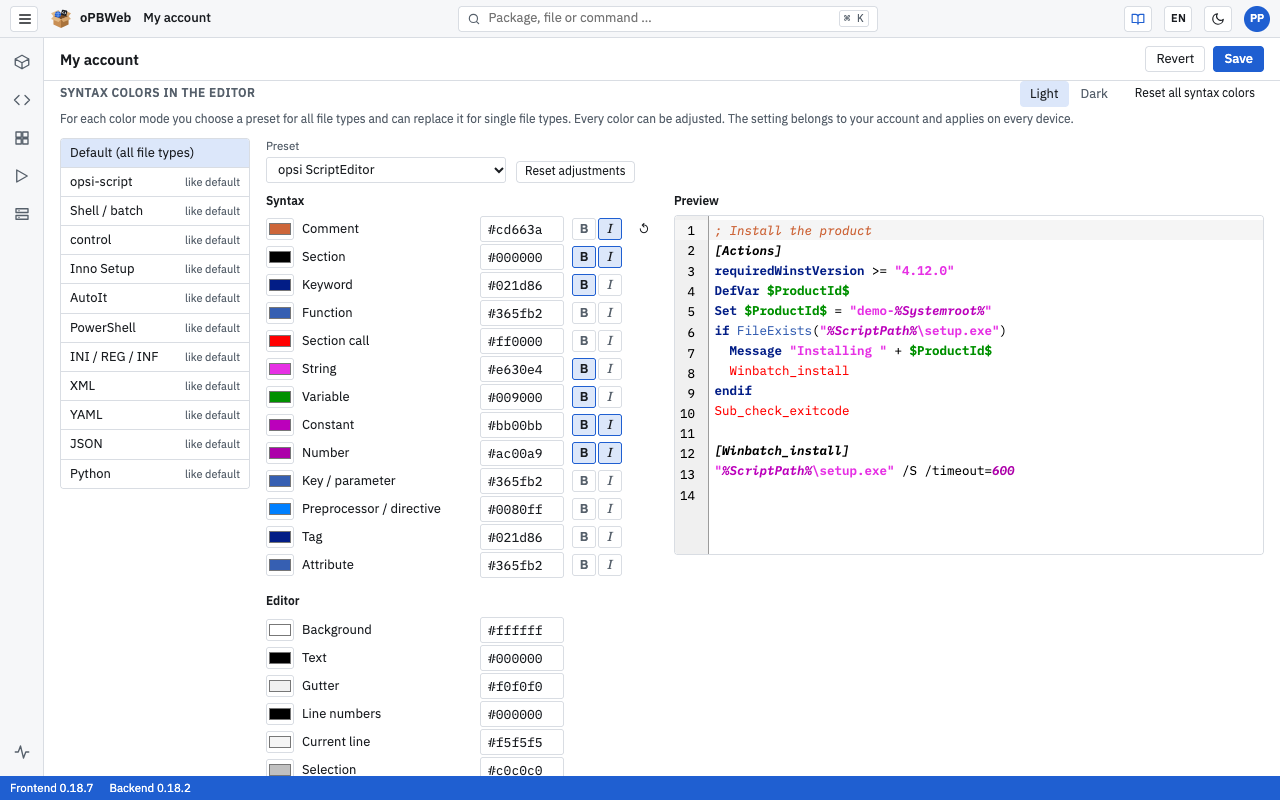
Setting colors
- Choose Light or Dark.
- Select the file type on the left. For all file types at once, take Default (all file types).
- For a single file type: tick Own scheme for this file type. The own scheme starts with the colors of the default.
- Choose a Preset.
- Change single colors if needed: click the color field or type the color as a hex value, e.g.
#a31515. Toggle bold and italic with B and I. A changed element gets the button ↺, which puts back the preset’s color and font style. - Click Save.
Choosing another preset discards the single colors and font styles changed for this file type. Reset adjustments sets all colors and font styles of the file type back to the preset. Unticking Own scheme for this file type makes the file type follow the default again. Reset all syntax colors restores, after a confirmation, the oPBWeb defaults for both modes and all file types. That too takes effect only with Save; Revert restores the last saved state.
Opening the manual
The book icon in the top bar (Manual (new tab)) opens this manual in a new browser tab, in the currently selected interface language: the German manual for German, the English manual for English.
Expanding and collapsing the navigation
The activity bar on the left edge normally shows only icons; the name of an area appears as a tooltip. Click the ☰ icon at the far left of the top bar (Expand/collapse menu labels) to show the labels, so that each icon has its name next to it. Click again to collapse the bar.
For an overview of the whole interface, see Getting started
.