Requirements
What the host, the network and the opsi server must provide to run oPBWeb
Audience: Technical administration
Overview
This chapter lists everything that must be in place before the installation: a Docker host, free ports, a network connection to the opsi configserver and a technical opsi user. Check the items in order before you start the Installation
.
Host
oPBWeb runs on any Linux host with Docker. You can run the stack directly on the opsi configserver or on a separate host that reaches the configserver via HTTPS.
- Operating system: Linux with a current Docker Engine.
- Docker Compose: the Compose plugin (version 2, invoked as
docker compose). The old standalone docker-compose (version 1) is not sufficient, because the Compose file uses features such as file secrets and service_completed_successfully. - Bash and OpenSSL: The scripts
setup-opbweb.sh, start.sh, stop.sh and scripts/init-secrets.sh are Bash scripts; the secrets are generated with openssl. - Git: to get the sources.
- Disk space: The object storage grows with the package files. Plan enough space for the Docker volumes (database, object storage). There are no fixed minimum values for CPU, memory or disk space; the containers run without resource limits.
Ports
The stack exposes only the frontend container to the outside. All other services communicate on internal Docker networks.
Variable in .env | Default | Use |
|---|
FRONTEND_HTTP_PORT | 80 | redirects to HTTPS |
FRONTEND_HTTPS_PORT | 443 | HTTPS (always with a certificate, self-signed if need be) |
The interface is served via HTTPS only; the HTTP port redirects there. If a web server is already running on the host (for example on the configserver), choose different ports.
Network to the opsi configserver
The worker container talks directly to opsiconfd on the configserver:
- HTTPS on port 4447 for JSON-RPC.
- WebDAV over the same port for the shares
/repository, /workbench and /depot.
The connection originates from the worker via the Docker network opsi-net. Firewalls between the Docker host and the configserver must allow port 4447.
opsi-side requirements
oPBWeb is designed for opsi 4.3. On the configserver you need:
- A technical user with opsi admin rights: The worker signs in with this user (default in the interface:
opsiadm). Without admin rights, the connection test fails with “… has no opsi admin rights”; in addition, /repository and /workbench require admin rights. admin-networks in opsiconfd: If this setting is set, it must include the worker’s Docker network. Otherwise opsiconfd rejects the admin calls with HTTP 403. After the first start, determine the subnet with docker network inspect opbweb_opsi-net (entry Subnet).- FQDN of the configserver: Later, enter the configserver with its fully qualified host name, not with its IP address. The opsiconfd server certificate is issued for the name; with an IP address the TLS check fails. The name must be resolvable from the worker container.
Note
The URL, technical user, password and CA certificate of the opsi server are not stored in configuration files. You enter them in the interface after the installation, see Initial Setup
.
Certificates
- TLS certificate for the web interface (recommended): For HTTPS you need a certificate with the full chain (
fullchain.pem) and the matching private key (key.pem) for the host name under which users open oPBWeb. Put both files next to setup-opbweb.sh before the setup. Without your own certificate the setup creates a self-signed one; the browser then shows a warning. - CA of the opsi server: It is fetched directly from the configserver during the initial setup. Have shell access to the configserver ready to compare the fingerprint.
- LDAPS CA (optional): For LDAP sign-in with your own CA, place the CA file as
ldap-ca.pem next to the script or in certs/ldap/, see LDAP Sign-in
.
Images and internet access
You can provide the oPBWeb images (backend, frontend, garage-init) in two ways:
- Build them locally with
./start.sh --build. For this the host needs access to:- Docker Hub for the base images (Python, Node.js, nginx, Alpine),
- GitHub for python-opsi and the Hugo modules of the manual,
- PyPI for the Python packages,
- npm registry for the frontend dependencies,
- the Go module proxy proxy.golang.org for the manual theme.
- Pull them prebuilt from a registry, for example from the registry of the project’s GitLab CI or an internal mirror. The host then only needs access to this registry; an account (
docker login) is only needed if it requires a sign-in. The project’s registry is public. Only the machine on which the images are built needs internet access for building.
In both cases the third-party images for MariaDB, Redis and Garage come from Docker Hub unless you use a mirror. You choose the way during the Installation
with setup-opbweb.sh.
During operation the stack does not need internet access.
Versions
This manual describes the following versions:
| Component | Version |
|---|
| Backend | 0.18.8 |
| Frontend | 0.18.16 |
| Launcher | 0.18.0 |
Technical basis:
| Component | Version |
|---|
| Python | 3.13 (python:3.13-slim) |
| FastAPI | 0.143.1 |
| SQLAlchemy | 2.1.4 |
| Alembic | 1.20.0 |
| arq (job worker) | 0.28.0 |
| Vue | 3.5 |
| Vite | 8.3 |
| Node.js (build only) | 22 |
| nginx | stable-alpine |
| MariaDB | 11.4 |
| Redis | 7 |
| Garage (S3) | v2.2.0 |
| opsi (configserver) | 4.3 |
You can see the installed frontend and backend versions at any time in the status bar at the bottom of the interface.
Installation
Install oPBWeb step by step and start the stack for the first time
Audience: Technical administration
Overview
The installation takes only a few steps: get the sources, run ./setup-opbweb.sh (it writes the configuration file .env and generates the secrets), optionally add a TLS certificate, and start the stack. You either build the images locally with ./start.sh --build or pull prebuilt images from a registry. Then check that all services are running and continue with the Initial Setup
in the interface.
Run all commands in the project directory on the Docker host. Check the Requirements
first.
1. Get the sources
Clone the oPBWeb repository (opsiPackageBuilder-web) onto the Docker host and change into the directory:
git clone https://gitlab.open-mind.space/pages/opsiPackageBuilder-web.git
cd opsiPackageBuilder-web
Without Git and without sources, use the stack ZIP from the release oPBWeb Stack (oPBWeb-Stack-<no>.zip, see Build and Delivery
): unpack it and change into the folder oPBWeb-Stack. The images then always come from the registry, the enclosed versions.env sets their versions.
All paths in this chapter (.env, secrets/, certs/) are relative to this directory.
Just trying it out?
Without an opsi server, oPBWeb can be tried with two opsi mocks, see Test Environment
.
2. Setup with setup-opbweb.sh
Run the setup script:
The script first checks that docker, the docker compose plugin and openssl are available. It then asks for the most important settings (the questions are in German). Each question shows the default in square brackets; press Enter to accept it.
| Area | Questions |
|---|
| Images | build the images locally (l) or pull them from a registry (r). With r also: registry prefix of the oPBWeb images and the versions of the backend, frontend and garage-init images |
| Frontend | TLS certificate (see 4. TLS certificate
): take over a supplied one, keep an existing one or create a self-signed one, for that the host name (FQDN); host port for HTTP (default 80, redirects to HTTPS) and HTTPS (443), time zone (Europe/Berlin) |
| Sign-in | name of the first local administrator (admin), whether LDAP/Active Directory is used; with LDAP also server, port, LDAPS, certificate verification, CA file in certs/ldap/, base DN, search base, search filter, bind DN with password and the groups per role |
| Operation | log level (DEBUG, INFO, WARNING, ERROR; default INFO) |
The default registry prefix is the registry of the project’s GitLab CI. Enter a different prefix, for example for an internal mirror, at the question, or set it beforehand as the environment variable OPBWEB_REGISTRY. The chapter LDAP Sign-in
explains the LDAP settings.
After a summary, the script asks „Fortfahren und Dateien schreiben?“ (continue and write the files?). If you confirm, it
- writes
.env, - generates all missing secrets via
scripts/init-secrets.sh (see 3. Secrets
) and writes the LDAP password you entered to secrets/ldap_bind_password.txt, - creates the directories
certs/ and certs/ldap/, moves supplied certificates there or creates a self-signed certificate, - offers to pull the images right away when you use registry images („Images jetzt ziehen?“ – pull images now?),
- shows the next steps.
If files that your answers require are missing, the script warns you, for example if the LDAP CA file you named is not in certs/ldap/ or the certificate expires in less than 30 days.
Values the script does not ask for (time limits, compression, token lifetimes, account lockout, DEBUG) get their defaults. You can change them directly in .env afterwards; a later run of the script keeps them. The chapter Configuration
describes all variables.
Options of setup-opbweb.sh
| Call | Effect |
|---|
./setup-opbweb.sh | interactive; with an existing .env its values are the defaults, existing secrets stay unchanged |
./setup-opbweb.sh --updateonly | non-interactive: keeps every value of the existing .env, adds new variables with their default, creates missing secrets and rewrites .env. Variables the script does not know are kept at the end of the file. Requires an existing .env |
./setup-opbweb.sh --dev | developer checkout: creates .env from .env.example if none exists and then works like --updateonly; the images are built locally (./start.sh --dev --build) |
./setup-opbweb.sh --yes | skips the confirmation before writing |
./setup-opbweb.sh --lang de or --lang en | language of the messages; the script stores it as OPBWEB_LANG in .env, start.sh and scripts/init-secrets.sh use it too. Without the option, OPBWEB_LANG from the environment or .env applies, otherwise the system locale (de… → German, otherwise English) |
./setup-opbweb.sh --help | shows the help |
You mainly need --updateonly when updating
.
Without .env, start.sh aborts with the message „.env fehlt – bitte ./setup-opbweb.sh ausführen (im Entwickler-Checkout: ./setup-opbweb.sh –dev).“ (.env is missing – please run ./setup-opbweb.sh, in a developer checkout ./setup-opbweb.sh –dev).
Alternative: create .env manually
Instead of using the script, you can copy the template and adjust it yourself:
.env.example lists all variables; commented-out lines show the default. For a first installation the defaults are usually sufficient. Check these variables:
| Variable | Default | Meaning |
|---|
BACKEND_IMAGE, FRONTEND_IMAGE, GARAGE_INIT_IMAGE | locally built images | set only if you use prebuilt images from a registry |
FRONTEND_HTTP_PORT | 80 | Host port for HTTP |
FRONTEND_HTTPS_PORT | 443 | Host port for HTTPS |
COOKIE_SECURE | false | setup-opbweb.sh sets true (always HTTPS); false only in the development stack |
ADMIN_USERNAME | admin | Name of the first Administrator account |
TZ | Europe/Berlin | Time zone of the containers |
LOG_LEVEL | INFO | Log detail level |
OPSI_INSTALL_TIMEOUT_SECONDS | 3600 | Time limit for uploading and installing large packages on the depot |
JOB_TIMEOUT_SECONDS | 28800 | Upper limit for a whole job, e.g. an installation on several depots |
BUILD_COMPRESSION | zstd | Compression of built packages (zstd or gzip) |
LDAP_ENABLED | false | Sign-in via LDAP/Active Directory |
In this case start.sh generates the secrets on the first start. You enter the password of the LDAP service account yourself in secrets/ldap_bind_password.txt, see LDAP Sign-in
.
Credentials do not belong in .env but in the secrets/ directory. The chapter Configuration
describes all variables.
3. Secrets
The script scripts/init-secrets.sh creates all missing secrets in the secrets/ directory. It never overwrites existing files. setup-opbweb.sh calls it, and start.sh runs it on every start anyway. You can also run it yourself:
./scripts/init-secrets.sh
The script creates these files:
| File | Contents |
|---|
db_password.txt | Password of the MariaDB application user |
db_root_password.txt | MariaDB root password (also used for database dumps) |
redis_password.txt | Password for Redis |
redis.acl | Redis ACL, generated from the Redis password |
jwt_secret_key.txt | Key for signing the sign-in tokens |
opsi_key_public.pem, opsi_key_private.pem | key pair for the opsi passwords: the API encrypts, only the worker can decrypt |
settings_encryption_key.txt | AES-256 key of versions before 0.18.6 (only for converting old entries) |
garage_rpc_secret.txt | RPC secret of the object storage |
garage_admin_token.txt | Token for the admin API of the object storage |
admin_password.txt | Password of the first Administrator account |
ldap_bind_password.txt | empty; setup-opbweb.sh writes the password of the LDAP service account into it |
In addition, the script creates the empty directory certs/ldap/.
The secrets/ directory gets permissions 750, the files 444. Docker passes the secret files into the containers with the host permissions. Inside, the processes run as other users (MariaDB, Redis, the application as appuser with UID 1000); with 600 they could not read the files on a Linux host. The directory permissions keep other users of the host out.
On its first run, the script displays the password of the first administrator exactly once (the output is in German: first admin account, user, password; also stored in secrets/admin_password.txt, please change after the first sign-in):
  >>> Erstes Admin-Konto: Benutzer 'admin', Passwort: <Passwort>
  >>> (steht auch in secrets/admin_password.txt; bitte nach der ersten Anmeldung ändern)
Write down the password or read it later from secrets/admin_password.txt.
Warning
Back up the secrets/ directory together with the data. Without opsi_key_private.pem the stored opsi passwords can no longer be decrypted; without the matching database and Garage secrets the backed-up data is unusable. Details are in Backup and Restore
.
4. TLS certificate
oPBWeb always runs with HTTPS. Port FRONTEND_HTTP_PORT only redirects to HTTPS, and the setup sets COOKIE_SECURE to true. There are three ways to the certificate; the setup picks one itself:
| Before the setup | Result |
|---|
fullchain.pem and key.pem lie next to setup-opbweb.sh | The setup checks that certificate and key match and moves both to certs/. An existing certificate stays as certs/fullchain.pem.bak-<time> and certs/key.pem.bak-<time>. |
certs/fullchain.pem and certs/key.pem already exist | The setup keeps them (after the same check). |
| no certificate | The setup creates a self-signed certificate for the host name it asks for (default: hostname -f), valid for 825 days, with the names host name, short name, localhost and 127.0.0.1. The browser warns on the first visit. |
fullchain.pem contains the server certificate with all intermediate certificates, key.pem the private key without a password. If only one of the two files is present or they do not match, the setup stops with a message.
Place the CA of the LDAP server the same way as ldap-ca.pem next to the script; the setup moves it to certs/ldap/ and proposes it as CA file in the LDAP questions, see LDAP Sign-in
.
To install your own certificate later or renew it: put fullchain.pem and key.pem next to the script, run ./setup-opbweb.sh --updateonly and restart the frontend (docker restart opbweb-frontend).
5. Provide the images and start the stack
oPBWeb has three images of its own: backend (for api and worker), frontend and garage-init. You chose the way to provide them in the setup.
Build the images locally
Start the stack and build the images:
The first build takes a few minutes because all dependencies are downloaded. The host needs internet access for this, see Requirements
.
Images from a registry
The GitLab CI builds the images and pushes them with their version number and as latest to the project registry (<Registry>/backend, …/frontend, …/garage-init, see Build and Delivery
). setup-opbweb.sh writes the full names as BACKEND_IMAGE, FRONTEND_IMAGE and GARAGE_INIT_IMAGE to .env. Pull the images (unless you already did so in the setup) and start without --build. The project’s registry is public; only if you use your own registry that requires a sign-in, run docker login <registry-host> first:
docker compose pull
./start.sh
Nothing is built on this host then; only the machine that builds the images needs internet access for building.
start.sh
start.sh checks that .env exists, runs scripts/init-secrets.sh, starts the containers in the background and then shows their status.
| Option | Effect |
|---|
| (none) | starts the production stack with the existing images |
--build | rebuilds the images before starting |
--logs | follows the container logs after starting; Ctrl+C only stops the output, the containers keep running |
--dev | additionally starts the development environment (docker-compose.dev.yml); not for production |
--lang de or --lang en | language of the messages for this run (otherwise OPBWEB_LANG from .env) |
-h, --help | shows the help |
You can combine the options, for example ./start.sh --build --logs.
What happens on the first start
The services start in a fixed order; each one waits for its dependencies:
- db, redis and garage start and report ready via their health checks.
- garage-init sets up the object storage: layout, access key
opbweb and bucket packages. The container then exits. This happens again on every start and does not change existing data. - api waits up to 60 seconds for the database, applies the database migrations and creates the first Administrator account as long as no user exists. The log then shows “Initial admin ‘admin’ created”.
- worker starts and reports regularly via heartbeat.
- frontend chooses HTTPS or HTTP depending on the certificate and logs „TLS-Zertifikat gefunden – HTTPS auf Port 443“ (TLS certificate found – HTTPS on port 443) or „Kein TLS-Zertifikat – HTTP auf Port 80“ (no TLS certificate – HTTP on port 80). The port refers to the container; externally the ports from
.env apply.
All services start with restart: unless-stopped and come back up automatically after a host reboot.
6. Check the installation
First check the status of the containers:
The services opbweb-frontend, opbweb-api, opbweb-worker, opbweb-db, opbweb-redis and opbweb-garage must be running. opbweb-garage-init has usually already exited (exit code 0); docker compose ps -a also shows exited containers. If there are problems, the logs help, for example:
docker logs opbweb-api
docker logs opbweb-worker
Then open oPBWeb in the browser at https://<host>/ (or http://<host>/ without a certificate, with the port if you use non-default ports). After signing in, the System status page shows the state of the database, Redis, object storage, worker and opsi server. As long as no configserver is set up, the opsi server row reports an error – this is normal before the initial setup. More on this in System Status
.
You can check the API without signing in:
curl -k https://<host>/api/health
The response contains "status":"ok" and the backend version.
Stop the stack
The script shuts down and removes all containers. The Docker volumes with the database and object storage are kept; on the next ./start.sh everything is back.
What’s next?
Initial Setup
First sign-in, set up configservers, define depot stages and create the first users
Role: Administrator
Overview
After the Installation
, oPBWeb is reachable but does not know any opsi server yet and has only one account: the first administrator. During the initial setup you sign in with this account, change its password, connect oPBWeb to one or more opsi configservers, define the depot stages and set up the first users.
For this you need the admin password from secrets/admin_password.txt, the credentials of the technical opsi user and shell access to the configserver to verify the fingerprint of the CA certificate.
1. Sign in as administrator
Open oPBWeb in the browser, for example https://opbweb.example.local/.
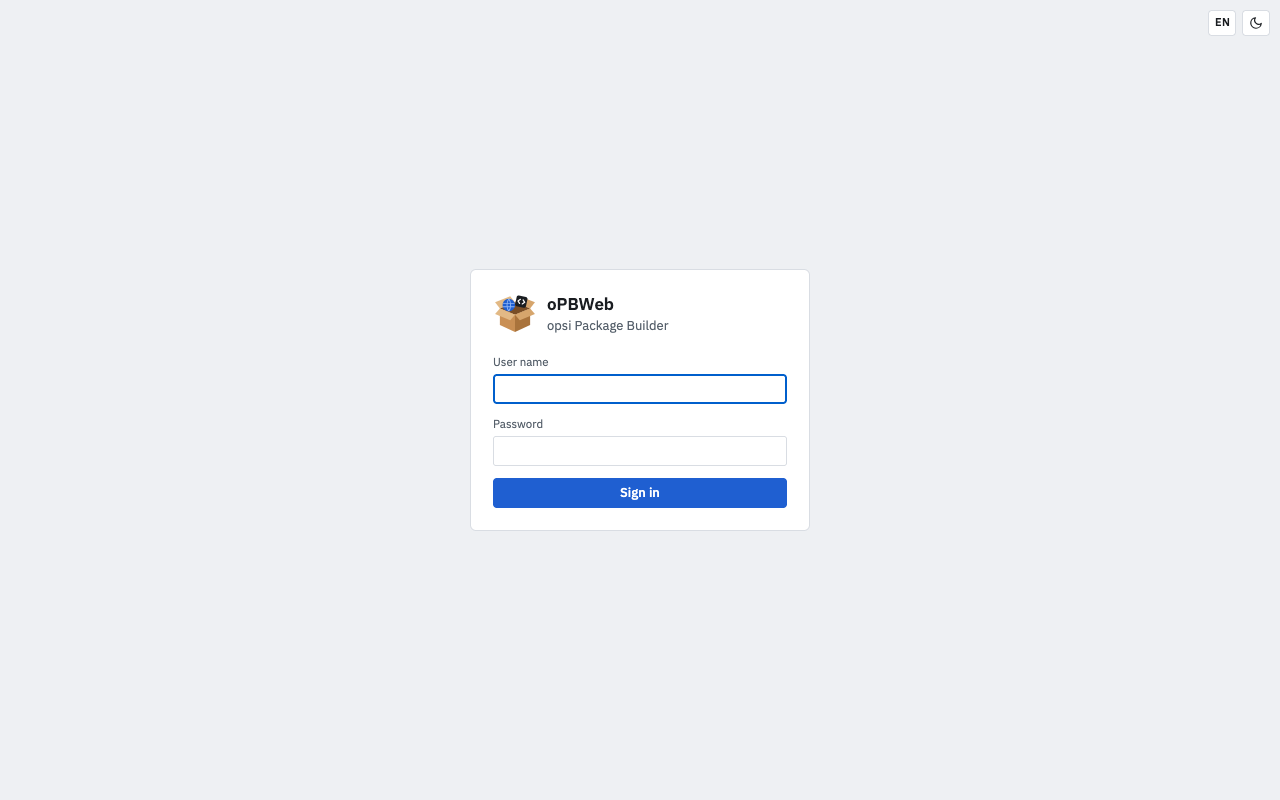
Enter admin in User name (or the value of ADMIN_USERNAME from .env).
Enter the password from secrets/admin_password.txt in Password.
Click Sign in.
After signing in you see the package list. The orange notice “No config server configured” appears in the status bar at the bottom until you have set up the first configserver.
2. Change the admin password
The generated password is stored in plain text in secrets/admin_password.txt. Change it right after the first sign-in:
- Click your avatar (your initials) in the top right corner.
- Select Change password.
- Enter the Current password, then the new password twice in New password and Repeat new password. The password must be at least 10 characters long.
- Click Save.
The file secrets/admin_password.txt is not changed. It is only evaluated as long as no user exists, that is, on the very first start.
3. Set up configservers
oPBWeb can work with several opsi configservers, for example a test and a production system. You add them in the Depots view; the password is stored encrypted in the database and decrypted only by the worker. Repeat the following steps for every additional configserver.
Click Depots in the activity bar on the left.
Click + (“New config server”) at the top of the list on the left.
Enter the following values:
- Name – a label, for example Configserver. If you leave the field empty, the host name from the URL is used.
- Config server URL – fully qualified host name with port 4447, for example
https://opsi.example.local:4447. Use the FQDN, not the IP address: the opsiconfd certificate is issued for the name. - Technical user – the opsi user with admin rights (default
opsiadm). - Password – the password of this user.
- Stage – Production (default), Staging or Test. For a test server, select Test; all depots of the server take over this stage (see step 4
).
Leave Verify the server TLS certificate (recommended) switched on.
Under TRUSTED CA CERTIFICATE, click Fetch from server. oPBWeb loads the CA certificate of the configserver and shows it with its SHA-256 fingerprint in the CA certificate of the server dialog.
On the configserver, determine the fingerprint of the opsi CA:
openssl x509 -in /etc/opsi/ssl/opsi-ca-cert.pem -noout -fingerprint -sha256
Compare both fingerprints. If they match, click Trust. If they differ, cancel and find out which server you are actually connected to.
Click Add. The message “opsi server saved” confirms this.
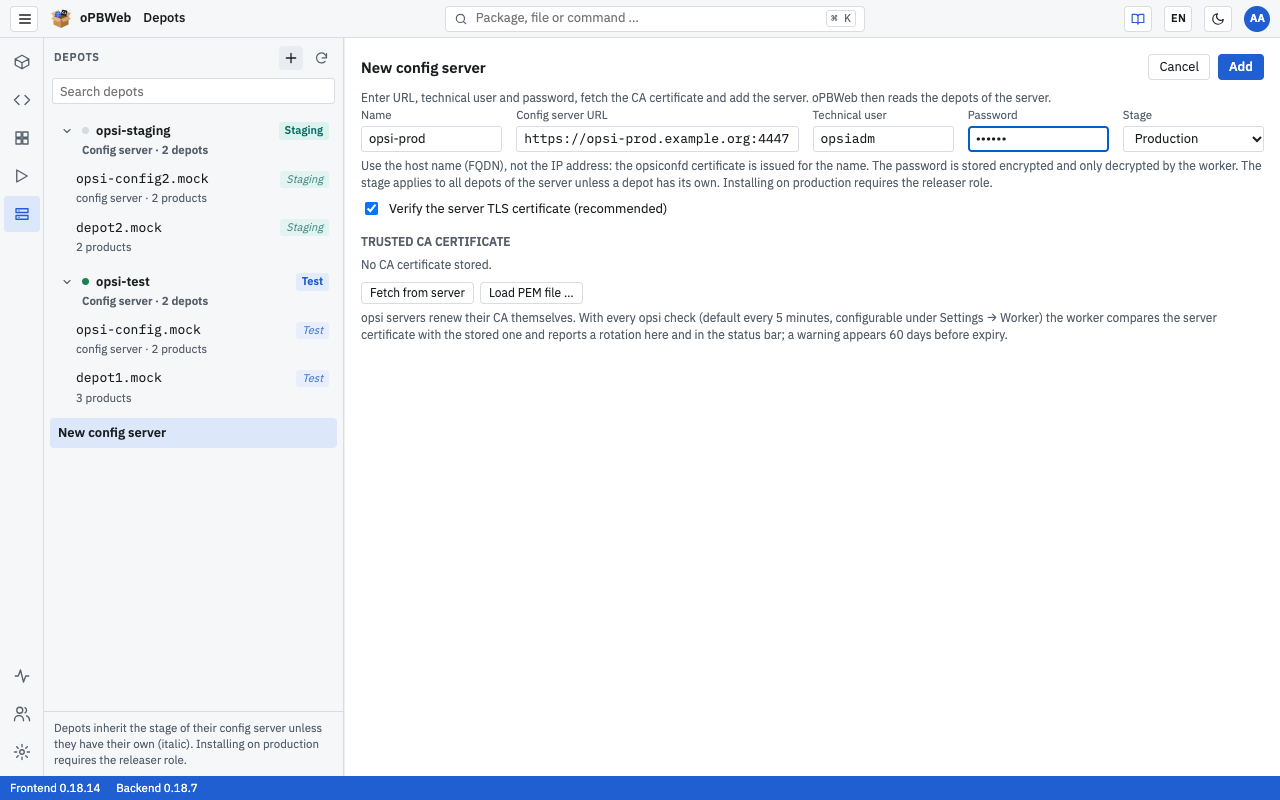
Right after adding, oPBWeb runs Test connection for the new server. The test checks sign-in, admin rights and opsi version and reads the depots of the configserver; they then appear in the list below the server. If it succeeds, the dot in front of the server name turns green and the badge in the form shows “reachable”. Later you can repeat the test at any time with Test connection in the server’s form.
Afterwards you see a line such as “Last checked … · opsi 4.3 … · 2 depots” below the CA certificate.
Tip
Instead of Fetch from server you can also load the CA from a file with Load PEM file …, for example if you have copied /etc/opsi/ssl/opsi-ca-cert.pem from the configserver beforehand.
If the test fails, check the most common causes:
| Message or symptom | Cause |
|---|
| “… has no opsi admin rights” | The technical user is not an admin in opsi. |
| HTTP 403 | opsiconfd only allows admin calls from the admin-networks; the worker’s Docker network is missing there, see Requirements
. |
| Certificate error | The URL contains an IP address instead of the FQDN, or no CA certificate or a wrong one is stored. |
The chapter Troubleshooting
describes further causes. The chapter Config Servers
explains all functions of the form, including removing a configserver and replacing the CA certificate after a rotation.
Note
The opsi server row on the System status page is filled by a worker check that runs every 5 minutes by default (Settings → Worker
). It can therefore take a few minutes after the setup until it shows “OK”.
4. Define depot stages
With the successful connection test, oPBWeb reads the depots from the configserver. After that, the worker syncs the depots of all configservers automatically every 5 minutes; under Depots you can also trigger a sync yourself with Sync (one configserver) or ⟳ (all configservers).
Each depot has a stage: Test, Staging or Production. Packagers may install on test and staging depots; only Releasers may install on production depots. A depot inherits the stage of its configserver; you recognize this by the italic badge. If you already chose the right stage for the configserver, there is nothing left to do here.
If individual depots should differ from the stage of their configserver, for example a test depot on a production configserver, change the stage on the depot itself:
Click Depots in the activity bar.
Select the depot on the left.
In the Settings area, select the value you want for Stage, for example Test. With “as config server (…)” the depot inherits the stage of its server again.
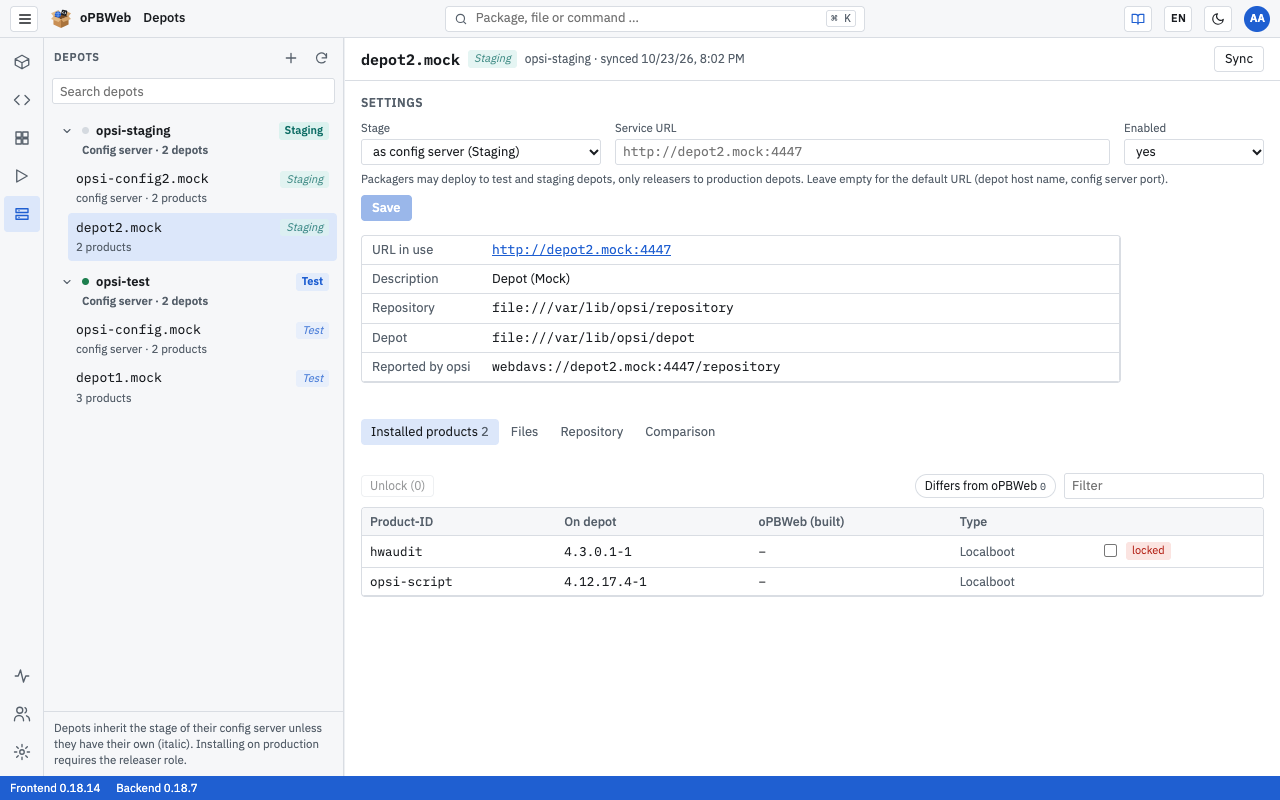
Click Save. The message “Settings saved” confirms the change, and the depot shows the Test badge in the list.
Repeat the steps for all other depots that differ.
The chapter Depot Management
describes the other depot settings (Service URL, Enabled).
5. Create the first users
Create separate accounts for everyone who works with oPBWeb instead of sharing the admin account:
- Click Users and roles in the activity bar.
- Click New user.
- Fill in User name, Role, Name, Email, Default language and New password, and click Create.
The chapter Users and Roles
explains which role may do what and how to edit, lock or delete accounts later.
Tip
Create at least one second account with the Administrator role. Otherwise, if the only admin account is locked or its password is forgotten, nobody can access the administration anymore.
6. Optional: sign-in via LDAP
In addition to local accounts, users can sign in with their directory account (LDAP or Active Directory). Their role is then derived from their group membership at every sign-in. The setup is done via .env and is a task for technical administration, see LDAP Sign-in
.
Result
After the initial setup:
- the admin password is changed,
- the configservers are set up and “reachable”, and the status bar no longer shows an opsi notice,
- the depots are known and have the right stage (Test, Staging or Production),
- the first users can sign in.
The chapter Getting Started
shows what working in oPBWeb looks like from there.