Functional Administration
Users, roles, config servers, depots and settings in the user interface
Role: Administrator
Overview
This part is for administrators who set up and maintain oPBWeb in the user interface. Everything described here is done in the browser, without access to the server or the Docker environment. How to install, configure and back up the stack is covered in Technical Administration
.
As an administrator, you have all the permissions of the other roles. In addition, you see the Users and roles and Settings areas at the bottom of the activity bar, and you get extra functions in System status and Depots, such as managing the config servers.
Tasks at a glance
| Task | Where in the UI | Chapter |
|---|
| Create accounts, assign roles, disable or delete accounts | Users and roles › Users | Users and roles |
| Trace who changed what and when | Users and roles › Audit log | Audit log |
| Add opsi config servers, set their stage, maintain the CA certificate, remove config servers | Depots › + or the config server row | Config servers |
| Define defaults for new packages and meta packages | Settings | Settings for new packages |
| Assign depots to the stages Test, Staging and Production, disable or remove them | Depots › Settings | Depot management |
| Monitor services, check storage usage, clean up object storage | System status | System status |
During the initial setup, you go through these items in a fixed order. The steps are described in Initial setup
.
Note
The UI hides functions your role does not allow. The actual check, however, is done by the server: even if you open an address like /users directly, you end up back on the package list without the Administrator role.
Users and Roles
Roles and permissions, creating and maintaining local accounts, directory accounts from LDAP
Role: Administrator
Overview
Under Users and roles, you manage all accounts that can sign in to oPBWeb. Each account has exactly one role, which defines what it may do in the UI. Besides local accounts that you create yourself, there are directory accounts from LDAP whose role is derived from their groups in the directory.
Open the area with the Users and roles icon at the bottom of the activity bar. It has two tabs: Users (with the number of accounts) and Audit log. The audit log is described in the Audit log
chapter.
Roles and permissions
There are four roles. They build on each other: each role has all permissions of the roles above it and adds its own.
| Role | Short description in the UI |
|---|
| Viewer | read only |
| Packager | edit and build packages, install on test depots |
| Releaser | also deploy to production depots |
| Administrator | also users, servers and settings |
The UI hides or disables buttons when the role is not sufficient. Every permission is still checked on the server. If a permission is missing, the message “No permission for this action.” appears.
Viewer
- view the package list and package details, open the package editor read-only, view the Source of the control file
- download built
.opsi and .md5 files - read snippets
- follow all jobs with their live log, cancel their own queued jobs
- view depots and download files from them
- see the services table in System status
- set their own Default language, change their own password (local accounts only)
Packager
- create packages: New package, Import, Workbench …, Meta package …
- edit drafts and Build, create a New version, create, upload, rename and delete files in the package
- Archive and Restore packages
- Delete this version, Back to draft and Delete package …, as long as the package or version is not installed on a production depot (see stage rule
)
- Compare with workbench …, Export to workbench …, write to
/workbench of every config server and Import into oPBWeb - Sync depots and read the repository
- on test and staging depots: Install …, Uninstall …, Promote … or Promote to another stage …, Unlock products, delete repository files
- maintain their own snippets and snippet categories
Releaser
- all depot actions of the Packager (install, uninstall, promote, unlock, delete from repository) on production depots as well
- delete versions and packages and set versions back to draft, even if they are installed on a production depot
Administrator
- the Users and roles (including Audit log) and Settings areas
- add, change and remove config servers under Depots
- depot settings (Stage, Service URL, Enabled) and Remove for depots
- maintain global snippets
- cancel queued jobs of other users
- the Database, Object storage, Clean up … and Bucket contents sections in System status
The stage rule for depots
What a Packager may do with a package on a depot depends on the depot’s Stage, not only on their role. The table shows who may perform which action on which stage:
| Action | Test | Staging | Production |
|---|
| Install … (also with setup) | Packager and above | Packager and above | Releaser and above |
| Uninstall … | Packager and above | Packager and above | Releaser and above |
| Promote … / Promote to another stage … (target depots) | Packager and above | Packager and above | Releaser and above |
| Unlock products | Packager and above | Packager and above | Releaser and above |
| Delete repository files | Packager and above | Packager and above | Releaser and above |
| Delete a version, Back to draft, Delete package …, if installed there | Packager and above | Packager and above | Releaser and above |
| Sync depots, read the repository | Packager and above | Packager and above | Packager and above |
| View the depot, download files | Viewer and above | Viewer and above | Viewer and above |
| Change the depot’s Stage, Service URL, Enabled | Administrator | Administrator | Administrator |
For deleting and for Back to draft, it matters where the package is currently installed: if the version (or, when deleting the package, any of its versions) is on a production depot, the Releaser role is required. A Packager then gets a message listing the depots on which the package is installed. This is based on the state of the last depot sync.
Depots inherit the stage of their config server unless you give them their own. New config servers start in the Production stage. So a Packager can install on their depots only after you set the config server or the individual depot to Test or Staging. In the Install … dialog, a locked depot is shown with the hint “requires releaser role”. How to change the stage is described in Depot management
.
Note
The workbench of a config server is not covered by the stage rule: Packagers may write to /workbench of every config server, including production servers.
The user list
The Users tab shows all accounts in a table. The User details pane for the selected account opens to its right.
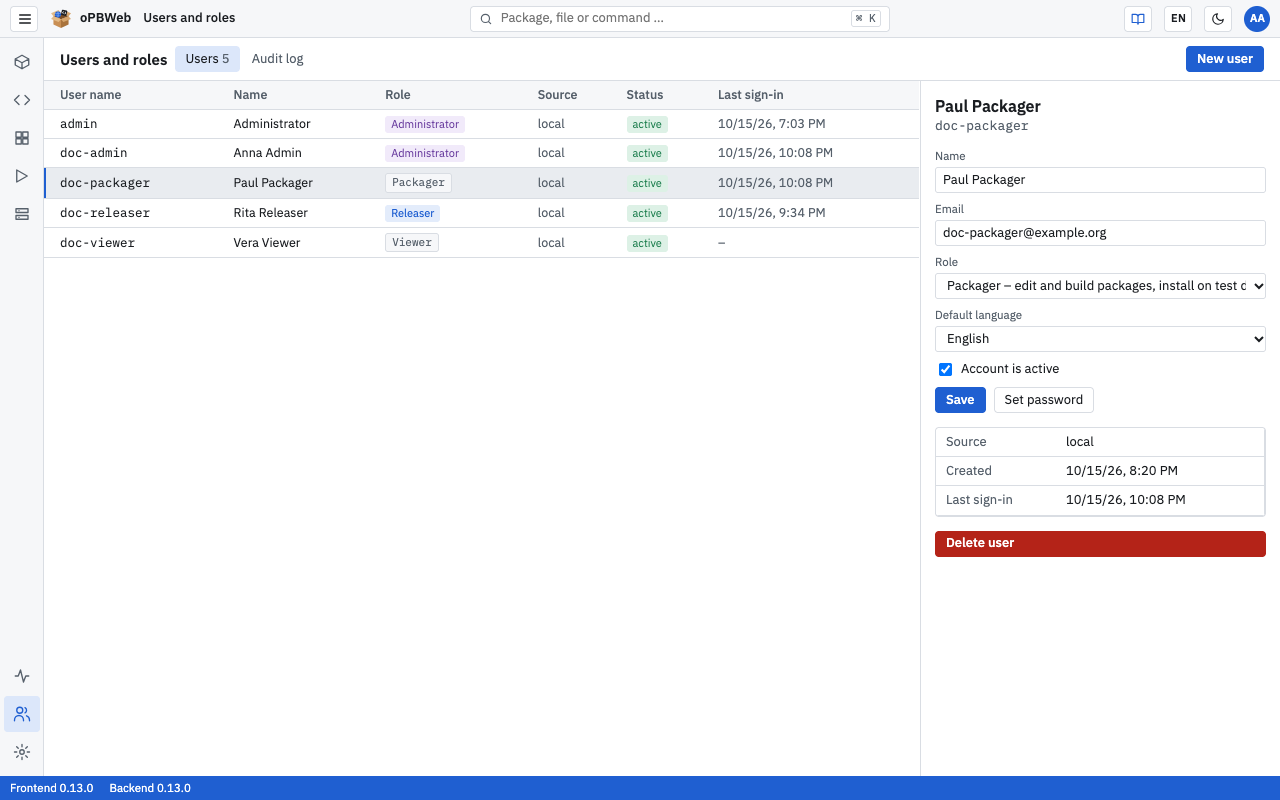
| Column | Meaning |
|---|
| User name | Sign-in name of the account |
| Name | Display name |
| Role | Role as a colored badge |
| Source | local (created in oPBWeb) or Directory (LDAP) |
| Status | active, disabled or locked (after too many failed attempts) |
| Last sign-in | Time of the last successful sign-in |
Below the fields, the user details also show Source, Created and Last sign-in.
Local accounts
Local accounts sign in with a password that oPBWeb stores itself. The first administrator account (admin) is created when the system starts for the first time; you create all further local accounts here.
Creating an account
Click New user in the toolbar.
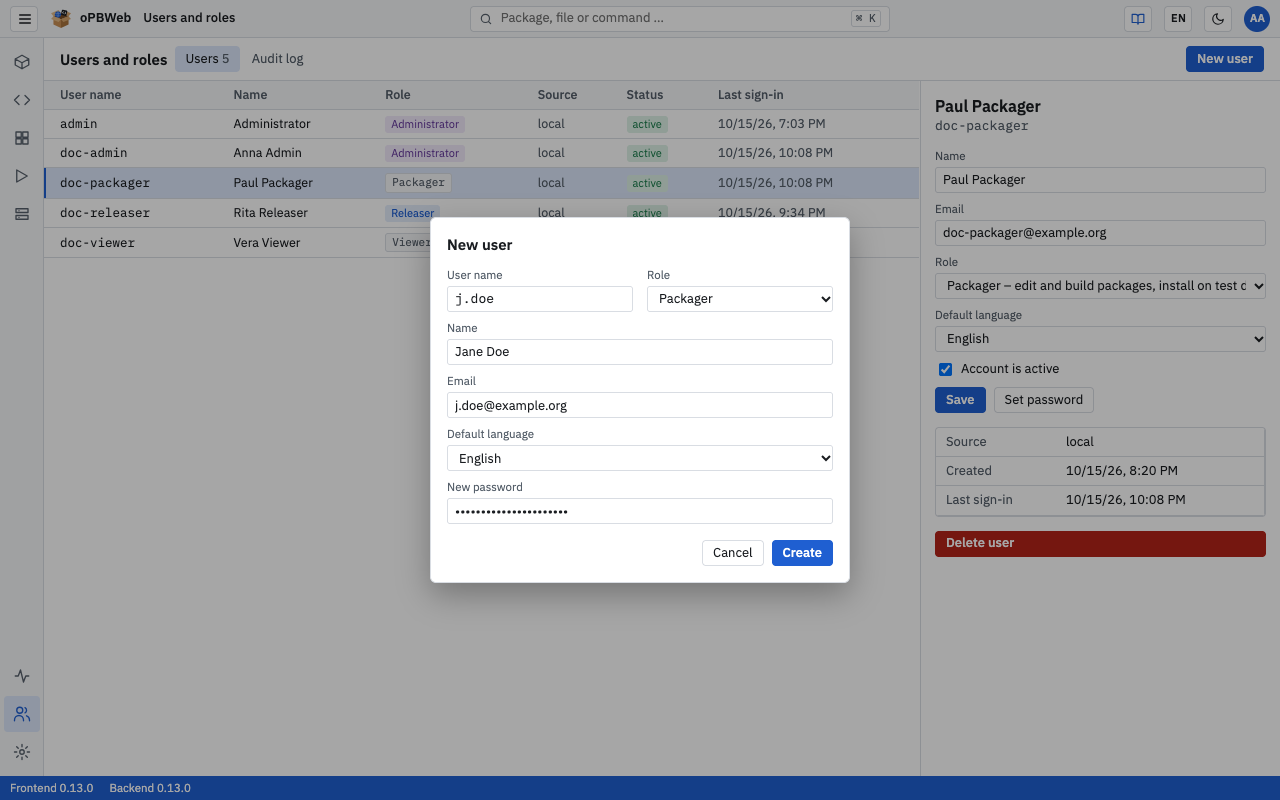
Enter the User name. Allowed are 2 to 128 characters consisting of letters, digits and . _ @ -.
Select the Role. The dialog suggests Viewer, the role with the fewest permissions.
Optionally enter Name and Email. The email address appears in changelog entries of this user.
Select the Default language (Deutsch or English). The UI starts in this language after every sign-in.
In the New password field, set an initial password with at least 10 characters.
Click Create.
The new account appears in the list and is selected right away. Pass the initial password to the user through a secure channel; they can then replace it themselves under Change password in the avatar menu.
Note
If the user name is already taken, the dialog reports “User name is already taken.” This also applies to names of directory accounts that have signed in before.
Editing an account
- Select the account in the list.
- In the User details, change Name, Email, Role or Default language.
- Click Save. “Saved” appears in the toolbar.
Every user can also change their default language themselves in the avatar menu (see Account and language
).
Disabling an account
A disabled account is kept with all its data but can no longer sign in. The sign-in fails with “Account is disabled.”
- Select the account.
- Clear the Account is active checkbox.
- Click Save.
To re-enable it, select the checkbox again and save.
Setting a password
If a user has forgotten their password, set a new one:
- Select the account and click Set password.
- Enter the new password twice (at least 10 characters).
- Confirm the dialog. “Password set” appears in the toolbar.
You do not need the old password for this. Setting a password also lifts an existing lock.
Unlocking an account
After 5 wrong passwords in a row, oPBWeb locks a local account for 15 minutes. During the lock, the sign-in message is “Account locked until HH:MM.”, even if the password is correct. In the list, the account shows as locked.
You do not have to wait for the lock to expire:
- Select the locked account.
- Click Unlock. The button only appears for locked accounts.
The user can sign in again immediately. If they have actually forgotten their password, use Set password instead.
Deleting an account
- Select the account.
- Click Delete user.
- Confirm the prompt “Delete user?” with Delete user.
The account is removed permanently. Entries in the Audit log
are kept with the user name. You cannot delete your own account; the button is disabled for it.
Tip
If you are not sure whether an account will be needed later, disable it instead. A disabled account can be re-enabled at any time.
Protection of the last administrator
oPBWeb prevents a situation where nobody can reach the administration any more. For the last active administrator account:
- You cannot give it a lower role or disable it. The message is “The last active administrator cannot be removed.”
- You cannot delete it: “The last active administrator cannot be deleted.”
So create a second administrator account first before you downgrade or remove the existing one.
Directory accounts (LDAP)
If technical administration has enabled LDAP sign-in, users from the directory (for example Active Directory) can sign in as well. You recognize these accounts by the source Directory (LDAP). The setup is described in LDAP Sign-in
.
Directory accounts follow different rules than local accounts:
- Creating: You do not create them yourself. The account is created automatically at the first successful sign-in.
- Role: The role is derived from the user’s LDAP groups at every sign-in. If the user is in several matching groups, the highest role applies. The Role field is locked, and below it you see “The role of directory accounts is derived from their LDAP groups at every sign-in.” To change the role, change the group membership in the directory.
- Name and email: oPBWeb takes these values from the directory at every sign-in. Changes you save here are overwritten at the next sign-in.
- Password: Directory accounts have no password in oPBWeb. Set password is missing, and the user changes their password in the directory. The lock after failed attempts also applies only to local accounts.
- Disabling: Works as for local accounts. A disabled directory account can no longer sign in, even if it is still authorized in the directory.
- Deleting: A deleted directory account is recreated at the next sign-in as long as the user is still in a matching group. To exclude someone permanently, disable the account or remove the user from the groups.
Note
If a user in the directory is not in any of the groups configured for oPBWeb, the sign-in fails with “No permission for oPBWeb (no matching group).” In that case, the user does not appear in the user list at all.
Local accounts always sign in locally, even when LDAP is enabled. This keeps the local administrator admin reachable even if the directory fails.
Audit Log
Use the audit log to trace who triggered which action and when
Role: Administrator
Overview
The audit log records who triggered which important action in oPBWeb and when: sign-ins and changes to accounts, packages, depots and settings. You find it under Users and roles on the Audit log tab. Only administrators can read it.
Entries can be neither changed nor deleted in the UI. Even if you delete a user account, its entries are kept with the user name.
Reading the audit log
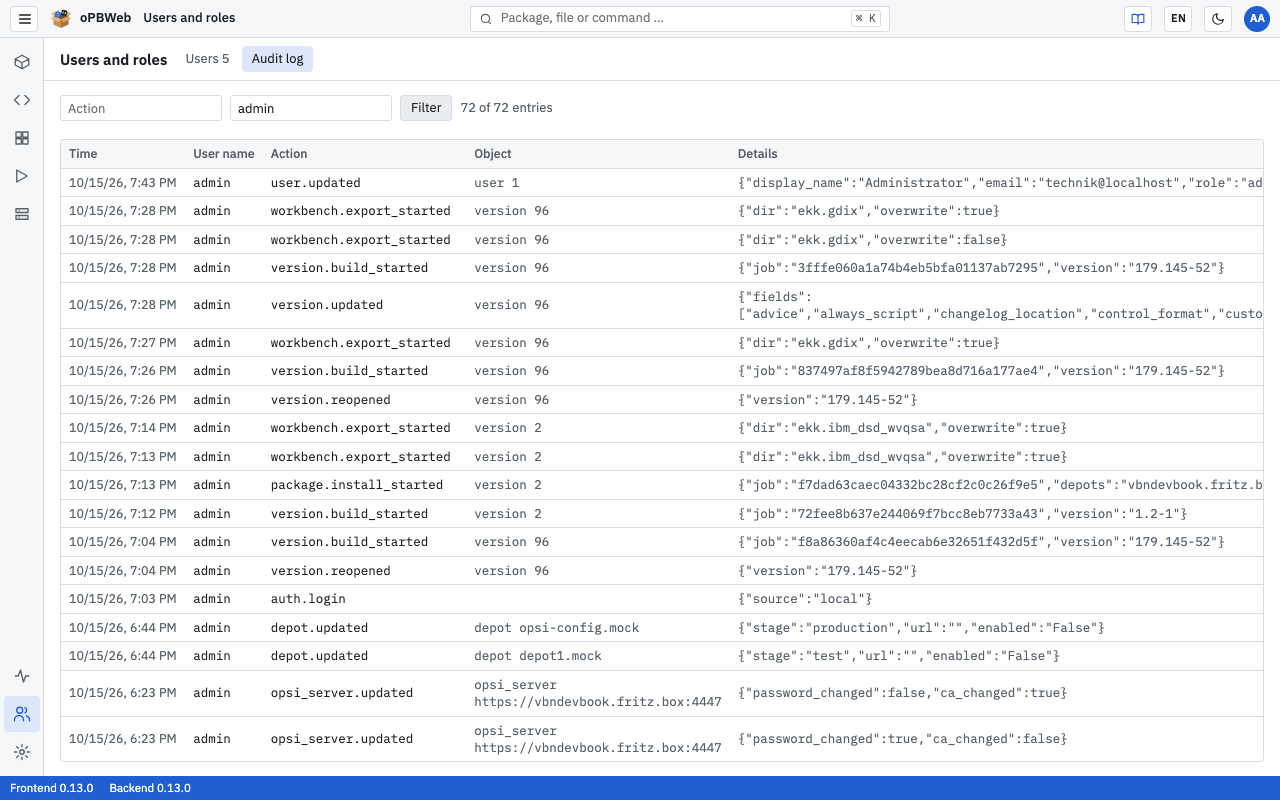
The newest entries are at the top. Each row has these columns:
| Column | Content |
|---|
| Time | Date and time of the action |
| User name | Who triggered the action. For failed sign-ins, the name that was entered. |
| Action | Technical key of the action, for example user.created (see list of actions
) |
| Object | Type and identifier of the affected object, for example depot depot01.example.local |
| Details | Additional information in JSON format, for example the changed fields or the reason for a rejected sign-in |
| IP | IP address the request came from |
Above the table, you see how many entries are displayed, for example “100 of 2,345 entries”. Entries are loaded 100 at a time. Use Load more below the table to fetch the next 100.
Note
Action keys and details always appear exactly as oPBWeb stores them, that is in English and regardless of the selected language.
Filtering entries
- In the Action field, enter the beginning of an action key.
user. finds all actions on user accounts, auth.login_failed only the failed sign-ins. - In the User name field, enter a user name. The name must be complete and match exactly.
- Click Filter.
You can combine both fields. To see all entries again, clear the fields and click Filter again.
Recorded actions
| Action | When it is recorded |
|---|
auth.login | successful sign-in |
auth.login_failed | rejected sign-in (reason in Details) |
auth.logout | sign-out |
auth.password_changed | user changes their own password |
user.created | account created |
user.updated | account edited (name, email, role, language, active) |
user.password_set | administrator sets a password |
user.unlocked | administrator lifts a lock |
user.deleted | account deleted |
package.created | new package or meta package created |
package.deleted | entire package deleted (Delete package …) |
package.archived | package archived; Details gives the number of deleted build results |
package.restored | archived package restored |
package.import_started | import of an .opsi file started |
package.install_started | installation on depots started |
package.uninstall_started | uninstallation on depots started |
version.updated | product data of a version saved |
version.properties | properties saved |
version.dependencies | dependencies saved |
version.files_uploaded | files uploaded into the package |
version.build_started | build started |
version.released | version released (when the installation starts) |
version.reopened | Back to draft |
version.copied | New version created |
version.deleted | version deleted |
depot.updated | depot settings changed (stage, service URL, enabled) |
depot.deleted | depot removed from oPBWeb |
depot.unlock | products unlocked on a depot |
depot.repository_delete | files deleted from a depot’s repository |
files.written | file saved on the server (Depots › Files) |
files.mkdir | folder created on the server |
files.moved | file or folder renamed on the server |
files.deleted | file or folder deleted on the server |
files.upload_started | upload to the server started |
workbench.import_started | import from the workbench started |
workbench.export_started | export to the workbench started |
snippets.imported | snippets imported |
settings.updated | settings for new packages, meta packages or changelog changed (changed keys in Details) |
opsi_server.created | config server added |
opsi_server.updated | connection data or stage of a config server changed |
opsi_server.deleted | config server removed with Remove … |
opsi_server.ca_accepted | Accept new certificate after a CA rotation |
storage.cleanup | object storage cleanup confirmed (only the deletion run, not the dry run) |
For actions that start a job (…_started), the audit log only shows who started the job. Whether it succeeded is shown under Jobs
.
What is not recorded
Some actions are deliberately not recorded in the audit log:
- new changelog entries
- saving file contents in the package (script editor)
- creating, moving, renaming and deleting files and folders in the package
- creating, changing and deleting individual snippets and snippet categories
- depot sync
- reading the repository and scanning the workbench
- Fetch from server (CA certificate) and Test connection
- the dry run when cleaning up object storage
Many of these actions still leave a trace: everything that runs as a job appears in the job list with the user who started it and its log.
Config Servers
Add opsi config servers in the Depots view, set their stage, maintain the CA certificate and check the connection
Role: Administrator
Overview
oPBWeb works with any number of opsi config servers, for example a test, a staging and a production system. Through each config server, oPBWeb reads its depots, installs packages and accesses /repository, /workbench and /depot. Each depot belongs to exactly one config server.
You manage the config servers in the Depots view in the activity bar. As long as no config server is configured, depots, installing and the workbench do not work, and the status bar shows “No config server configured”.
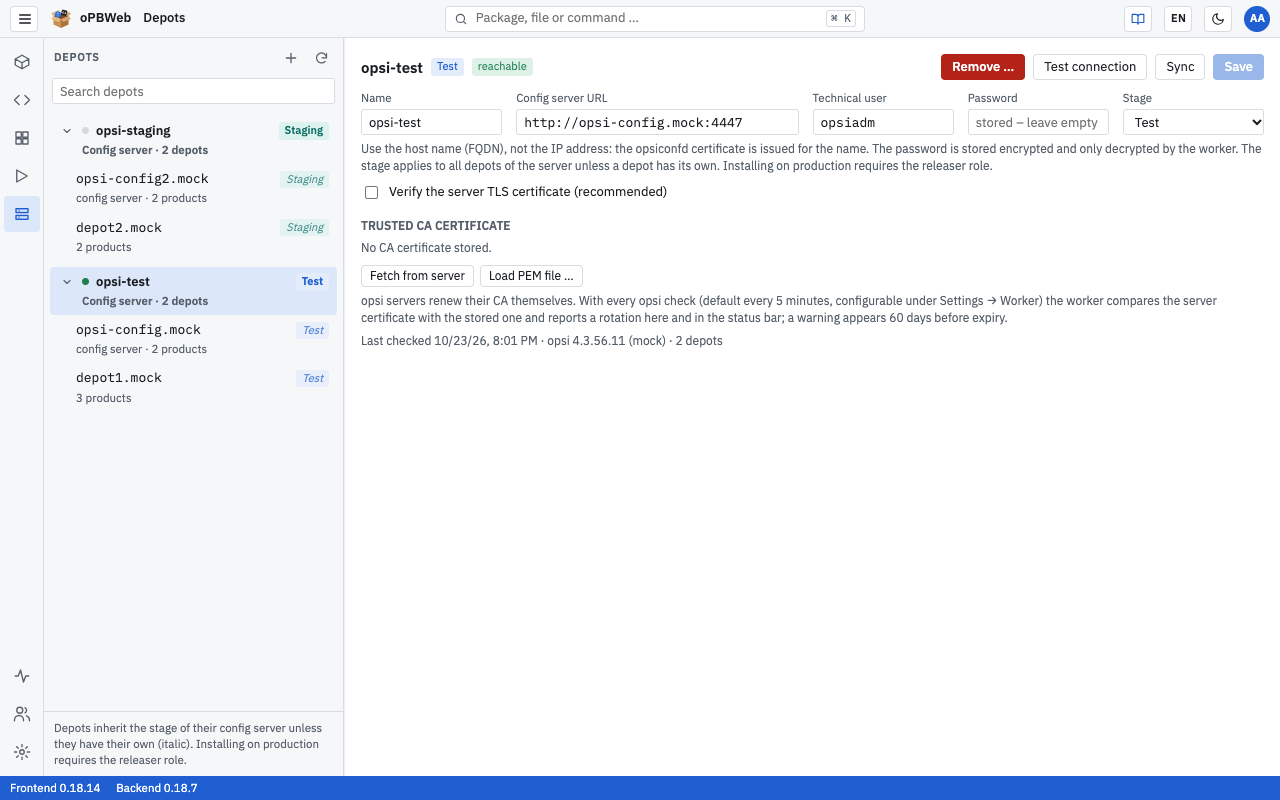
Config servers in the depot list
The list on the left of the Depots view is grouped by config server. Each config server is shown as a bold row, with its depots indented below it. The arrow in front of the name collapses or expands the depots of a server, and the “Search depots” field above searches the list (see Depots
).
| Element | Meaning |
|---|
| Dot in front of the name | green: last check OK, red: last check failed, gray: not checked yet |
| Badge | Stage of the config server (Production, Staging or Test) |
| Second line | “Config server · 3 depots” |
There are two buttons at the top of the list:
- + (“New config server”) adds another config server. Only administrators see it.
- ⟳ (“Synchronize all config servers”) syncs the depots of all config servers. The button is available from the Packager role.
Clicking a config server row opens the server’s form on the right. Next to the heading, you see the stage badge and the result of the last check: reachable or not reachable. The header contains the buttons Remove …, Test connection, Sync and Save.
Users without the Administrator role see a card instead of the form, with name, stage, Config server URL, State (reachable or not reachable including the error message) and the validity of the CA certificate. From the Packager role, the card has a Sync button.
The fields
| Field | Content |
|---|
| Name | Display name of your choice, for example config server. If the field is empty, oPBWeb uses the host name from the URL. |
| Config server URL | Address of opsiconfd including the port, for example https://opsi.example.local:4447. Use the fully qualified host name (FQDN), not an IP address: the opsiconfd certificate is issued for the name. Each URL can be configured only once. |
| Technical user | opsi user that oPBWeb works with. The default is opsiadm. The user needs opsi admin rights. |
| Password | Password of the technical user. It is stored encrypted and never shown again. If a password is already stored, the field shows “stored – leave empty to keep”. |
| Stage | Production, Staging or Test. The stage applies to all depots of the server unless a depot has its own. Installing on production requires the Releaser role. New config servers start with Production. |
| Verify the server TLS certificate (recommended) | Checks the server certificate against the stored CA certificate. Leave this option enabled. |
With TLS verification enabled, oPBWeb trusts only the CA certificate you store under TRUSTED CA CERTIFICATE, not the certificate authorities of the operating system. Without a stored CA certificate, an https connection with TLS verification cannot be saved (“A CA certificate is required for the TLS check.”).
What the stage means for permissions and how depots inherit it is described in Depot management
.
Adding a config server
Open Depots in the activity bar.
Click + at the top of the list on the left. The “New config server” form appears on the right.
Enter Config server URL, Technical user and Password, and optionally a Name.
Select the Stage, for example Test for a test server.
Under TRUSTED CA CERTIFICATE, click Fetch from server. oPBWeb loads the server’s CA certificate in a short job; meanwhile the button shows “Loading …”.
The CA certificate of the server dialog shows the certificate with its SHA-256 fingerprint. Compare it with the fingerprint on the config server:
openssl x509 -in /etc/opsi/ssl/opsi-ca-cert.pem -noout -fingerprint -sha256
If both match, click Trust. Below the certificate table, “Changed CA certificate – save to apply.” appears.
Click Add. The message “Config server saved” confirms this.
Right after adding, oPBWeb runs Test connection
for the new server. The test also reads the server’s depots; they then appear in the list below the config server. Cancel discards a new config server before it is saved.
If the URL is already configured, oPBWeb refuses to save: “A config server with this URL is already configured: …”.
Warning
Only click Trust if the fingerprint really matches the one on the server. When fetching, oPBWeb does not verify the certificate yet – that is exactly what the comparison is for. If it does not match, close the dialog and find out why.
Changing a config server
Select the config server in the list, change the fields and click Save. As long as there are unsaved changes, Test connection and Sync are disabled. If you switch to another entry in the list with unsaved changes, oPBWeb asks for confirmation first.
Loading the CA certificate from a file
Instead of fetching the certificate from the server, you can upload it as a file, for example if you copied opsi-ca-cert.pem from the server beforehand:
- Click Load PEM file … and select a file with the extension
.pem, .crt or .cer. - “New PEM file loaded, it is checked on save.” appears.
- Click Save (for a new server, Add). Only now does the server check the file. If it does not contain a valid certificate, the message is “Not a valid PEM certificate: …”.
Remove below the certificate table deletes the stored CA certificate; this, too, only takes effect when you click Save.
Removing a config server
- Select the config server in the list.
- Click Remove … in the header.
- Confirm the prompt “Remove config server name? Its 3 depots disappear from oPBWeb (nothing changes on the opsi server).”
The message “Config server name removed” confirms this. oPBWeb deletes the config server, its depots with their settings and the product lists of these depots. Packages and jobs are kept. Nothing changes on the opsi server itself.
Validity of the CA certificate
The table under TRUSTED CA CERTIFICATE lists every certificate in the stored file with Certificate (subject), Validity and SHA-256 fingerprint. If the file contains no CA certificate, “not a CA certificate” is shown after the subject.
The badge in the Validity column shows the remaining lifetime:
| Badge | Meaning |
|---|
| green, “729 days left” | valid for more than 60 days |
| orange, “45 days left” | valid for less than 60 days |
| red, “10 days left” | valid for less than 14 days |
| red, “expired” | the certificate has expired |
From 60 days before expiry, the status bar additionally shows “name: CA expires in {n} days”, and the opsi server row in System status
is set to error.
CA rotation
opsi servers renew their CA themselves. Afterwards, the certificate stored in oPBWeb no longer matches the server’s, and connections with TLS verification fail. oPBWeb detects this during the regular check and reports it in three places:
- in the status bar: “name: new CA certificate” (a link to Depots for administrators)
- in System status in the opsi server row
- in the config server form as a box “The server serves a new CA certificate” above the fields
To accept the new certificate:
- Open Depots and select the affected config server. The box shows the new certificate with its expiry date and SHA-256 fingerprint.
- Compare the fingerprint with
/etc/opsi/ssl/opsi-ca-cert.pem on the server (command as above). - Click Accept new certificate. The message “New CA certificate accepted” confirms this; no further save is needed.
Remaining warnings in the status bar and system status disappear with the next check, after five minutes at the latest. If you do not want to wait, click Test connection.
Testing the connection
Test connection checks the saved settings of the selected config server immediately. The button is disabled as long as there are unsaved changes (“Please save first”).
The test runs as a job and checks, in order:
- whether the stored CA certificate matches the server
- whether signing in with the technical user and password works
- whether the technical user has opsi admin rights
- which opsi version is running and which depots the server reports
If the test succeeds, oPBWeb then syncs the depots of this server. The result appears as “Connection OK” or as an error message. Below the form, you then see, for example, “Last checked 10/15/26, 09:30 · opsi 4.3.x · 3 depots” or the error message of the last check in red.
Syncing
Sync in the config server form reads only the depots of this server, their installed products and the project folders of its workbench again; the job is called “Synchronize depots (name)”. ⟳ at the top of the list syncs all config servers (“Synchronize depots of all config servers”). A sync never touches the depots of another config server. What happens to the depots during a sync is described in Depot management
.
Automatic background check
You do not have to run the test by hand regularly. The worker checks all config servers every five minutes (default, configurable under Settings → Worker) in the same way and syncs the depots of every reachable server. You see the result:
- in the dot in front of the server name in the depot list, in the reachable / not reachable badge and in “Last checked …” in the form
- in the opsi server row in System status, with one entry per config server
- as an orange hint in the status bar if the server is missing, the CA was rotated or the CA expires soon
Common errors
Error messages come from the server and follow the interface language. Details that opsiconfd itself returns (for example HTTP errors) are shown unchanged.
| Message | Cause and solution |
|---|
| “user has no opsi admin rights” | The technical user is not an opsi administrator. Add the user to the opsi admin group on the config server, or enter a different user. |
| “… HTTP 403” | opsiconfd rejects admin calls from the oPBWeb network. If the opsiconfd configuration contains admin-networks, the Docker network of the oPBWeb worker must be included. Technical administration adjusts this (see Troubleshooting
). |
| “The server delivers a different CA certificate than the stored one (rotation?)” | CA rotation on the server, see CA rotation
. |
| “No CA certificate is stored for the opsi server (Depots → config server).” | TLS verification is on, but no CA certificate is saved. Fetch it with Fetch from server and save. |
| “CA not retrievable: …” | The server cannot be reached at the URL entered. Check the host name, the port (usually 4447) and reachability from the oPBWeb server. |
| “A config server with this URL is already configured: …” | The server has already been added. Select it in the list instead of adding it a second time. |
| “Depot … already belongs to config server … and is skipped” (in the job log) | Another configured config server reports the same depot, for example because the same server was added under two URLs. Remove the duplicate entry. |
| Certificate error despite the correct CA | Most likely the URL contains an IP address instead of the host name. Enter the FQDN. |
| “The server does not deliver a different certificate.” | With Accept new certificate: the rotation has already been accepted in the meantime. Nothing else to do. |
Settings for New Packages
Defaults for new packages and meta packages, and the mail domain for changelog entries
Role: Administrator
Overview
Under Settings, you define the values new packages and meta packages start with, and which mail address changelog entries get when the user has no email. The values apply to all users. Only administrators may change them.
The defaults only take effect when a package is created. Existing packages and imported packages (.opsi or workbench) keep their own values, and every Packager can override the defaults in the package editor.
You do not set up the connection to the opsi config servers here but in the Depots view, see Config servers
.
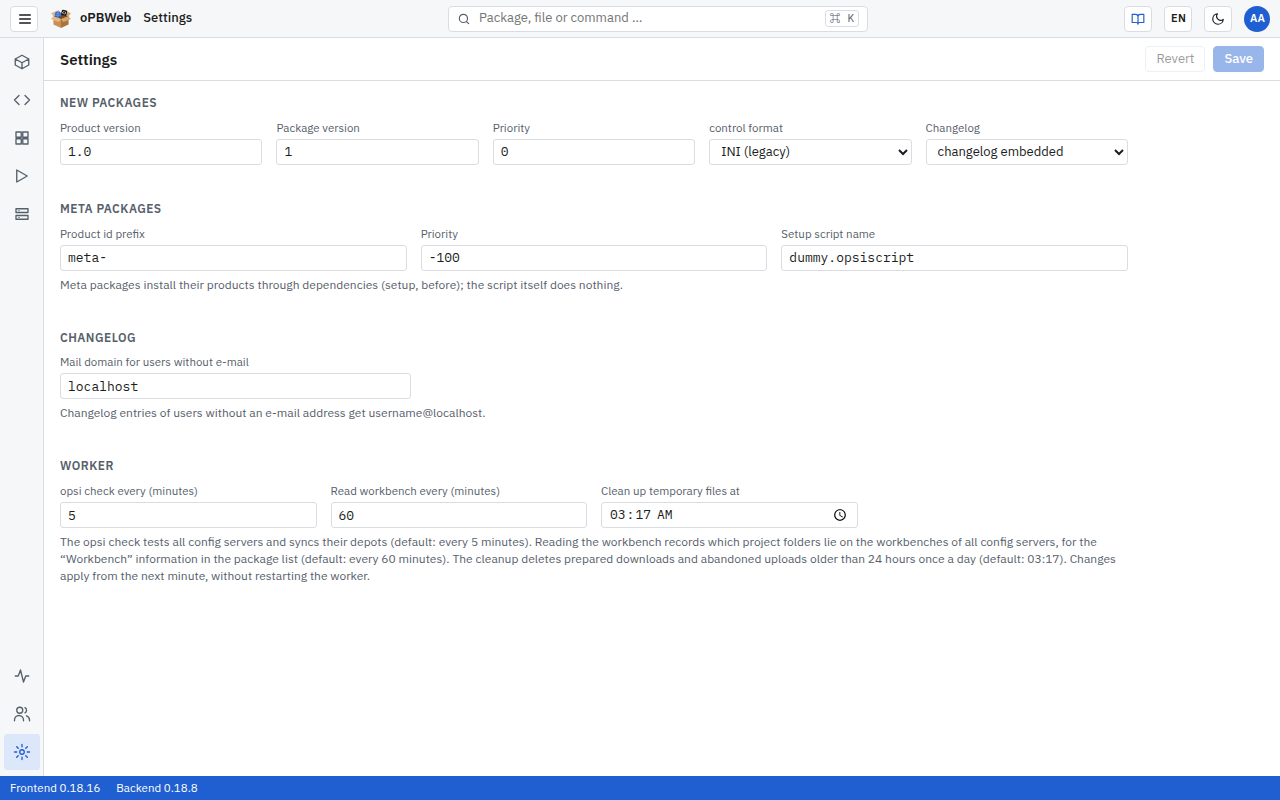
Changing settings
- Open Settings at the bottom of the activity bar.
- Change the values you want in the New packages, Meta packages or Changelog blocks.
- Click Save in the toolbar. The message “Settings saved” confirms this.
Revert restores the last saved values. Both buttons are only active if you have changed something. If you leave the page with unsaved changes, oPBWeb asks for confirmation.
New packages
oPBWeb enters these values into every package created via New package.
| Field | Default | Allowed values | Effect |
|---|
| Product version | 1.0 | 1–32 characters consisting of letters, digits and . + ~ | Product version of the first version |
| Package version | 1 | 1–16 characters consisting of letters, digits and . + ~ | Package version of the first version |
| Priority | 0 | −100 to 100 | Priority in the control file |
| control format | INI (legacy) | INI (legacy), TOML (control.toml) | Format in which the control file is written into the package |
| Changelog | changelog embedded | changelog embedded, changelog.txt, changelog.md | Whether the changelog is part of the control file or a separate file in the package |
Meta packages bundle several products. They install their products through dependencies (action setup, order before); the setup script itself does nothing. The values apply to the Meta package … dialog in the package list.
| Field | Default | Allowed values | Effect |
|---|
| Product id prefix | meta- | up to 32 characters consisting of lower-case letters, digits and . _ -, may be empty | Suggested value the Product ID field in the dialog is pre-filled with |
| Priority | -100 | −100 to 100 | Priority of the meta package. |
| Setup script name | dummy.opsiscript | 1–128 characters, without / and \ | File name of the empty setup script in CLIENT_DATA |
The product version field in the Meta package … dialog is pre-filled with the Product version from the New packages block.
Changelog
| Field | Default | Allowed values | Effect |
|---|
| Mail domain for users without e-mail | localhost | 1–128 characters | Changelog entries of users without an email address get username@<domain>. |
If a user has entered an Email in their account, oPBWeb uses that address. So enter a domain here that fits your accounts, or maintain the email addresses in Users and roles
. For directory accounts, the address comes from LDAP.
Worker
| Field | Default | Allowed values | Effect |
|---|
| opsi check every (minutes) | 5 | 1–1440 | How often the worker checks all config servers (sign-in, admin rights, CA certificate) and syncs their depots. |
| Read workbench every (minutes) | 60 | 1–1440 | How often the worker reads the workbench of all config servers and records which project folders lie there; the package list shows this under Workbench
. The interval is independent of the opsi check because reading needs two requests to the server per project folder. A server that cannot be reached is skipped. |
| Clean up temporary files at | 03:17 | time of day | Once a day at this time the worker deletes prepared downloads and abandoned uploads older than 24 hours. If the time has already passed when the worker starts, it cleans up right away. |
Changes apply from the next minute; the worker does not need a restart. The interval of the heartbeat (every 30 seconds) cannot be changed: the system status
uses it to detect a failed worker.
Every saved change appears in the Audit log
as settings.updated with the changed fields.
Depot Management
Assign depots to the stages Test, Staging and Production, set service URL and enabled state, remove depots that have disappeared
Role: Administrator
Overview
oPBWeb reads the list of depots from the configured opsi config servers. Each depot belongs to exactly one config server. As an administrator, you define for each depot which Stage it runs in, which Service URL oPBWeb uses to reach it and whether it is used at all (Enabled). The stage determines which role may install on the depot.
You find these settings under Depots. The list on the left is grouped by config server: each config server is shown as a bold row, with its depots indented below it, each with a stage badge and the number of products; for the config server’s own depot, for example, “config server · 120 products”. Additions such as “disabled” or “no longer present” also appear in the second line. How to add and maintain config servers is described in Config servers
.
Select a depot on the left, and the Settings block is at the top on the right. All other roles only see the values; the fields are locked for them. The remaining functions of the depot view (installed products, files, repository, comparison) are described in Depots
in the User Guide.
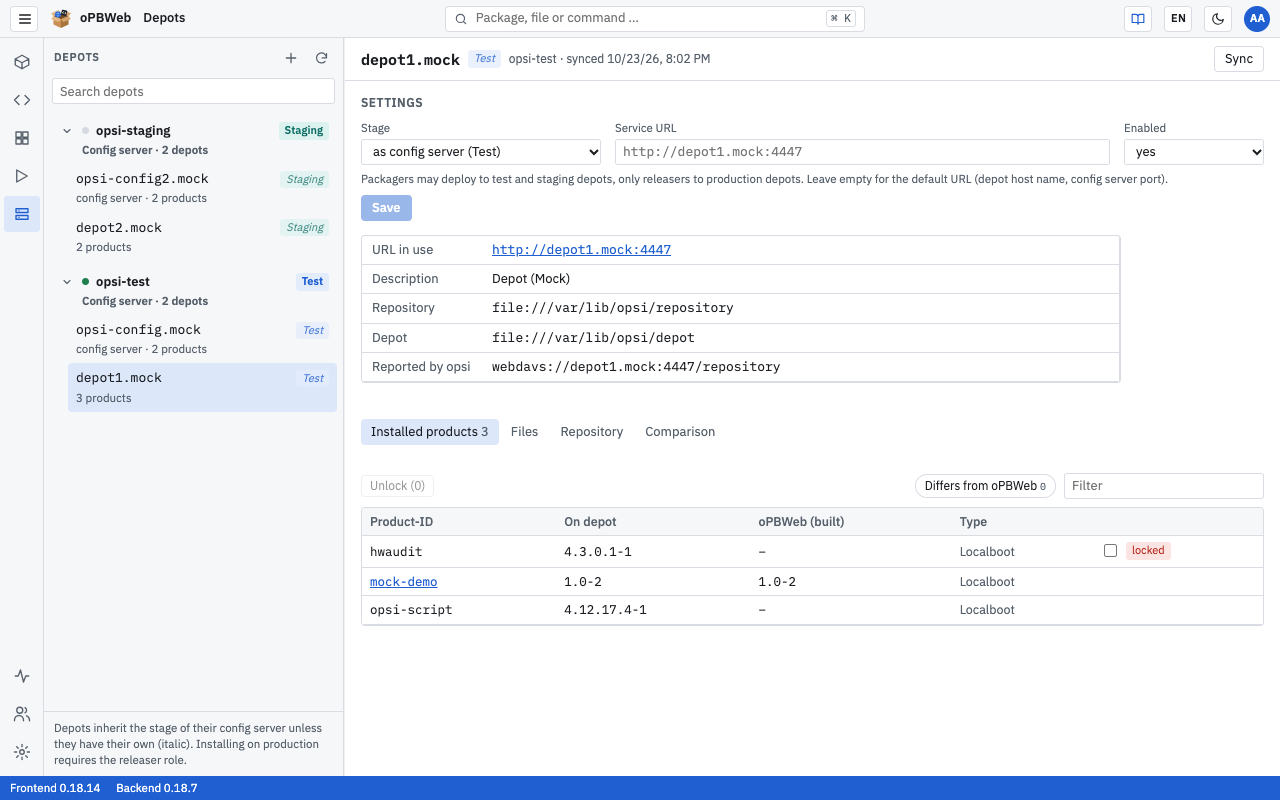
Stages: Test, Staging and Production
Every depot has one of three stages. It is shown as a badge in the depot list and in the depot’s header.
| Stage | Install, uninstall, unlock, delete from repository |
|---|
| Test | Packager and above |
| Staging | Packager and above |
| Production | Releaser and above |
This lets Packagers try out new packages on test and staging depots, while only Releasers and Administrators deploy to production depots. In the Install … dialog, a Packager sees production depots with the hint “requires releaser role” and cannot select them. The complete role overview is in Users and roles
.
Inherited stage
Every config server has a stage of its own. Its depots take it over as long as you do not set a stage of their own for a depot. You recognize an inherited stage by the italic, lighter badge with the tooltip “inherited from the config server”. If you change the stage of the config server, the stage of all depots that inherit it changes too.
So it is usually enough to set the stage once on the config server: a test server gets Test, and all its depots are test depots. You only need a stage of their own for individual depots that should differ from their config server.
Warning
New config servers start in the Production stage, and new depots inherit the stage of their config server. This is intentional: no Packager should be able to deploy by mistake to a depot that nobody has classified. So set the stage of a test or staging server right when you add it.
Changing depot settings
- Open Depots in the activity bar and select the depot on the left.
- Set the fields in the Settings block:
- Stage — “as config server (stage)” (the stage is inherited), Production, Staging or Test.
- Service URL — address of opsiconfd on this depot, used by oPBWeb to upload packages and to access the depot’s files. Leave the field empty to use the default URL: the depot’s host name with the config server’s port, for example
https://depot01.example.local:4447. For the config server itself, the default URL is the Config server URL from its form
. The default URL is shown as a gray placeholder in the field. - Enabled — yes or no. A disabled depot stays in the list but is locked for install, uninstall, unlock and repository deletion. In the Install … dialog, it appears as “disabled”.
- Click Save. The message “Settings saved” confirms this.
Below the fields, oPBWeb shows what actually applies: URL in use is the address oPBWeb uses to reach the depot; clicking it opens the depot in a new tab. You also see what opsi itself reports, such as the Repository and Depot paths and the URL under Reported by opsi.
Tip
You only need a custom Service URL if the depot cannot be reached by its host name or opsiconfd runs on a different port there. Use the host name here as well, not an IP address, so that certificate verification works.
How depots get into oPBWeb
oPBWeb syncs the depots with their config server:
- at every automatic check, that is every five minutes (default, configurable under Settings → Worker) for each reachable config server
- right after adding a config server and after Test connection in the config server form
- when a Packager or Administrator clicks Sync in Depots: in the header of a depot or of a config server, this syncs only that one config server (“Synchronize depots (name)”); ⟳ at the top of the list syncs all config servers (“Synchronize depots of all config servers”)
A sync never touches the depots of another config server. A sync via Sync or ⟳ also reads the workbench of the config server (for the “Workbench” information in the package list); the automatic sync does not; instead, the worker reads the workbench at its own interval (see Settings
). During a sync, the following applies:
| Situation | What oPBWeb does |
|---|
| The config server reports a new depot. | The depot is created with the inherited stage (“as config server”) and Enabled yes. |
| The config server reports a known depot. | The data from opsi and the installed products are updated. Stage, service URL and enabled state stay as you set them. |
| The config server no longer reports a depot. | The depot is kept with its settings and marked as “no longer present”. It is locked for all depot actions. |
| A depot marked as “no longer present” is reported again. | The marking disappears, and the previous settings still apply. |
| The reported depot already belongs to a different config server in oPBWeb (for example because the same server is set up under two URLs). | The depot is skipped; the job log reports “Depot … already belongs to config server … and is skipped”. |
Removing depots that have disappeared
A depot that the config server no longer reports stays in oPBWeb until you remove it. The detail view then shows “The config server no longer reports this depot. It is kept with its settings until an admin removes it.”
- Select the depot in the list.
- Click Remove in the header. The button only exists for depots that are no longer reported.
- Confirm the prompt “Remove depot depot01.example.local and its settings from oPBWeb? Nothing changes on the opsi server.”
The message “Depot removed” confirms this. You cannot remove depots that the config server still reports; set them to Enabled no instead. If you remove an entire config server, all its depots disappear with it (see Removing a config server
).
Additional administrator permissions
Besides the depot settings, you have some permissions in daily work that other roles lack:
- Cancel other users’ jobs: Under Jobs, you can stop any queued job with Cancel, not just your own. Running jobs cannot be cancelled, not even by administrators. More on this in Jobs
.
- Maintain global snippets: Only administrators create snippets with the Visibility “Global (everyone)”, change and delete them, or import snippets into the global area. Everyone else sees global snippets; Packagers can take them over as their own copy with Duplicate. How to use snippets is described in Snippets
.
System Status
Monitor services, analyze database and object storage, browse the bucket and clean up objects that are no longer used
Role: Administrator
Overview
The System status area shows whether all oPBWeb services are running and gives administrators insight into how the database and object storage are used. Open it with the System status icon at the bottom of the activity bar.
All roles see the services table. Only administrators see the Database, Object storage (with Clean up …) and Bucket contents sections.
Checking services
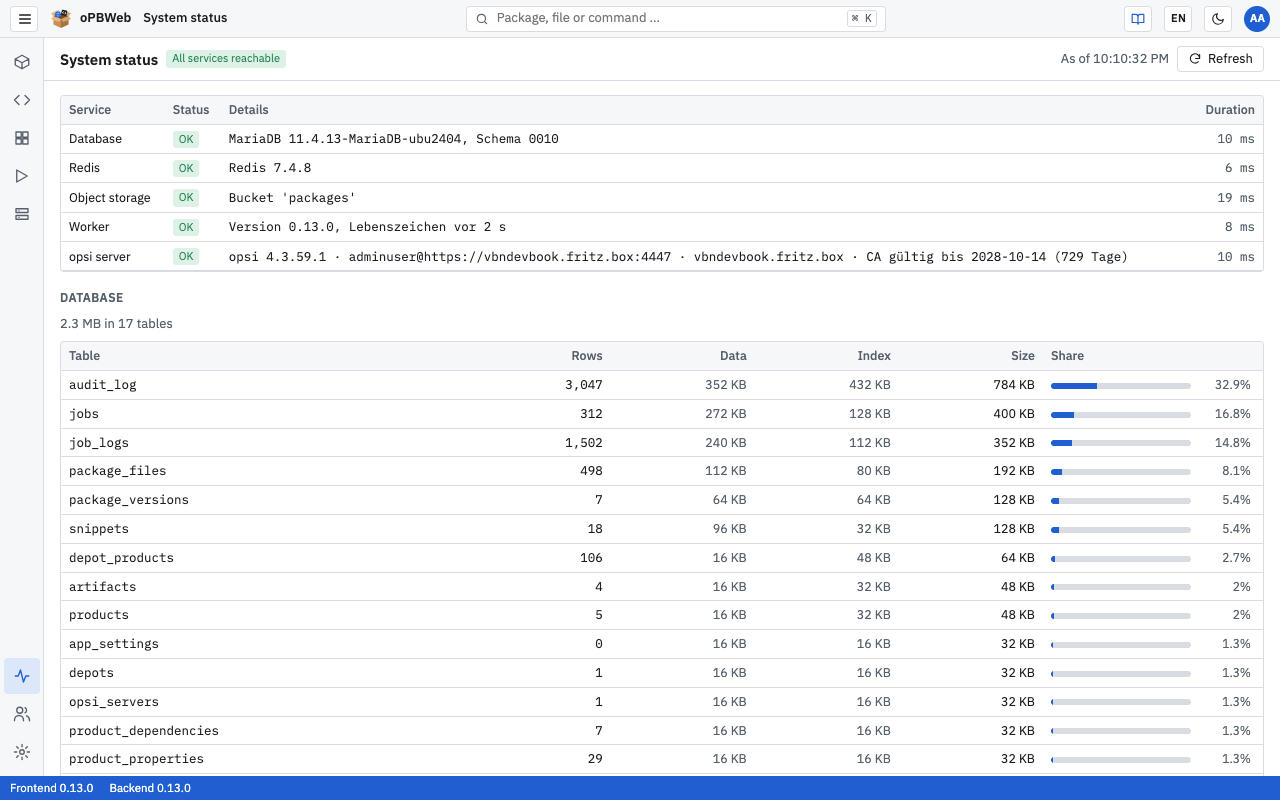
In the toolbar, a badge summarizes the state: “All services reachable”, “At least one service is not reachable” or “API not reachable”. Next to it, you see “As of HH:MM:SS”. The table refreshes itself every ten seconds; Refresh reloads it immediately.
The texts in the Details column come from the server and follow the interface language.
| Service | What is checked | Typical content of Details |
|---|
| Database | Connection to MariaDB | Version and schema revision |
| Redis | Connection to Redis (job queue) | Redis version |
| Object storage | Whether the bucket exists | Bucket name or “Bucket ‘…’ is missing” |
| Worker | Heartbeat of the worker that runs all jobs | “Version …, sign of life n s ago”; error on “no sign of life” or if the last one is older than 90 seconds |
| opsi server | Result of the last automatic check of all config servers | one entry per config server, “Name: opsi version · user@URL · depots · CA valid until …”, separated by “|”; “no config server configured” if there is none |
The Status column shows OK or Error, Duration the response time of the check in milliseconds.
The opsi server row is set to Error as soon as one of the config servers is not reachable, serves a new CA certificate or its CA expires in less than 60 days, even if all others are fine. The entry of the affected server names the reason, for example “Server delivers a new CA certificate, please accept it under Depots”. What to do then is described in Config servers
. If it shows “not checked yet”, the worker has not completed a check yet; the result arrives after five minutes at the latest.
Note
If Worker shows Error, all jobs (build, install, import, sync) stay stuck in the queue. Technical administration investigates the cause, see Troubleshooting
.
Storage usage
The Database and Object storage sections are loaded when you open the page and with Refresh, not every ten seconds.
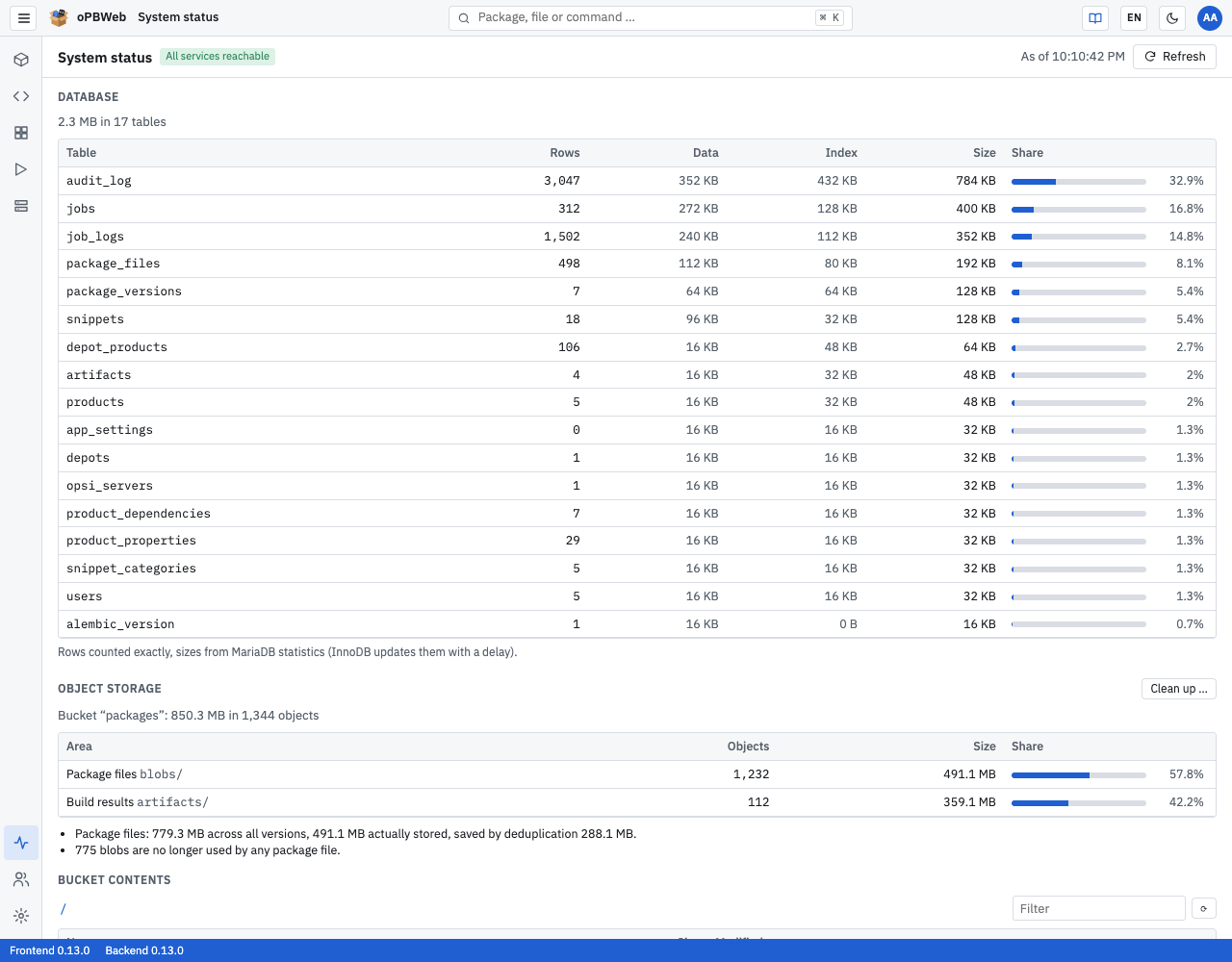
Database
Above the table, you see the total size, for example “48 MB in 21 tables”. The table lists every database table, largest first:
| Column | Content |
|---|
| Table | Name of the table |
| Rows | Number of records, counted exactly |
| Data | Space used by the data |
| Index | Space used by the indexes |
| Size | Data and index combined |
| Share | Share of the total size as a bar and a percentage |
The sizes come from MariaDB statistics, which are updated with a delay. After larger changes, they are therefore not quite exact for a while.
Object storage
The object storage holds the package files and build results. Above the table, you see “Bucket “packages”: 4.8 GB in 1,523 objects”. The table splits the content into areas:
| Area | Content |
|---|
Package files (blobs/) | Contents of all files of all package versions. Each content is stored only once, even if many versions contain the same file. |
Build results (artifacts/) | Built .opsi files with .md5 and .zsync |
Uploads (temporary) (uploads/) | Uploaded files that are still being processed |
Downloads (temporary) (downloads/) | Files prepared for a download from a depot |
Bucket root (/) | Objects outside these areas |
oPBWeb automatically deletes uploads and downloads older than 24 hours every night.
Below the table, up to three figures are shown:
- Savings through deduplication: “Package files: 12.6 GB across all versions, 4.1 GB actually stored, saved by deduplication 8.5 GB.” The more versions of a package exist, the greater the savings, because unchanged files are not stored twice.
- Unused blobs: “37 blobs are no longer used by any package file.” Such contents remain after versions or files have been deleted. You remove them with Clean up …
.
- Missing blobs (red): “2 package files refer to missing blobs.” This should never happen and indicates a damaged or incompletely restored object storage. Contact technical administration.
Browsing the bucket contents
Under Bucket contents, you can browse the object storage like a file tree. The browser is read-only: you can view and download objects, but not change or delete anything.
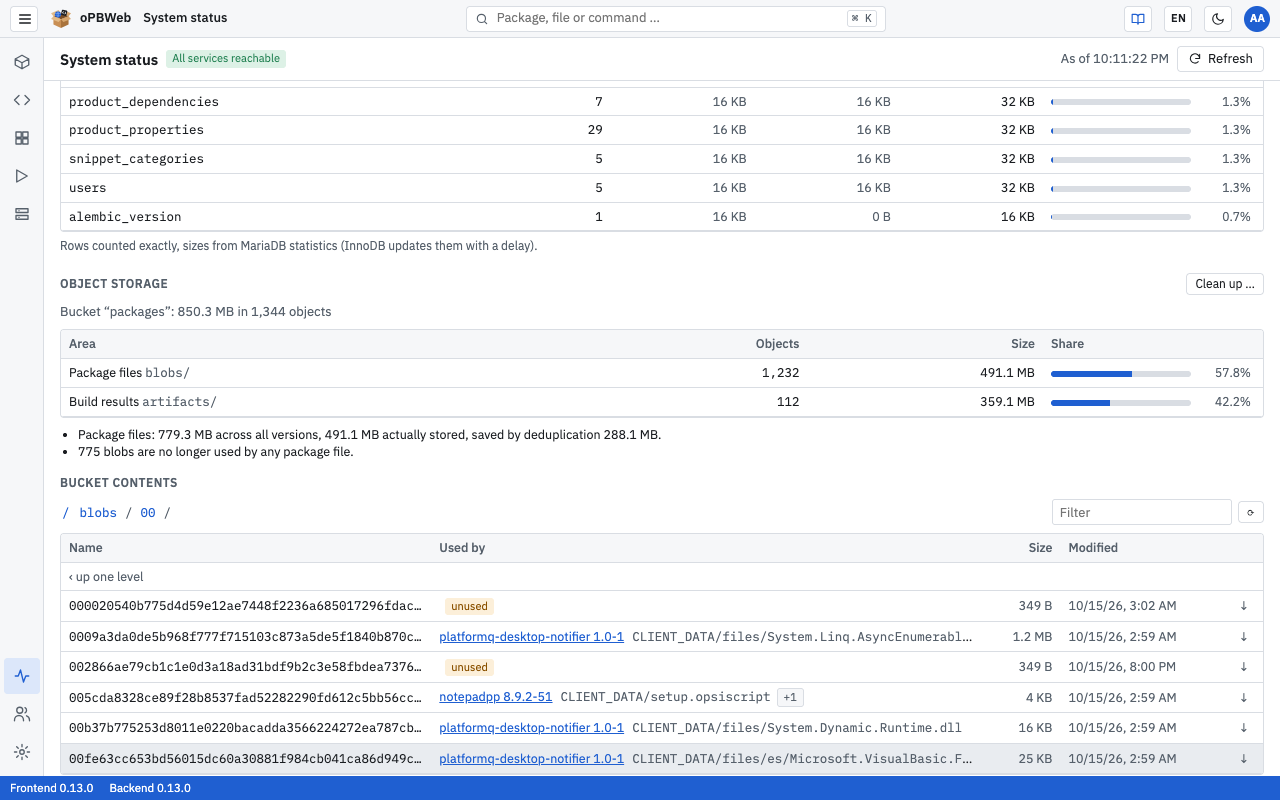
- Click a folder to open it. Use the path bar above the table (starting with
/) or the “‹ up one level” row to go back. - Narrow down the list with the Filter field. ⟳ reloads the folder.
- To download, click ↓ at the end of the row or double-click the row.
The table shows Name, Size and Modified. In the blobs/ and artifacts/ areas, there is an additional Used by column:
- A link leads to the package version that uses the object; for package files, the file path within the package follows.
- “+n” means that further versions or files use the same object. Hover over the cell to see the list.
- unused means that no package version needs the object any more. It is a candidate for cleanup.
The objects under blobs/ are named after the SHA-256 hash of their content, not after the file name in the package. The Used by column shows which file is behind them.
Cleaning up object storage
When versions or files are deleted, their contents initially remain in the object storage. With Clean up …, you remove package files (blobs/) and build results (artifacts/) that nothing uses any more. Cleanup works in two steps: a dry run determines what would be deleted, and deletion only happens after you confirm.
- In the Object storage section, click Clean up …. A dry run starts as a job; the button shows “Running …”.
- If the dry run finds nothing, “Nothing to clean up” or “Nothing to clean up, 5 unused objects are younger than 24 hours” appears next to the button. You are done.
- Otherwise, the Clean up object storage dialog opens. It shows:
- the total number and size, for example “The dry run found 37 unused objects (1.2 GB).”
- number and size per area
- a list of examples; the full list is in the job log under Jobs
- how many unused objects are younger than 24 hours and are kept
- Check the information and click Delete 37 objects. Cancel closes the dialog without deleting anything.
- The deletion run starts as a second job. Afterwards, the button shows, for example, “37 objects deleted, 1.2 GB freed”.
Several safety rules apply to cleanup:
- 24-hour grace period: Only objects older than 24 hours qualify. This spares freshly uploaded contents that are just being assigned to a version.
- Dry run valid for one hour: Only objects from the confirmed dry run are deleted. If it is older than one hour, oPBWeb refuses to delete (“The dry run is missing or older than one hour. Please check again.”). Start Clean up … again in that case.
- Re-check on deletion: Each object is checked once more immediately before deletion. If it is in use again by then, it is kept.
- Not during imports and builds: As long as an import or build is queued or running, no cleanup starts (“Imports or builds are running. Please start again after they have finished.”). If an import or build begins during deletion, the deletion run stops. Objects already deleted stay deleted; you catch the rest in the next run.
The confirmed deletion run appears in the Audit log
as storage.cleanup.
Tip
Ideally, clean up at a time when nobody is building or importing, for example after business hours. The deletion run then completes without interruption.